1. Introduction
This manual provides detailed instructions for the setup, operation, maintenance, and troubleshooting of your NEOSMAY KC12-F Fanless Industrial Mini PC. Please read this manual thoroughly before using the device to ensure proper functionality and longevity.
2. Product Overview
The NEOSMAY KC12-F is a high-performance fanless industrial mini PC designed for various applications requiring robust and silent operation. It features an Intel 12th Gen Core i5-1240P processor, ample memory and storage, and extensive connectivity options.
Key Features:
- Processor: Intel 12th Gen Core i5-1240P (12 Cores, 16 Threads, up to 4.4 GHz)
- Graphics: Intel Iris Xe Graphics
- Memory: 16GB DDR4 RAM (Dual Channel, expandable up to 64GB)
- Storage: 512GB M.2 2280 NVME SSD (expandable, supports M.2 SATA SSD)
- Network: Dual 2.5 Gigabit Ethernet, WiFi 6, Bluetooth 5.2
- Display Output: Supports 4K 60Hz Quad Display via 2x HDMI 2.0, 1x DP 1.4, 1x Full Function Type-C
- Ports: USB 3.2 x 4, USB 2.0 x 4, Full Function Type-C (20Gbps), RS485 COM, RS232 COM, Audio/MIC Jack
- Design: Fanless aluminum shell with S-shaped copper sheet for efficient heat dissipation.
Port Layout:

Image 2.1: Front and Rear View of the NEOSMAY KC12-F Mini PC. The front panel includes power button, USB 3.2, USB 2.0, Type-C, and audio jacks. The rear panel features DC input, dual 2.5Gbe Ethernet, HDMI, DisplayPort, additional USB ports, and COM ports.
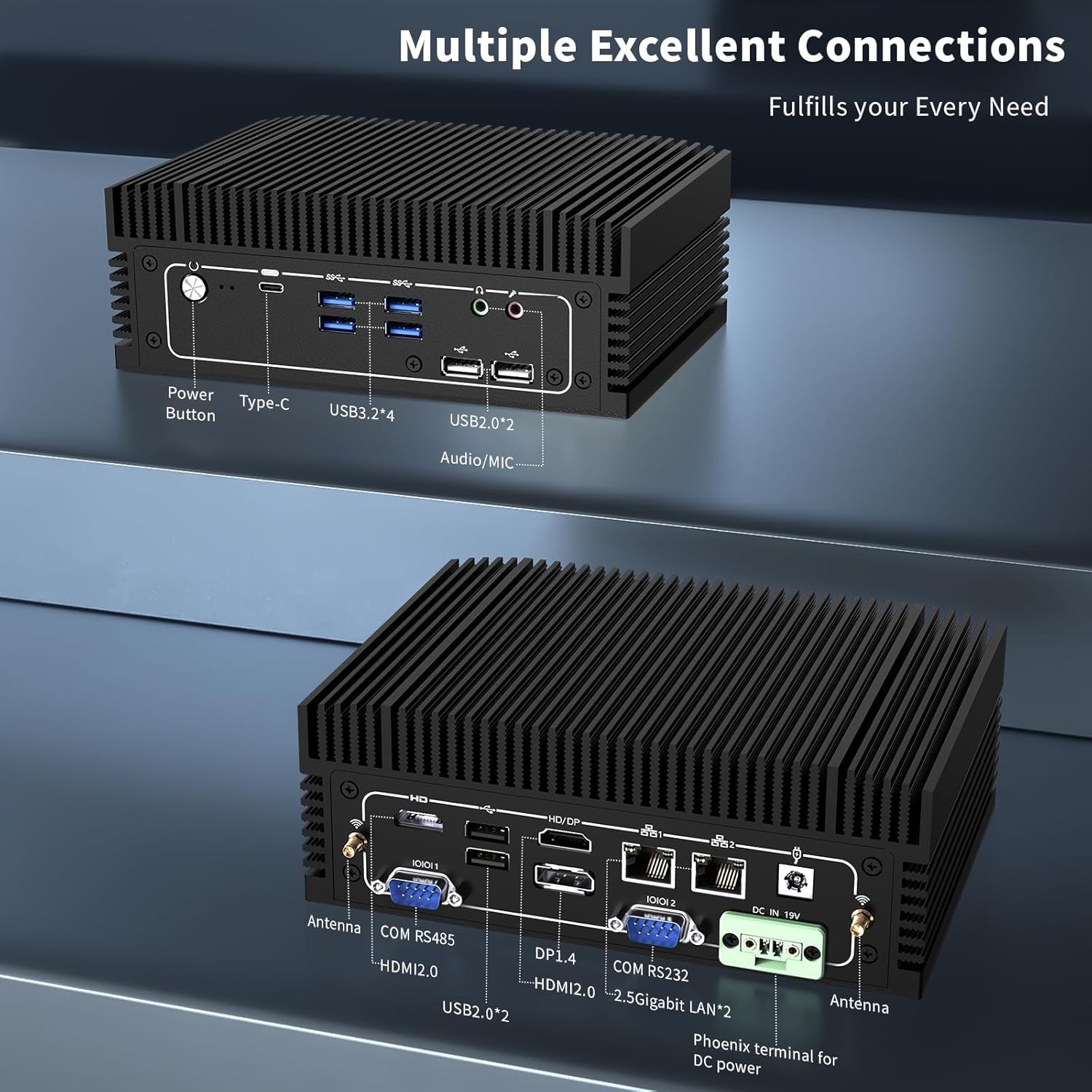
Image 2.2: Detailed view of the front and rear ports. The front includes a power button, Type-C port, 4x USB 3.2 ports, 2x USB 2.0 ports, and an Audio/MIC Jack. The rear includes 2x HDMI 2.0, 1x DP 1.4, 2x 2.5 Gigabit LAN, 2x USB 2.0, COM RS485, COM RS232, DC IN 19V, and antenna connectors.
3. Setup Instructions
3.1 Package Contents
Before proceeding, ensure all items are present in the package:

Image 3.1: Contents of the NEOSMAY KC12-F Mini PC package. Includes the Mini PC unit, power adapter, power cord, Wi-Fi antennas, VESA mount bracket, and screws.
- NEOSMAY KC12-F Mini PC Unit
- Power Adapter (19V DC)
- Power Cord
- Wi-Fi Antennas
- VESA Mount Bracket and Screws
3.2 Initial Connection
- Connect Display: Connect your monitor(s) to the Mini PC using HDMI, DisplayPort, or Type-C cables. The device supports up to four displays simultaneously.
- Connect Peripherals: Plug in your keyboard, mouse, and any other USB devices into the available USB ports.
- Connect Network: For a wired connection, connect an Ethernet cable to one of the 2.5 Gigabit LAN ports. For wireless, screw in the provided Wi-Fi antennas to the antenna connectors on the rear panel.
- Connect Power: Connect the power adapter to the DC IN 19V port on the Mini PC, then plug the power cord into an electrical outlet.
4. Operating Instructions
4.1 Power On/Off
- Power On: Press the power button located on the front panel of the Mini PC. The power indicator light will illuminate.
- Power Off: To shut down the system, use the operating system's shutdown function. Alternatively, press and hold the power button for 5-7 seconds to force a shutdown (not recommended for regular use).
4.2 Display Configuration
The Mini PC supports up to four independent 4K@60Hz displays. After connecting multiple monitors, you may need to configure the display settings within your operating system (e.g., Windows Display Settings) to extend or duplicate your desktop.

Image 4.1: Illustration of the Mini PC supporting a quad 4K display setup, demonstrating its capability for multi-monitor environments.
5. Maintenance
5.1 Cleaning
- Ensure the Mini PC is powered off and unplugged before cleaning.
- Use a soft, dry cloth to wipe the exterior. For stubborn marks, a slightly damp cloth can be used, followed by a dry cloth.
- Avoid using harsh chemicals, solvents, or abrasive cleaners.
- As this is a fanless design, there are no internal fans to clean. However, ensure the heat sink fins are free from dust accumulation to maintain optimal thermal performance. Use compressed air if necessary.
5.2 Storage and Environment
- Store the Mini PC in a cool, dry place away from direct sunlight and extreme temperatures.
- Avoid placing the device in areas with high humidity or excessive dust.
- Ensure adequate airflow around the device, especially around the heat sink fins, even though it is fanless.

Image 5.1: Diagram illustrating the fanless aluminum case design and S-shaped copper sheet for efficient heat dissipation, ensuring stable operation.
6. Troubleshooting
This section addresses common issues you might encounter with your Mini PC.
6.1 No Power
- Check Power Connection: Ensure the power adapter is securely connected to both the Mini PC and the electrical outlet. Verify the outlet is functional.
- Power Adapter: Confirm the power adapter is the correct one supplied with the Mini PC.
6.2 No Display Output
- Monitor Connection: Ensure the display cable (HDMI, DP, Type-C) is securely connected to both the Mini PC and the monitor.
- Monitor Input: Verify your monitor is set to the correct input source (e.g., HDMI 1, DisplayPort).
- Try Another Port/Cable: Test with a different display port on the Mini PC or a different cable if available.
- Monitor Functionality: Test your monitor with another device to ensure it is working correctly.
6.3 Network Connectivity Issues
- Wired Connection: Check the Ethernet cable connection. Ensure the router/modem is working.
- Wireless Connection: Ensure Wi-Fi antennas are securely attached. Verify Wi-Fi is enabled in the operating system and you are connected to the correct network with the correct password.
- Driver Issues: Ensure network drivers are properly installed and updated.
6.4 System Performance Issues
- Overheating: Although fanless, ensure the Mini PC is in a well-ventilated area and its heat sink fins are not obstructed.
- Software: Close unnecessary applications. Check for malware or viruses.
- Storage: Ensure the SSD is not critically full.
7. Specifications
| Feature | Specification |
|---|---|
| Brand | NEOSMAY |
| Model Number | KC12-F |
| Processor | Intel 12th Gen Core i5-1240P (12 Cores, 16 Threads, up to 4.4 GHz) |
| Graphics Coprocessor | Intel Iris Xe Graphics (Integrated) |
| RAM | 16GB DDR4 (2x 8GB SODIMM, 3200MHz), expandable up to 64GB |
| Hard Drive | 512GB M.2 2280 NVME SSD (PCIE x 4), expandable |
| Max Screen Resolution | 3840 x 2160 (4K) |
| Display Outputs | 2x HDMI 2.0, 1x DP 1.4, 1x Full Function Type-C (supports 4K@60Hz quad display) |
| USB Ports | 4x USB 3.2, 4x USB 2.0 |
| Network | 2x 2.5 Gigabit Ethernet (Intel I226-V chip), WiFi 6, Bluetooth 5.2 |
| Other Ports | RS485 COM, RS232 COM, Audio/MIC Jack |
| Operating System | OS (Pre-installed Windows 11 Pro may vary by configuration) |
| Power Input | 19V DC |
| Item Weight | 5.28 pounds |
| Package Dimensions | 7.28 x 5.02 x 2.64 inches |
8. Warranty and Support
NEOSMAY provides comprehensive support for its products. For technical assistance, warranty claims, or general inquiries, please use the contact information below.

Image 8.1: NEOSMAY Sales and Support contact details, including email and telephone number.
- Email: info@newsmaytech.com
- Telephone (CN): +86-0755-89456786 (Mon-Sat 9:00-18:00 GMT)
- Online Chat: Log into your Amazon account, navigate to 'Your Orders', and select 'Ask Product Question'.
- Service Availability: 7 days a week, 24 hours a day support is available.
Please retain your proof of purchase for warranty purposes.


