1. Introduction
This manual provides detailed instructions for the setup, operation, maintenance, and troubleshooting of your Gvyugke Captain 780 Wireless Gaming Headset. Please read this manual thoroughly before using the product to ensure optimal performance and longevity.

Figure 1: Gvyugke Captain 780 Wireless Gaming Headset
2. Package Contents
Verify that all items listed below are included in your product package:
- 1 x Gvyugke Captain 780 Wireless Gaming Headset
- 1 x 2.4GHz USB Wireless Dongle
- 1 x USB-C Charging Cable
- 1 x 3.5mm Audio Cable
- 1 x User Manual (this document)

Figure 2: Headset and included accessories
3. Product Features
- 4-in-1 Connectivity: Supports 2.4GHz wireless, Bluetooth 5.3, and wired (3.5mm) connections for versatile use across multiple platforms.
- Immersive 7.1 Surround Sound: Equipped with 50mm speakers for enhanced audio clarity and positional accuracy in games.
- Noise-Canceling Microphone: A rotating microphone designed to reduce background noise for clear communication.
- Extended Battery Life: Features a 1200mAh battery providing up to 70 hours of playtime, with quick charge capability (2 hours of use after 5 minutes of charging).
- Comfortable Design: Protein leather ear pads with memory foam and an adjustable headband ensure comfort during prolonged use.
- Foldable and Lightweight: Designed for portability and easy storage.
- Blue LED Lighting: Integrated lighting effects enhance the gaming aesthetic.
4. Setup Guide
4.1. Connecting via 2.4GHz Wireless (USB Dongle)
This mode offers low-latency audio for gaming on compatible devices.
- Insert the 2.4GHz USB wireless dongle into an available USB port on your PC, PS5, PS4, or Nintendo Switch (in docked mode).
- Power on your Gvyugke Captain 780 headset.
- Slide the connection mode switch on the headset to the '2.4G' position.
- The headset will automatically pair with the dongle. A solid blue light on the headset indicates a successful connection.

Figure 3: 2.4GHz USB Wireless Dongle
4.2. Connecting via Bluetooth 5.3
Use Bluetooth for mobile devices, tablets, and laptops.
- Ensure the headset is powered on.
- Slide the connection mode switch on the headset to the 'BT' (Bluetooth) position. The LED indicator will flash blue, indicating pairing mode.
- On your device (phone, tablet, laptop), go to Bluetooth settings and search for 'Captain 780'.
- Select 'Captain 780' to pair. The LED indicator will turn solid blue upon successful connection.
4.3. Connecting via Wired (3.5mm Audio Cable)
For devices that support a 3.5mm audio jack, such as Xbox controllers or when battery is low.
- Connect one end of the 3.5mm audio cable to the headset's 3.5mm port.
- Connect the other end to the 3.5mm audio jack on your device.
- The headset will automatically switch to wired mode.
4.4. Device Compatibility Overview

Figure 4: 4-in-1 Connection Compatibility
| Connection Mode | Compatible Devices | Notes |
|---|---|---|
| 2.4GHz Wireless (USB-A) | PC, PS4, PS5, Laptop, Desktop | Low latency, stable connection. |
| 2.4GHz Wireless (USB-C) | Nintendo Switch, Phone, Tablet | Requires USB-C adapter for some devices. |
| Bluetooth 5.3 | Phone, Tablet, Laptop | For general audio and calls. |
| Wired (3.5mm Jack) | PS4, PS5, Xbox, PC, Nintendo Switch | Microphone functionality may be limited on Switch in wired mode due to platform limitations. |
5. Operating Instructions
5.1. Headset Controls
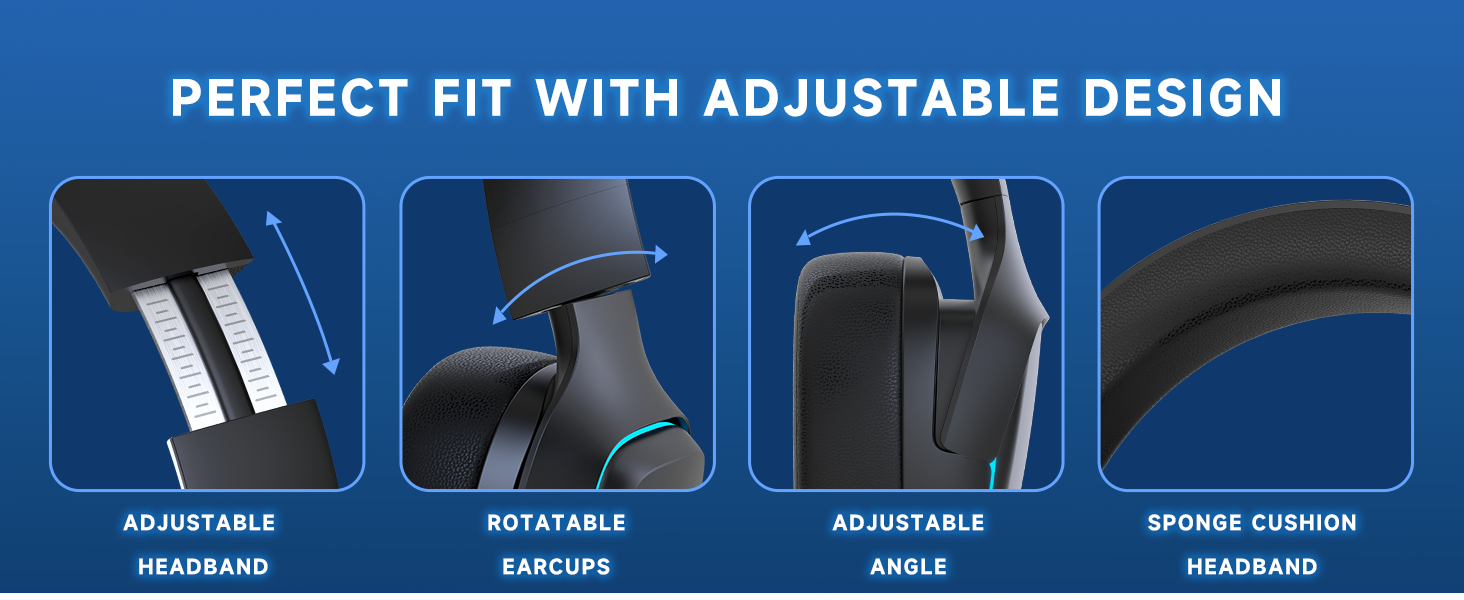
Figure 5: Headset Control Layout
- Power Status Indicator: Displays battery level and connection status.
- Power/Mute Button: Press and hold to power on/off. Short press to mute/unmute microphone.
- Volume Wheel: Scroll up or down to adjust audio volume.
- BT/2.4G Mode Switch Button: Slide to switch between Bluetooth and 2.4GHz wireless modes.
- Type-C Charging Port: Connect the USB-C cable for charging.
- Charging Status Indicator: Shows charging progress.
5.2. Microphone Usage
The rotating noise-canceling microphone can be adjusted for optimal voice pickup. Flip the microphone up to automatically mute it, and flip it down to unmute.

Figure 6: Noise-Canceling Microphone
5.3. Charging the Headset
Connect the provided USB-C charging cable to the headset's charging port and a power source. The charging indicator will show the charging status. A full charge provides up to 70 hours of playtime. Quick charge provides 2 hours of use after just 5 minutes of charging.

Figure 7: 70-Hour Battery Life
6. Maintenance
- Cleaning: Use a soft, dry cloth to clean the headset. Avoid using harsh chemicals or abrasive materials.
- Storage: Store the headset in a cool, dry place away from direct sunlight and extreme temperatures. The foldable design allows for compact storage.
- Battery Care: To prolong battery life, avoid fully discharging the headset frequently. Charge it regularly, even if not in use for extended periods.

Figure 8: Foldable Design for Storage
7. Troubleshooting
7.1. No Sound or Low Volume
- Ensure the headset is powered on and connected correctly (2.4GHz, Bluetooth, or wired).
- Check the volume wheel on the headset and the volume settings on your connected device.
- If using 2.4GHz wireless, ensure the USB dongle is securely plugged in and recognized by your device.
7.2. Microphone Not Working
- Ensure the microphone is flipped down and not muted via the power/mute button.
- Check the microphone input settings on your connected device. Select 'Captain 780' as the input device.
- For Nintendo Switch in wired mode, microphone functionality may be limited.
7.3. Connection Issues
- 2.4GHz: Ensure the dongle is within range and there are no major obstructions. Try re-pairing by turning the headset off and on, and re-inserting the dongle.
- Bluetooth: Ensure Bluetooth is enabled on your device and the headset is in pairing mode. Forget the device in your Bluetooth settings and try pairing again.
7.4. Echo in Microphone
If you experience an echo in the microphone, especially on PC, it might be due to a monitoring function being enabled. Follow the steps in the video below to adjust your sound settings.
Video 1: How to resolve microphone echo on PC. This video demonstrates navigating Windows sound settings to disable the microphone monitoring function, which can cause an echo.
8. Technical Specifications
| Feature | Specification |
|---|---|
| Model Name | Captain 780 |
| Connectivity Technology | Wireless (2.4GHz, Bluetooth 5.3), Wired (3.5mm Jack) |
| Audio Driver Size | 50 mm |
| Noise Control | Passive Noise Cancellation |
| Frequency Response | 20 KHz |
| Audio Latency | 20 Milliseconds (2.4GHz) |
| Battery Life | Up to 70 Hours |
| Charging Time | 2 Hours |
| Item Weight | 0.49 Kilograms (1.08 pounds) |
| Material | Plastic |
| Compatible Devices | PC, PS5, PS4, Nintendo Switch, Phone, Xbox (wired) |
9. Warranty and Support
9.1. Warranty Information
Gvyugke products are manufactured with high-quality standards. For specific warranty details and terms, please refer to the warranty card included in your product packaging or visit the official Gvyugke website.
9.2. Customer Support
If you encounter any issues or have questions regarding your Gvyugke Captain 780 headset, please contact our customer support team. You can find contact information and additional resources on the Gvyugke Brand Store on Amazon.