Introduction
This manual provides essential information for setting up, operating, and maintaining your Pisichen 27-inch 4K UHD Touchscreen Monitor. Please read these instructions carefully before use to ensure proper functionality and longevity of your device.
Package Contents
Ensure all items listed below are present in your package. If any items are missing or damaged, please contact customer support.
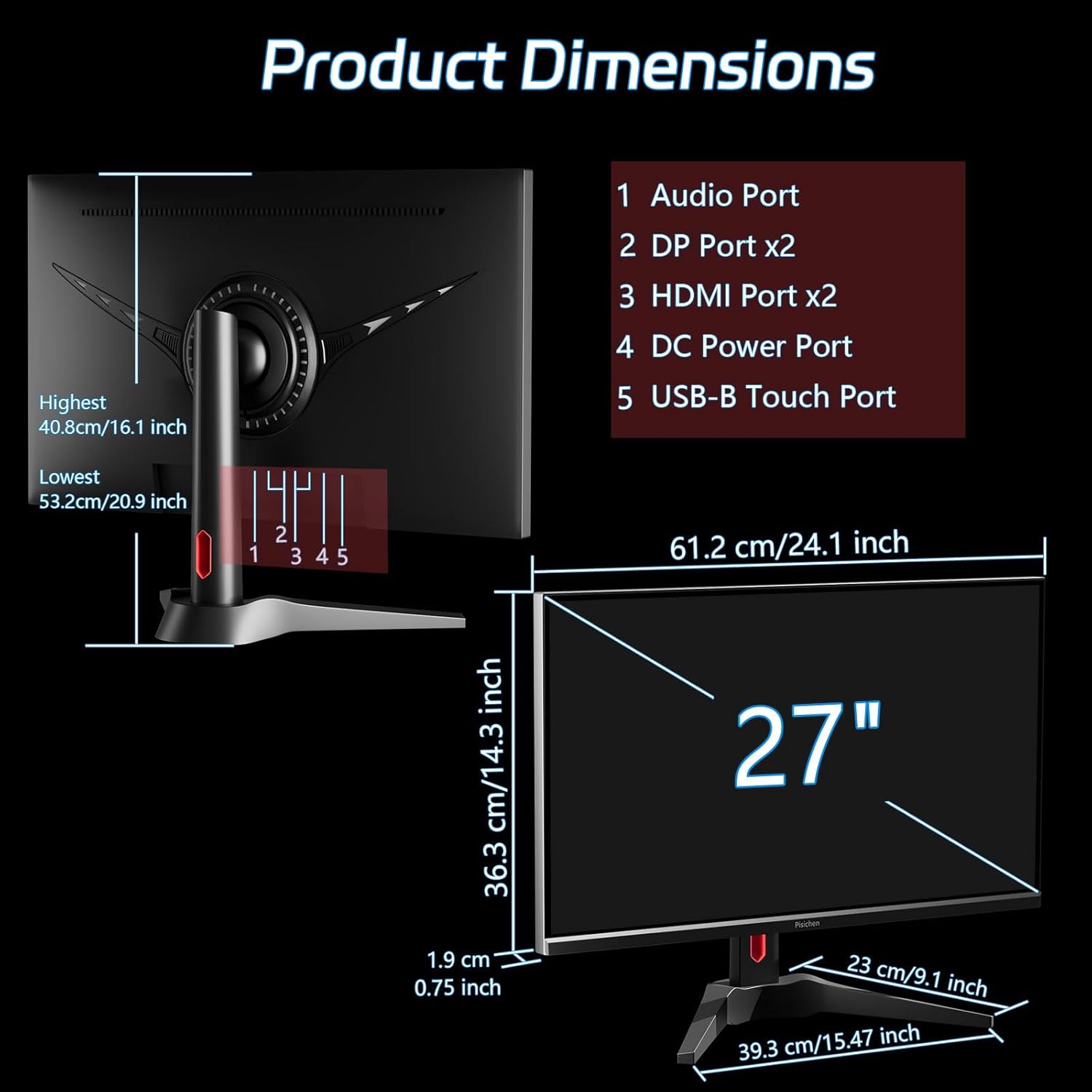
Image showing the monitor and included accessories: 1. DP cable, 2. USB A-B cable, 3. HDMI cable, 4. DC Power Adapter, 5. User Manual, 6. Monitor Base.
- Pisichen 27-inch 4K UHD Touchscreen Monitor
- Monitor Base
- DP Cable
- USB A-B Cable (for touch functionality)
- HDMI Cable
- DC Power Adapter
- User Manual
Product Overview
Monitor Features
The Pisichen 27-inch 4K UHD Touchscreen Monitor is equipped with a 10-point capacitive touchscreen, delivering precise and responsive interaction. It features a 4K (3840x2160) resolution, a 60Hz refresh rate, a 3000:1 contrast ratio, 400 cd/m² brightness, and a 95% DCI-P3 color gamut for vibrant and accurate visuals. Integrated blue light reduction and flicker-free technology contribute to a comfortable viewing experience and help reduce eye strain.
Ports and Dimensions
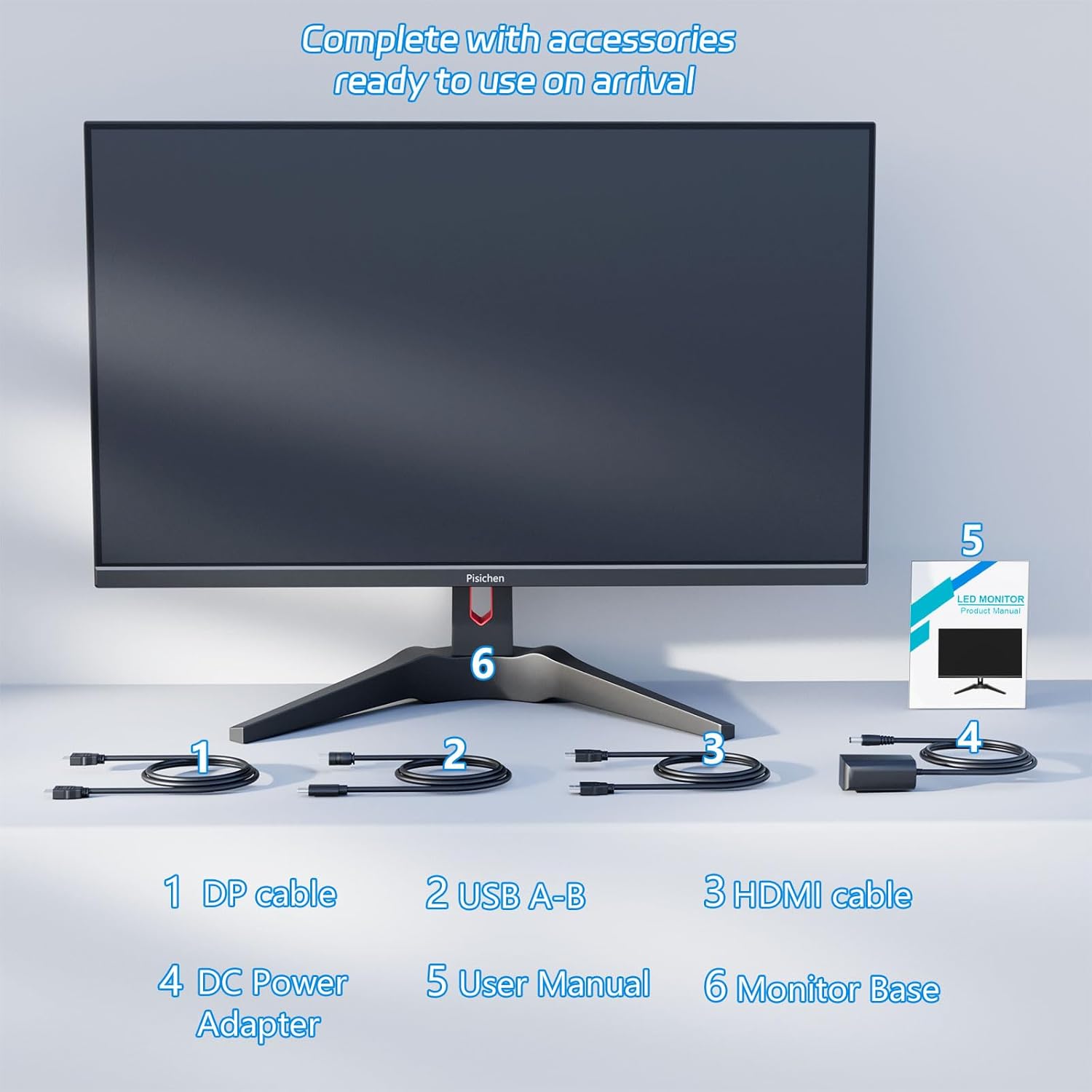
Rear view of the monitor detailing port locations and overall dimensions. Ports include Audio Port, 2x DP Ports, 2x HDMI Ports, DC Power Port, and USB-B Touch Port. Dimensions are 61.2 cm (24.1 inch) width, 36.3 cm (14.3 inch) height, and 1.9 cm (0.75 inch) thickness without stand. Height with stand is adjustable from 40.8 cm (16.1 inch) to 53.2 cm (20.9 inch).
The monitor offers versatile connectivity options:
- Audio Port: For connecting external audio devices.
- DC Power Port: For connecting the power adapter.
- USB-B Touch Port: Essential for enabling touchscreen functionality when connected to a computer.
- DisplayPort (DP) x2: For high-resolution video input.
- HDMI Port x2: For high-resolution video input.
Setup Instructions
1. Assembling the Monitor Stand
Carefully attach the monitor base to the monitor. Ensure all screws are tightened securely to prevent instability.
2. Connecting to a Device
Connect the monitor to your computer or other compatible device using the appropriate cables.
- Video Connection: Use an HDMI or DisplayPort cable to connect the monitor to your device's video output port.
- Touch Functionality: For the touchscreen to work, connect the supplied USB A-B cable from the monitor's USB-B Touch Port to an available USB port on your computer.
- Power Connection: Connect the DC Power Adapter to the monitor's DC Power Port and then plug it into a power outlet.

Diagram illustrating video and USB connections for the monitor to a desktop computer, emphasizing the USB 2.0 signal cable for touch functionality.
Important Note for Touch Functionality: The USB A-B cable must be connected from the monitor's USB-B Touch Port to your computer for the touch function to operate.
3. VESA Mounting
The monitor is compatible with VESA mounting standards. When installing with a VESA mount, it is crucial to use M4 fine thread screws (0.5mm pitch). Standard M4 screws (0.7mm pitch) are not compatible and may damage the mounting holes.

Image showing the monitor mounted on a wall, demonstrating VESA compatibility and space-saving benefits.
Operating Instructions
1. Touchscreen Operation
The monitor's 10-point capacitive touchscreen allows for direct and fluid interaction. Use gestures such as swiping, pinching to zoom, and drawing directly on the screen for seamless navigation and content control.

Image depicting users engaging with the monitor's touchscreen for various tasks, highlighting its responsive and intuitive nature.
2. Display Modes
The monitor supports three primary display modes to suit your workflow:
- Duplicate Mode: Mirrors your primary display.
- Extend Mode: Extends your desktop across multiple screens, increasing workspace.
- Second Screen Mode: Uses the monitor as a standalone secondary display.
These modes can be configured for both horizontal and vertical display orientations through your operating system's display settings.
3. Adjusting the Monitor Position
The monitor's ergonomic stand allows for flexible positioning to optimize your viewing comfort and productivity:
- Height Adjustment: Raise or lower the screen to eye level.
- Tilt Adjustment: Adjust the screen's vertical angle to reduce glare.
- Swivel Adjustment: Rotate the screen horizontally (left and right).
- Pivot Adjustment: Rotate the screen 90 degrees for portrait mode.

Illustrations demonstrating the monitor's ergonomic adjustments, including height, tilt, swivel, and 90-degree pivot for portrait mode.
Note on Vertical Rotation: When rotating the screen 90 degrees vertically, first adjust the screen outward to its maximum angle, then rotate the monitor screen to the right.
4. HDR Technology
The monitor supports HDR (High Dynamic Range) mode, which enhances contrast and color accuracy, providing deeper blacks and brighter whites for a more immersive visual experience.
5. Eye Care Features
To promote visual comfort during prolonged use, the monitor incorporates blue light reduction and flicker-free technologies. These features help minimize eye strain and fatigue.
Maintenance
Cleaning the Screen
To clean the monitor screen, gently wipe it with a soft, lint-free cloth. For more persistent smudges, lightly dampen the cloth with water or a specialized non-abrasive screen cleaner. Avoid using harsh chemicals, alcohol-based cleaners, or abrasive materials, as these can damage the screen surface.
General Care
Keep the monitor in a clean, dry, and well-ventilated environment. Protect it from extreme temperatures, direct sunlight, and high humidity. Do not place heavy objects on the monitor or block its ventilation openings. Handle the monitor with care to avoid physical damage.
Troubleshooting
This section addresses common issues you might encounter. If your problem is not listed or persists, please contact customer support.
Issue: Touch Function Not Working
Symptom: The touchscreen is unresponsive or inaccurate.
Solution:
- Ensure the USB A-B cable is securely connected from the monitor's USB-B Touch Port to an available USB port on your computer. This connection is mandatory for touch functionality.
- For Windows users: Navigate to Control Panel > Hardware and Sound > Tablet PC Settings. Click "Calibrate" and follow the on-screen prompts to select the 27-inch touchscreen monitor.
- Note that certain devices and platforms (e.g., PS5, Xbox, Steam Deck, Nintendo Switch, Fire TV stick, and some Apple products) do not support touch functionality due to their operating system or hardware limitations.
Issue: Cursor Moves Erratically When Touching Screen (Windows)
Symptom: Touching the monitor causes the cursor on your primary PC screen to move instead of interacting with the touchscreen itself.
Solution: This indicates the touch input is incorrectly mapped to another display. To correct this, go to Control Panel > Hardware and Sound > Tablet PC Settings. Click "Calibrate" and ensure you select the correct 27-inch touchscreen monitor when prompted to identify your touch display.
Issue: Unable to Set Desired Resolution (e.g., 4K)
Symptom: The monitor does not display at its native 4K (3840x2160) resolution, or the option is unavailable.
Solution: Right-click on your desktop and select "Display Settings" (Windows) or "System Preferences > Displays" (macOS). Ensure the monitor is detected. Under "Multiple Displays" or similar settings, select the Pisichen monitor and choose the recommended resolution of 3840x2160 from the resolution options. Also, ensure your graphics card and video cable (HDMI or DisplayPort) support 4K resolution at 60Hz.
Issue: Power Adapter Does Not Fit
Symptom: The provided AC power adapter connector does not fit into the monitor's DC Power Port.
Solution: Verify that you are using the power adapter specifically supplied with your Pisichen monitor. If the issue persists, there might be a manufacturing defect; please contact customer support for assistance.
Issue: VESA Mount Screw Mismatch
Symptom: Standard M4 VESA mounting screws do not fit the monitor's VESA holes.
Solution: This monitor requires M4 fine thread screws (0.5mm pitch) for VESA mounting. Standard M4 screws typically have a 0.7mm pitch and are not compatible. Ensure you use the correct fine thread screws to avoid damaging the monitor's mounting points.
Specifications
| Feature | Specification |
|---|---|
| Screen Size | 27 Inches |
| Resolution | 4K UHD (3840 x 2160 Pixels) |
| Refresh Rate | 60Hz |
| Panel Type | IPS |
| Brightness | 400 cd/m² |
| Contrast Ratio | 3000:1 |
| Color Gamut | 95% DCI-P3 |
| Touchscreen | 10-Point Capacitive |
| Aspect Ratio | 16:9 |
| Connectivity | 2x HDMI, 2x DisplayPort, 1x USB-B Touch Port, Audio Port, DC Power Port |
| VESA Compatibility | Yes (M4 fine thread screws) |
| Product Dimensions (with stand) | 14.37 x 24.21 x 16.54 inches |
| Item Weight | 15.62 pounds |
| Model Number | UHD-27IN-4K |
Warranty and Support
Warranty Information
Please refer to the warranty card included in your product packaging for detailed information regarding the warranty period, coverage, and terms and conditions. Retain your purchase receipt as proof of purchase for any warranty claims.
Customer Support
If you encounter any issues not addressed in this manual, require technical assistance, or have questions about your Pisichen monitor, please contact our dedicated customer support team.
Email: support_2308@163.com
When contacting support, please provide your product model number (UHD-27IN-4K), a clear description of the problem, and any relevant images or videos that may help diagnose the issue.