Introduction
This manual provides detailed instructions for the installation, operation, and maintenance of your CINOP WiFi Smart Lock with Handle Set. Please read this manual thoroughly before installation and use to ensure proper function and safety.
The CINOP Smart Lock offers multiple unlocking methods including fingerprint, keypad, IC card, mobile application, and physical key. It is designed for residential doors and features remote access capabilities when connected to the included WiFi gateway.
Package Contents
Verify that all components are present before beginning installation.
- Exterior Handle Assembly with Keypad and Fingerprint Sensor
- Interior Handle Assembly with Battery Cover
- Deadbolt Latch Mechanism
- Strike Plate and Reinforcement Plate
- Mounting Screws and Hardware
- WiFi Gateway
- IC Cards (2 included)
- Physical Backup Keys (2 included)
- Installation Instruction Manual (this document)

Image: All components included in the CINOP Smart Lock package.
Specifications
| Feature | Detail |
|---|---|
| Model Number | CINOP |
| Material | Aluminum Metal |
| Color | Black |
| Lock Type | Biometric, Combination Lock, Deadbolt, Keypad |
| Special Features | Auto-Lock, Fingerprint, One-Touch Lock, Passcode Unlock, Touchscreen |
| Power Source | 4 AA Batteries (not included) |
| Emergency Power | USB-C Port |
| Door Thickness Compatibility | 1.49-1.89 inches (38-48mm) |
| Backset Compatibility | 2-3/8 inches (60mm) or 2-3/4 inches (70mm) |
| Connectivity | WiFi (via Gateway), Bluetooth (App Control) |
| Operating Temperature | -4 °F to 158 °F (-20 °C to 70 °C) |

Image: Detailed dimensions and door compatibility for installation.
Installation and Setup
1. Door Preparation
Ensure your door meets the specified thickness and backset requirements (1.49-1.89 inches thickness, 2-3/8 or 2-3/4 inches backset). No additional drilling is typically required for standard doors.
2. Installing the Deadbolt Latch
- Insert the deadbolt latch into the door edge. Ensure the "UP" arrow on the latch is pointing upwards.
- Secure the latch with the provided screws.
3. Installing the Exterior Assembly
- Feed the cable from the exterior assembly through the deadbolt hole and into the door.
- Align the exterior assembly with the deadbolt and secure it to the door.
4. Installing the Interior Assembly
- Connect the cable from the exterior assembly to the interior assembly.
- Mount the interior assembly to the door, ensuring it aligns correctly with the exterior unit and the deadbolt.
- Secure with the remaining screws.
5. Battery Installation
- Remove the battery cover from the interior assembly.
- Insert 4 AA alkaline batteries (not included), observing polarity.
- Replace the battery cover.
6. App and Gateway Setup
- Download the "Smart Life" application from your mobile device's app store.
- Create an account or log in.
- Follow the in-app instructions to add your CINOP Smart Lock and the WiFi Gateway. This will enable remote control and integration with smart home systems like Alexa or Google Home.
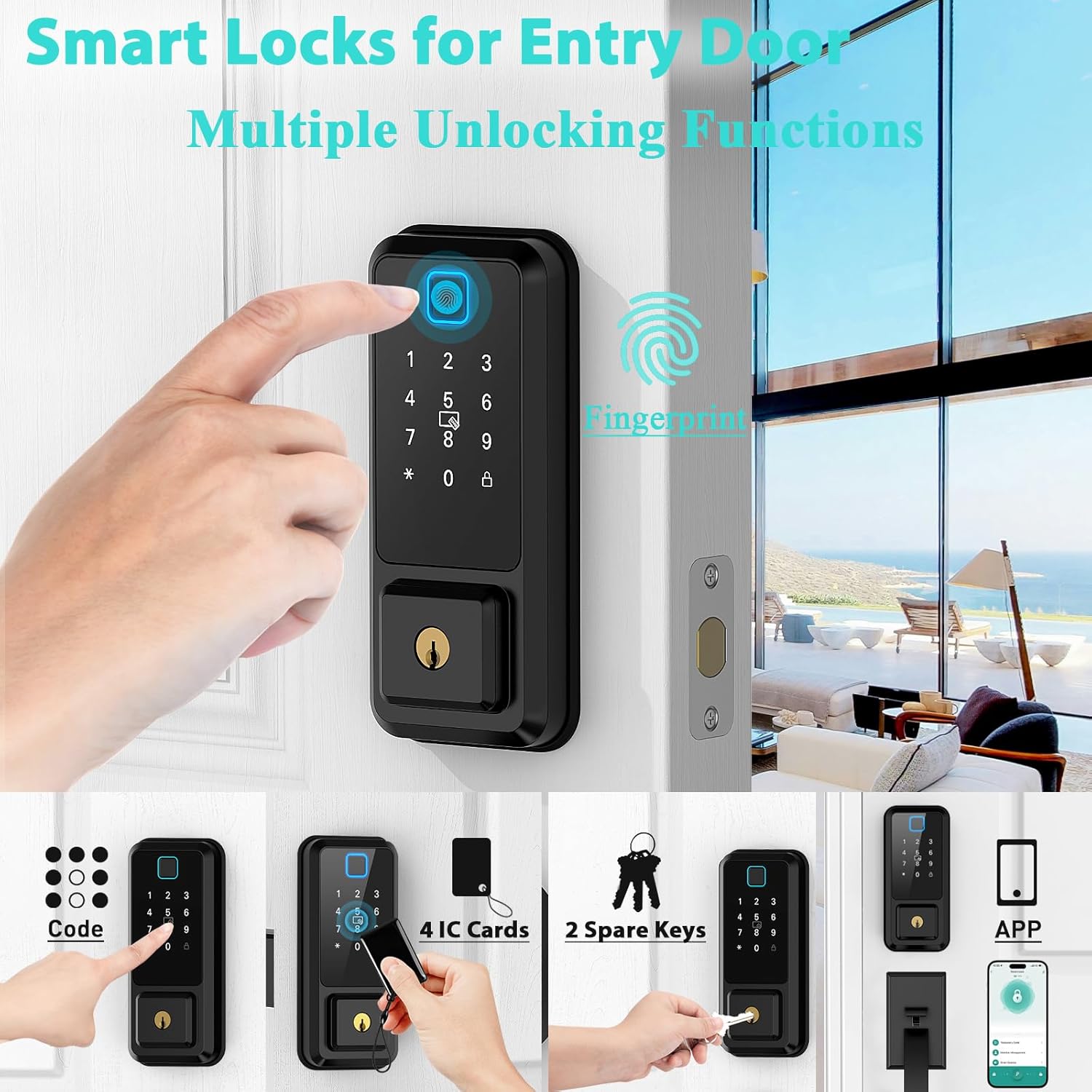
Image: Overview of multiple unlocking functions including fingerprint, keypad, IC card, and mobile app.
Operating Instructions
Unlocking Methods
- Fingerprint: Place a registered finger on the fingerprint sensor. The lock will unlock if the fingerprint is recognized.
- Keypad Code: Enter your registered 6-9 digit passcode on the touchscreen keypad, then press the '#' key.
- IC Card: Present a registered IC card to the card reader area on the exterior unit.
- Mobile App: Use the "Smart Life" app to remotely unlock the door via Bluetooth (proximity) or WiFi (remote, with gateway).
- Physical Key: Insert the physical key into the keyhole and turn to unlock. This is for emergency use.

Image: Key features of the smart lock including security and convenience functions.
Locking Methods
- Auto-Lock: The lock can be configured to automatically lock after a set period (5-900 seconds) once the door is closed.
- One-Touch Lock: Press and hold the '#' key on the keypad to manually lock the door from the outside.
- Mobile App: Use the "Smart Life" app to remotely lock the door.

Image: Demonstration of the auto-lock and one-touch locking functionality.
Advanced Features
- Anti-Peep Password: Enter random digits before or after your actual passcode to prevent others from guessing your code.
- Passage Mode: Set the lock to remain unlocked for a specified period, useful for high-traffic times.
- Temporary Passwords: Generate time-limited or one-time passcodes for guests or service providers via the app.
- Voice Control: Integrate with Alexa or Google Home via the WiFi gateway for voice-activated locking/unlocking.

Image: Smart lock integration with voice assistants like Alexa and Google Home.
Maintenance
- Battery Replacement: The lock will provide a low battery warning via the app and audible alerts. Replace all 4 AA batteries promptly when indicated.
- Emergency Power: If batteries completely drain, connect a power bank to the USB-C port on the exterior unit for temporary power to unlock the door.
- Cleaning: Wipe the lock's surface with a soft, dry cloth. Avoid abrasive cleaners or solvents that could damage the finish or electronic components.
- Firmware Updates: Regularly check the "Smart Life" app for available firmware updates to ensure optimal performance and security.
Troubleshooting
| Problem | Possible Cause | Solution |
|---|---|---|
| Lock does not respond. | Dead batteries. | Replace batteries or use USB-C emergency power. |
| Fingerprint not recognized. | Finger is wet/dirty, sensor is dirty, or fingerprint not properly registered. | Clean finger and sensor. Re-register fingerprint if necessary. Try another registered fingerprint. |
| Keypad code not working. | Incorrect code entered, or keypad malfunction. | Verify the code. Ensure '#' is pressed after the code. Try physical key or app. |
| Remote unlock not working. | WiFi gateway disconnected, internet issue, or Bluetooth off. | Check gateway connection and internet. Ensure Bluetooth is enabled on your phone for proximity unlock. |
| Auto-lock not engaging. | Feature disabled or door sensor misalignment. | Check auto-lock settings in the app. Ensure the door closes completely and the sensor aligns. |
Warranty and Support
CINOP provides a 3-year warranty for this product, which includes free replacement service. Lifetime free technical support is also available.
For technical assistance, warranty claims, or any questions, please contact CINOP customer service at: CinopStore@outlook.com.
Please have your product model number (CINOP) and purchase information ready when contacting support.


