
Next Level Racing NLR-G006
Next Level Racing® HF8 Pro Haptic Feedback Gaming Pad
Model: NLR-G006 User Manual

Image: Top-down view of the Next Level Racing HF8 Pro Haptic Feedback Gaming Pad, showcasing its ergonomic shape and integrated cable with a control box.
1. Introduction
The Next Level Racing® HF8 Pro Haptic Feedback Gaming Pad is designed to provide an immersive haptic experience for sim racing and flight simulation enthusiasts. This pad integrates advanced haptic technology to deliver realistic feedback, enhancing your gaming sessions with precise sensations.
Key features include over 200% increased torque, 400% more power, and 60% faster motor speed compared to previous models, ensuring deeper, sharper, and more responsive sensations. It features a SIMAERO breathable mesh for comfort and upgraded high-density foam. The HF8 Pro utilizes 75fps real-time haptics software, allowing for individual customization of its eight haptic zones through the included HFS software or SimHub.
2. Setup Guide
2.1. Package Contents
- Next Level Racing® HF8 Pro Haptic Feedback Gaming Pad
- Integrated USB Cable with Feedback Intensity Controller
- Power Adapter (if applicable, check product packaging)
- Quick Start Guide / Safety Information
2.2. Physical Installation
The HF8 Pro is designed for universal compatibility with most racing and flight cockpits, as well as gaming chairs. To install:
- Place the HF8 Pro pad onto the seat of your cockpit or gaming chair. Ensure the pad is centered and aligned with your seating position.
- Utilize the adjustable straps (if present) to secure the pad firmly to your seat, preventing movement during use.
- Ensure the integrated cable and control box are positioned conveniently for access and do not interfere with your movement.

Image: The HF8 Pro Haptic Feedback Gaming Pad seamlessly integrated into a racing cockpit seat, demonstrating its universal fit.
2.3. Software Installation and Connection
The HF8 Pro requires software for full functionality and customization. It is compatible with the Next Level Racing HFS software and SimHub.
- Connect the USB cable from the HF8 Pro to an available USB port on your PC.
- Download and install the latest HFS software from the official Next Level Racing website. Alternatively, if you prefer, install SimHub and configure it for the HF8 Pro.
- Follow the on-screen instructions during software installation.
- Launch the HFS software (or SimHub) to ensure the device is recognized. The software runs at 75 frames per second for ultra-responsive feedback.

Image: A user seated in a racing simulator, viewing the HFS software interface on a monitor, which displays options for customizing haptic feedback settings.
3. Operation
3.1. Powering On/Off
The HF8 Pro powers on automatically when connected to a powered USB port on your PC. To power off, simply disconnect the USB cable from your PC.
3.2. Adjusting Haptic Feedback
The HF8 Pro features eight individually controlled haptic zones. You can fine-tune the intensity and assign specific in-game effects to each motor using the HFS software or SimHub.
- Software Control: Open the HFS software (or SimHub) to access detailed settings. Here, you can adjust the intensity of each of the eight motors independently.
- Effect Assignment: Assign various in-game effects such as engine RPM, gear shifts, braking, road texture, turbulence, and more to specific haptic zones. Separate profiles can be created for racing and flight titles.
- Intensity Controller: Use the physical feedback intensity controller on the cable to make quick, global adjustments to the overall haptic strength during gameplay.
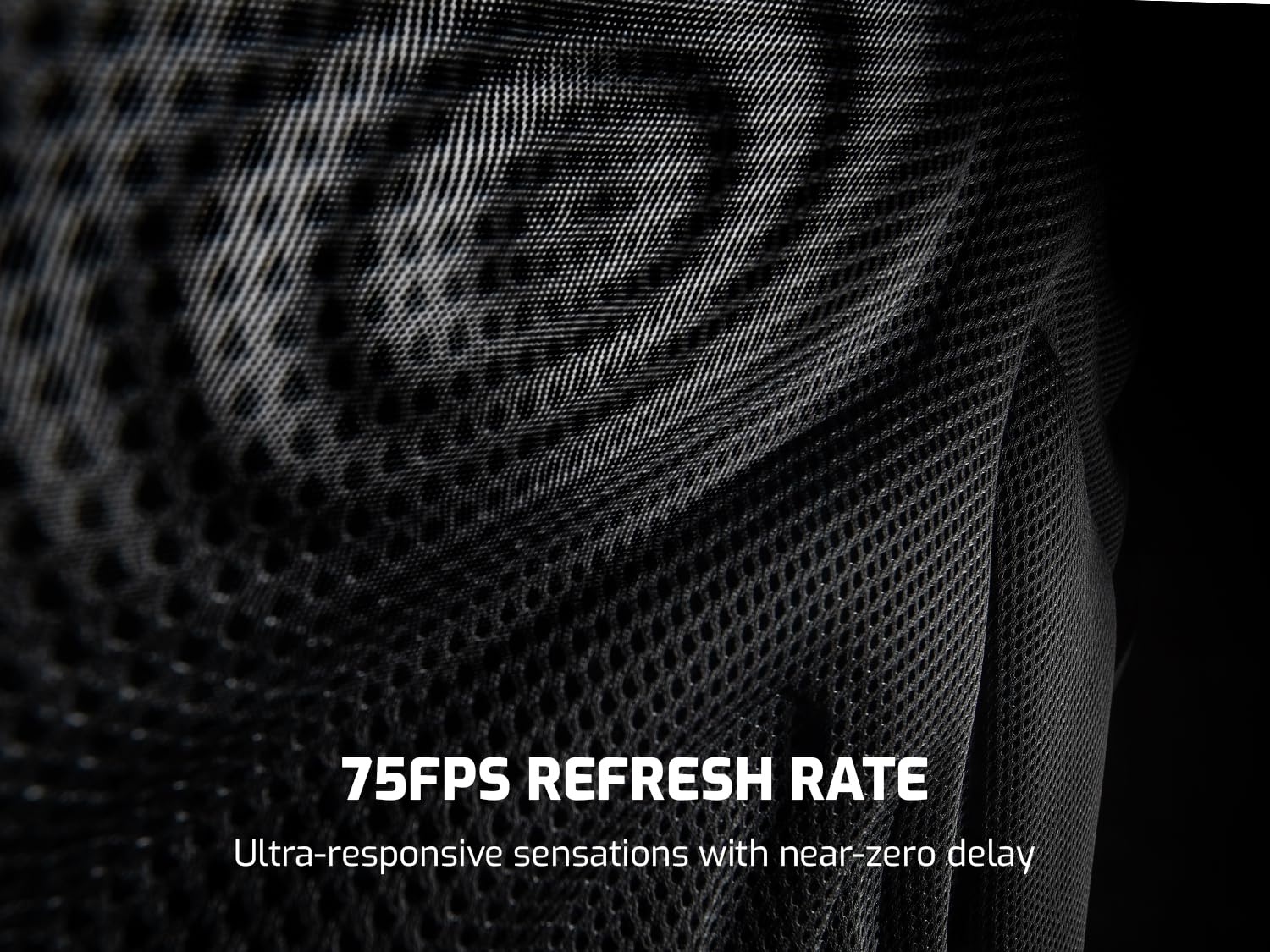
Image: A detailed view of the HF8 Pro pad, highlighting the circular haptic zones with subtle ripple effects, indicating their vibration capabilities.
3.3. Game Compatibility
The HFS software supports a wide library of popular racing, flight, and simulation titles. Ensure your game is supported by the software for optimal haptic feedback. Refer to the HFS software documentation or the Next Level Racing website for an updated list of compatible games.
4. Maintenance and Care
To ensure the longevity and optimal performance of your HF8 Pro Haptic Feedback Gaming Pad, follow these maintenance guidelines:
- Cleaning: The SIMAERO mesh fabric is designed for breathability. To clean, gently wipe the surface with a soft, damp cloth. Avoid using harsh chemicals, abrasive cleaners, or excessive moisture.
- Storage: When not in use, store the pad in a clean, dry environment away from direct sunlight and extreme temperatures.
- Handling: Avoid bending or creasing the pad excessively, as this may damage internal components. Do not place heavy objects on the pad.
- Cable Care: Do not pull on the cable to disconnect the device. Always grasp the plug firmly. Avoid tangling or kinking the cable.
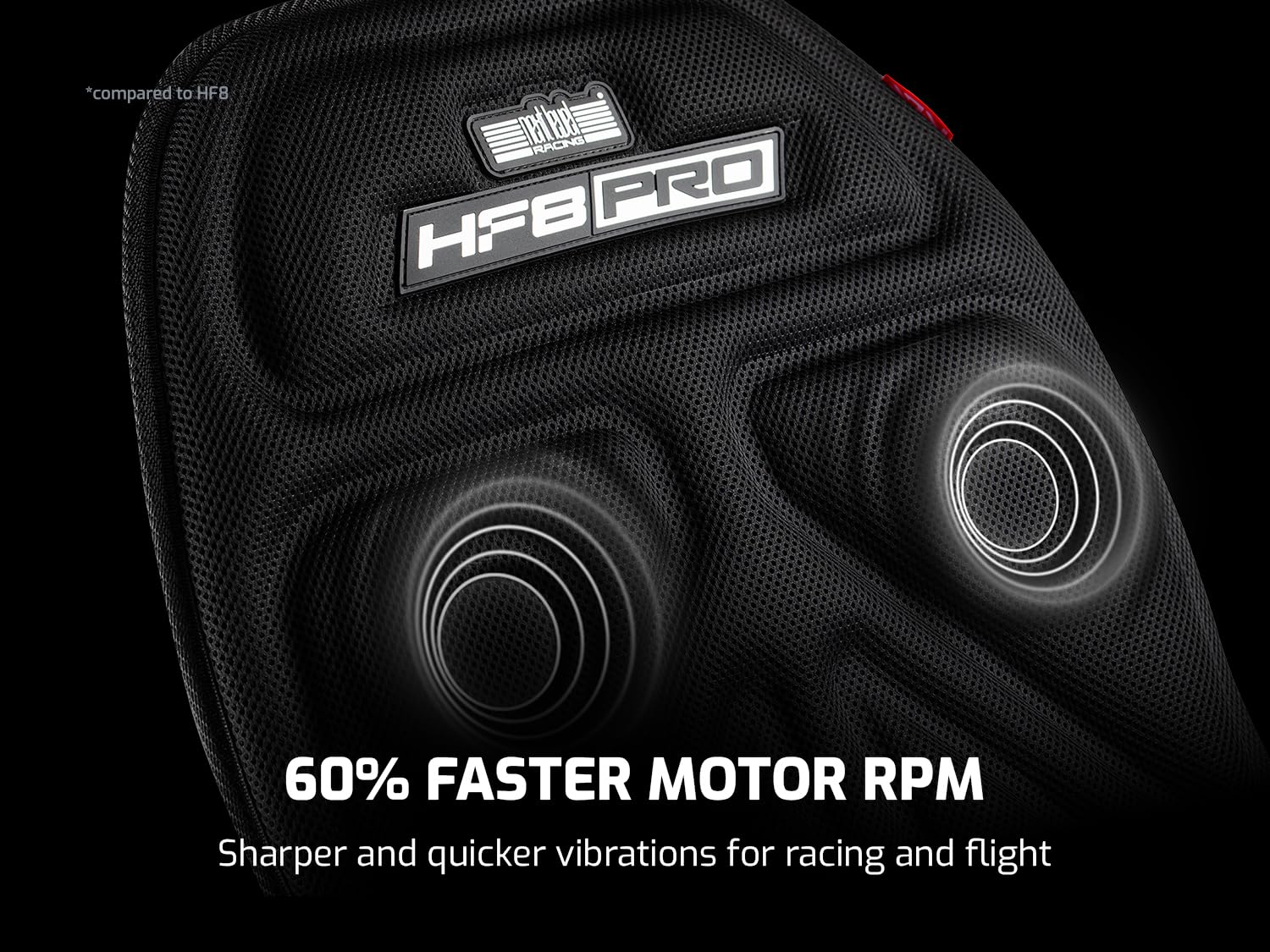
Image: A magnified view of the SIMAERO mesh fabric, highlighting its intricate weave designed for breathability and durability.
5. Troubleshooting
If you encounter issues with your HF8 Pro Haptic Feedback Gaming Pad, please refer to the following common problems and solutions:
| Problem | Possible Cause | Solution |
|---|---|---|
| No haptic feedback | USB cable not connected or loose; Software not running or configured correctly; Game not supported. | Ensure USB cable is securely connected to both the pad and PC. Restart HFS software/SimHub. Verify game compatibility and software settings. Try a different USB port. |
| Weak or inconsistent feedback | Intensity setting too low; Specific game effects not enabled; Software calibration issue. | Increase intensity using the physical controller or within the HFS software. Check individual motor settings in software. Recalibrate if a calibration option is available in the software. |
| Software does not detect the device | Driver issue; USB port malfunction; Software installation error. | Reinstall HFS software. Try connecting to a different USB port. Check Device Manager for driver issues. Ensure no other conflicting software is running. |
| Pad feels uncomfortable or shifts | Incorrect placement; Straps not secured. | Adjust the pad's position on your seat. Ensure all securing straps are tightened appropriately. |
6. Technical Specifications
| Feature | Detail |
|---|---|
| Model Number | NLR-G006 |
| Product Dimensions (L x W x H) | 46.85 x 17.32 x 1.57 inches |
| Item Weight | 3.75 Pounds |
| Haptic Motors | 8 individual haptic vibration motors |
| Software Refresh Rate | 75 frames per second (HFS Software) |
| Connectivity | USB |
| Compatibility | PC (Windows), compatible with most racing/flight cockpits and gaming chairs |
| Material | SIMAERO Mesh, High-Density Molded Foam |
7. Warranty Information
Next Level Racing products typically come with a manufacturer's warranty. Please refer to the warranty card included with your product packaging or visit the official Next Level Racing website for detailed warranty terms and conditions specific to the HF8 Pro Haptic Feedback Gaming Pad. Keep your proof of purchase for warranty claims.
8. Customer Support
For further assistance, technical support, software updates, or frequently asked questions, please visit the official Next Level Racing website:
Next Level Racing Support Page
You may also find helpful resources and community forums for troubleshooting and optimization tips.
Related documentsNLR-G006


Ask a question about this manual
Ask about setup, troubleshooting, compatibility, parts, safety, or missing instructions. Manuals+ will review the question and use this page’s manual context to help answer it.