
1. Introduction
This manual provides detailed instructions for the installation, setup, operation, and maintenance of your YHV Smart Door Lock CA-02. This keyless entry deadbolt offers multiple access methods including fingerprint, keypad code, smartphone application, traditional key, and voice control via Alexa or Google Assistant. Please read this manual thoroughly before installation and use to ensure proper function and security.
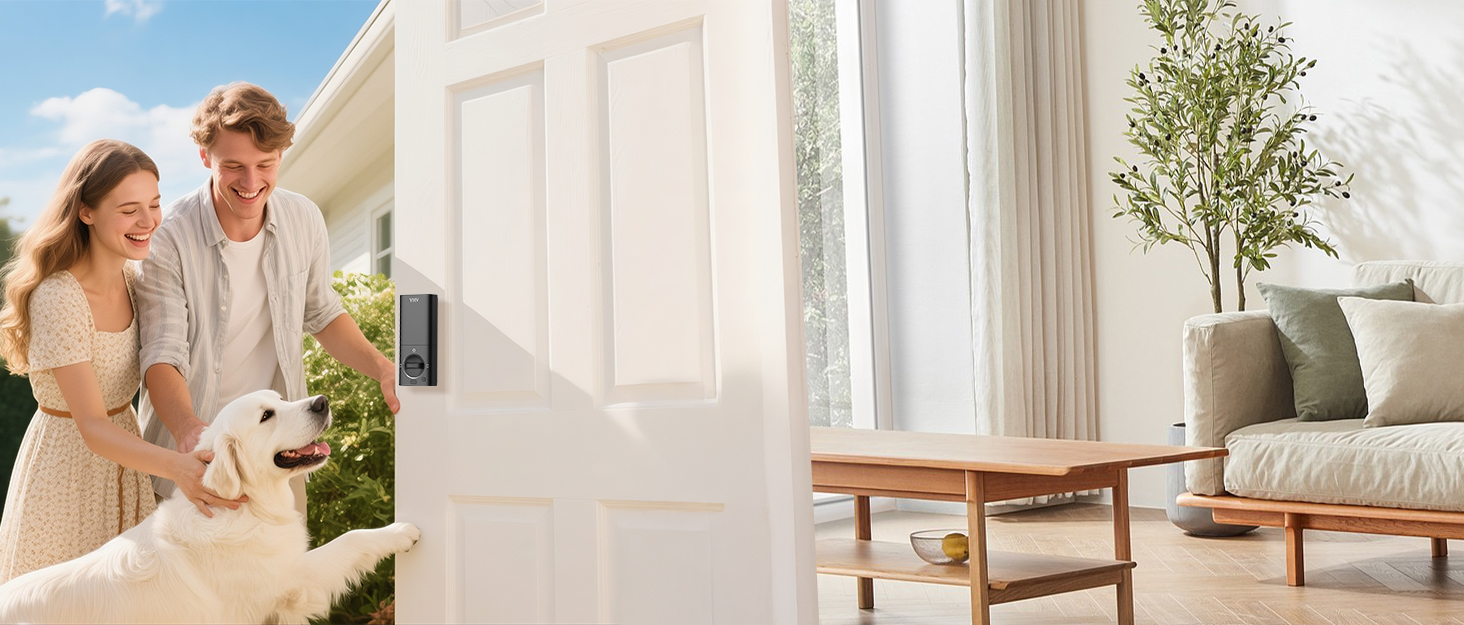
Image 1.1: YHV Smart Door Lock CA-02 installed on a door.
2. Product Overview
2.1 Key Features
- Multi-Access Unlock: Fingerprint, App, Passcode, Key, Alexa/Google Voice Control.
- Fast Fingerprint Sensor: Unlocks in approximately 0.3 seconds, supports up to 50 unique fingerprints.
- App Remote Control: Lock/unlock, manage users, set passwords, view event history, and receive real-time notifications from anywhere via the smartphone application.
- Voice Control: Compatible with Amazon Alexa and Google Assistant for hands-free operation.
- Enhanced Security: Features duress password alert and anti-peeping password input.
- Durable Construction: Built from stainless steel and aluminum, BHMA certified, with an IP54 protection rating for weather resistance.
- Long Battery Life: Powered by 8 AA batteries, providing approximately 10 months of operation.
- Emergency Power: Equipped with a Type-C charging port for emergency power supply.
2.2 Package Contents
The YHV Smart Door Lock CA-02 package includes:
- Black Lock (Exterior and Interior Assemblies)
- Keys (2)
- Parts Kit (Screws, Spindle, Latch, Strike Plate)
- User Manual (This Document)

Image 2.1: YHV Smart Door Lock CA-02 components and app interface.
3. Specifications
| Feature | Specification |
|---|---|
| Brand | YHV |
| Model Name | CA-02 |
| Lock Type | Biometric, Deadbolt, Keypad |
| Material | Aluminum, Stainless Steel |
| Dimensions (L x W x H) | 2.8 x 1.4 x 6.7 inches |
| Item Weight | 2.2 Pounds |
| Connectivity | Bluetooth, Wi-Fi (2.4GHz only) |
| Power Source | 8 AA Batteries (not included) |
| Battery Life | Approximately 10 months |
| Emergency Power | Type-C USB Port |
| Operating Temperature | -31℉ to 158℉ (-35℃ to 70℃) |
| Protection Rating | IP54 |
| UPC | 850070711715 |
4. Installation Guide
The YHV Smart Door Lock CA-02 is designed for easy DIY installation, typically completed within 15 minutes without requiring extra drilling for most standard US & CA doors. It is compatible with both left and right-handed doors.
4.1 Door Compatibility Requirements
Before installation, ensure your door meets the following specifications:
- Backset: 2-3/8 inches (60mm) or 2-3/4 inches (70mm)
- Door Thickness: 1-3/8 inches to 2-1/8 inches (35mm to 55mm)
- Cross Bore Diameter: 1-1/2 inches (38mm) or 2-1/8 inches (54mm)
- Minimum Distance (from door edge to cross bore center): 4 inches (100mm)

Image 4.1: Door measurement guide for YHV Smart Door Lock CA-02.
4.2 Installation Steps
- Prepare the Door: Ensure your door meets the compatibility requirements. Remove any existing deadbolt hardware.
- Install the Latch: Insert the latch into the door edge and secure it with screws. Ensure the latch bolt faces the correct direction.
- Install the Exterior Assembly: Route the cable through the cross bore and align the exterior assembly with the latch.
- Install the Interior Mounting Plate: Secure the interior mounting plate to the exterior assembly using screws.
- Connect the Cable: Connect the cable from the exterior assembly to the interior assembly.
- Install the Interior Assembly: Attach the interior assembly to the mounting plate and secure it with screws.
- Insert Batteries: Install 8 AA batteries into the battery compartment of the interior assembly.
- Test the Lock: Manually test the lock and unlock function using the thumb turn and a key.

Image 4.2: Installation of the YHV Smart Door Lock CA-02.
5. Setup and Configuration
After physical installation, configure your YHV Smart Door Lock CA-02 for smart functionality.
5.1 App Download and Connection
- Download the App: Search for the YHV Smart Lock app on your smartphone's app store (iOS or Android).
- Create an Account: Register for a new user account within the app.
- Add Device: Follow the in-app instructions to add your CA-02 smart lock. Ensure your smartphone is connected to a 2.4GHz Wi-Fi network during this process, as the lock does not support 5GHz Wi-Fi.
- Pairing: The app will guide you through the pairing process, which typically involves activating a pairing mode on the lock.

Image 5.1: YHV Smart Door Lock CA-02 Wi-Fi connection.
5.2 Fingerprint Management
The lock supports up to 50 unique fingerprints.
- Access Fingerprint Settings: In the app, navigate to 'Fingerprint Management'.
- Add Fingerprint: Follow the on-screen prompts to register new fingerprints. You will typically be asked to place your finger on the sensor multiple times from different angles.
- Delete Fingerprint: Individual fingerprints can be removed via the app.

Image 5.2: Fingerprint sensor in use.
5.3 Passcode Management
The lock supports up to 50 passcodes, including temporary and duress codes.
- Access Password Settings: In the app, navigate to 'Password Management'.
- Create Passcode: Generate new passcodes. You can set permanent, temporary (time-limited), or one-time use codes.
- Duress Passcode: Set a specific duress passcode. If this code is entered, the lock will unlock but also send an alert to the associated user, allowing for immediate action.
- Delete Passcode: Remove existing passcodes as needed.
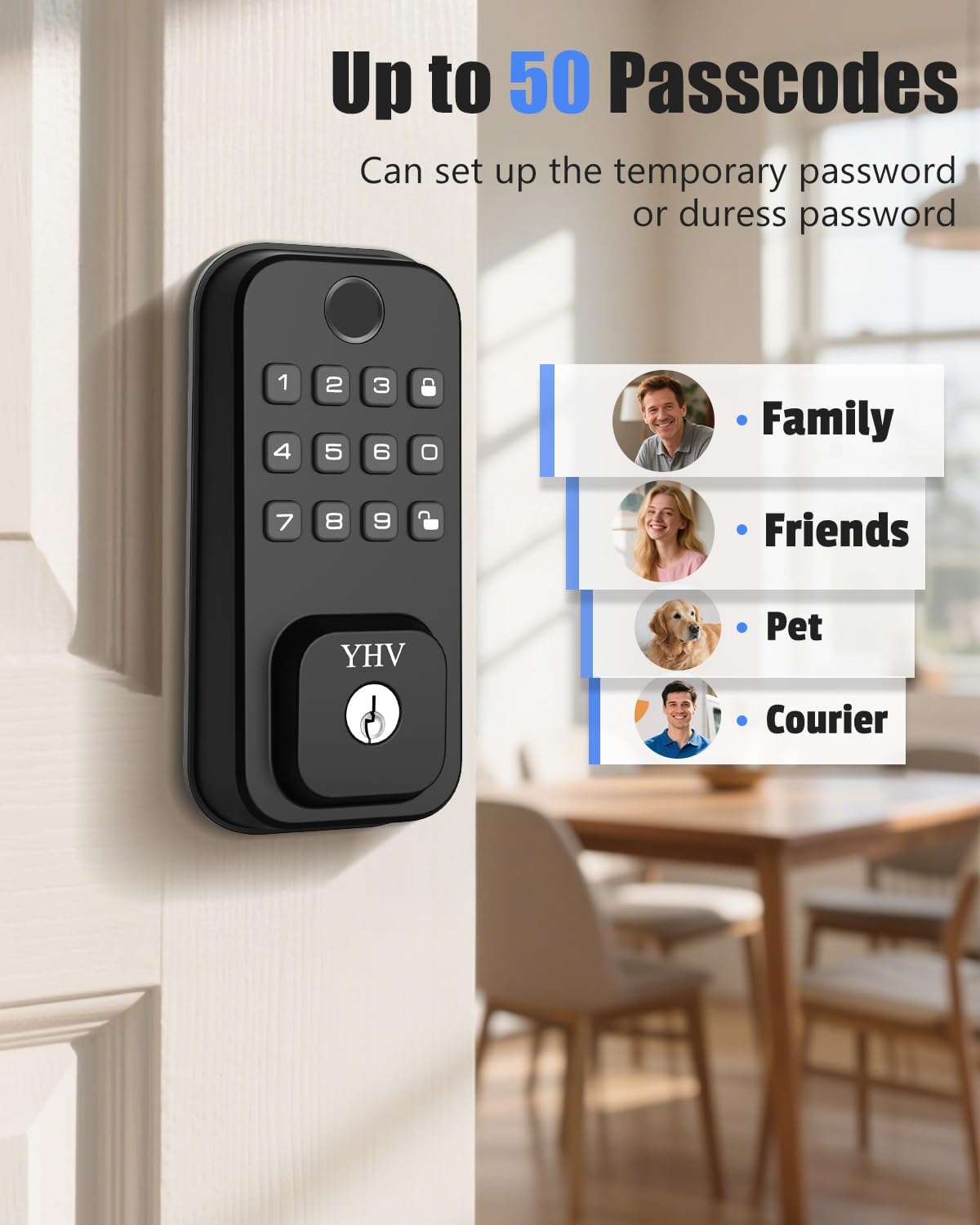
Image 5.3: Passcode management for various users.
5.4 Voice Control Integration
The YHV Smart Door Lock CA-02 is compatible with Amazon Alexa and Google Assistant.
- Enable Skill/Action: In your Alexa or Google Home app, search for the YHV Smart Lock skill or action.
- Link Account: Link your YHV Smart Lock account with your Alexa or Google account.
- Discover Devices: Allow Alexa/Google to discover your new smart lock.
- Set Voice Code: For security, you may need to set a voice code within the Alexa/Google app to unlock the door using voice commands.
Video 5.1: Demonstration of YHV Smart Door Lock CA-02 voice control functionality.
6. Operating Instructions
6.1 Unlocking the Door
- Fingerprint: Place your registered finger on the fingerprint sensor. The lock will unlock after successful recognition.
- Passcode: Enter your 6-8 digit passcode on the keypad, then press the '#' key.
- App: Open the YHV Smart Lock app, select your lock, and tap the unlock icon.
- Key: Insert the physical key into the keyhole and turn to unlock.
- Voice Control: Use voice commands with Alexa or Google Assistant (e.g., "Alexa, unlock the front door"). A voice code may be required.

Image 6.1: Unlocking with fingerprint.

Image 6.2: Unlocking with physical key.
6.2 Locking the Door
- Automatic Locking: The lock features an auto-lock function that can be configured via the app to lock automatically after a set period (e.g., 5-15 seconds).
- Manual Locking: Press and hold the '#' key on the keypad for 2 seconds, or use the thumb turn on the interior unit.
- App: Open the YHV Smart Lock app, select your lock, and tap the lock icon.

Image 6.3: Auto-lock feature.
6.3 Security Features
- Anti-Peeping Passcode: When entering your passcode, you can input random digits before or after your actual code to prevent others from guessing your entry sequence. For example, if your code is 123456, you can enter 78912345600.
- Duress Passcode: If you are coerced to open the door, entering your pre-set duress passcode will unlock the door while simultaneously sending an alert to your designated contacts via the app.

Image 6.4: Anti-peeping passcode entry.

Image 6.5: Duress password notification.
7. Maintenance
7.1 Battery Replacement
The YHV Smart Door Lock CA-02 requires 8 AA batteries (not included). The estimated battery life is approximately 10 months. The app will notify you when battery levels are low.
- Remove the battery cover on the interior assembly.
- Remove the old batteries.
- Insert 8 new AA batteries, ensuring correct polarity.
- Replace the battery cover.
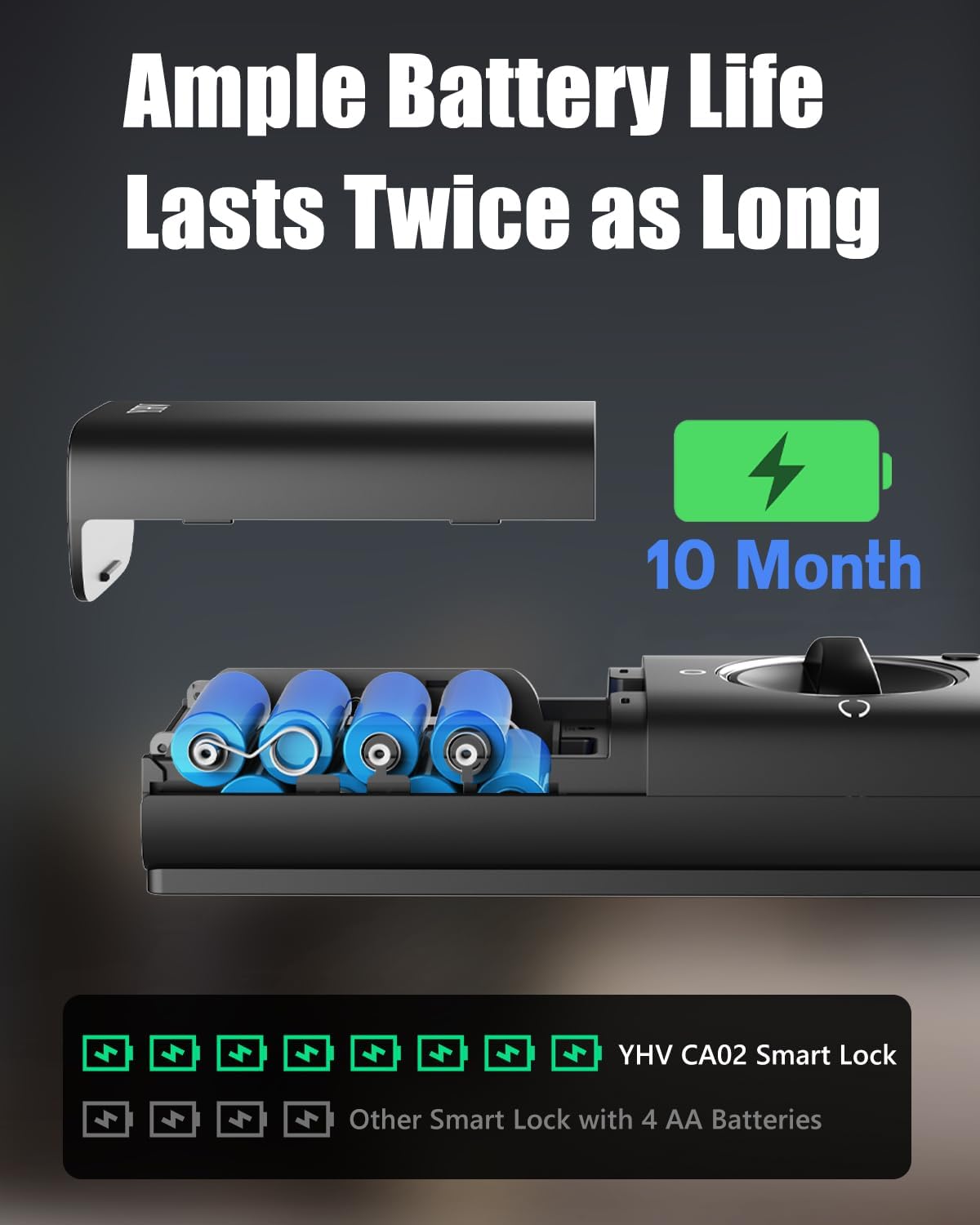
Image 7.1: Battery compartment and battery life indication.
7.2 Emergency Power Supply
In case of complete battery depletion, the lock can be temporarily powered using a Type-C USB cable connected to an external power bank.
- Locate the Type-C USB port on the bottom of the exterior assembly.
- Connect a Type-C USB cable from a power bank to the lock.
- Once powered, you can use a registered fingerprint or passcode to unlock the door.
Note: The Type-C port is for emergency power supply only and cannot be used to charge the internal batteries.

Image 7.2: Emergency power via Type-C USB.
7.3 Cleaning
Wipe the lock's surface with a soft, dry cloth. Avoid using abrasive cleaners or solvents, as these can damage the finish and electronic components.
8. Troubleshooting
- Lock not responding: Check battery levels. If batteries are depleted, use the emergency Type-C power port or the physical key.
- Fingerprint not recognized: Ensure your finger is clean and dry. Try re-registering your fingerprint in the app.
- Passcode not working: Verify the correct passcode is being entered. Ensure the lock is not in a temporary lockout mode due to multiple incorrect attempts.
- App connectivity issues: Ensure your Wi-Fi router is on and the lock is within range. Confirm your Wi-Fi network is 2.4GHz. Restart the app and the lock (by removing and reinserting batteries).
- Voice control not working: Check your Alexa/Google Home app for proper device linking and voice code settings. Ensure your smart speaker is connected to the internet.
- Lock mechanism stiff: Check for any obstructions in the door frame or latch area. Ensure the installation was performed correctly and the screws are not overtightened.
For further assistance, refer to the YHV Smart Lock app for detailed event history and additional troubleshooting tips, or contact customer support.
9. Warranty and Support
For warranty information and customer support, please refer to the documentation included with your purchase or visit the official YHV website. You can also contact YHV customer service through the contact information provided in the YHV Smart Lock application.