
Avylet 8b5cab4c-aa70-44f5-9a2c-e59ca4966815
Avylet 8.1'' Carplay & Android Auto Display
User Instruction Manual
Model: 8b5cab4c-aa70-44f5-9a2c-e59ca4966815
Introduction
Thank you for choosing the Avylet 8.1'' Carplay & Android Auto Display. This device is designed to enhance your driving experience by providing seamless smartphone integration, navigation, entertainment, and communication features directly on your dashboard. This manual provides detailed instructions for installation, operation, maintenance, and troubleshooting to ensure optimal performance and longevity of your device.
Safety Information
Please read all safety warnings and instructions carefully before using this product. Failure to follow these instructions may result in electric shock, fire, and/or serious injury.
- Do not attempt to disassemble, repair, or modify the device. This may cause damage, fire, or electric shock.
- Ensure the device is securely mounted and does not obstruct your view or interfere with vehicle controls.
- Operate the device only when it is safe to do so and does not distract you from driving.
- Avoid exposing the device to extreme temperatures, direct sunlight for prolonged periods, or excessive moisture.
- Use only the provided power cable and accessories.
Package Contents
Verify that all items are present in your package:
- Avylet 8.1'' Carplay & Android Auto Display Unit
- Magnetic Mount (Dashboard/Windshield)
- Power Cable
- User Manual (this document)
- Optional: Reversing Camera (if included in your specific package)

Image: Overview of the Avylet 8.1'' Carplay & Android Auto Display and its included accessories.
Setup and Installation
The Avylet display is designed for effortless installation without requiring removal of your original car radio.
1. Mounting the Device
The magnetic mount provides secure attachment to your dashboard or windshield.
- Choose a suitable location on your dashboard or windshield that does not obstruct your view or interfere with airbags.
- Clean the mounting surface thoroughly to ensure strong adhesion.
- Attach the magnetic mount to the chosen surface. The mount features 360° rotation and a 180° adjustable handle for optimal positioning.
- Securely attach the Avylet display unit to the magnetic mount. The magnetic connection allows for easy attachment and detachment for anti-theft security.
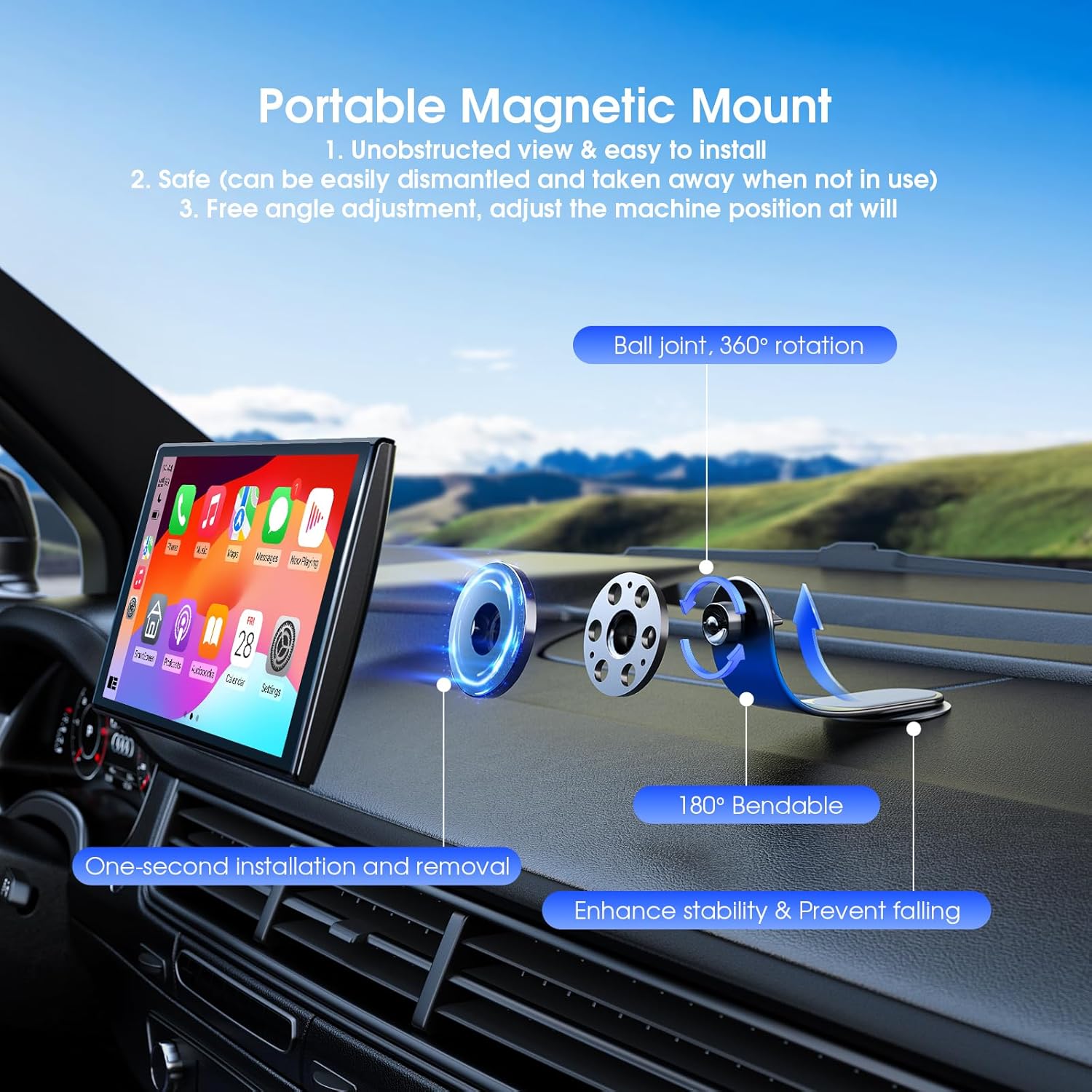
Image: Illustration of the portable magnetic mount and its adjustable features for easy installation.
2. Power Connection
Connect the provided power cable to the display unit and then to your vehicle's power outlet (e.g., cigarette lighter socket).
Operating Instructions
Seamless Connectivity with Apple CarPlay & Android Auto
Connect your smartphone to the 8.1-inch display for easy access to navigation, music, and calls. Once paired, the device will auto-connect every time you enter your car, eliminating the need for reconfiguration.
- Ensure your phone's Bluetooth and Wi-Fi are enabled.
- On the Avylet display, select either CarPlay or Android Auto.
- Follow the on-screen prompts to pair your smartphone.

Image: Visual representation of the wireless connectivity options: Apple CarPlay, Android Auto, and Mirror Link.
Super Link & Mirror Link
After connecting your phone to the CarPlay WiFi, you can utilize AirPlay and Super Link features. Mirror your phone screen to the 8.1-inch 1600x900 HD display for a larger, clearer view. Super Link touch control allows you to operate content directly, turn off your phone screen, or multitask with ease. You can also mirror your phone screen to the device and play AirDrop photos or videos. (Note: In iOS mode, control is limited to the phone itself).
Portrait & Landscape Mode Support
The Avylet CarPlay screen allows for flexible switching between portrait and landscape modes. Adjust the screen orientation for optimal visibility, whether you are using navigation, music, or other applications.

Image: Comparison of the display in landscape and portrait modes, demonstrating flexible viewing options.

Image: Close-up of the Avylet display in portrait orientation, showcasing navigation and media playback.
Voice Control & GPS Navigation
Utilize CarPlay or Android Auto for hands-free calls, messages, and navigation. Voice control ensures safe, distraction-free driving.
- Activate your phone's voice assistant (Siri for iOS, Google Assistant for Android) through the display.
- Issue commands for navigation, making calls, sending messages, or playing music.

Image: Examples of voice control functionality for GPS navigation and communication.
Audio Output Options
The Avylet display offers multiple ways to output audio:
- Built-in Speaker: For personal listening directly from the unit.
- Bluetooth to Car Speakers: Connect wirelessly to your car's audio system.
- Speakers via FM Sync: Transmit audio to your car speakers by tuning your car radio to a specific FM frequency.
- Speakers via AUX: Connect using an AUX cable for a wired audio connection to your car's audio input.

Image: Visual guide to the various audio output options available with the Avylet display.
Reversing Camera (Optional)
If your package includes a reversing camera, it will automatically switch to the reverse camera view when backing up, providing an HD, waterproof, 170° viewing angle for enhanced safety.

Image: Illustration of the reversing camera feature, including its wide viewing angle and automatic activation.
Maintenance
To ensure the longevity and optimal performance of your Avylet display, follow these maintenance guidelines:
- Cleaning: Use a soft, dry, lint-free cloth to clean the screen and exterior. For stubborn smudges, slightly dampen the cloth with water or a screen cleaner. Avoid abrasive cleaners or solvents.
- Storage: If storing the device for an extended period, detach it from the magnetic mount and store it in a cool, dry place away from direct sunlight.
- Cable Care: Handle power cables and connectors gently to prevent damage.
Troubleshooting
If you encounter issues with your Avylet display, refer to the following common solutions:
| Problem | Possible Solution |
|---|---|
| Device does not power on. |
|
| CarPlay/Android Auto not connecting. |
|
| No audio output. |
|
| Screen is unresponsive. |
|
OTA Upgrade
The Avylet CarPlay screen supports Over-the-Air (OTA) updates. This feature allows you to keep your device's firmware current, ensuring you receive new features, improved functions, and enhanced performance without manual intervention.
- Ensure your device is connected to a stable Wi-Fi network.
- Activate Super Link mode (if required by the device for updates).
- Navigate to the system settings on your Avylet display and look for an "OTA Update" or "System Update" option.
- Follow the on-screen prompts to download and install any available updates. Do not power off the device during the update process.

Image: Representation of the OTA upgrade feature, highlighting seamless firmware updates.
Specifications
| Feature | Detail |
|---|---|
| Model Number | 8b5cab4c-aa70-44f5-9a2c-e59ca4966815 |
| ASIN | B0F6MR2BLB |
| Brand | Avylet |
| Compatible Devices | Smartphones |
| Compatible Phone Models | Universal |
| Mounting Type | Dashboard |
| Special Features | Adjustable, Quick Release Button |
Warranty and Support
Avylet products are manufactured to the highest quality standards. For information regarding warranty coverage, technical support, or service inquiries, please refer to the warranty card included with your purchase or visit the official Avylet website. Please retain your proof of purchase for warranty claims.
Related documents8b5cab4c-aa70-44f5-9a2c-e59ca4966815

Ask a question about this manual
Ask about setup, troubleshooting, compatibility, parts, safety, or missing instructions. Manuals+ will review the question and use this page’s manual context to help answer it.