
1. Introduction
This manual provides detailed instructions for the installation, operation, and maintenance of your Roinvou 9.7-inch Android 15 Car Stereo. Please read this manual thoroughly before using the product to ensure proper functionality and safety. Keep this manual for future reference.
2. Package Contents
Verify that all items listed below are included in your package:
- Roinvou Hyundai Sonata YF Car Stereo Unit
- 1 x Power Cable
- 1 x RCA Harness
- 1 x GPS Antenna
- 1 x AHD Backup Camera
- 1 x External Microphone
- 1 x Rear Camera Input Cable
- 2 x USB Cables
- 1 x Installation Tool
- 5 x Additional Accessories

Figure 2.1: Product dimensions and included accessories. This image displays the main head unit with its dimensions and a comprehensive list of cables and components provided in the package, including power cables, RCA harness, GPS antenna, AHD backup camera, external microphone, rear camera input cable, USB cables, and installation tools.
3. Setup and Installation
3.1 Vehicle Compatibility
This car stereo is designed for Hyundai Sonata YF models from 2010 to 2018. It offers a seamless replacement for the original dash panel without requiring wiring modifications. For verification, please confirm your car's model and production year.

Figure 3.1: Visual guide showing the car stereo installed in a Hyundai Sonata YF dashboard ("After") compared to the original dashboard configurations ("Fit" and "Not Fit"). This helps confirm proper fitment for compatible vehicles.
3.2 Wiring Connections
Carefully connect all cables as illustrated in the wiring diagram. Ensure secure connections to prevent malfunctions.

Figure 3.2: Detailed diagram of the car stereo's wiring ports, including connections for power, RCA, USB, camera input, radio antenna, and GPS antenna. This visual aid assists in correctly identifying and connecting each cable.
3.3 Backup Camera Installation
The included AHD backup camera enhances parking safety. Follow these steps for proper connection:
- Connect the red cable (1) to the positive terminal of your car's reverse light cable.
- Connect the black cable (2) to the negative terminal of your car's reverse light cable.
- The reverse input cable must be plugged in even if the reverse camera is not being used, as it affects Bluetooth and WiFi signal reception.

Figure 3.3: Illustrated guide for connecting the backup camera, showing the red and black wires connected to the car's reverse light power supply. This image clarifies the wiring process for the AHD backup camera.
Video 3.1: This video demonstrates the process of connecting the backup camera to the car stereo system, providing a visual walkthrough of the wiring steps.
3.4 CANBUS Decoder Configuration
Depending on your vehicle's configuration, you may need to configure the CANBUS decoder:
- Without CANBUS Decoder: Connect the plugs or steering wheel control wires (Key1/Key2) in the power cable to the corresponding port or wire of your original car. Then, go to "SteeringWheel Key" in settings to activate the button function.
- With CANBUS Decoder: Connect the CANBUS before powering on the machine. Then, navigate to Apps > Settings > Factory Settings (8888/8317) > Vehicle > Automotive type. Select the brand of the CANBUS decoder and the matching model and year.

Figure 3.4: Instructions for configuring the CANBUS decoder, detailing steps for vehicles with and without a CANBUS system to ensure proper integration with car controls.
4. Operating Instructions
4.1 Display and User Interface
The unit features a 9.7-inch HD touchscreen with 1280x760 resolution, offering wide viewing angles and responsive capacitive touch. The Android operating system provides a customizable interface, including a three-panel homepage display and split-screen functionality.

Figure 4.1: Image highlighting the 9.7-inch HD touchscreen display with its 768x1024P resolution, emphasizing the QLED Quantum Screen technology for clear visuals.

Figure 4.2: Demonstrates the customizable three-panel homepage display and the split-screen feature, allowing multiple applications to run simultaneously for enhanced multitasking.
4.2 Bluetooth Connectivity
Bluetooth 5.0 ensures stable calls, music streaming, and phonebook synchronization. To connect your device:
- On the car stereo, navigate to the Bluetooth settings.
- Enable Bluetooth on your mobile device and search for "CarBT".
- Pair the devices, entering the PIN (usually 0000) if prompted.
- After successful connection, "phone audio" and "music audio" will be displayed. If not, restart Bluetooth.

Figure 4.3: Illustrates the Bluetooth 5.1 interface, showing hands-free calling functionality and music streaming capabilities, enhancing communication and entertainment while driving.
Video 4.1: This video demonstrates the process of connecting your mobile phone to the car radio via Bluetooth, including troubleshooting tips for unsuccessful connections.
4.3 Wireless CarPlay & Android Auto
Connect your iPhone or Android device wirelessly for seamless integration of navigation, music, calls, and voice assistant features (Siri/Google Assistant).
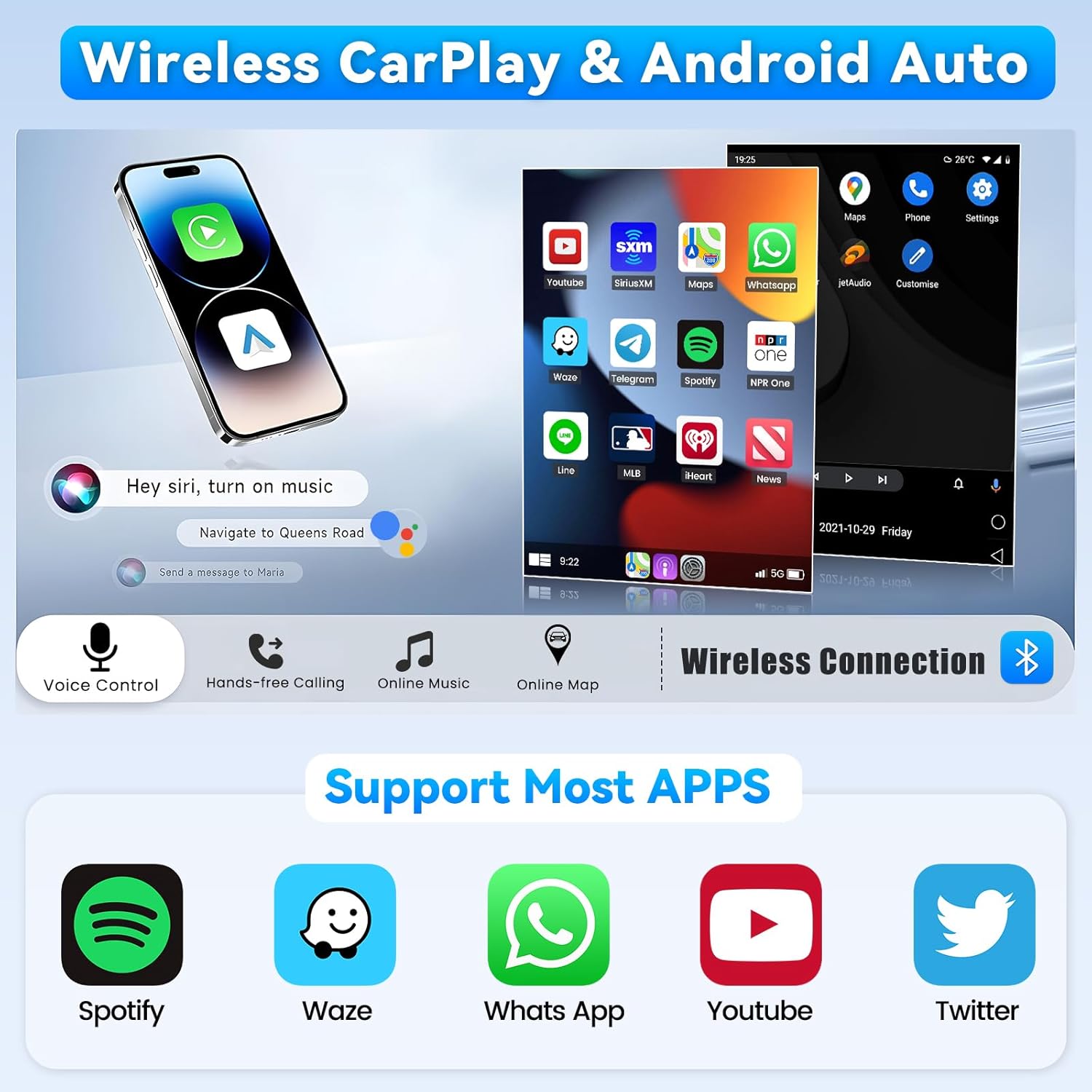
Figure 4.4: Displays the user interface for Wireless CarPlay and Android Auto, showing various compatible applications like Spotify, Waze, WhatsApp, YouTube, and Twitter, along with voice control and hands-free calling features.
Video 4.2: This video demonstrates how to wirelessly connect to CarPlay, showing the steps to pair your iPhone with the car stereo for integrated functionality.
Video 4.3: This video showcases the Android Auto functionality on the car stereo, illustrating its interface and how it integrates with Android devices for navigation, music, and communication.
4.4 Mirror Link Function
The Mirror Link function allows you to synchronize your smartphone screen (Android or iOS) to the car stereo display, enabling you to view videos and other content on a larger screen. For iOS, use WiFi; for Android, use USB/WiFi.
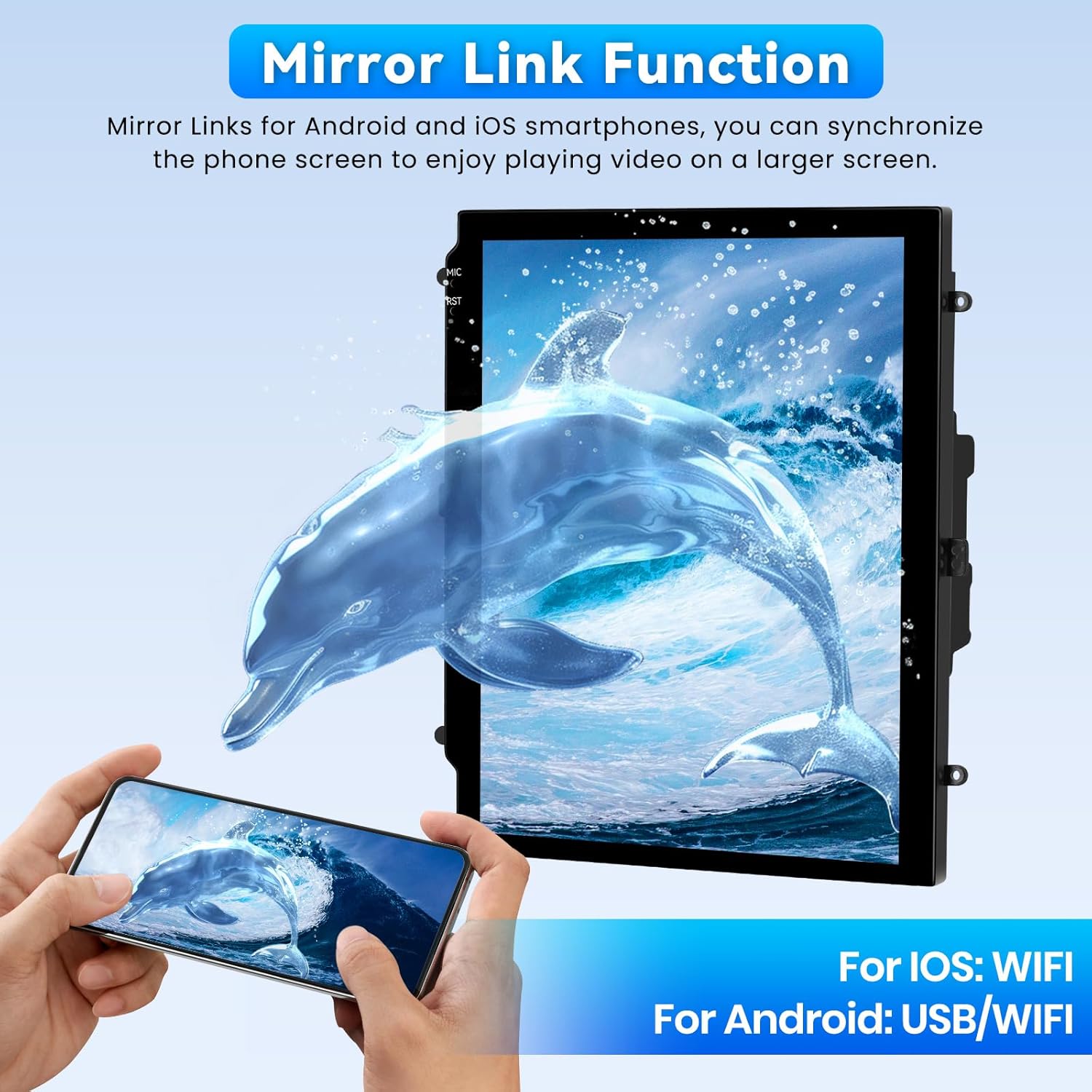
Figure 4.5: Depicts the Mirror Link function, showing a smartphone screen mirrored onto the car stereo display, with a visual of a dolphin, indicating media playback. It specifies WiFi for iOS and USB/WiFi for Android connections.
4.5 GPS Navigation & 5G WiFi
The unit includes advanced GPS navigation with preloaded offline maps. Connect to 5G WiFi for faster internet browsing, app updates, and real-time traffic updates for online navigation.
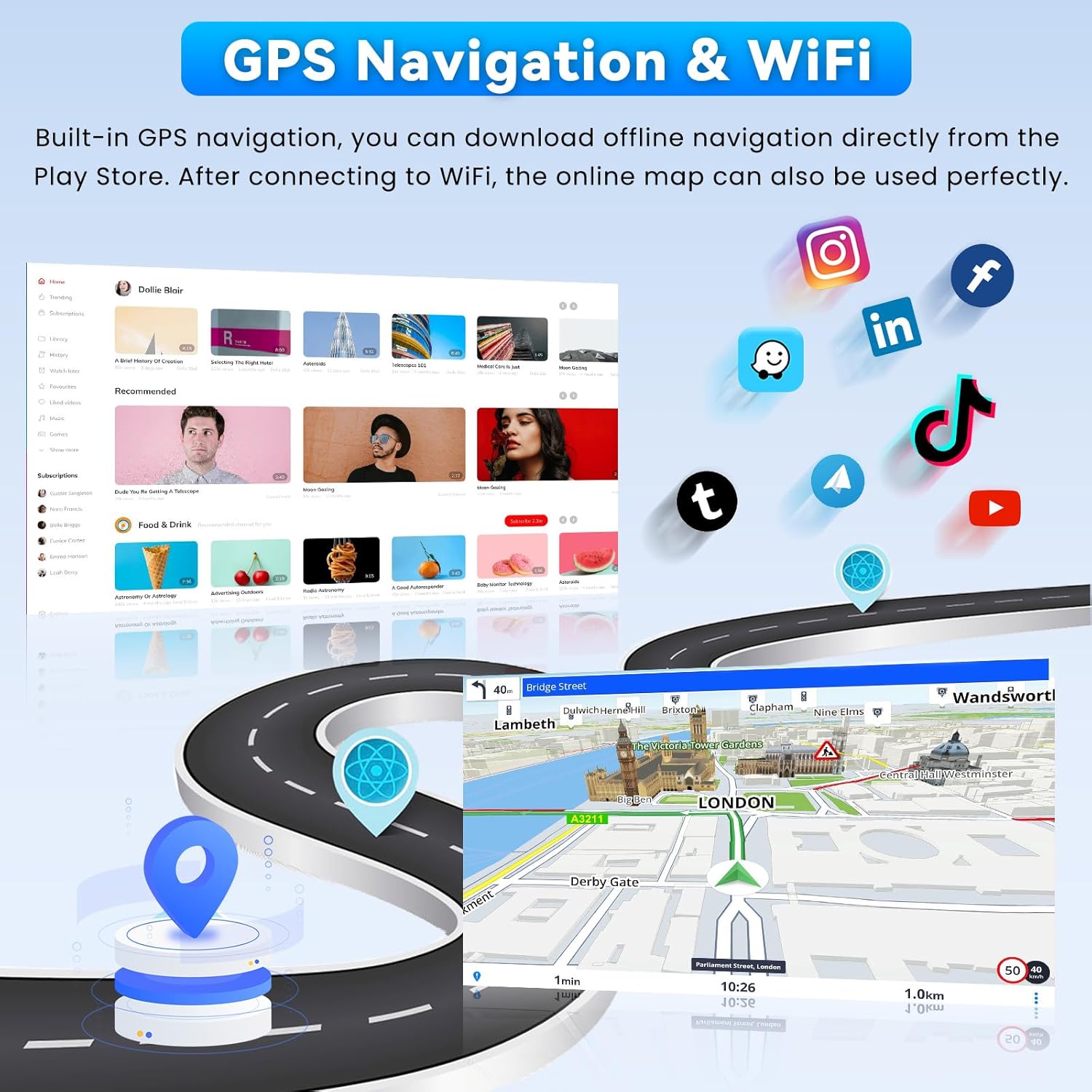
Figure 4.6: Illustrates the GPS navigation interface with a map showing routes and points of interest, alongside various app icons, indicating the integration of navigation with other applications and the use of WiFi for online features.
4.6 FM/RDS Radio
Access FM/RDS radio stations for entertainment and information. The system supports a wide range of frequencies.

Figure 4.7: Shows the FM/RDS radio interface with frequency tuning and station presets, indicating the ability to receive various radio broadcasts.
4.7 Audio Equalizer (32-Band EQ)
Customize your audio experience with the professional 32-band equalizer. Adjust frequency bands to achieve your preferred sound profile for immersive audio.

Figure 4.8: Displays the 32-band equalizer interface, allowing users to fine-tune audio frequencies and select from various preset sound modes like Jazz, Rock, Pop, and Classical.
4.8 Steering Wheel Control
Retain your factory steering wheel buttons for safe and convenient control of the car stereo functions, such as volume adjustment, track skipping, and call management.

Figure 4.9: Shows the steering wheel control interface, illustrating how the car's existing steering wheel buttons can be mapped to control various functions of the car stereo, alongside a view of the AHD backup camera display.
5. Maintenance
To ensure the longevity and optimal performance of your Roinvou Car Stereo, follow these maintenance guidelines:
- Cleaning: Use a soft, dry cloth to clean the screen and exterior. Avoid abrasive cleaners or solvents.
- Software Updates: Periodically check for system updates to ensure you have the latest features and security patches. Connect to Wi-Fi and navigate to system settings for updates.
- Environmental Conditions: Avoid exposing the unit to extreme temperatures, direct sunlight for prolonged periods, or excessive moisture.
- Cable Connections: Regularly check all wiring connections to ensure they are secure and free from damage.
6. Troubleshooting
If you encounter issues with your car stereo, refer to the following common problems and solutions:
| Problem | Possible Cause | Solution |
|---|---|---|
| Unit does not power on | Incorrect power wiring; blown fuse | Check power cable connections. Verify car fuse. |
| No sound output | Incorrect speaker wiring; volume too low; mute activated | Check speaker connections. Adjust volume. Deactivate mute. |
| Bluetooth/WiFi connection issues | Incorrect pairing; signal interference; device not discoverable | Ensure correct pairing process. Restart Bluetooth/WiFi on both devices. Check for interference. |
| Backup camera not displaying | Incorrect camera wiring; camera power issue | Verify camera input cable and power connections to reverse light. |
| Touchscreen unresponsive | System freeze; software issue | Restart the unit. If issue persists, consider a factory reset (data loss may occur). |
7. Specifications
| Feature | Detail |
|---|---|
| Brand | Roinvou |
| Model | Hyundai Sonata YF Car Stereo |
| Operating System | Android |
| Screen Size | 9.7 Inches |
| Display Resolution | 1280x760 |
| Connectivity Technology | Bluetooth 5.0, USB, Wi-Fi (5G) |
| Special Features | Wireless CarPlay, Wireless Android Auto, Mirror Link, Touchscreen, GPS Navigation, FM RDS Radio, Support Reverse Input, Split Screen, 32-Band EQ, Steering Wheel Control |
| Audio Output Mode | Stereo |
| Mounting Type | Dashboard Mount |
| Map Type | North America (Preloaded Offline Maps) |
| Item Weight | 6.09 pounds |
| Package Dimensions | 19.25 x 14.5 x 7 inches |
8. Warranty and Support
8.1 Warranty Information
This Roinvou Car Stereo comes with a 1 Year Warranty from the date of purchase. This warranty covers manufacturing defects and malfunctions under normal use. Please retain your proof of purchase for warranty claims.
The warranty does not cover damage caused by improper installation, misuse, accidents, unauthorized repairs, or normal wear and tear.
8.2 Customer Support
For technical assistance, troubleshooting, or warranty inquiries, please contact Roinvou customer support through the platform where you purchased the product. Provide your product model and purchase details for efficient service.