
Introduction
Welcome to your WolfLawS X3 Wireless Gaming Headset. This manual provides detailed instructions to help you set up, operate, and maintain your headset for an optimal gaming experience across multiple platforms.
The WolfLawS X3 offers seamless compatibility with Xbox Series X|S (Official Controllers Only), PS5, PC, Mac, and Switch via 2.4GHz and Bluetooth 5.0 dual-mode connectivity. Enjoy over 50 hours of playtime on a single charge, ultra-low latency, 50mm drivers with 3D surround sound, and a noise-cancelling microphone for crystal-clear communication.
Video: Overview of the X3 Wireless Gaming Headset, showcasing its features and design.
What's Included
- X3 Headset
- 2.4GHz Transmitter
- Charge Cable
- User Manual
Setup
Charging the Headset
Before first use, fully charge your X3 headset. Connect the provided USB-C charge cable to the headset's Type-C port and a compatible USB power source. A full charge takes approximately 2.5 hours and provides over 50 hours of playtime.

Image: The X3 headset highlighting its 60-hour playtime and 1000mAh battery capacity.
Connecting to Xbox Series X|S (Official Controllers Only)
The X3 headset connects to Xbox consoles via a 2.4GHz transmitter that plugs directly into your Xbox controller.
- Plug the X3 Receiver (dongle) firmly into the 3.5mm port on your Xbox controller. Ensure it is fully inserted to avoid noise or echoes.
- While the LEDs on the receiver are flashing, turn the headset power on and ensure it is in 2.4GHz mode.
- On your Xbox device, click the "Xbox Accessories" option.
- Choose the "Volume" option and enter the "Audio and Music" Interface to adjust the headset volume and mic settings.

Image: The 2.4GHz dongle securely inserted into the bottom of an Xbox controller.
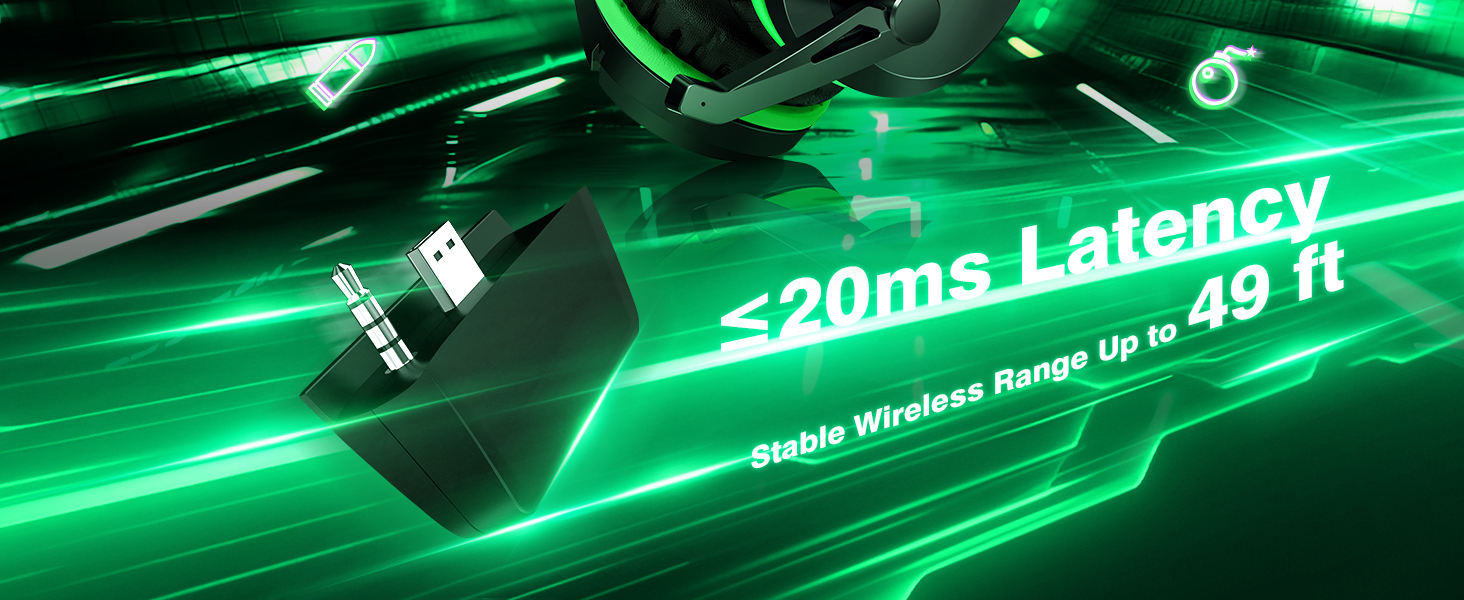
Image: Visual guide illustrating the correct and incorrect insertion of the dongle into the Xbox controller to ensure proper connection and prevent audio issues.
Video: Detailed instructions on how to connect the X3 Wireless Headset to an Xbox console, including controller dongle insertion and console settings.
Connecting to PC / PS5 (2.4GHz USB Dongle)
For PC and PS5, use the 2.4GHz USB dongle for low-latency wireless audio.
- Insert the 2.4GHz USB Dongle into an available USB port on your PC or PS5.
- Turn the headset power button on.
- The indicator light on the headset will turn white when successfully connected.

Image: The X3 headset's 2.4GHz wireless dongle connected to a PC and PS5, emphasizing low latency.
Connecting via Bluetooth (Mac, Tablet, Mobile, Switch)
The X3 headset also supports Bluetooth 5.0 for versatile connectivity with Mac, tablets, mobile devices, and Nintendo Switch. (Note: Bluetooth function does not support PS4 and PS5).
- Turn the headset power button on.
- Hold the mode button for 2 seconds to switch to Bluetooth (BT) mode. The indicator will be blue while pairing.
- On your device, go to Settings -> Bluetooth and pair with "X3".

Image: Diagram illustrating the multi-connection modes of the X3 headset, including 2.4GHz USB dongle for PS5/PC/Laptop and Bluetooth mode for Mac/Tablet/Mobile/Switch.
Operating the Headset
Controls Overview
The X3 headset features intuitive on-ear controls for easy access during gameplay.

Image: Close-up of the X3 headset's right earcup, showing the easy-to-use function buttons.
- Mic On/Off: Toggle microphone on or off.
- 2.4GHz/Bluetooth Modes: Hold for 2 seconds to switch between 2.4GHz wireless and Bluetooth modes.
- Power Button: Hold for 3 seconds to power the headset On/Off.
- Volume Wheel: Adjust the headset's audio volume.
- Type-C for Charge: USB-C charging port.
Audio Features
Experience immersive audio with 50mm drivers and 3D Surround Sound, delivering explosive bass and pinpoint directional audio. The noise-cancelling microphone reduces background noise, ensuring clear communication with your teammates.

Image: The X3 headset highlighting its noise-cancelling microphone, designed for clear voice pickup.

Image: The WolfLawS X3 Wireless Gaming Headset, showcasing its sleek black design with vibrant green accents.
Maintenance
Cleaning
Regularly wipe the headset with a soft, dry cloth. For ear cushions, use a slightly damp cloth and allow to air dry completely before use. Avoid harsh chemicals or abrasive materials.
Storage
Store the headset in a cool, dry place away from direct sunlight and extreme temperatures. When not in use, you can fold the headset flat for compact storage.
Troubleshooting
If you encounter any issues with your WolfLawS X3 headset, please refer to the solutions below.
Video: Troubleshooting guide for common issues with the X3 Headset, including connectivity and microphone problems.
Common Issues and Solutions
No Sound from Microphone or Microphone Sound Too Low
For Xbox Users:
- Confirm the settings on your Xbox console. Navigate to Audio & Music settings.
- Ensure "Headset mic" is turned "On".
- Check "Headset volume" and "Headset chat mixer" settings. Turn "Headset volume" to maximum.
- If "Headset chat mixer" is turned up to the maximum, adjust the game sound and chat sound to the center to balance them.
- Ensure the microphone is properly plugged into the headset.
Echo from the Microphone
For Xbox Users:
- Turn off "Mic monitoring" mode in the Xbox console settings (Audio & Music).
Significant Noise in the Headset
For Xbox Users:
- Ensure the 2.4GHz transmitter (dongle) is fully and tightly inserted into the Xbox controller. A loose connection can cause electrical noise.
Headset Volume Too Low
For Xbox Users:
- Make sure the "Headset Volume" on the Xbox console (Audio & Music settings) is set to maximum. When using the headset for the first time, the default volume on the console is 80% and may need to be increased.
Teammates Cannot Hear Me
- Confirm whether the microphone is activated on the headset (physical mute button) and on the console settings. If activated, please adjust the game sound and chat sound to the center to make them balanced at the "Headset chat mixer".
Specifications
| Feature | Detail |
|---|---|
| Model Name | X3 |
| Connectivity Technology | Wireless |
| Wireless Communication Technology | Bluetooth |
| Included Components | X3 Headset/2.4GHz Transmitter/Charge Cable/User Manual |
| Age Range (Description) | Adult, Teen, Kid |
| Material | Plastic |
| Specific Uses For Product | Gaming |
| Compatible Devices | Xbox Series X|S, Xbox One, PS5, PS4, PC, Mac, Switch |
| Frequency Range | 20Hz - 20,000Hz |
| Unit Count | 1.0 Count |
| Style | Modern |
| Control Method | Push Button |
| Audio Driver Type | Dynamic Driver |
| Bluetooth Version | 5.0 |
| Audio Latency | 20 Milliseconds |
| Audio Driver Size | 50 Millimeters |
| Earpiece Shape | over_ear |
| Manufacturer | WOLFLAWS |
| Package Dimensions | 8.58 x 8.35 x 2.44 inches |
| Item Weight | 13.7 ounces |
| ASIN | B0F6MGR8KN |
| Item model number | X3 |
| Customer Reviews | 4.4 4.4 out of 5 stars 110 ratings 4.4 out of 5 stars |
| Best Sellers Rank | #685 in Video Games (See Top 100 in Video Games) #55 in PC Game Headsets |
| Date First Available | May 10, 2025 |
| Brand | WolfLawS |
| Color | Black |
| Ear Placement | Over Ear |
| Form Factor | Over Ear |
| Impedance | 160 Ohm |
Warranty and Support
For warranty information or technical support, please contact WolfLawS customer service. Refer to the contact details provided in the original product packaging or on the official WolfLawS website.
Seller: HaoJun Tech