1. Introduction
This user manual provides essential information for the safe and efficient operation of your Gawfolk 27-Inch 4K IPS Gaming Monitor, Model GF270G. Please read this manual thoroughly before using the product and retain it for future reference.
2. Safety Information
- Power Source: Use only the power adapter supplied with the monitor. Ensure the power outlet meets the specified voltage requirements.
- Ventilation: Do not block ventilation openings. Allow adequate space around the monitor for proper airflow to prevent overheating.
- Liquid Exposure: Keep the monitor away from water or other liquids. Do not operate in high humidity environments.
- Cleaning: Disconnect the power cable before cleaning. Use a soft, dry cloth. Avoid using liquid or aerosol cleaners.
- Placement: Place the monitor on a stable, flat surface. Avoid direct sunlight, heat sources, or excessive dust.
- Servicing: Do not attempt to service the monitor yourself. Refer all servicing to qualified service personnel.
3. Package Contents
Verify that all items are present in your package:
- Gawfolk 27-Inch Monitor
- Monitor Stand (Base and Neck)
- Power Adapter
- DisplayPort Cable
- HDMI Cable
- User Manual
- Mounting Screws (for stand assembly)
Video Description: This video demonstrates the unboxing process and shows all included accessories for the Gawfolk monitor, including the power adapter, stand components, DisplayPort cable, HDMI cable, and user manual.
4. Setup
4.1 Stand Assembly
- Carefully remove the monitor from its packaging, keeping it protected.
- Attach the stand neck to the monitor's rear panel using the provided screws.
- Secure the stand base to the stand neck.
- Place the assembled monitor on a stable surface.

Image Description: A diagram illustrating the multi-directional angle adjustment capabilities of the monitor stand, including tilt (-5° to 15°), swivel (±15°), pivot (90°), and height adjustment (0-120mm).
4.2 Connectivity
The Gawfolk GF270G monitor offers multiple connectivity options:
- HDMI (2.1): One port, supporting up to 120Hz.
- DisplayPort (1.4): One port, supporting up to 144Hz.
- Audio Out: One port for external audio devices.
To achieve 4K (3840x2160) resolution and the monitor's maximum refresh rate (144Hz), your PC must be equipped with a dedicated GPU. We recommend using HDMI 2.0 or later and DisplayPort 1.4 or later ports. Lower versions may limit performance (e.g., HDMI 1.4 supports only 4K@30Hz, while DP 1.2 enables 4K@60Hz with Display Stream Compression on compatible GPUs).

Image Description: A detailed diagram of the monitor's rear panel, highlighting the DC power input, HDMI 2.1 ports, DisplayPort 1.4 ports, and Audio Out port. It also indicates VESA 75x75mm mounting compatibility and a cable organizer feature.
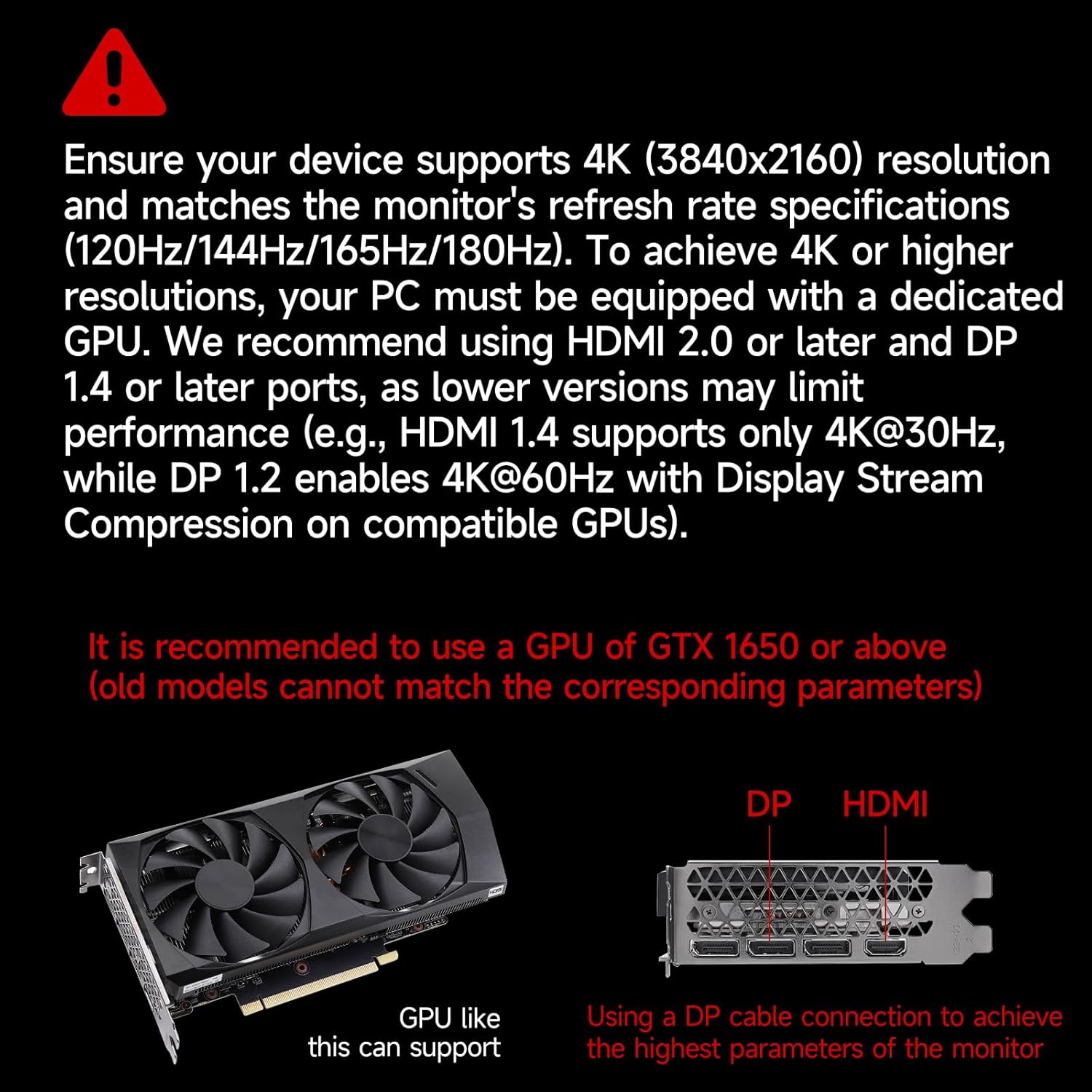
Image Description: An illustration showing a graphics processing unit (GPU) and the monitor's DisplayPort and HDMI connections, with a note recommending a GPU like GTX 1650 or above for full monitor parameter support.
4.3 Initial Power On
- Connect the power adapter to the monitor and a power outlet.
- Connect your PC or other video source to the monitor using an HDMI or DisplayPort cable.
- Press the power button on the monitor.
- If no image appears, ensure the video source is powered on and correctly configured to output to the monitor.
5. Operating Instructions
5.1 Basic Controls
The monitor features intuitive controls, typically located on the rear or bottom edge, to navigate the On-Screen Display (OSD) menu. Use these buttons to adjust settings such as brightness, contrast, input source, and more.
5.2 Display Settings
- Resolution: The monitor supports UHD 3840 x 2160p resolution. Ensure your operating system display settings are configured to this resolution for optimal clarity.
- Refresh Rate: The monitor supports up to 144Hz refresh rate via DisplayPort 1.4. Configure your graphics card settings to utilize the highest available refresh rate for smoother visuals.
- Color Accuracy: The IPS panel provides a wide color gamut (128% sRGB) and 10-bit color depth for vibrant and accurate colors. Adjust color settings in the OSD menu or your graphics card control panel as needed.
- Flicker-Free Technology: This technology reduces screen flickering, minimizing eye strain during extended use.
- Low Blue Light: Activate the Low Blue Light mode via the OSD menu to reduce blue light emissions, which can help alleviate eye fatigue.

Image Description: A visual comparison demonstrating the superior detail of 4K UHD (3840x2160) resolution compared to standard HD (1920x1080) on the monitor screen.
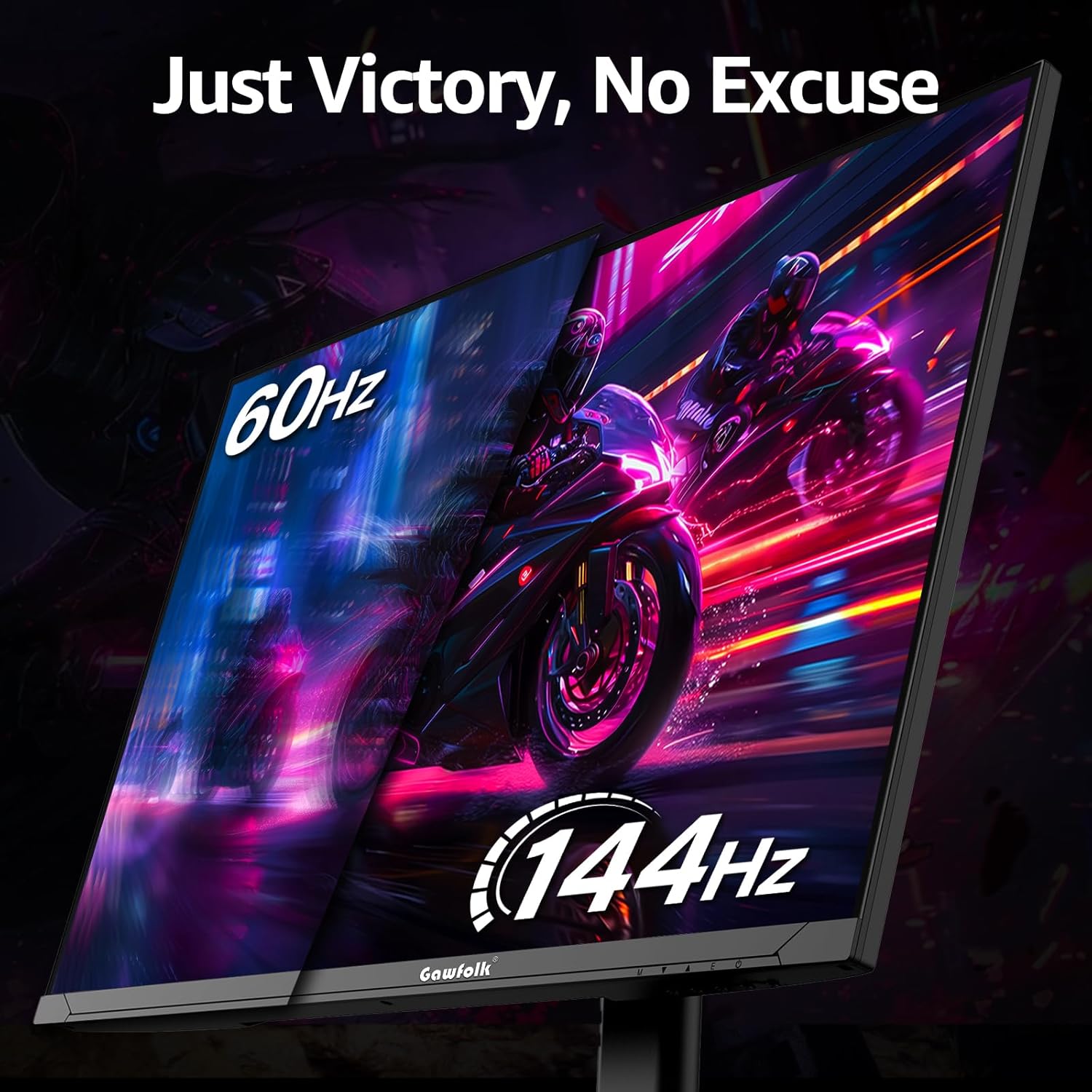
Image Description: A side-by-side comparison on the monitor screen, illustrating the difference between 60Hz and 144Hz refresh rates in a dynamic gaming scene, highlighting the smoother motion at 144Hz.

Image Description: A visual comparison showing a screen with noticeable flicker (labeled 'Other') versus a clear, flicker-free screen (labeled 'Gawfolk'), demonstrating the benefit of flicker-free technology.
5.3 Picture-by-Picture (PBP) Mode
The monitor supports Picture-by-Picture (PBP) mode, allowing you to display content from two different input sources simultaneously on the screen. This feature is useful for multitasking or comparing content side-by-side.
- Connect two separate video sources to the monitor (e.g., one via HDMI, one via DisplayPort).
- Access the OSD menu and navigate to the PBP settings.
- Select the desired PBP layout and input sources.
Video Description: This video showcases various features of the Gawfolk 27-inch 4K Gaming Monitor, including its smooth visuals, 4K resolution capabilities, Picture-by-Picture (PBP) mode for displaying multiple sources, and a comparison of 144Hz versus 60Hz refresh rates.
5.4 Ergonomic Adjustments
The monitor stand allows for various adjustments to optimize your viewing comfort:
- Tilt: Adjust the screen angle from -5° to 15° forward or backward.
- Swivel: Rotate the screen horizontally up to ±15°.
- Height Adjustment: Raise or lower the screen by up to 120mm.
- Pivot: Rotate the screen 90° for portrait orientation.

Image Description: A visual guide detailing the ergonomic features of the monitor stand, showing how to adjust tilt, swivel, pivot, and height for personalized viewing angles.
6. Maintenance
- Screen Cleaning: Gently wipe the screen with a soft, lint-free cloth. For stubborn marks, lightly dampen the cloth with water or a specialized screen cleaner. Do not spray liquid directly onto the screen.
- Casing Cleaning: Use a soft, dry cloth to clean the monitor casing. Avoid abrasive materials or strong chemical cleaners.
- Dust Removal: Regularly dust the ventilation openings to prevent dust buildup, which can affect performance and lifespan.
- Storage: If storing the monitor for an extended period, disconnect it from power, cover it to protect from dust, and store in a cool, dry place.
7. Troubleshooting
- No Power:
- Ensure the power cable is securely connected to both the monitor and the power outlet.
- Verify the power adapter is functioning correctly.
- Check if the power outlet is active.
- No Image/Signal:
- Confirm the video cable (HDMI/DisplayPort) is properly connected to both the monitor and the video source.
- Select the correct input source via the monitor's OSD menu.
- Ensure your computer or video source is powered on and outputting a signal.
- If using DisplayPort and experiencing lag or stuttering, try a different DisplayPort cable or ensure your GPU drivers are up to date. Some older GPUs or cables may not fully support the monitor's specifications.
- Incorrect Resolution/Refresh Rate:
- Adjust the display settings in your operating system to 3840 x 2160 resolution.
- Set the refresh rate to 144Hz (or the maximum supported by your connection/GPU) in your graphics card control panel.
- Ensure your GPU and cable support the desired resolution and refresh rate.
- Image Quality Issues (e.g., lines, distorted colors):
- Check video cable connections for looseness or damage.
- Test with a different video cable.
- Reset monitor settings to factory defaults via the OSD menu.
- Update your graphics card drivers.
8. Specifications
| Feature | Specification |
|---|---|
| Screen Size | 27 Inches |
| Screen Resolution | 3840 x 2160 Pixels (4K UHD 2160p) |
| Panel Type | IPS |
| Refresh Rate | 144Hz |
| Aspect Ratio | 16:9 |
| Dynamic Contrast Ratio | 4000:1 |
| Color Depth | 10-bit |
| Color Gamut | 128% sRGB |
| Screen Surface | Matte |
| Connectivity | 1x HDMI 2.1, 1x DisplayPort 1.4, 1x Audio Out |
| VESA Mount Compatible | Yes (75x75mm) |
| Ergonomics | Tilt, Swivel, Height Adjustment, Pivot |
| Item Model Number | GF270G |
| Item Weight | 7.28 pounds |
| Product Dimensions (LxWxH) | 8.26 x 24.17 x 21.65 inches |
| Voltage | 12 Volts |
9. Warranty and Support
The Gawfolk 27-Inch 4K IPS Gaming Monitor comes with a standard manufacturer's warranty. For specific warranty terms and conditions, please refer to the warranty card included in your product packaging or contact Gawfolk customer support.
If you encounter any damage, malfunction, or missing accessories, please contact Gawfolk customer support for assistance. Our support team is available to help you with any product-related inquiries.
Contact Information: Please refer to the contact details provided in your product packaging or visit the official Gawfolk website for support.


