
iGPSPORT BiNavi Bike Computer
Contents
iGPSPORT BiNavi Bike Computer User Manual
Comprehensive Guide for Your Wireless GPS Cycling Computer
1. Product Overview
The iGPSPORT BiNavi is a sophisticated touchscreen GPS bike computer designed to enhance your cycling experience with advanced navigation, performance tracking, and smart connectivity features. It offers a large, clear display and robust functionality for both casual riders and serious cyclists.
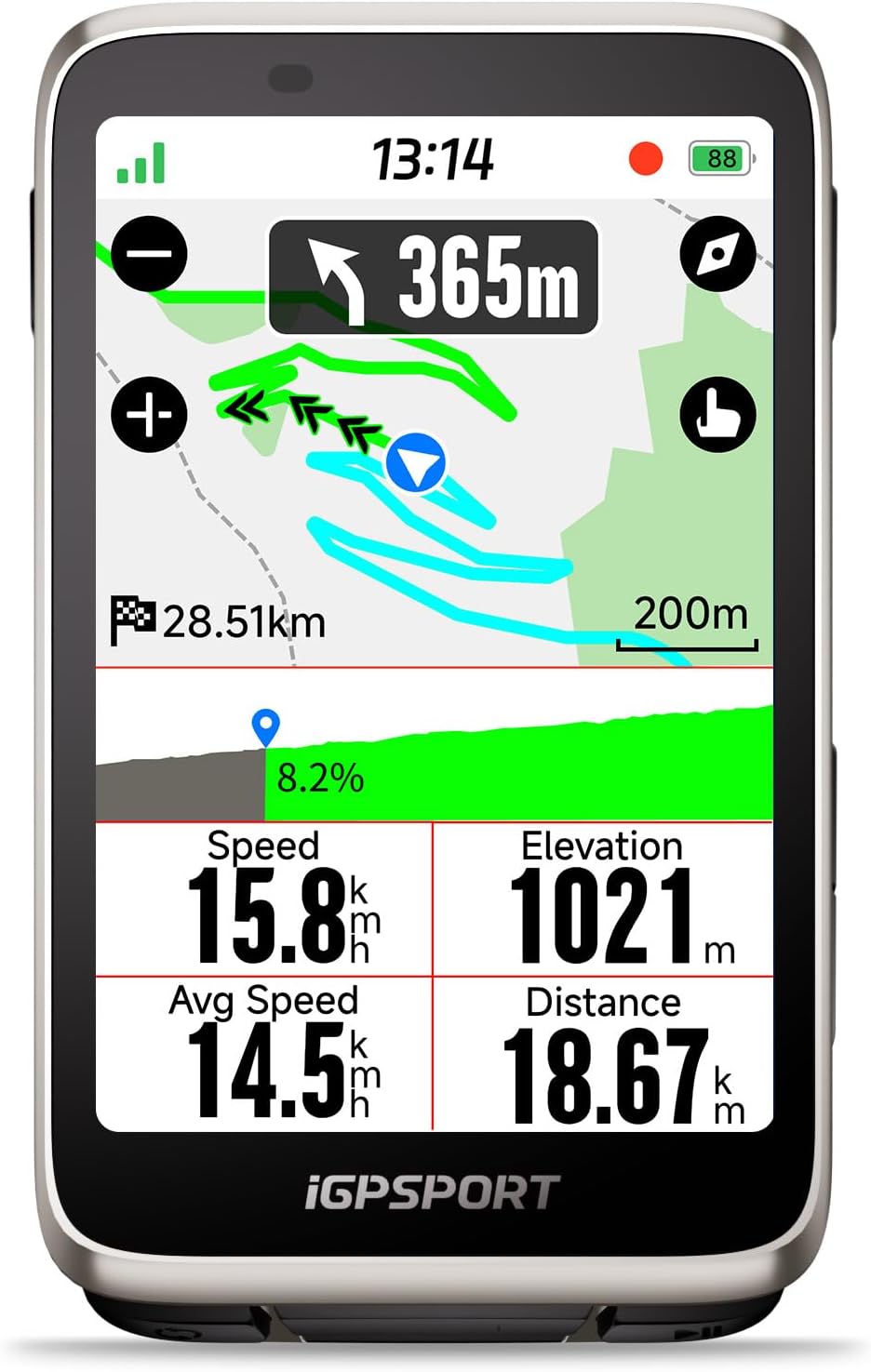
Image: The iGPSPORT BiNavi Bike Computer showcasing its intuitive map navigation and real-time ride data display, including speed, elevation, average speed, and distance.
2. What's in the Box
Upon opening your iGPSPORT BiNavi package, you should find the following items:
- 1 x iGPSPORT BiNavi Bike Computer
- 1 x USB-A to USB-C Charging Cable
- 1 x User Manual (this document)
- 2 x Screen Film Protectors
- 1 x Lanyard
- 1 x Rubber Band Handlebar Mount
Video: An unboxing video demonstrating the contents of the iGPSPORT BiNavi package, including the bike computer, charging cable, user manual, screen protectors, lanyard, and handlebar mount.
3. Setup
3.1 Initial Charging
Before first use, fully charge your BiNavi device. Connect the provided USB-A to USB-C charging cable to the device and a compatible USB power adapter (not included). A full charge typically takes approximately 1.5 hours and provides up to 35 hours of battery life.

Image: The iGPSPORT BiNavi device highlighting its impressive 35-hour battery life, ensuring long rides without frequent recharging.
3.2 Mounting the Device
Use the included rubber band handlebar mount to securely attach the BiNavi to your bicycle's handlebars. Ensure the mount is tightened to prevent movement during rides.
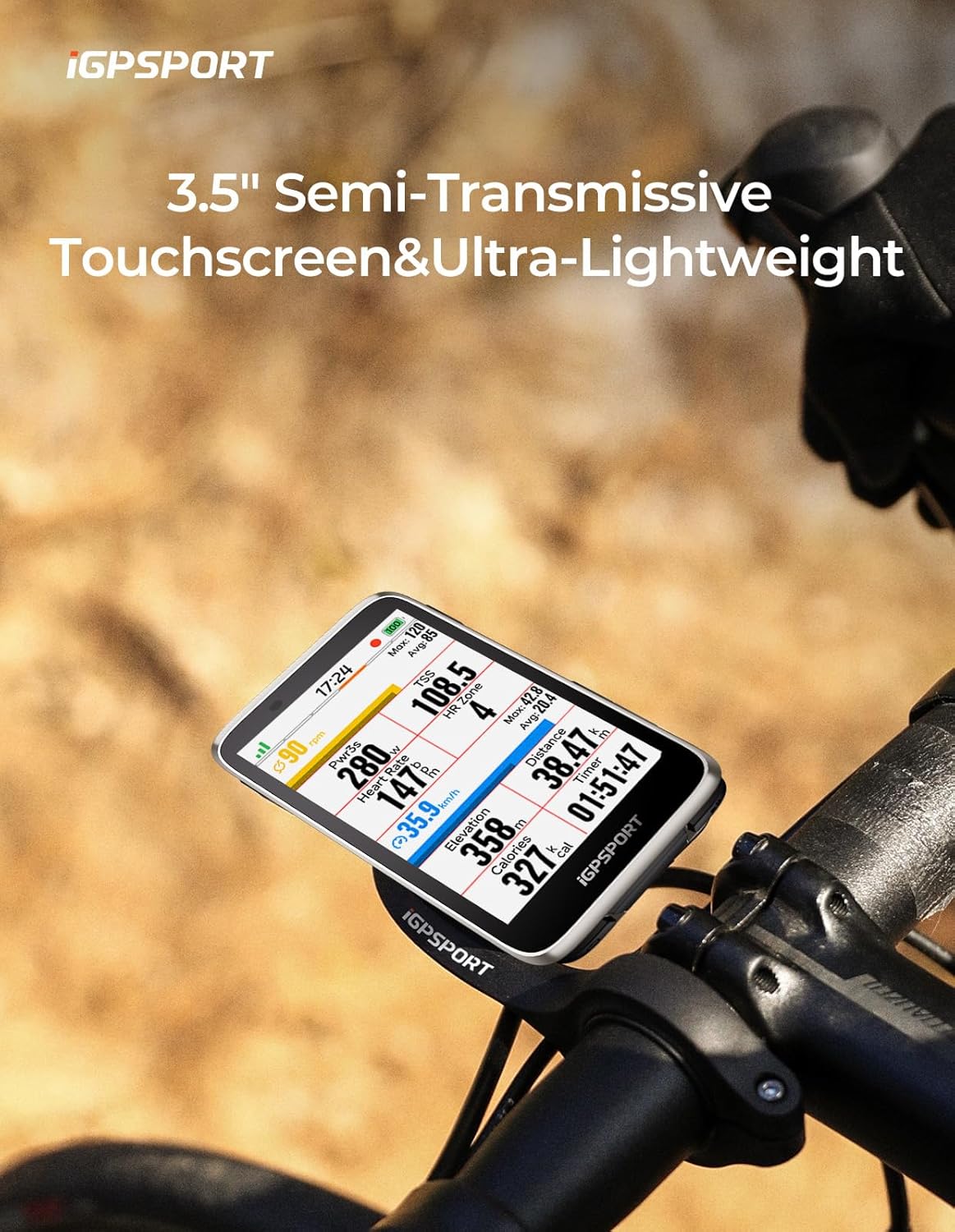
Image: A close-up view of the iGPSPORT BiNavi Bike Computer securely mounted on bicycle handlebars, demonstrating its compact and lightweight design.
3.3 Initial Power On and Language Selection
Press and hold the power button to turn on the device. Follow the on-screen prompts to select your preferred language and complete the initial setup. The device features a 3.5-inch semi-transmissive touchscreen for easy interaction.
4. Operating the BiNavi
4.1 Navigation Features
The BiNavi offers advanced map navigation capabilities. You can plan routes directly from the iGPSPORT app and send them to your device. It also supports importing routes from third-party applications like Strava and Komoot.
- Smart MAP Navigation: Set routes via the iGPSPORT APP or import road books from third-party APPs.
- Yaw Planning: Automatic re-routing if you deviate from the planned course.
- Saved Point Navigation: Navigate to previously saved locations.
- iClimb 3.0: Provides detailed information on climbing sections, including distance, height, and grade, to help manage your effort.

Image: The BiNavi providing upgraded turn guidance, showing real-time visuals and alerts for upcoming turns on a winding road, enhancing rider safety.

Image: A visual representation of the BiNavi's smart re-routing capability, demonstrating how it automatically finds the best path back if you go off-course.
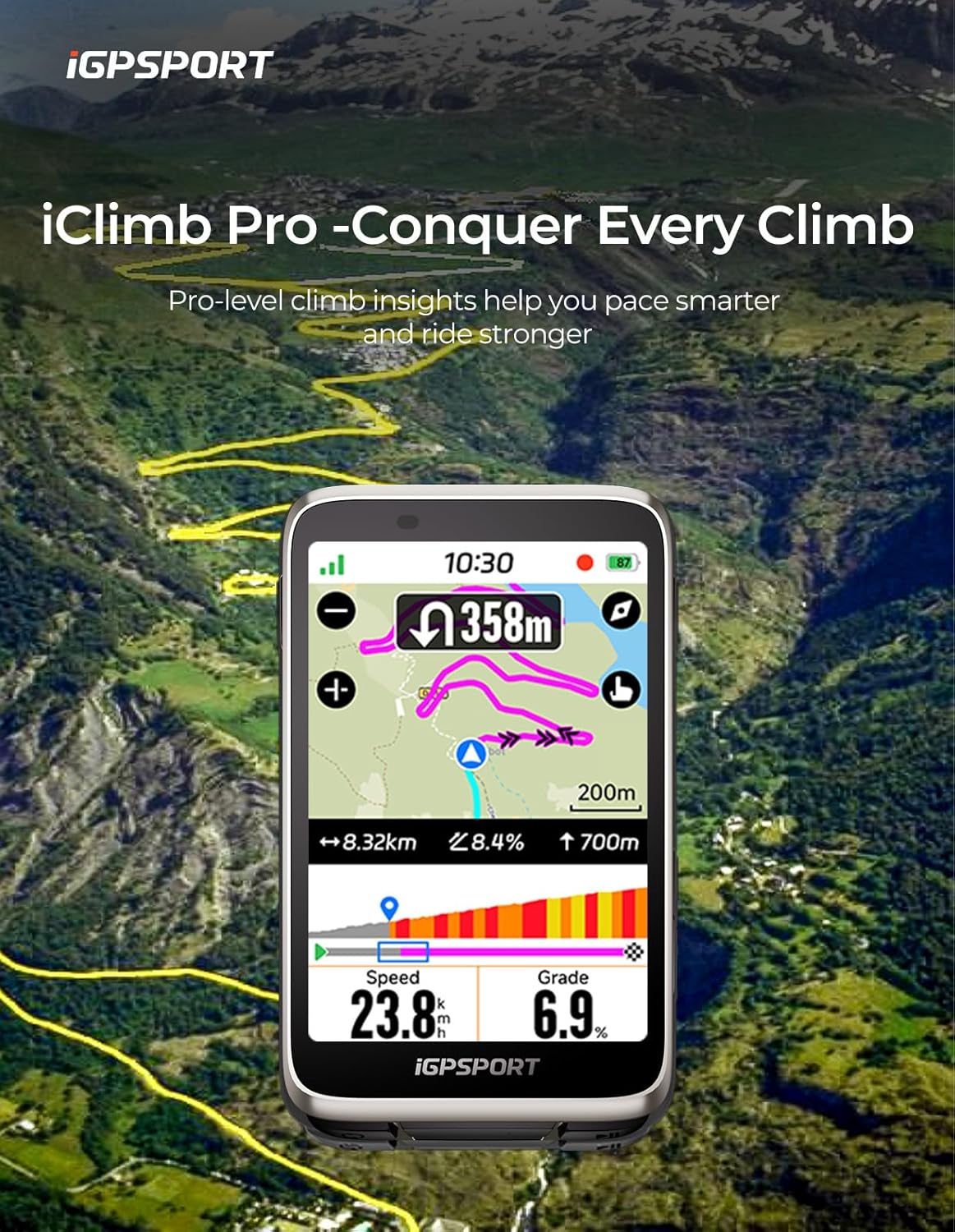
Image: The iGPSPORT BiNavi displaying the iClimb Pro feature, providing detailed climb insights such as distance, grade, and elevation gain to help cyclists manage their pace.
4.2 Connectivity and Data Tracking
The BiNavi supports various connectivity options and tracks over 160 types of ride data.
- Dual-Band GPS & 5 Satellite Positioning: Simultaneously receives satellite signals in L1 and L5 frequency bands from GPS, Beidou, GLONASS, GALILEO, and QZSS for improved accuracy.
- Music Control: Control music playback on your paired smartphone directly from the device.
- Group Ride Function: Share your riding location, distance, and speed with other riders in your group.
- Continue Last Ride Function: Seamlessly resume a ride activity without losing data, even if interrupted.
- Motion Detection: Equipped with a high-precision accelerometer to detect rider motion status, including Training Stress Score and Strength Factor.
- Expanded Device Connectivity: Connects with various sensors such as heart rate monitors, speed sensors, cadence sensors, power meters, smart bike lights, and radar tail lights via ANT and Bluetooth.

Image: A cyclist using the BiNavi, which displays various functions including music control, detailed ride data, and incoming call notifications, allowing for an immersive and connected ride.
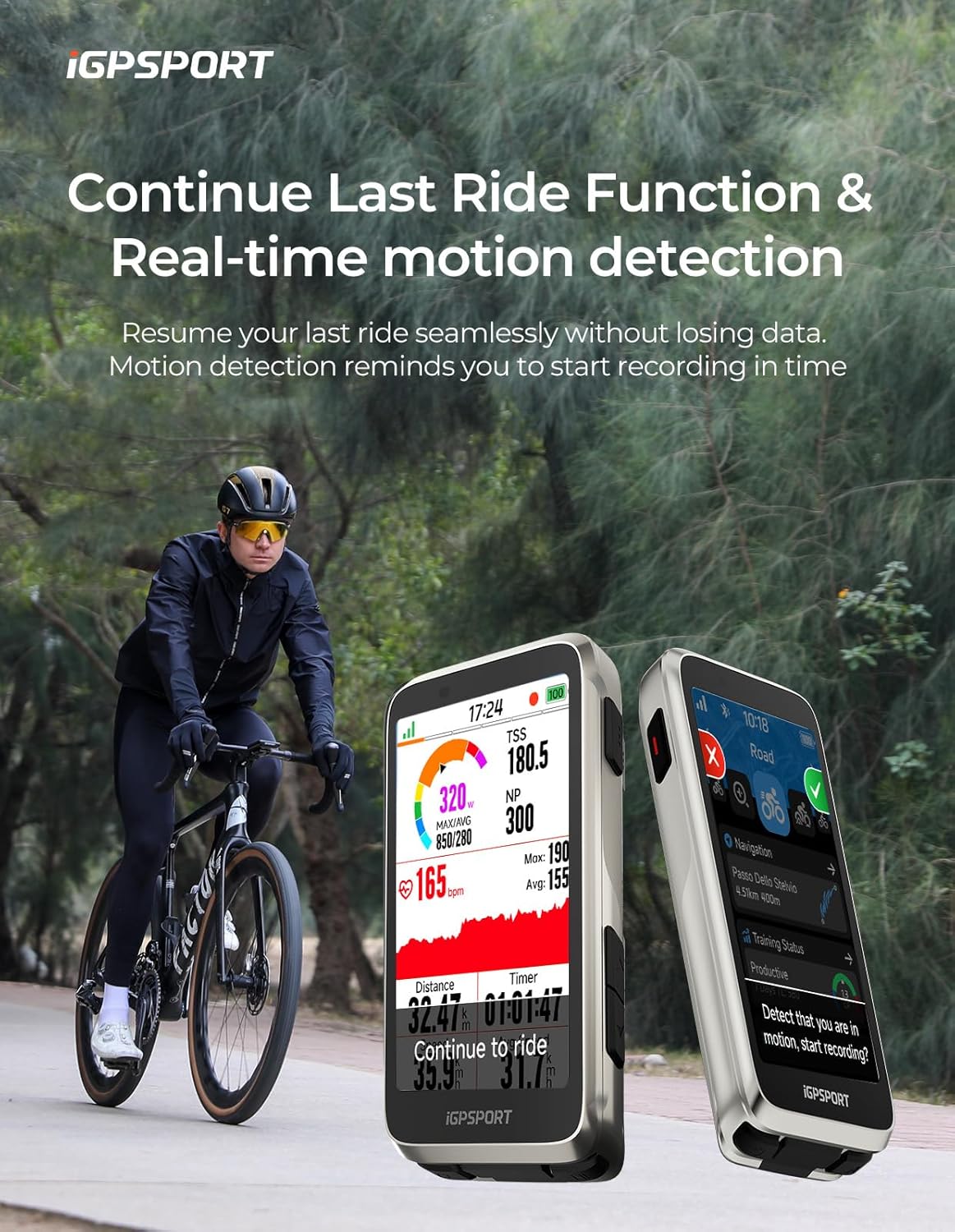
Image: Two BiNavi devices illustrating the "Continue Last Ride" function and real-time motion detection, ensuring seamless tracking and timely recording of ride data.

Image: An illustration demonstrating the expanded device connectivity of the BiNavi, showing its ability to connect with a wide range of sensors and accessories to power your ride data.
4.3 Training and Fitness Features
The BiNavi integrates advanced training and fitness analysis tools.
- Upgrade Training Plan: Utilizes intelligent training analysis algorithms to provide detailed training effect analysis and guide targeted training.
- Pre-Workout Training Status Assessment: Assess current training status based on past 7 days of training load and fitness trends, with personalized advice.
- Real-Time Fitness Monitoring: Track aerobic, anaerobic effects, load, and stamina live.
- Stamina Recovery Tracking: Track recovery based on last workout's remaining energy and recovery time.
- Personal Fitness Level Analysis: Evaluate fitness with a comprehensive score based on 6 key athletic abilities.
- E-Bike Mode: Seamlessly links with electric-assist bikes to deliver real-time ride data.

Image: The BiNavi screen showing a pre-workout training status assessment, including training load trend and load ratio, to help optimize performance.

Image: Cyclists engaged in indoor training, with the BiNavi displaying real-time fitness monitoring data such as aerobic and anaerobic effects, load, and stamina.

Image: The BiNavi screen showing stamina recovery tracking, indicating the estimated time for complete recovery after a workout.

Image: The BiNavi screen presenting a personal fitness level analysis, scoring key athletic abilities and providing insights into aerobic and cycling performance.
5. Maintenance
5.1 Cleaning the Device
To maintain optimal performance and appearance, regularly clean your BiNavi. Use a soft, damp cloth to wipe the screen and body. Avoid abrasive cleaners or solvents that could damage the device.
5.2 Water Resistance
The BiNavi is rated IPX7 waterproof, meaning it can withstand immersion in up to 1 meter of water for 30 minutes. While it is resistant to splashes and rain, avoid prolonged submersion or high-pressure water jets.
5.3 Software Updates
Periodically check for firmware updates via the iGPSPORT app. Updates often include performance improvements, new features, and bug fixes. Ensure your device is sufficiently charged before initiating any updates.
6. Troubleshooting
| Problem | Possible Cause | Solution |
|---|---|---|
| Device won't turn on. | Low battery; device frozen. | Charge the device for at least 30 minutes. If still unresponsive, perform a force restart by holding the power button for 10-15 seconds. |
| GPS signal acquisition is slow or inaccurate. | Obstructed view of sky; initial GPS fix. | Ensure you are in an open area with a clear view of the sky. The first GPS fix may take longer. Ensure Dual-Band GPS is enabled in settings. |
| Sensors (HRM, Speed, Cadence) not connecting. | Sensor battery low; out of range; incorrect pairing. | Check sensor batteries. Ensure sensors are within range and awake. Re-pair sensors via the device's sensor settings menu. |
| Route navigation issues (e.g., not re-routing). | Outdated maps; software glitch. | Ensure maps are updated via the iGPSPORT app. Restart the device and re-import the route. |
| Screen unresponsive. | Temporary software issue; screen protector interference. | Restart the device. If a screen protector is installed, ensure it is properly applied and not causing issues. |
7. Specifications
| Feature | Detail |
|---|---|
| Brand | iGPSPORT |
| Model Name | BiNavi Bike Computer |
| Color | Silver |
| Screen Size | 3.5 Inches |
| Battery Cell Composition | Lithium Polymer |
| Battery Life | Up to 35 hours |
| Connectivity Technology | ANT, Bluetooth |
| GPS | Dual-Band GPS (L1+L5), 5 Satellite Systems (GPS+Beidou+GLONASS+GALILEO+QZSS) |
| Water Protection Rating | IPX7 |
| Mounting Type | Handlebar Mount |
| Material | Plastic |
| Item Package Dimensions | 6.57 x 4.76 x 2.36 inches |
| Item Dimensions (LxWxH) | 0.24 x 0.08 x 0.39 inches |
| Package Weight | 0.47 Kilograms |
8. Warranty Information
The iGPSPORT BiNavi Bike Computer comes with a 1-Year Warranty from the date of purchase. This warranty covers manufacturing defects and malfunctions under normal use. Please retain your proof of purchase for warranty claims.
For detailed warranty terms and conditions, please refer to the official iGPSPORT website or contact customer support.
9. Support
For further assistance, technical support, or to provide feedback, please visit the official iGPSPORT website or contact their customer service team.
- Official Website: www.igpsport.com
- iGPSPORT App: Available on iOS and Android app stores.
Documents and downloads
Ask a question about this manual
Ask about setup, troubleshooting, compatibility, parts, safety, or missing instructions. Manuals+ will review the question and use this page’s manual context to help answer it.