
1. Introduction
This manual provides instructions for the Techkey Bluetooth 5.3 USB Adapter. This device enables Bluetooth connectivity for your desktop PC or laptop, allowing you to connect various Bluetooth-enabled peripherals such as headphones, keyboards, mice, and speakers. It features an upgraded Bluetooth 5.3 + EDR technology for enhanced stability and efficient data transmission.
Key Features:
- Upgraded Bluetooth 5.3 + EDR: Utilizes the latest Bluetooth 5.3 + EDR technology for improved anti-interference capabilities and stability, reducing transmission efficiency loss in the 2.4 GHz frequency band.
- Ultra-Small Size: Compact design allows for discreet placement in a USB port without obstructing adjacent ports.
- Stable Connection: Offers a stable connection with a transmission rate of up to 3Mbps. Supports Bluetooth Low Energy (BLE) and dual-mode Bluetooth transmission for faster data transfer. Transmission distance up to 30m in open areas.
- Plug & Play: Real Plug & Play functionality for Windows 11 / 10 / 8.1, eliminating the need for manual driver installation.
- Wide Compatibility: Connects to multiple devices including Bluetooth speakers, keyboards, headsets, and mice.
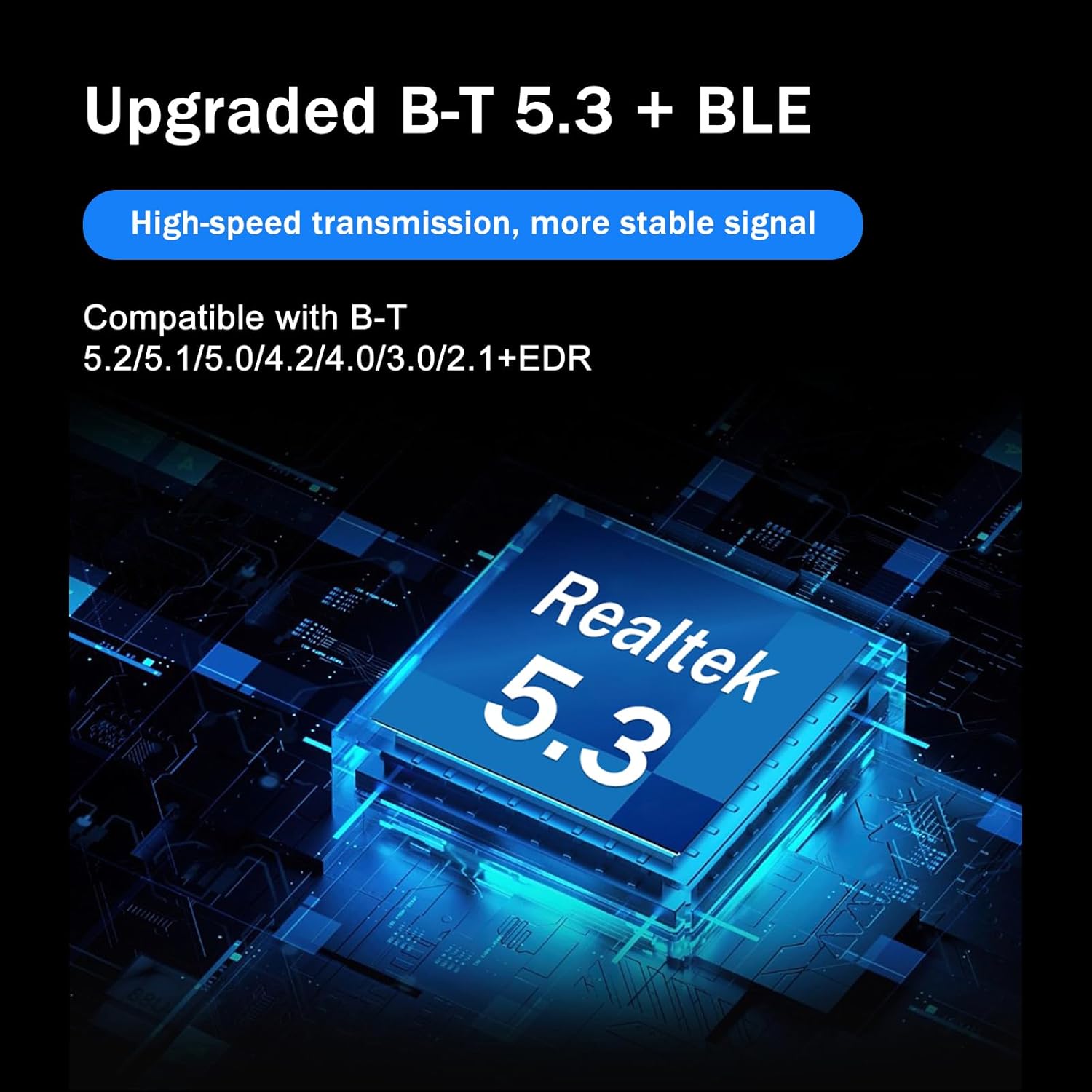
Image: The Techkey Bluetooth 5.3 USB Adapter highlighting its upgraded Bluetooth 5.3 + BLE technology and Realtek 5.3 chip.

Image: The compact design of the Techkey Bluetooth adapter, showing its small size (1.18 inches / 3 cm by 0.59 inches / 1.5 cm) when plugged into a laptop.
2. Package Contents
- 1 x Techkey Bluetooth 5.3 USB Adapter (Orange)
- 1 x User Manual (this document)

Image: The Techkey Bluetooth 5.3 USB Adapter in orange, showing its compact form factor and USB connector.
3. Setup
System Requirements:
- Operating System: Windows 11 / 10 / 8.1 (32-bit or 64-bit)
- USB Port: Available USB 2.0 or 3.0 port
- Note: This adapter does NOT support Mac, Linux, Unraid, TV, car stereo, PS4, or Xbox systems.
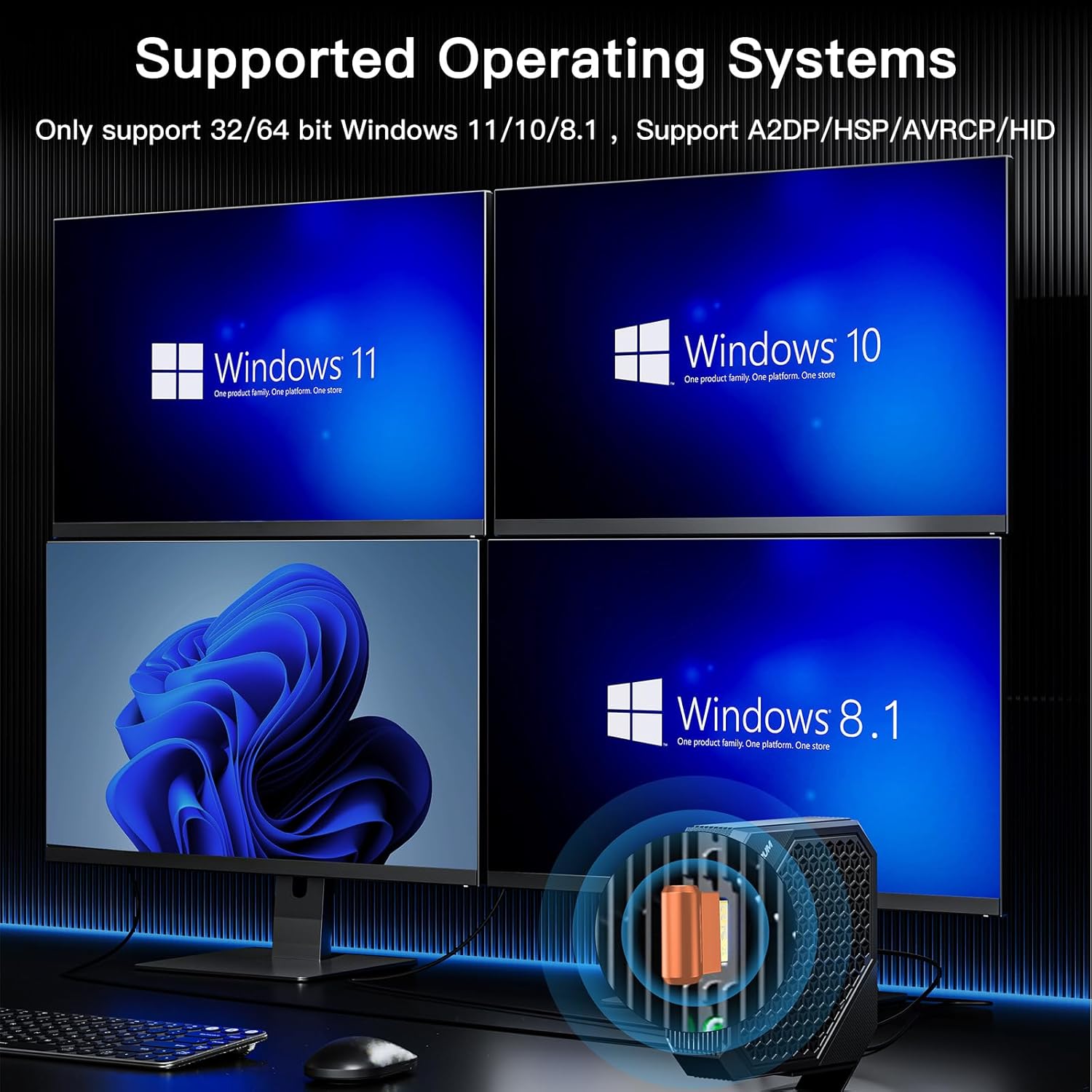
Image: Displays the supported operating systems: Windows 11, Windows 10, and Windows 8.1, indicating compatibility with 32/64-bit versions.
Installation Steps:
- Insert the Adapter: Plug the Techkey Bluetooth 5.3 USB Adapter into an available USB port on your desktop PC or laptop.
- Automatic Driver Installation: For Windows 11, 10, and 8.1, the system will automatically detect the adapter and install the necessary drivers. This is a true Plug & Play process.
- Verification: Once the driver installation is complete, a Bluetooth icon should appear in your system tray (usually in the bottom right corner of your screen). This indicates the adapter is ready for use.
Important Note: If you have existing or broken Bluetooth drivers on your system, it is recommended to disable or uninstall them before inserting the new adapter to prevent potential conflicts.
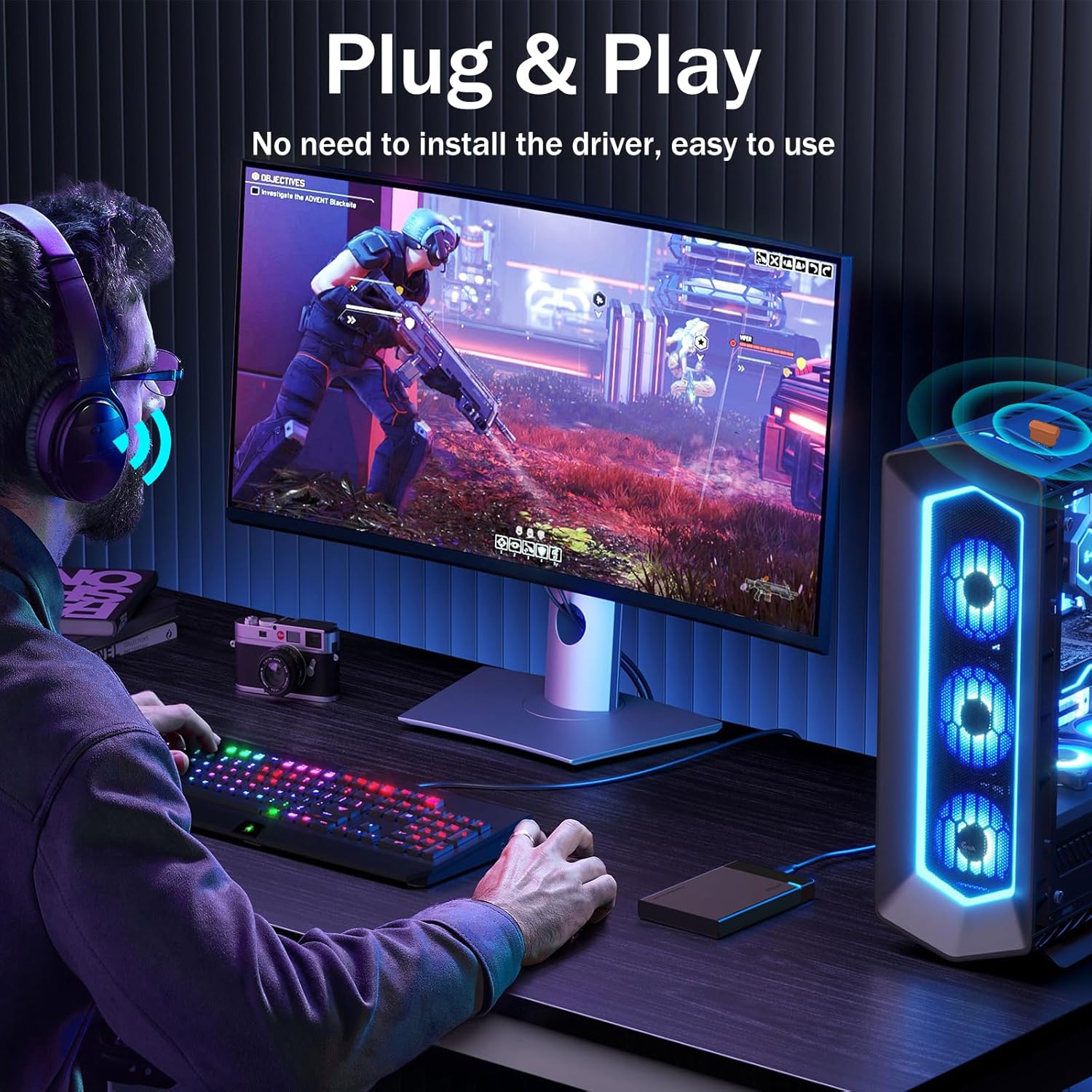
Image: Illustrates the simple Plug & Play installation of the Bluetooth adapter into a desktop PC, ready for use without manual driver installation.
4. Operating Instructions
Pairing Bluetooth Devices:
- Ensure your Bluetooth adapter is plugged into your computer and recognized by the system.
- Turn on the Bluetooth device you wish to pair (e.g., headphones, mouse, keyboard) and put it into pairing mode. Refer to your device's manual for specific instructions on how to enter pairing mode.
- On your Windows computer, navigate to Settings > Devices > Bluetooth & other devices.
- Click on "Add Bluetooth or other device" and then select "Bluetooth".
- Your computer will scan for nearby Bluetooth devices. Select your device from the list when it appears.
- Follow any on-screen prompts to complete the pairing process. You may need to enter a PIN or confirm a code.
- Once paired, your device will be listed as "Connected" and ready for use.
Connecting Multiple Devices:
The Techkey Bluetooth 5.3 USB Adapter supports connecting multiple Bluetooth devices simultaneously. You can connect up to 5 different devices at the same time, such as a Bluetooth mouse, headphones, keyboard, and game controller.

Image: Demonstrates the ability to connect up to 5 different Bluetooth devices, including a mouse, headphones, keyboard, and game controller, to a computer simultaneously.
Data Transmission:
The adapter facilitates fast data transmission for various purposes, including streaming music, watching videos, and transferring files wirelessly between your computer and connected Bluetooth devices. Once a device is connected, it will typically auto-reconnect when in range.

Image: Illustrates fast data transmission capabilities for music, video, and file transfers between a laptop and a smartphone via the Bluetooth adapter.
5. Maintenance
The Techkey Bluetooth 5.3 USB Adapter requires minimal maintenance.
- Keep the adapter clean and free from dust. Use a soft, dry cloth to wipe it if necessary.
- Avoid exposing the adapter to extreme temperatures, humidity, or direct sunlight.
- Do not attempt to disassemble or repair the adapter yourself, as this will void any warranty.
- When not in use for extended periods, you may remove the adapter from the USB port.
6. Troubleshooting
- Adapter Not Recognized / Bluetooth Icon Missing:
- Ensure the adapter is fully inserted into a working USB port. Try a different USB port.
- Restart your computer.
- Check Device Manager in Windows (Right-click Start button > Device Manager). Look for "Bluetooth" devices. If you see any devices with a yellow exclamation mark, there might be a driver issue.
- If you previously had a built-in Bluetooth adapter or another Bluetooth dongle, ensure its drivers are disabled or uninstalled to avoid conflicts.
- Cannot Pair Devices:
- Ensure your external Bluetooth device is in pairing mode and within range (up to 30m in open space).
- Turn off and on the Bluetooth function on your computer.
- Remove any previously paired instances of the device from your computer's Bluetooth settings and try pairing again.
- Ensure your external device is charged.
- Connection is Unstable or Drops:
- Ensure there are no significant physical obstructions between the adapter and your Bluetooth device.
- Move closer to the adapter.
- Avoid placing the adapter near sources of strong electromagnetic interference (e.g., Wi-Fi routers, microwaves).
- Try plugging the adapter into a USB 3.0 port if available, as some users report better stability.
- Audio Quality Issues (Headphones/Speakers):
- Ensure your Bluetooth audio device is selected as the default playback device in Windows Sound Settings.
- Check for any firmware updates for your Bluetooth audio device.
7. Specifications
| Feature | Detail |
|---|---|
| Model | B0F6LVMCMX |
| Bluetooth Version | 5.3 + EDR (Backward compatible with 5.2/5.1/5.0/4.2/4.0/3.0/2.1) |
| Data Link Protocol | Bluetooth |
| Data Transfer Rate | Up to 3 Megabits Per Second |
| Hardware Interface | USB-A |
| Compatible Devices | Headphones, Keyboard, Mouse, Speaker |
| Supported Operating Systems | Windows 11 / 10 / 8.1 (32/64 bit) |
| Product Dimensions | 1.18 x 0.59 x 0.2 inches (3 x 1.5 x 0.5 cm) |
| Item Weight | 0.704 ounces (0.02 Kilograms) |
| Manufacturer | Shenzhen Denos Trade Co., Ltd. |
8. Warranty and Support
For warranty information and technical support, please contact the manufacturer, Techkey, or the retailer from whom you purchased the product.
You can visit the official Techkey store for more information: Techkey Store on Amazon.
