1. Introduction
Thank you for choosing the Gawfolk GF270G 27-inch 4K IPS 144Hz Gaming Monitor. This manual provides essential information for setting up, operating, and maintaining your monitor to ensure optimal performance and longevity. Please read this manual thoroughly before using the product.

Figure 1.1: Gawfolk GF270G 27-inch 4K IPS 144Hz Gaming Monitor
Key Features:
- Display: 27-inch IPS Panel with 4K UHD (3840 x 2160) resolution.
- Refresh Rate: 144Hz for smooth visuals.
- Response Time: 1ms.
- Color Accuracy: 10-bit color depth, 128% sRGB.
- Connectivity: HDMI 2.1 (supports 4K@120Hz), DisplayPort 1.4 (supports 4K@144Hz), Audio Out.
- Ergonomics: Multi-directional angle adjustment (tilt, height, pivot).
- Eye Care: Flicker-Free technology and Blue Light filter.
- Design: Ultra-thin, frameless design.
2. Safety Information
Please observe the following safety precautions to prevent damage to the monitor and ensure your safety:
- Do not expose the monitor to rain, moisture, or extreme temperatures.
- Ensure proper ventilation; do not block ventilation openings.
- Use only the power adapter supplied with the monitor.
- Avoid placing heavy objects on the power cable.
- Disconnect the power cable from the outlet if the monitor will not be used for an extended period.
- Do not attempt to open the monitor casing; refer all servicing to qualified personnel.
3. Package Contents
Verify that all items are present in your package. If any items are missing or damaged, please contact your retailer.
- Gawfolk GF270G 27-inch Monitor
- Monitor Stand (Base and Neck)
- Power Adapter and Power Cable
- HDMI Cable
- DisplayPort Cable
- User Manual (this document)
4. Setup
4.1 Assembling the Stand
- Carefully remove the monitor from its packaging, keeping it protected on a soft surface.
- Attach the stand neck to the monitor panel.
- Attach the stand base to the stand neck and secure it with the provided screw.
- Place the assembled monitor on a stable, flat surface.
4.2 VESA Mounting
The monitor supports VESA 75x75mm mounting. To mount the monitor on a wall or an alternative stand:
- Remove the stand if it is already attached.
- Attach your VESA-compatible mount to the four screw holes on the back of the monitor.
- Ensure the mount is securely fastened.
4.3 Connecting to a Device
The monitor features multiple input ports. Choose the appropriate cable for your device (PC, game console, etc.).

Figure 4.1: Monitor Product Interface and Dimensions. Includes DC power input, HDMI 2.0 ports (up to 120Hz), DisplayPort 1.4 ports (up to 144Hz), and Audio Out.
- HDMI Connection: Connect one end of the HDMI cable to the HDMI port on your device and the other end to an HDMI port on the monitor. The monitor supports HDMI 2.1, allowing 4K resolution at up to 120Hz.
- DisplayPort Connection: Connect one end of the DisplayPort cable to the DisplayPort on your device and the other end to a DisplayPort on the monitor. DisplayPort 1.4 supports 4K resolution at up to 144Hz.
- Audio Output: Connect external speakers or headphones to the 3.5mm Audio Out port on the monitor.
4.4 Power Connection
- Connect the power adapter to the DC input port on the monitor.
- Plug the power cable into a power outlet.
5. Operating Instructions
5.1 Power On/Off
Press the power button located on the monitor to turn it on or off. The power indicator light will illuminate when the monitor is on.
5.2 On-Screen Display (OSD) Menu
The OSD menu allows you to adjust various monitor settings. Use the joystick/buttons on the monitor to navigate and select options.
Common OSD Settings:
- Picture Settings: Adjust brightness, contrast, sharpness, and color temperature.
- Input Source: Manually select between HDMI and DisplayPort inputs.
- Display Settings: Adjust aspect ratio, HDR mode, and refresh rate.
- Audio: Adjust volume for the audio output.
- Eye Care: Enable/disable Flicker-Free and Low Blue Light modes.
5.3 Special Features

Figure 5.1: Overview of key monitor features including 4K resolution, Low Blue Light, IPS Panel, 144Hz Refresh Rate, Gameplay Assist, 128% sRGB, and VESA compatibility.
- 4K UHD Resolution: Experience detailed visuals with 3840x2160 pixels.
- 144Hz Refresh Rate: Provides smooth motion, especially beneficial for gaming.
- IPS Panel: Offers wide viewing angles and accurate color reproduction.
- Flicker-Free & Low Blue Light: Reduces eye strain during prolonged use.
- Gameplay Assist: Includes features like a crosshair function for enhanced gaming.
- Adaptive Sync: Advanced technology to eliminate screen tearing and stuttering.

Figure 5.2: Multi-directional angle adjustment capabilities, including tilt from -5° to 15°, height adjustment from 0-120mm, and 90° pivot rotation.
5.4 Ergonomic Adjustments
The monitor stand allows for various adjustments to optimize your viewing experience:
- Tilt: Adjust the screen angle from -5° to 15° forward or backward.
- Height Adjustment: Raise or lower the screen by up to 120mm.
- Pivot: Rotate the screen 90° for portrait mode viewing.
6. Maintenance
6.1 Cleaning the Monitor
- Always unplug the monitor before cleaning.
- Use a soft, lint-free cloth lightly dampened with water or a specialized screen cleaner.
- Do not use abrasive cleaners, alcohol, or ammonia-based solutions, as these can damage the screen or casing.
- Wipe the screen gently; do not apply excessive pressure.
6.2 Storage
If storing the monitor for an extended period, ensure it is:
- Stored in a cool, dry place.
- Protected from dust and extreme temperatures.
- Kept in its original packaging if possible, to prevent damage.
7. Troubleshooting
If you encounter issues with your monitor, refer to the following troubleshooting guide:
- No Display:
- Ensure the power cable is securely connected to both the monitor and the power outlet.
- Verify that the video cable (HDMI/DisplayPort) is properly connected to both the monitor and your device.
- Check if the correct input source is selected in the OSD menu.
- Test the monitor with another device or cable if possible.
- Flickering or Distorted Image:
- Ensure the video cable is securely connected.
- Adjust the refresh rate settings on your computer.
- Disable Adaptive Sync in the OSD menu to see if the issue persists.
- No Sound from Audio Out:
- Check the volume settings in the OSD menu and on your connected device.
- Ensure your speakers or headphones are properly connected.
- Verify that the audio output is correctly configured on your computer.
- Optimal Performance for 4K@144Hz:
- To achieve 4K (3840x2160) resolution at 144Hz, your PC must be equipped with a dedicated GPU.
- We recommend using HDMI 2.0 or later and DisplayPort 1.4 or later ports. Lower versions may limit performance (e.g., HDMI 1.4 supports only 4K@30Hz).
- It is recommended to use a GPU equivalent to or above an NVIDIA GTX 1650.

Figure 7.1: Illustration of a compatible GPU and recommended ports (DP 1.4 and HDMI 2.0 or later) for achieving the monitor's highest parameters.
8. Specifications
| Feature | Specification |
|---|---|
| Brand | Gawfolk |
| Model Number | GF270G |
| Screen Size | 27 Inches (68.58 cm) |
| Resolution | 4K UHD (3840 x 2160p) |
| Panel Type | IPS |
| Refresh Rate | 144 Hz |
| Response Time | 1 Millisecond |
| Aspect Ratio | 16:9 |
| Contrast Ratio | 4000:1 |
| Screen Surface Description | Matte |
| Special Features | Blue Light Filter, Tilt Adjustment, Frameless, Flicker-Free, Eye Care |
| Connectivity | HDMI, DisplayPort, Audio Out |
| VESA Compatibility | 75 x 75 mm |
| Energy Consumption | 40.8 Watt |
| Energy Efficiency Rating | F |
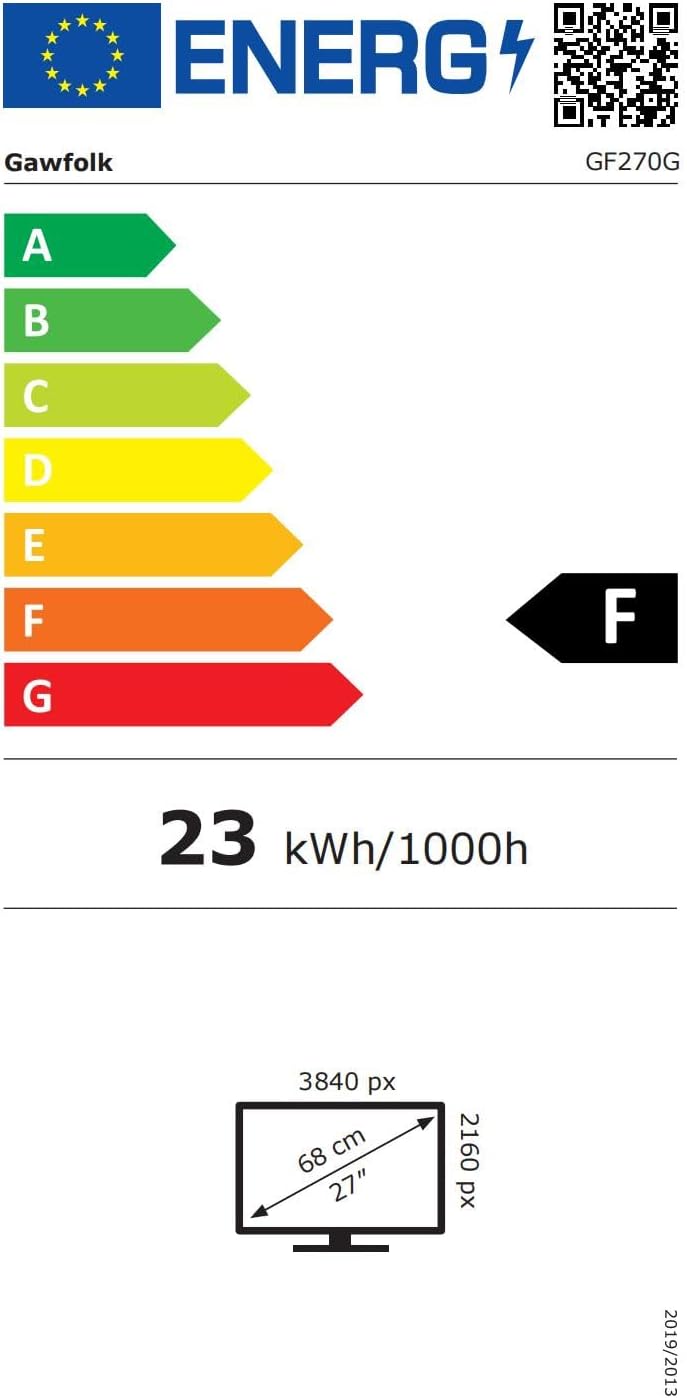
Figure 8.1: Energy label and product data sheet for the Gawfolk GF270G monitor. For more details, refer to the official EPREL database: EPREL 2198346.
9. Warranty and Support
The Gawfolk GF270G monitor comes with a 12-month warranty, ensuring worry-free security for your purchase. Gawfolk provides premium Italian support for any assistance you may require.
For technical support, warranty claims, or any product-related inquiries, please contact Gawfolk customer service through your retailer or the official Gawfolk support channels.


