
UGREEN CM520
UGREEN FineTrack Mini Tag User Manual
Model: CM520
Brand: UGREEN
Introduction
The UGREEN FineTrack Mini Tag is a compact Bluetooth locator designed to help you keep track of your valuable items. Utilizing Apple's Find My network, this SmartTag tracker allows you to locate keys, wallets, bags, luggage, bicycles, and more directly from your iOS device. It features a long-lasting, replaceable battery and an 80 dB acoustic reminder for easy nearby location. This manual provides comprehensive instructions for setup, operation, maintenance, and troubleshooting to ensure optimal use of your FineTrack Mini Tag.
Safety Information
- Keep the device away from water and extreme temperatures.
- Do not attempt to disassemble or modify the device. This may void the warranty and cause damage.
- Dispose of batteries properly according to local regulations. Do not incinerate batteries.
- Keep button cell batteries out of reach of children. Swallowing can cause serious injury or death.
- Use only the specified battery type (CR2032).
Package Contents
Please check the package for the following items:
- UGREEN FineTrack Mini Tag (2 pieces)
- Keyring holders (2 pieces)
- CR2032 Batteries (pre-installed)
- User Manual

Image: The package includes two UGREEN FineTrack Mini Tags and two keyring holders, ready for immediate use.
Setup
Initial Setup and Pairing with Apple Find My
The UGREEN FineTrack Mini Tag is designed for seamless integration with Apple's Find My network. Follow these steps to pair your tag with your iOS device:
- Step 1: Remove the insulating film. The tag will automatically power on.
- Step 2: Open the Find My app. Ensure your iPhone's Bluetooth is enabled.
- Step 3: Add a new item. In the Find My app, navigate to the "Items" tab, tap the "+" icon, then select "Add New Item" or "Other Supported Item."
- Step 4: Connect and name. The app will detect your FineTrack Mini Tag. Tap "Connect" and follow the on-screen prompts to assign a name and an emoji to your tag.

Image: Visual guide for connecting the FineTrack Mini Tag to the Find My app, from removing the film to naming the device.
Note: The UGREEN FineTrack Mini Tag is compatible only with iOS, iPadOS, and macOS devices. Android devices are not supported.

Image: The UGREEN FineTrack Mini Tag seamlessly integrates with the Apple Find My app, allowing users to easily locate their items.
Attaching the FineTrack Mini Tag
The included keyring holders make it easy to attach your FineTrack Mini Tag to various items:
- Keys: Securely attach to your key ring.
- Luggage: Loop onto luggage handles or zippers.
- Backpacks/Bags: Attach to zippers or internal loops.
- Wallets: Place inside a wallet or attach to a wallet loop.
- Bicycles: Secure to a part of the bicycle frame or seat bag.

Image: The FineTrack Mini Tag comes with a dedicated holder, making it easy to attach to various items and prevent loss.
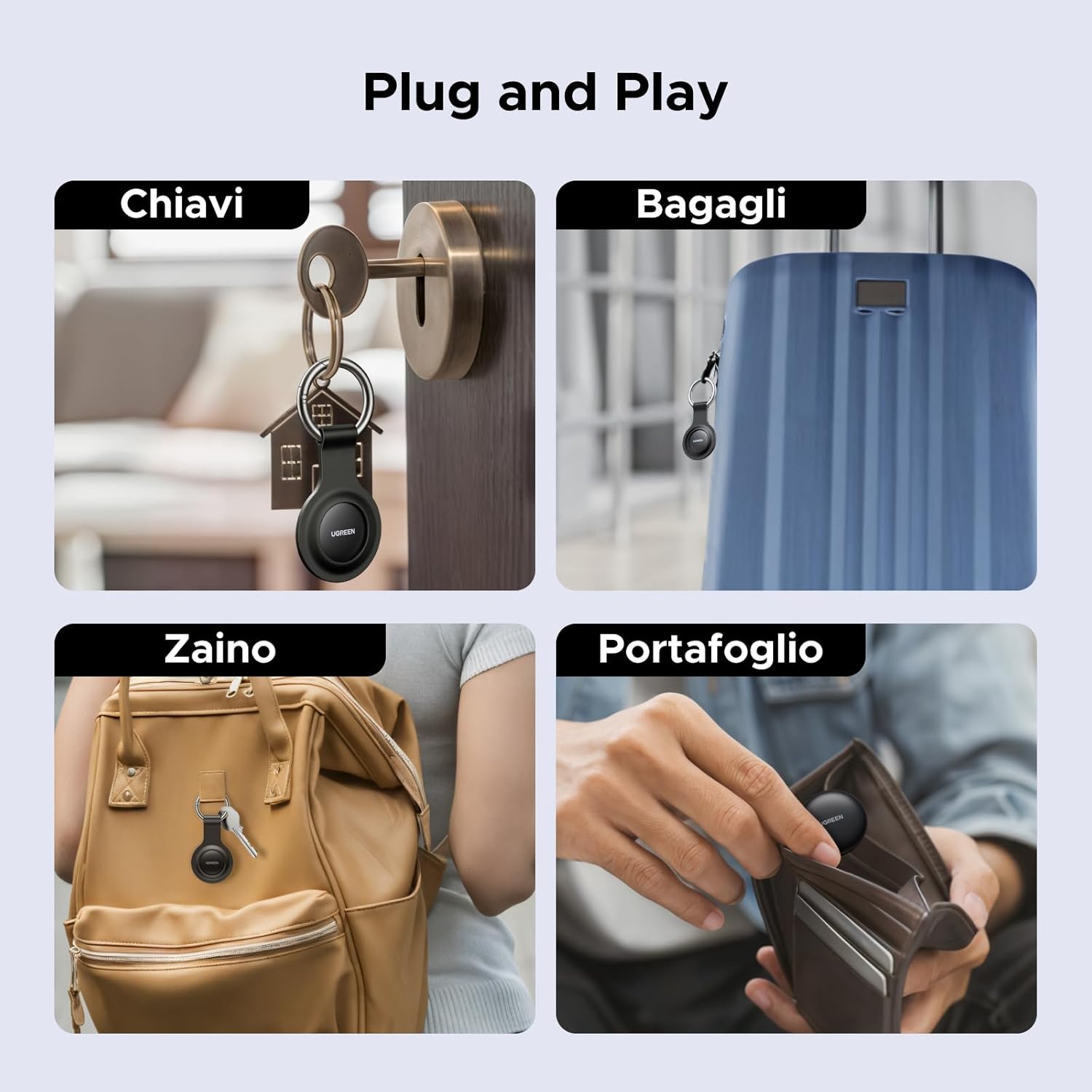
Image: Examples of how the FineTrack Mini Tag can be used with everyday items like keys, luggage, backpacks, and wallets.
Operating Instructions
Locating Items Nearby (Play Sound)
When your FineTrack Mini Tag is within Bluetooth range, you can make it emit a sound to help you find it quickly. This is ideal for locating items misplaced around your home or office.
- Open the Find My app on your iOS device.
- Go to the Items tab.
- Select your UGREEN FineTrack Mini Tag from the list.
- Tap "Play Sound". The tag will emit an 80 dB acoustic reminder, guiding you to its location.
- You can also ask Siri, "Hey Siri, find my [item name]," to play a sound.

Image: To find items nearby, simply tap "Play Sound" in the Find My app, and the tag will emit a loud beep to help you locate it.
Locating Items Far Away (Lost Mode)
If your item is out of Bluetooth range, the Find My network can help you locate it. This network leverages hundreds of millions of Apple devices worldwide to securely and anonymously detect your tag's location.
- Open the Find My app on your iOS device.
- Go to the Items tab.
- Select your UGREEN FineTrack Mini Tag.
- Scroll down and enable "Lost Mode".
- You can enter a contact phone number and a message that will be displayed if someone finds your tag.
- The Find My network will then anonymously relay the location of your tag to your device when it comes within range of another Apple device.
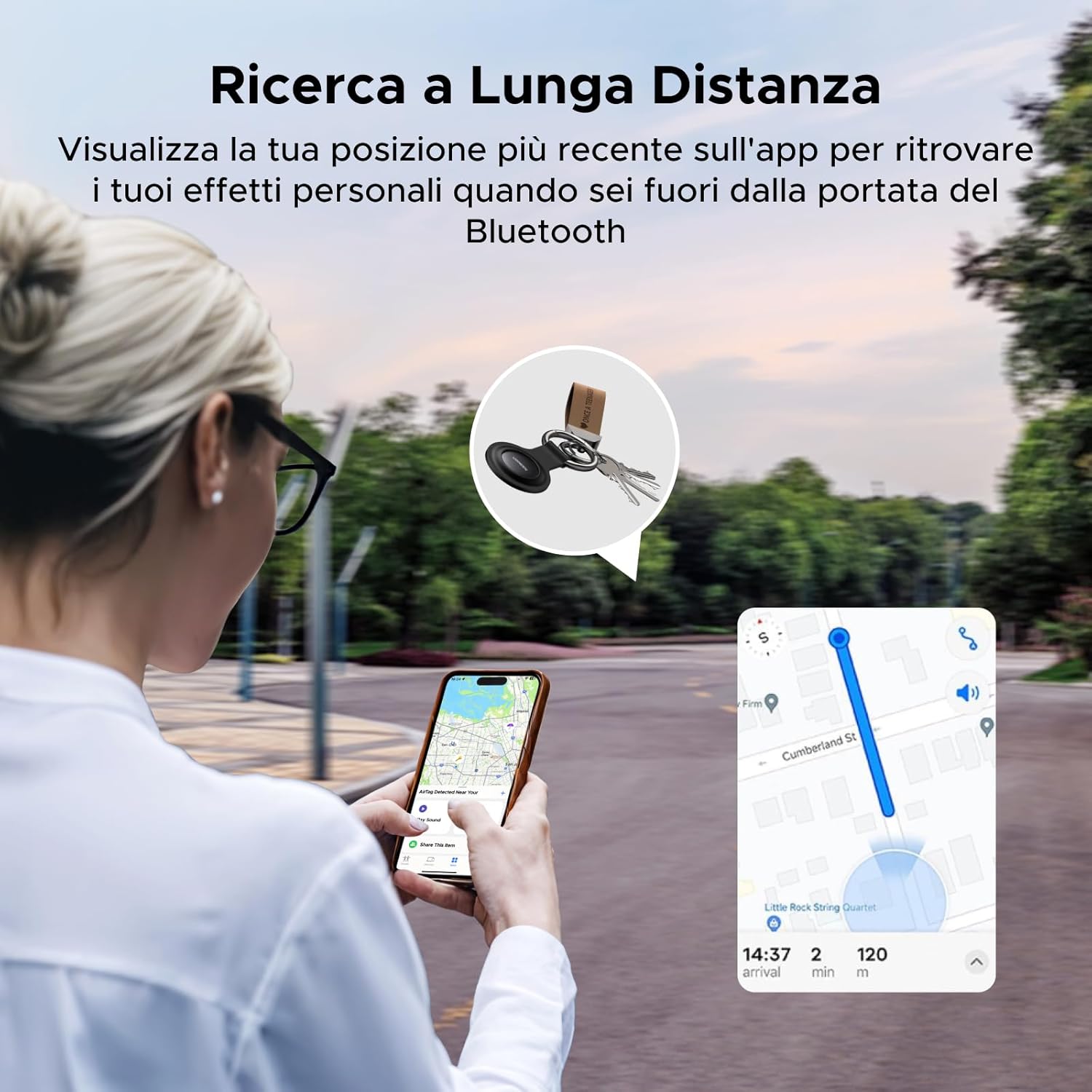
Image: Long-distance tracking allows you to view the last known location of your item on the Find My app, even when it's out of Bluetooth range.
When your connected item moves beyond a specified distance from your phone, you will receive a "forgotten item" alert, reminding you of its last known location. This distance may vary due to environmental interference.

Image: Never lose your items again with forgotten item alerts, notifying you when you leave your tag behind.
Location Sharing
The FineTrack Mini Tag supports location sharing, allowing up to five people to view the location of your item. This feature is useful for families or groups sharing access to an item.
- Ensure your iOS device is updated to iOS 17 or later.
- In the Find My app, select the item you wish to share.
- Look for the option to "Share This Item" and follow the prompts to invite others.

Image: Share your item's location with up to five people, allowing family and friends to help locate it (requires iOS 17 or later).
Maintenance
Battery Replacement
The UGREEN FineTrack Mini Tag uses a replaceable CR2032 button cell battery, offering up to 18 months of battery life. The Find My app will notify you when the battery level is low, prompting you to replace it.
- Step 1: Open the cover. Gently twist the back cover of the FineTrack Mini Tag counter-clockwise to open it.
- Step 2: Insert new battery. Remove the old CR2032 battery. Insert a new CR2032 battery with the positive (+) pole facing upwards.
- Step 3: Close the cover. Align the cover and twist it clockwise until it is securely closed.

Image: Detailed steps for replacing the CR2032 battery, ensuring proper orientation and secure closure.

Image: The FineTrack Mini Tag features a replaceable CR2032 battery with an extended lifespan of up to 18 months.
Troubleshooting
| Problem | Possible Cause | Solution |
|---|---|---|
| Tag not connecting to Find My app. | Bluetooth is off; battery is low/dead; tag is out of range; incorrect pairing steps. | Ensure Bluetooth is on. Check battery level and replace if necessary. Bring tag closer to your iOS device. Follow the pairing steps carefully. |
| No sound when "Play Sound" is tapped. | Tag is out of Bluetooth range; battery is dead; speaker malfunction. | Ensure tag is within Bluetooth range. Replace battery. If problem persists, contact customer support. |
| Location not updating or inaccurate. | Tag is out of range of Find My network devices; environmental interference; app not refreshed. | Ensure tag is in an area where it can be detected by other Apple devices. Refresh the Find My app. Inaccurate location can occur in dense areas or indoors. |
| "Forgotten item" alert not received. | Alerts disabled in Find My app settings; iOS version not updated; environmental factors. | Check Find My app settings for item alerts. Ensure your iOS is updated. Note that distance for alerts can vary. |
Specifications
| Feature | Detail |
|---|---|
| Model | CM520 |
| Dimensions | 31.9mm Diameter |
| Weight | 10g |
| Connectivity | Bluetooth |
| Compatible Devices | iOS, iPadOS, macOS (via Apple Find My app) |
| Battery Type | CR2032 Button Cell (replaceable) |
| Battery Life | Up to 18 months |
| Acoustic Reminder Volume | 80 dB |
| Location Sharing | Supported (iOS 17 or later, up to 5 users) |
| Max Connected Devices (per phone) | 32 |

Image: A detailed comparison of UGREEN FineTrack Mini Tag features against other similar products.
Warranty and Support
UGREEN provides a warranty for its products. Please refer to the warranty card included in your package or visit the official UGREEN website for detailed warranty terms and conditions.
For technical support, troubleshooting assistance, or any inquiries regarding your UGREEN FineTrack Mini Tag, please contact UGREEN customer service through their official website or the contact information provided in your product packaging.
- Official UGREEN Website: www.ugreen.com
- Customer Service Email: (Refer to product packaging)
- Customer Service Phone: (Refer to product packaging)