
1. Product Overview
The Twotrees TS2-20Max is a high-power 20000mW laser engraver and cutter designed for a wide range of materials and large-scale projects. It features a generous working area of 450x900mm, high precision, and fast engraving speeds, making it suitable for intricate designs and efficient production.
Key features include:
- High-Power Laser: 20000mW output for engraving and cutting various materials.
- Large Engraving Area: 450x900mm (17.7"x35.4") for large projects or batch processing.
- Precision and Speed: 0.1mm positioning accuracy and up to 6000mm/min engraving speed.
- Robust Construction: Durable metal sheet and aluminum profile for stability.
- Wide Software Compatibility: Supports LaserGRBL and LightBurn, compatible with Windows and MacOS.
- User-Friendly: Intuitive interface, USB and TF card support, emergency stop switch.
2. Safety Information
Operating a laser engraver requires strict adherence to safety protocols to prevent injury. This device uses a high-power laser which can cause severe eye damage, skin burns, and fire if not handled correctly.
- Eye Protection: Always wear the provided safety goggles when the laser is in operation. Never look directly at the laser beam or its reflection.
- Emergency Stop: Familiarize yourself with the emergency stop switch location and function. Use it immediately in case of any malfunction or unexpected behavior.
- Ventilation: Ensure adequate ventilation in the work area to dissipate fumes and smoke produced during engraving and cutting.
- Fire Safety: Keep a fire extinguisher nearby. Do not leave the machine unattended during operation, especially when cutting flammable materials.
- Material Compatibility: Only engrave or cut materials specified as safe for laser processing. Avoid highly reflective materials or PVC, which can produce toxic fumes.
- Children and Pets: Keep children and pets away from the operating area.

Image: Red acrylic shield designed to block blue laser light for eye protection.
3. Setup and Assembly
The Twotrees TS2-20Max requires assembly before first use. Follow the steps below carefully. For a visual guide, please refer to the official assembly video provided.
Video: Detailed unboxing and assembly guide for the Twotrees TS2-20Max laser engraver. This video demonstrates each step of putting the machine together, from unpacking components to final connections.
3.1 Unboxing and Component Identification
Carefully unpack all components from the box. Verify that all parts listed in the packing list are present and undamaged. Lay out the frame components, laser module, cables, and accessories on a clean, flat surface.

Image: All components of the Twotrees TS2-20Max laser engraver laid out on a table, including the frame, laser module, and accessories.
3.2 Frame Assembly
- Connect the main frame sections using the provided screws and hex keys. Ensure all connections are secure.
- Attach the Y-axis rails to the main frame.
- Install the X-axis gantry onto the Y-axis rails.
- Tighten all tensioner screws for the belts to ensure proper movement without slippage. Refer to the video for specific tensioning instructions.
3.3 Laser Module Installation
- Mount the laser module onto the X-axis gantry using the designated screws.
- Connect the laser module cable to the control board.

Image: A close-up view of the 20W laser module, highlighting its compact design and powerful cutting capability.
3.4 Wiring and Connections
- Connect the stepper motor cables to the control board, ensuring correct axis (X and Y) connections.
- Connect the end-stop switches to their respective ports on the control board.
- Route all cables neatly using cable ties or the provided cable management solutions to prevent interference with moving parts.
- Connect the power supply to the control unit and then to a suitable power outlet.
4. Operation
This section outlines the general steps for operating your Twotrees TS2-20Max laser engraver.
4.1 Software Installation and Setup
The engraver is compatible with popular laser control software such as LaserGRBL (for Windows) and LightBurn (for Windows, MacOS, and Linux). Install the software on your computer and configure it according to the software's specific instructions and the machine's specifications.
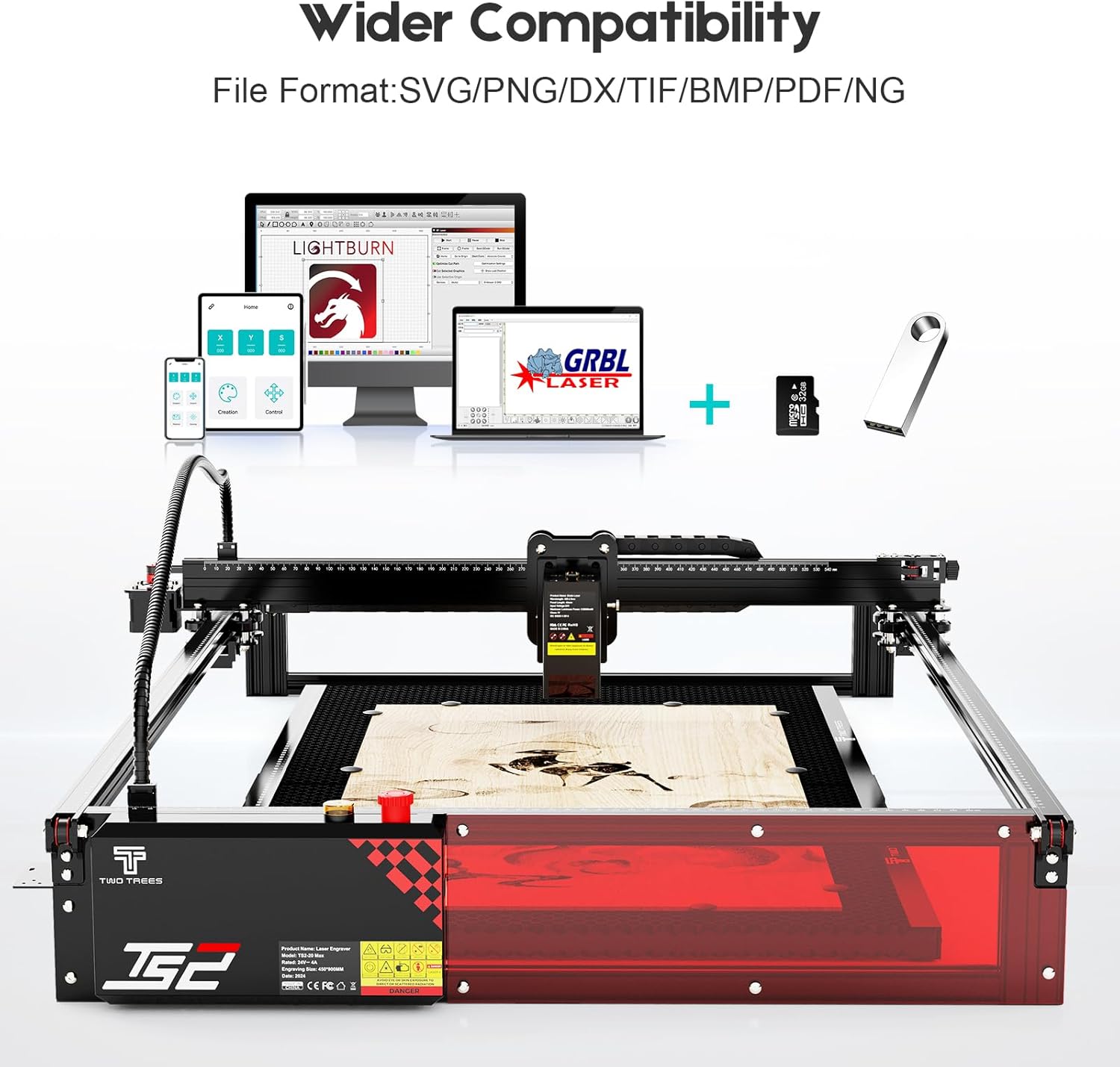
Image: Illustration showing the laser engraver's compatibility with various software like LightBurn and LaserGRBL, and support for TF cards.
4.2 Material Preparation
Place the material to be engraved or cut securely on the work surface. Ensure it is flat and properly aligned within the engraving area. The large 450x900mm area allows for diverse project sizes.

Image: Visual comparison demonstrating the larger engraving area of the TS2-20Max (450x900mm) compared to standard engravers (410x410mm).
4.3 Focusing the Laser
Achieving optimal focus is crucial for precise engraving and cutting. Use the sliding block focus mechanism to adjust the laser module height until the laser spot is at its smallest point on the material surface. Consult your software's instructions for specific focusing procedures.

Image: Close-up of the laser module's sliding block focus mechanism, illustrating quick and precise positioning.
4.4 Starting an Engraving/Cutting Job
- Load your design file (.nc, .gcode, BMP, JPG, PNG, etc.) into the laser control software.
- Set the appropriate laser power, speed, and passes based on your material and desired outcome.
- Perform a frame test to ensure the design fits within your material and the engraving area.
- With safety goggles on and ventilation active, initiate the engraving or cutting process.

Image: Comparison illustrating the high engraving speed of the TS2-20Max (6000mm/min) versus other models (3000mm/min).

Image: A collage showcasing various materials and objects that can be engraved or cut by the laser engraver, including wood, phone cases, tumblers, and acrylic.
5. Maintenance
Regular maintenance ensures the longevity and optimal performance of your laser engraver.
- Cleaning: Regularly clean the work area, rails, and laser lens to remove dust, debris, and residue. Use a soft, lint-free cloth and appropriate cleaning solutions for the lens.
- Belt Tension: Periodically check the tension of the timing belts. Adjust them if they are too loose or too tight to prevent engraving dislocations or motor strain.
- Lubrication: Apply a small amount of lubricant to the moving parts and linear rails as recommended by the manufacturer to ensure smooth operation.
- Firmware Updates: Check the manufacturer's website for any available firmware updates to improve performance or add new features.
6. Troubleshooting
This section provides general guidance for common issues. For more detailed troubleshooting, refer to the official Twotrees support resources.
- Laser Not Firing: Check power connections, laser module cable, and software settings (power, enable). Ensure the emergency stop button is not engaged.
- Poor Engraving Quality: Verify laser focus, material settings (power/speed), and ensure the material is clean and flat. Check belt tension for skipped steps.
- Machine Not Moving: Check all motor connections, power supply, and software connection. Ensure no physical obstructions are blocking movement.
- Software Connection Issues: Verify USB cable connection, correct COM port selection in software, and driver installation.
7. Specifications
| Feature | Detail |
|---|---|
| Model No. | TS2-20Max 20000mW |
| Manufacturer | Twotrees |
| Item Weight | 15 pounds |
| Product Dimensions | 28.9 x 48.9 x 7.48 inches |
| Color | Red and Black |
| Material | Sheet metal, aluminum extrusions, acrylic |
| Item Package Quantity | 1 |
| Engraving Area | 450x900mm (17.7"x35.4") |
| Positioning Accuracy | 0.1mm |
| Maximum Engraving Speed | 6000mm/min |
| Software Compatibility | LaserGRBL, LightBurn |
| Supported File Formats | .nc, .gcode, BMP, JPG, PNG |
| Operating Systems | Windows, MacOS |
8. Warranty and Support
The Twotrees TS2-20Max Laser Engraver & Cutter comes with a 1 Year Warranty. For warranty claims, technical support, or further assistance, please contact the Twotrees-US Official Store directly or visit their official website. Keep your purchase receipt as proof of purchase.
For additional resources and product information, you may visit the Twotrees Store on Amazon.