
ZMX PANDA20
ZMX PANDA20 Mechanical Number Pad User Manual
Model: PANDA20
1. Introduction
The ZMX PANDA20 is a versatile mechanical number pad designed for enhanced productivity and customization. It features a durable aluminum alloy construction, hot-swappable switches, and tri-mode connectivity (Bluetooth 5.0, 2.4GHz wireless, and USB-C wired). This number pad supports QMK and VIA software for comprehensive key remapping and macro creation, along with personalized RGB backlighting.
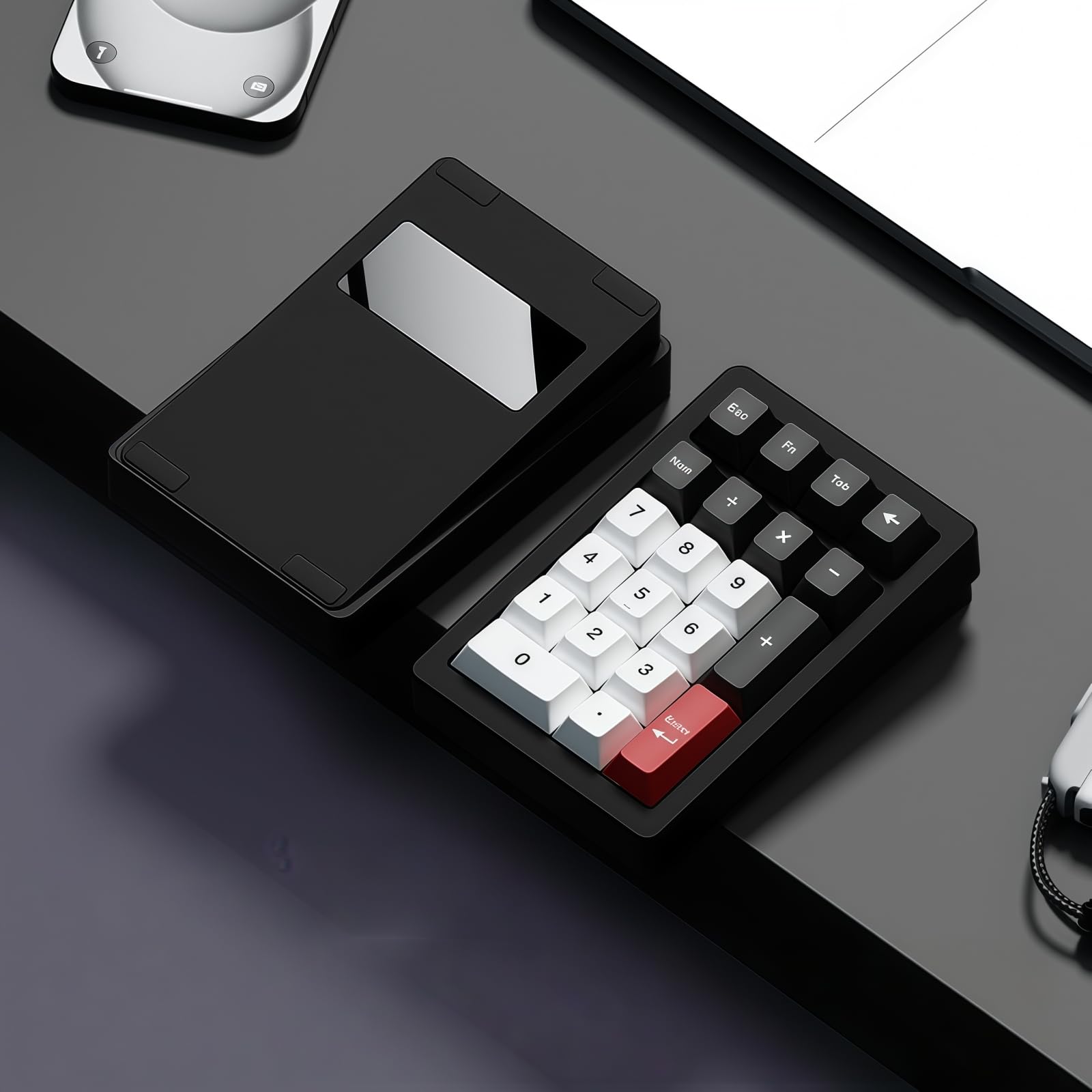
Image: The ZMX PANDA20 Mechanical Number Pad, showcasing its compact design and key layout.
2. Key Features
- QMK & VIA Programmable: Customize key functions, macros, and lighting effects.
- Aluminum Alloy CNC Case: Provides durability and a premium feel.
- Hot-Swappable Gasket Mount: Allows for easy switch replacement without soldering and offers a stable, comfortable typing experience.
- Tri-Mode Connection: Connect via Bluetooth 5.0, 2.4GHz wireless, or USB-C wired.
- Personalized RGB Backlight: Features customizable RGB lighting with various effects.

Image: Close-up view highlighting the premium aluminum construction of the PANDA20 Numpad.

Image: An exploded diagram illustrating the internal gasket structure of the PANDA20, showing layers like the aluminum upper cover, PP slotted positioning plate, PORON sandwich cotton, IXPE shaft underpad, PCB coating, black core PCB, EPDM cotton shaft seat, 1000mA battery, aluminum alloy bottom shell, and stainless steel mirror back plate.
Video: A demonstration of the PANDA20 Hot Swap RGB Mechanical Number Pad in use, highlighting its features for office environments.
3. Package Contents
Verify that all items are present in the package:
- PANDA20 Mechanical Numpad
- USB Cable
- User Manual
- Keycap Puller
- Spare Switches
Video: An unboxing demonstration of the PANDA20 Mechanical Number Pad, showing all included accessories.
4. Setup
4.1. Connecting the Numpad
The PANDA20 supports three connection modes: USB-C wired, 2.4GHz wireless, and Bluetooth 5.0.

Image: The PANDA20 Numpad highlighting its three connection modes: 2.4GHz wireless, USB-C wired, and Bluetooth 5.0.
4.1.1. USB-C Wired Connection
- Locate the USB-C port on the numpad.
- Connect the provided USB-C cable to the numpad and your computer.
- The numpad will be automatically recognized by your system.
4.1.2. 2.4GHz Wireless Connection
- Insert the 2.4GHz USB receiver into an available USB port on your computer.
- Switch the mode selector on the numpad to 2.4GHz wireless mode.
- The numpad should connect automatically.
4.1.3. Bluetooth 5.0 Connection
- Switch the mode selector on the numpad to Bluetooth mode.
- On your computer or device, enable Bluetooth and search for new devices.
- Select "PANDA20" from the list of available devices to pair.
- The numpad can connect to up to 3 devices simultaneously via Bluetooth.
5. Operating Instructions
5.1. VIA/QMK Programming
The PANDA20 numpad is fully programmable using VIA and QMK software, allowing you to customize key assignments, create macros, and adjust lighting effects.
- Ensure the numpad is connected via USB-C wired mode for programming.
- Visit the official VIA software website (usevia.app) to access the configurator.
- Download the PANDA20 JSON file from the manufacturer's website (refer to the video for guidance).
- In the VIA software, enable "Show Design tab" in settings.
- Load the downloaded PANDA20 JSON file.
- Authorize the device and begin customizing your keymap, macros, and lighting.
Video: A step-by-step guide on how to use the VIA software to program the PANDA20 Keyboard, including downloading the JSON file and configuring keymaps.
Image: A visual representation of the VIA/QMK programming interface, showing how to customize the PANDA20 numpad layout and functions.
5.2. RGB Backlighting
The PANDA20 features customizable RGB backlighting. You can adjust lighting effects, colors, and brightness directly on the numpad using function key shortcuts or through the VIA software.
- Function Key Shortcuts: Refer to the included quick start guide or the VIA software's lighting tab for specific key combinations to change effects, colors, and brightness.
- VIA Software: Use the "Lighting" tab in the VIA configurator for advanced customization of RGB effects, including per-key lighting (if supported by the specific firmware version).

Image: The PANDA20 Numpad displaying its vibrant RGB backlighting with various color patterns.
6. Maintenance
6.1. Cleaning
To maintain the appearance and functionality of your PANDA20 numpad:
- Use a soft, dry cloth to wipe the aluminum case. Avoid abrasive cleaners.
- For keycaps, use a keycap puller to remove them and clean with a mild soap solution if necessary. Ensure they are completely dry before reattaching.
- Use compressed air to remove dust and debris from between the keys.
6.2. Hot-Swappable Switches
The PANDA20 features hot-swappable sockets, allowing you to change switches without soldering. This supports both 3-pin and 5-pin MX-style switches.
- Using the provided switch puller, gently grip the switch and pull it straight up.
- Align the pins of the new switch with the holes on the PCB. Ensure the pins are straight.
- Press the new switch firmly into place until it clicks. Do not force it if resistance is met; check pin alignment.

Image: A diagram illustrating the hot-swappable switch technology, featuring a Kailh Snow Switch and its specifications (trigger pressure, trigger stroke, total travel).
7. Troubleshooting
| Problem | Solution |
|---|---|
| Numpad not responding (wired) | Ensure the USB-C cable is securely connected to both the numpad and the computer. Try a different USB port or cable. |
| Numpad not responding (wireless) | Check if the numpad is in the correct wireless mode (2.4GHz or Bluetooth). Ensure the 2.4GHz receiver is plugged in or Bluetooth is enabled and paired. Recharge the numpad if the battery is low. |
| Keys not registering or double-typing | This may indicate a faulty switch. Use the switch puller to replace the affected switch with a spare. Ensure the switch is fully seated. |
| VIA software not detecting the numpad | Ensure the numpad is connected via USB-C. Verify that the correct JSON file for PANDA20 is loaded in VIA. Try reconnecting the numpad or restarting the VIA application. |
| RGB lighting not working | Check if the lighting is turned off via function key shortcuts. Adjust brightness and effects using the numpad or VIA software. |
8. Specifications
| Brand | ZMX |
| Model Number | PANDA20 |
| Connectivity Technology | 2.4GHz, Bluetooth 5.0, USB-C |
| Number of Keys | 20 |
| Switch Type | MX Structure Switches (Hot-Swappable) |
| Keyboard Backlighting | RGB |
| Material | Aluminum |
| Product Dimensions (L x W x H) | 5.1" x 3.7" x 1.3" |
| Item Weight | 16 ounces |
| Special Features | Backlit, Ergonomic Height, Hot-Swappable, Portable, Rechargeable, VIA/QMK Programmable |
9. Warranty and Support
The ZMX PANDA20 Mechanical Number Pad comes with a 1-Year Warranty from the date of purchase. This warranty covers manufacturing defects and workmanship under normal use.
For technical support, warranty claims, or additional product information, please visit the ZMX Store on Amazon or contact ZMX customer service directly.
Optional extended protection plans may be available for purchase. Please refer to your retailer for details.
Ask a question about this manual
Ask about setup, troubleshooting, compatibility, parts, safety, or missing instructions. Manuals+ will review the question and use this page’s manual context to help answer it.