
1. Setup
1.1 Package Contents
- 1* DragoBud AX907C USB WiFi 6 & Bluetooth 5.3 Adapter
1.2 System Requirements
- Operating System: Windows 10/11 (32/64-bit) with x86/x64/x32 CPU architecture.
- Available USB 2.0 port or higher.
- Not compatible with Mac, Linux, Chromebook, or TV/Car systems.
1.3 Driver Installation
The DragoBud AX907C adapter features a built-in driver for simplified installation on Windows 10 and 11. No CD or external download is typically required.

Image: The compact DragoBud AX907C USB WiFi 6 & Bluetooth 5.3 Adapter.
- Insert the Adapter: Plug the DragoBud AX907C USB adapter into an available USB port on your desktop PC or laptop.
- Automatic Driver Pop-up: On Windows 10 or 11, the USB Bluetooth and WiFi drivers should automatically pop up. Click to install.
- Manual Installation (if needed): If the driver does not auto-launch, open 'This PC', locate the virtual CD drive (e.g., 'REALTEK (E:)'), and double-click 'WIFIAutoInstallSetup' or 'AutoRun' to begin the installation.
- Restart Computer: After installation is complete, restart your computer to ensure all drivers are properly loaded.

Image: Visual guide for driver installation steps on a Windows PC.

Video: A detailed guide on how to install the USB WiFi 6 driver for the adapter.
2. Operating
2.1 Connecting to Wi-Fi
Once the driver is installed and your computer has restarted, you can connect to a Wi-Fi network.
- Open Network Settings: Click on the Wi-Fi icon in your system tray (usually in the bottom-right corner of your screen).
- Select Network: A list of available Wi-Fi networks will appear. Select your desired network.
- Enter Password: Click 'Connect' and enter the network security key (Wi-Fi password) if prompted.
- Confirm Connection: Once connected, the Wi-Fi icon will indicate an active connection.

Image: The adapter receiving Wi-Fi signals and its capability for AP sharing.
2.2 Using Bluetooth 5.3
The adapter provides Bluetooth 5.3 connectivity for various devices.
- Enable Bluetooth: Ensure Bluetooth is enabled in your computer's settings. Go to 'Settings' > 'Devices' > 'Bluetooth & other devices'.
- Pair a Device: Put your Bluetooth device (e.g., headphones, mouse, keyboard) into pairing mode.
- Add Device: On your computer, click 'Add Bluetooth or other device' and select 'Bluetooth'.
- Select and Connect: Choose your device from the list and follow any on-screen prompts to complete pairing.
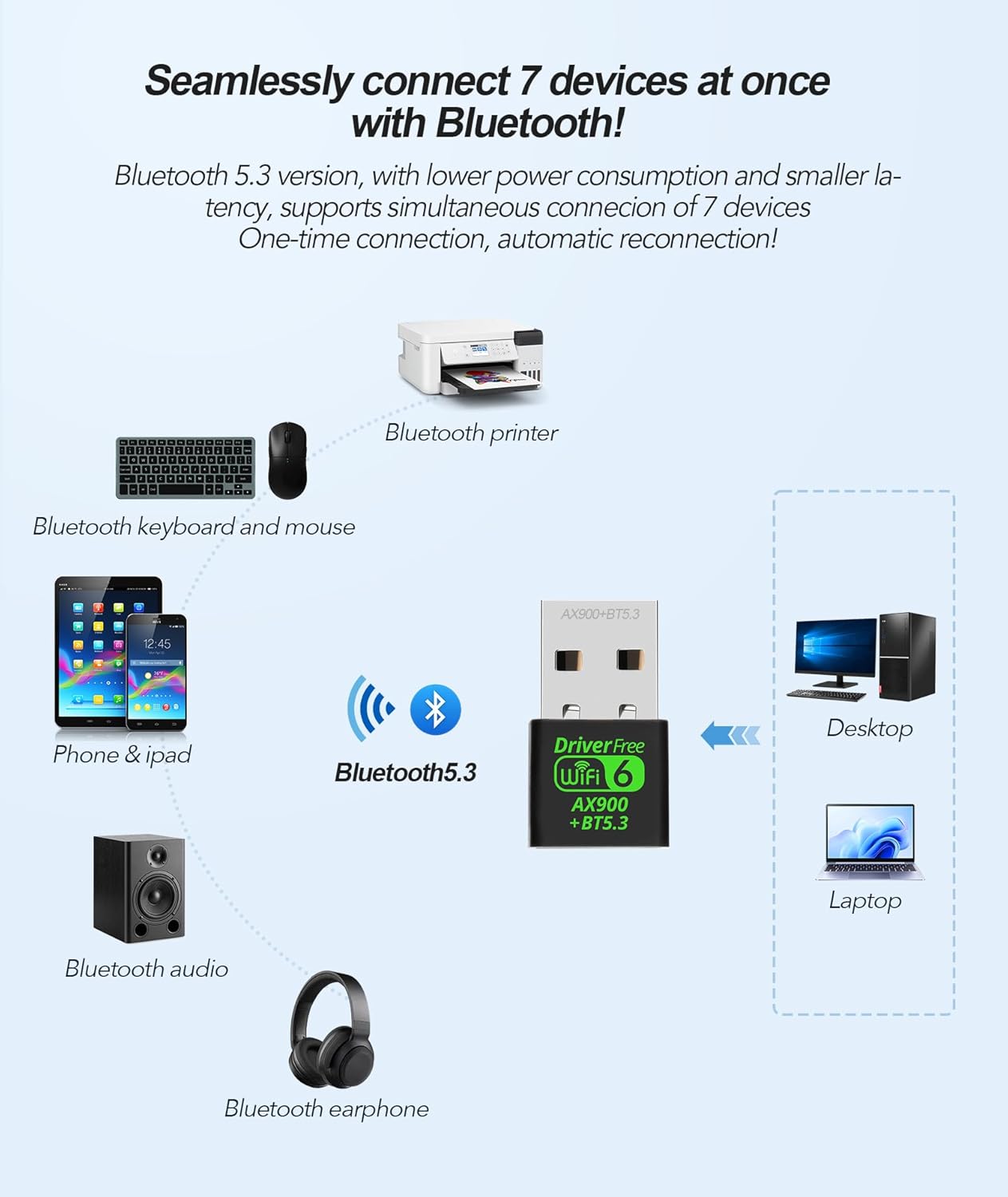
Image: The adapter connecting to various Bluetooth 5.3 devices simultaneously, including printers, keyboards, mice, phones, and audio devices.
2.3 Access Point (AP) Mode
The adapter can convert your computer's wired network connection into a Wi-Fi hotspot.
- Connect to Wired Network: Ensure your computer is connected to the internet via an Ethernet cable.
- Enable Mobile Hotspot: Go to 'Settings' > 'Network & Internet' > 'Mobile hotspot'.
- Configure Hotspot: Turn on 'Mobile hotspot'. You can customize the network name (SSID) and password.
- Share Connection: Select the internet connection you want to share (e.g., Ethernet).
- Connect Devices: Other wireless devices can now connect to your computer's Wi-Fi hotspot using the configured SSID and password.

Video: A showcase of the WiFi 6 capabilities and features of the adapter.
3. Maintenance
To ensure optimal performance and longevity of your DragoBud AX907C adapter, follow these simple maintenance guidelines:
- Keep Clean: Periodically clean the adapter with a soft, dry cloth to remove dust and debris. Avoid using liquid cleaners.
- Proper Storage: When not in use, store the adapter in a cool, dry place away from direct sunlight and extreme temperatures.
- Avoid Physical Damage: Handle the adapter carefully. Do not drop it or expose it to excessive force.
- Firmware Updates: Check the manufacturer's website periodically for any available firmware or driver updates to ensure compatibility and improved performance.
4. Troubleshooting
If you encounter issues with your DragoBud AX907C adapter, refer to the table below for common problems and solutions.
| Problem | Possible Cause | Solution |
|---|---|---|
| Adapter not recognized / Driver not installing automatically | Driver conflict, USB port issue, or auto-run disabled. | Try a different USB port. Manually run the driver installation from 'This PC' as described in Section 1.3. Uninstall any previous WiFi drivers before installing the new one. |
| Cannot connect to Wi-Fi network | Incorrect password, out of range, or network issue. | Ensure you are entering the correct Wi-Fi password. Move closer to the Wi-Fi router. Restart your router and computer. Check if other devices can connect to the network. |
| Bluetooth device not pairing | Device not in pairing mode, too far, or interference. | Ensure your Bluetooth device is in pairing mode. Move the device closer to the adapter. Turn off other Bluetooth devices that might be causing interference. Restart your computer. |
| Slow Wi-Fi speeds | Network congestion, distance from router, or interference. | Ensure you are connected to the 5GHz band if available and supported by your router. Reduce the number of devices on your network. Minimize physical obstructions between the adapter and router. |
| AP Mode not working | Wired internet connection issue or incorrect hotspot settings. | Verify your computer has a stable wired internet connection. Double-check the Mobile Hotspot settings and ensure the correct connection is selected for sharing. |
5. Specifications
Detailed technical specifications for the DragoBud AX907C USB WiFi 6 & Bluetooth 5.3 Adapter.
| Feature | Detail |
|---|---|
| Model Number | AX907C |
| Wi-Fi Standard | Wi-Fi 6 (802.11ax) |
| Bluetooth Version | Bluetooth 5.3 |
| Data Transfer Rate | Up to 900 Mbps (600Mbps on 5GHz, 287Mbps on 2.4GHz) |
| Frequency Bands | 2.4GHz / 5GHz (Dual Band) |
| Hardware Interface | USB 2.0 (also compatible with USB 3.0/3.1/3.2 ports) |
| Chipset | Realtek RTL8851BU |
| Security Protocol | WPA3 |
| Operating Modes | Wi-Fi Receiver Mode, Access Point (AP) Mode |
| Product Dimensions | 0.7 x 0.48 x 1 inches (17.8 x 12.2 x 25.4 mm) |
| Item Weight | 0.317 ounces (9 grams) |
| Compatible OS | Windows 10, Windows 11 |
| Incompatible OS | Mac OS, Linux, Chromebook, TV/Car systems |
6. Warranty & Support
DragoBud products are designed for reliability and performance. This product comes with a standard manufacturer's warranty against defects in materials and workmanship.
For warranty claims, technical support, or further assistance, please contact DragoBud customer service through the retailer's platform where the product was purchased or visit the official DragoBud website for contact information.
Please retain your proof of purchase for warranty validation.