
1. Introduction
Thank you for choosing the Codnida Cell 2T 4G LTE Solar Security Camera. This device provides reliable outdoor surveillance with its 4G LTE connectivity, solar power capabilities, and advanced features like 2K color night vision and intelligent motion detection. This manual will guide you through the setup, operation, and maintenance of your camera to ensure optimal performance.

Image 1.1: Overview of the Codnida Cell 2T 4G LTE Solar Security Camera.
2. What's in the Box
Please verify that all components are present before proceeding with installation.
- 1 x Codnida Cell 2T Camera
- 1 x Solar Panel
- 1 x SIM Card (with free trial data)
- 1 x Screw Kit for mounting
- 1 x User Manual (this document)
- 1 x USB Charging Cable

Image 2.1: All included components in the Codnida Cell 2T package.
3. Product Features
- 4G LTE Connectivity: Operates independently without Wi-Fi, ideal for remote locations. Includes a trial SIM card.
- Solar Powered & Long-Life Battery: Equipped with a high-efficiency solar panel and a built-in 10400mAh battery for continuous operation.
- 2K HD Resolution & Color Night Vision: Captures clear 2K video with three night vision modes (color, black & white, smart).
- 355° Pan/Tilt Rotation: Offers wide area coverage with remote control via the app.
- Intelligent PIR Motion Detection: Detects human movement and sends instant notifications. Customizable detection zones and sensitivity.
- Two-Way Audio: Built-in microphone and speaker for real-time communication.
- Sound and Light Alarm: Deters intruders with an audible alarm and flashing LED lights upon detection.
- IP65 Weatherproof: Designed for outdoor use, resistant to rain, humidity, and dust.
- Flexible Storage: Supports cloud storage and local Micro SD card storage up to 256GB.
4. Setup Guide
4.1. Initial Charging
Before first use, fully charge the camera's internal battery using the provided USB cable and a 5V/2A power adapter (not included). The charging indicator light will turn solid blue when fully charged.
4.2. SIM Card and Micro SD Card Installation
- Locate the SIM card and Micro SD card slot on the camera, usually protected by a rubber cover.
- Carefully open the cover.
- Insert the provided 4G SIM card into the SIM card slot with the gold contacts facing down and the notched corner aligned correctly. Push until it clicks into place.
- If using a Micro SD card for local storage (up to 256GB, not included), insert it into the Micro SD card slot with the gold contacts facing down.
- Ensure both cards are securely seated. Close the rubber cover firmly to maintain IP65 weather resistance.

Image 4.2: Illustration of SIM card insertion into the camera.
4.3. Solar Panel Connection
Connect the solar panel cable to the designated charging port on the camera. Ensure the connection is secure and the rubber seal is properly seated to prevent water ingress. Position the solar panel in an area that receives maximum direct sunlight throughout the day for optimal charging.
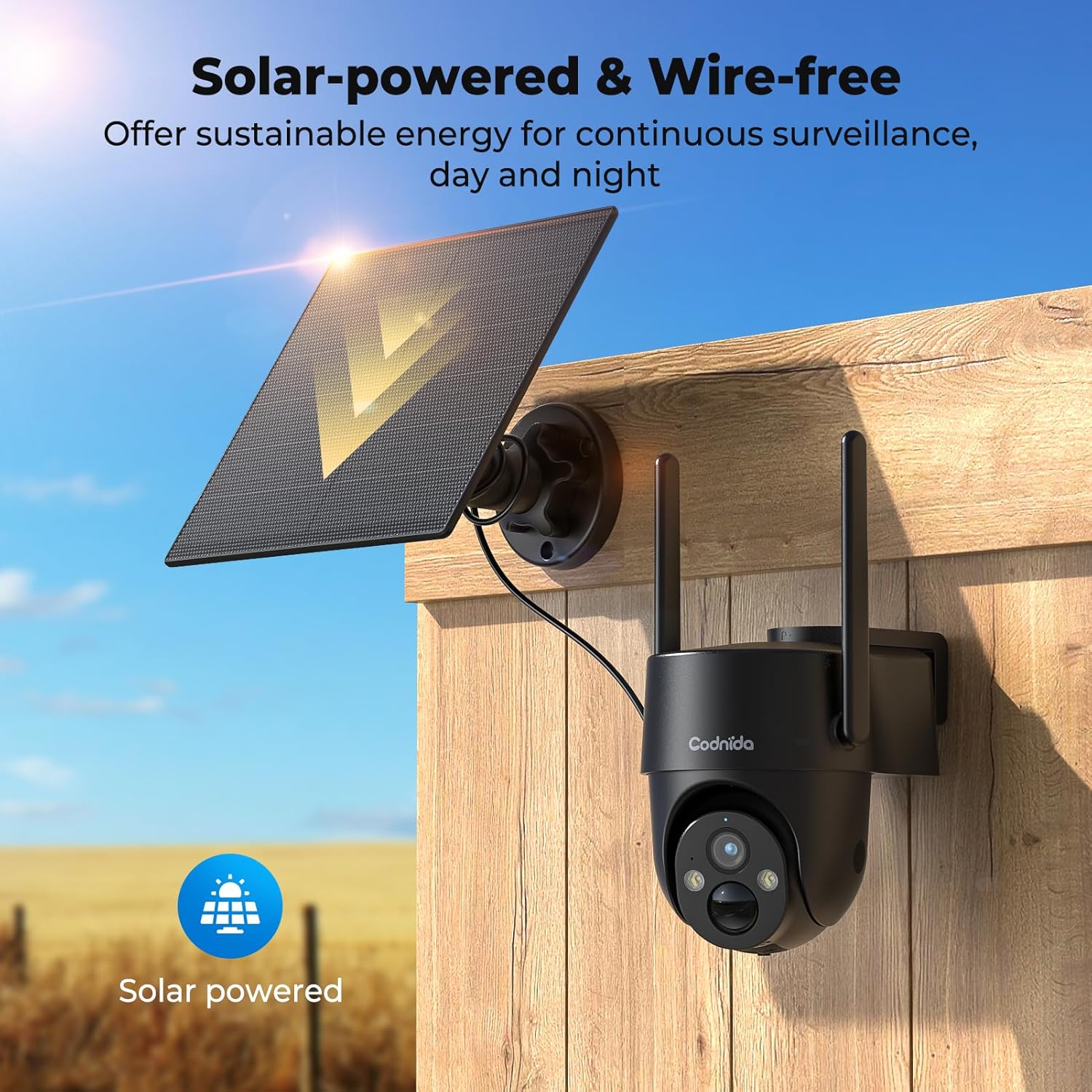
Image 4.3: The camera and solar panel installed, demonstrating wire-free operation.
4.4. Mounting the Camera
- Choose a suitable outdoor location that provides the desired surveillance view and allows the solar panel to receive ample sunlight.
- Use the provided screw kit to securely mount the camera bracket to a wall or pole.
- Attach the camera to the mounted bracket. Adjust the angle for optimal coverage.
- Ensure the camera is within a good 4G signal range.
4.5. App Installation and Pairing
- Download the CloudEdge app from your smartphone's app store (iOS or Android).
- Register for a new account or log in if you already have one.
- Turn on the camera by pressing the power button. The indicator light will flash.
- In the CloudEdge app, tap the "+" icon to add a new device.
- Select the appropriate camera model or scan the QR code on the camera if available.
- Follow the on-screen instructions to complete the pairing process. Ensure your phone's Bluetooth and location services are enabled during pairing.
5. Operating Instructions
5.1. Live View
Open the CloudEdge app and select your camera from the device list to access the live video feed. You can view real-time footage from your camera anytime, anywhere with 4G connectivity.
5.2. Pan/Tilt Control
From the live view interface in the CloudEdge app, use the directional controls to remotely pan (horizontal) and tilt (vertical) the camera lens. The camera supports 355° PTZ rotation for comprehensive coverage.

Image 5.2: The camera's 360° pan/tilt capability for wide area surveillance.
5.3. Motion Detection Settings
The camera features PIR human motion detection. In the app settings, you can:
- Enable/Disable motion detection.
- Adjust sensitivity levels (low, medium, high).
- Set detection zones to focus on specific areas and reduce false alarms.
- Schedule detection times.
When motion is detected, the camera will record a clip and send a notification to your smartphone.

Image 5.3: The camera's PIR human motion detection accurately identifies people.
5.4. Night Vision Modes
The camera offers three night vision modes, configurable in the app:
- Color Night Vision: Utilizes built-in spotlights to provide full-color images in low light.
- Black & White Night Vision: Uses infrared (IR) LEDs for clear black and white images in complete darkness.
- Smart Night Vision: Automatically switches between black & white and color night vision when motion is detected.

Image 5.4: Demonstrating the camera's 2K color night vision capability.
5.5. Two-Way Audio
Tap the microphone icon in the live view to speak through the camera's speaker. This allows for communication with visitors or to deter unwanted individuals.
5.6. Sound and Light Alarm
When motion is detected at night, the camera can automatically activate a loud siren and flash its LED spotlights to warn off intruders. This feature can be configured in the app's alarm settings.

Image 5.6: The camera's sound and light alarm system deterring an intruder.
5.7. Storage Management
Recorded videos can be stored in two ways:
- Cloud Storage: Subscribe to a CloudEdge cloud plan for secure online storage.
- Micro SD Card: If an SD card is installed, recordings will be saved locally. You can view and manage these recordings through the app.
6. Maintenance
- Cleaning: Periodically clean the camera lens and solar panel with a soft, damp cloth to ensure clear images and efficient solar charging. Do not use harsh chemicals.
- Battery Care: While solar-powered, ensure the camera receives adequate sunlight. If the battery level drops significantly, consider temporarily charging it via USB. Avoid prolonged exposure to extreme temperatures.
- Firmware Updates: Check the CloudEdge app regularly for firmware updates. Keeping the firmware updated ensures optimal performance and access to new features.
- SIM Card Data: Monitor your SIM card data usage to ensure continuous connectivity, especially after the trial period.
7. Troubleshooting
| Problem | Solution |
|---|---|
| Camera not connecting to 4G network. |
|
| Battery not charging via solar panel. |
|
| Motion detection not working or too many false alarms. |
|
| Cannot access live view. |
|
8. Specifications
| Feature | Detail |
|---|---|
| Model | Cell 2T |
| Connectivity | 4G LTE (Cellular) |
| Power Source | Solar Powered, 10400mAh Rechargeable Battery |
| Video Resolution | 2K (1440p) |
| Effective Still Resolution | 3 MP |
| Night Vision | Color Night Vision, Black & White IR Night Vision, Smart Mode (up to 10 meters) |
| Pan/Tilt Angle | 355° Pan, 90° Tilt |
| Motion Detection | PIR Human Motion Detection |
| Audio | Two-Way Audio (Built-in Mic & Speaker) |
| Alarm | Sound and Light Alarm |
| Weather Resistance | IP65 |
| Storage | Cloud Storage, Micro SD Card (up to 256GB) |
| Control Method | CloudEdge App |
| Dimensions (L x W x H) | 6 x 6 x 6 cm |
| Weight | 1.31 kg |
| Material | Plastic |
| Voltage | 5 Volts |
| Wattage | 4.5 Watts |
9. Warranty and Support
Codnida products typically come with a standard manufacturer's warranty. Please refer to the warranty card included in your package or visit the official Codnida website for detailed warranty terms and conditions.
For technical support, troubleshooting assistance, or any product-related inquiries, please contact Codnida customer service through the contact information provided on the official website or within the CloudEdge app. When contacting support, please have your product model (Cell 2T) and purchase details ready.

