
MECHEN V06
MECHEN V06 Digital Voice Recorder User Manual
Comprehensive Guide for Your Voice Recording Device
Introduction
The MECHEN V06 Digital Voice Recorder is a portable audio recording device designed for high-quality sound capture in various environments, including lectures, meetings, and interviews. Featuring a large 144GB storage capacity (16GB built-in + 128GB TF card), a 2.01-inch color screen, and advanced noise reduction technology, it offers a user-friendly experience for both professionals and students. This manual provides detailed instructions on setting up, operating, and maintaining your device to ensure optimal performance.
What's in the Box
- 1 x MECHEN V06 Voice Recorder
- 1 x USB-C Cable
- 1 x Line-in Cable
- 1 x Headphone
- 1 x 128GB TF Card (pre-installed or separate)
- 1 x User Manual

Figure 1: Package Contents of the MECHEN V06 Digital Voice Recorder.
Product Overview
Familiarize yourself with the various components and controls of your MECHEN V06 voice recorder.

Figure 2: MECHEN V06 Digital Voice Recorder Component Diagram.
- Speaker: For audio playback without headphones.
- Menu/Return/ESC Button: Navigates menus and exits current screens.
- Record Button (Rec): Initiates and stops recording.
- M Button: Saves recordings.
- Navigation Buttons (Up/Down/Left/Right/Play/Pause): Used for menu navigation, volume control, track selection, fast forward/backward, and playback control.
- Delete Button: Deletes selected files.
- A-B Button: Activates A-B repeat function during playback.
- T-MARK Button: Adds a timestamp or mark to a recording.
- Lock/Unlock Switch: Locks or unlocks the device buttons to prevent accidental operation.
- Power On/Off Switch: Turns the device on or off.
- SD Card Slot: For inserting the 128GB TF card to expand storage.
- Earphone Jack (3.5mm): Connect headphones for private listening.
- USB-C Jack: For charging and data transfer.
Setup
1. Initial Charging
Before first use, fully charge the device. Connect the supplied USB-C cable to the recorder's USB-C jack and the other end to a USB power adapter (not included) or a computer's USB port. The battery indicator on the screen will show charging progress. A full charge typically takes approximately 3 hours.

Figure 3: Battery and Charging Information.
2. Inserting the TF Card
The MECHEN V06 comes with a 128GB TF card for expanded storage. Locate the SD Card Slot on the side of the device. Gently insert the TF card into the slot until it clicks into place. Ensure the card is inserted in the correct orientation as indicated by the slot design.
Operating Instructions
1. Power On/Off
Slide the Power On/Off Switch to the 'On' position to power on the device. To power off, slide the switch to the 'Off' position.
2. Basic Recording
To start recording, simply press the Record Button (Rec). The device will begin recording within 1 second. To stop and save the recording, press the M Button. The recording will be saved automatically.

Figure 4: Instant 1-Second Recording.
3. Voice Activated Recording (VOR)
The VOR function allows the recorder to start recording automatically when sound is detected and pause when silence occurs, saving storage space and reducing silent segments. To activate VOR:
- Navigate to the settings menu using the Menu/Return/ESC Button and navigation buttons.
- Locate and select the "VOR" or "Voice Activated Recording" option.
- Adjust the sensitivity level (7 levels available) according to your environment. Higher sensitivity captures softer sounds.
- Confirm your selection.
Note: For critical recordings where no sound should be missed, it is recommended not to use the VOR feature.

Figure 5: Voice Activated Recording in action.
4. Noise Reduction
The MECHEN V06 features 7 levels of noise filter to enhance recording clarity. To adjust noise reduction:
- Access the settings menu.
- Find the "Noise Reduction" or "NR" setting.
- Select the desired level based on your recording environment (e.g., higher levels for noisy environments).
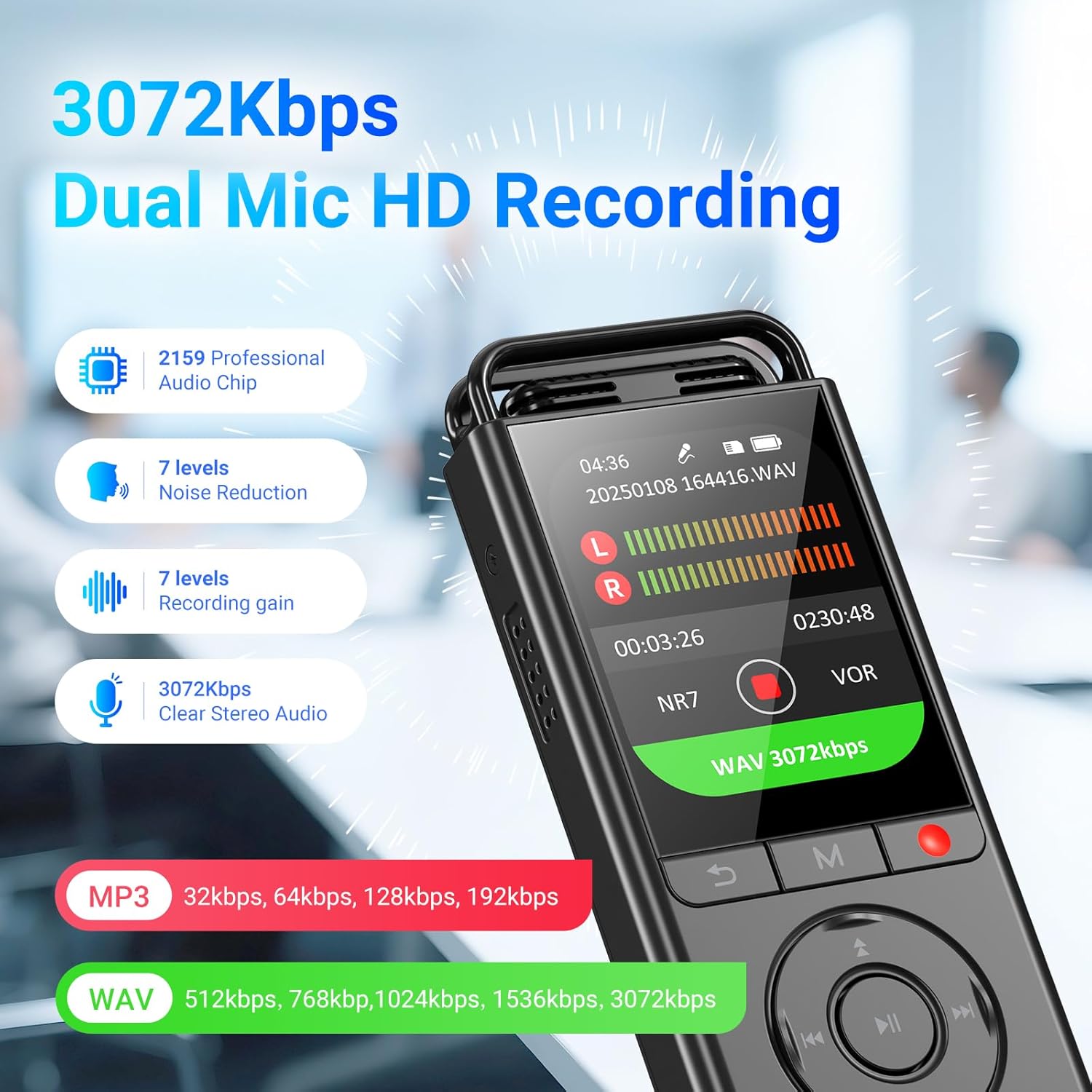
Figure 6: Dual Mic HD Recording and Noise Reduction.
5. Playback Functions
The device supports MP3, WMA, APE, FLAC, and WAV formats for playback.
- Basic Playback: Navigate to your recordings or music files and press the Play/Pause Button to start playback.
- Adjust Playback Speed: In playback mode, access the menu to find the "Variable Speed" option. Adjust to slow down or speed up playback.
- A-B Repeat: During playback, press the A-B Button once to set point A. Press it again to set point B. The device will loop playback between A and B. Press a third time to exit A-B repeat.
- Music Control: Use the navigation buttons to skip tracks (Previous/Next track) or fast forward/backward within a track.

Figure 7: MP3 Player Functionality.

Figure 8: A-B Repeat Function.
6. File Management
- Segment Recording: The device can automatically split long recordings into segments (e.g., 30/60/90/120 minutes) for easier management. This setting can be configured in the recording options.
- Scheduled Recording: Set a specific time for the recorder to start and stop recording automatically. Useful for lectures or meetings.
- T-Mark: During recording or playback, press the T-MARK Button to add a timestamp or mark. This allows you to quickly jump to important moments later.
- Deleting Files: Select the file you wish to delete and press the Delete Button. Confirm your action when prompted.

Figure 9: Advanced Recording Functions.
7. Password Protection
To protect your recordings, you can set a 4-digit password. This feature encrypts files locally and prevents unauthorized access.
- Go to the security settings in the menu.
- Select "Password Protection" and follow the on-screen prompts to set your 4-digit password.
- Remember your password, as there is no cloud recovery.
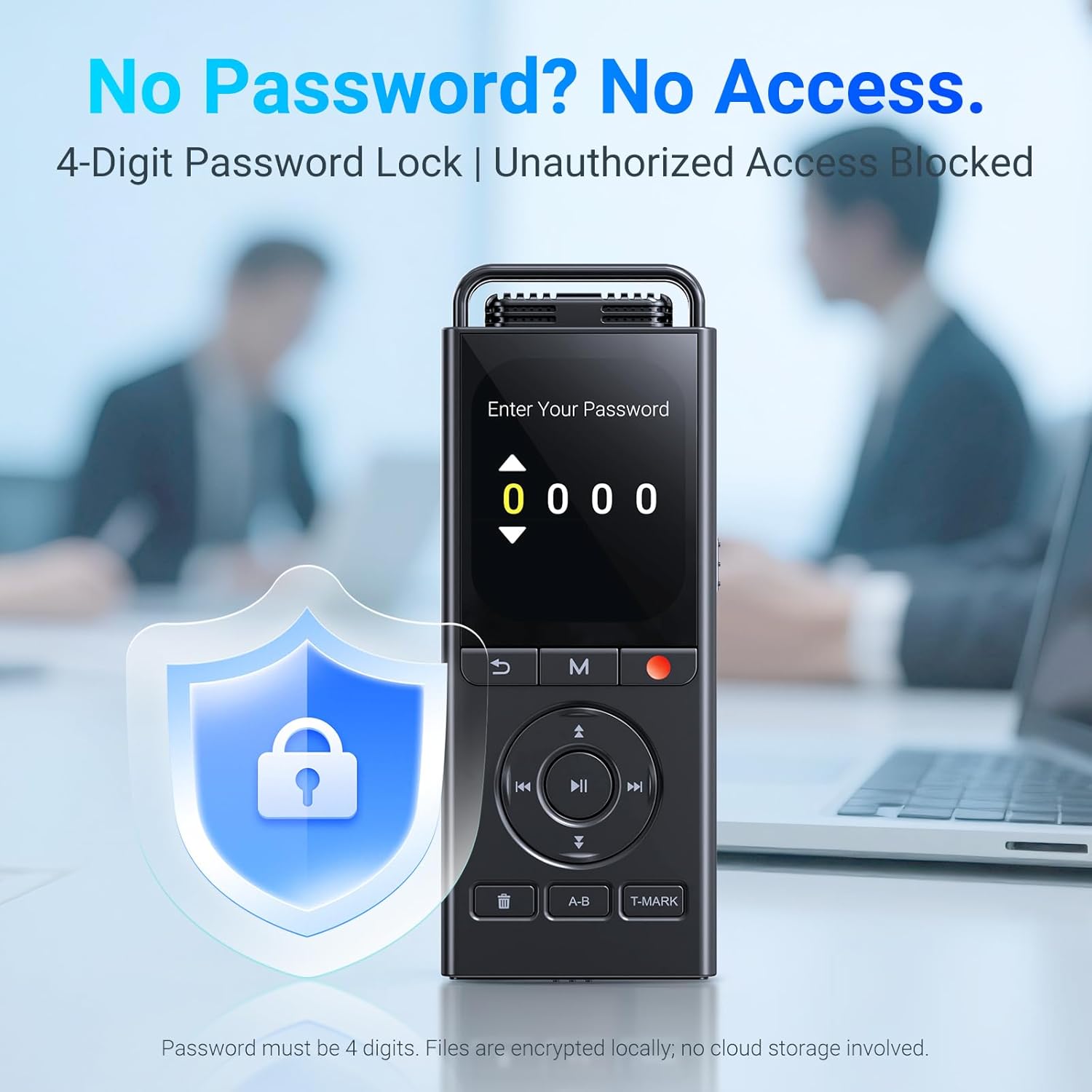
Figure 10: Password Protection Feature.
8. Line-in Recording
The device supports direct audio input via the line-in cable for high-quality recording from external sources like other audio players or computers. Connect the supplied line-in cable to the recorder's earphone jack and the audio output of your external device.

Figure 11: Line-in Recording Setup.
9. Official Product Video
Video 1: Official overview of the MECHEN V06 Digital Voice Recorder, demonstrating key features and usage scenarios.
Maintenance
- Keep the device dry. Do not expose it to moisture or extreme temperatures.
- Clean the device with a soft, dry cloth. Avoid using harsh chemicals or abrasive materials.
- Protect the screen from scratches.
- Store the device in a safe place when not in use to prevent physical damage. The zinc alloy case provides good protection against scratches and everyday use.
Troubleshooting
| Problem | Possible Cause | Solution |
|---|---|---|
| Device does not power on. | Low battery; Power switch in 'Off' position. | Charge the device fully; Ensure power switch is in 'On' position. |
| Cannot record. | Insufficient storage space; Device is locked. | Delete unnecessary files or check TF card; Unlock the device using the Lock/Unlock switch. |
| Poor recording quality. | High background noise; Incorrect noise reduction setting. | Adjust noise reduction level; Record in a quieter environment. |
| Screen is unresponsive. | Device frozen; Low battery. | Restart the device by sliding the power switch off and on; Charge the device. |
Specifications
- Model: V06
- Memory Storage Capacity: 144 GB (16GB built-in + 128GB TF card)
- Screen Size: 2.01 Inches
- Battery: 1 A battery required (included)
- Item Weight: 7 ounces
- Package Dimensions: 5.24 x 5.24 x 0.75 inches
- Audio Formats Supported: MP3, WMA, APE, FLAC, WAV
- Recording Bitrate: Up to 3072Kbps (WAV)
- Microphone Form Factor: Built-In
- Headphones Jack: 3.5 millimeters
- Hardware Interface: 3.5mm Audio, USB-C
- Manufacturer: MECHEN
Warranty and Support
MECHEN is committed to providing high-quality products and customer satisfaction. While specific warranty details are not provided in this manual, if you encounter any problems during use, please contact the MECHEN support team. They are available to respond and resolve issues within 24 hours on business days.
For support, please visit the official MECHEN store on Amazon or refer to the contact information provided with your purchase documentation.
Related documentsV06


Ask a question about this manual
Ask about setup, troubleshooting, compatibility, parts, safety, or missing instructions. Manuals+ will review the question and use this page’s manual context to help answer it.