1. Introduction
The ASUS PRIME B850-PLUS WIFI motherboard is engineered to provide a robust foundation for your PC build, offering advanced features for performance, stability, and compatibility. This motherboard supports AMD AM5 socket processors, DDR5 memory, and PCIe 5.0 connectivity, making it suitable for demanding computing tasks and future-proof systems. It integrates Wi-Fi 6E and 2.5Gb LAN for high-speed networking, along with comprehensive cooling solutions and user-friendly DIY features.

Figure 1.1: ASUS Prime B850-PLUS WiFi Motherboard, retail packaging, and included Wi-Fi antenna.
2. What's in the Box
Upon unboxing your ASUS Prime B850-PLUS WiFi motherboard, verify that all components are present:
- ASUS Prime B850-PLUS WiFi Motherboard
- User Manual / Quick Start Guide
- ASUS Wi-Fi Q-Antenna
- SATA 6Gb/s Cables
- M.2 Screw Packages
- M.2 Rubber Packages
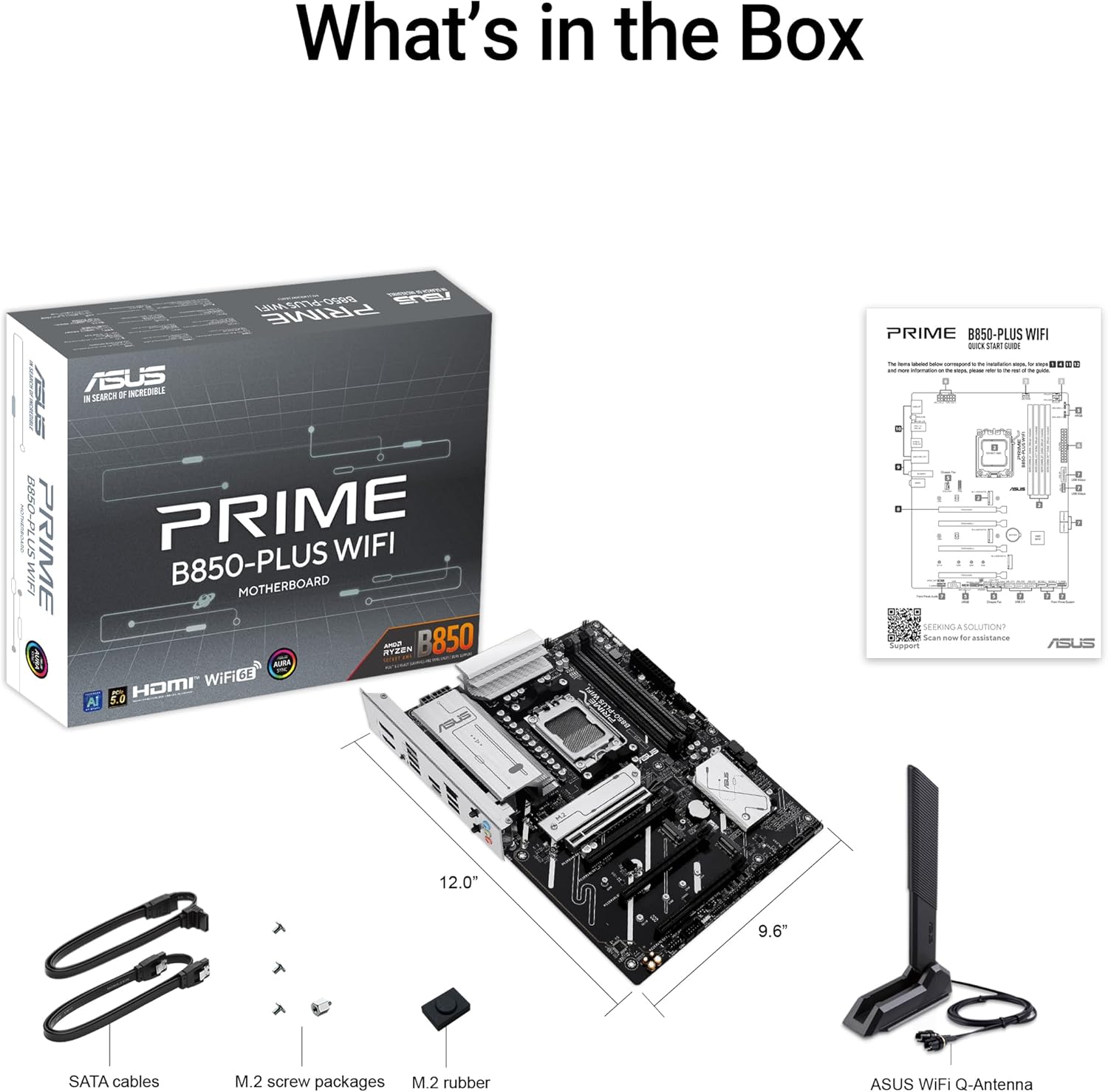
Figure 2.1: All included accessories and the motherboard as found in the product packaging.
3. Setup and Installation
This section guides you through the physical installation of the motherboard and its primary components into your PC chassis.
3.1 Motherboard Layout

Figure 3.1: Overview of the motherboard layout, highlighting key component areas such as the CPU socket, RAM slots, and PCIe slots.
3.2 Component Installation
- CPU Installation: Carefully align your AMD AM5 processor with the socket on the motherboard. Ensure the triangular mark on the CPU matches the mark on the socket. Gently lower the CPU into place and secure it with the retention arm.
- DDR5 Memory Installation: Open the clips on both ends of the DIMM slots. Align the memory module's notch with the key on the DIMM slot. Press down firmly on both ends of the memory module until the clips snap into place.
- M.2 SSD Installation: The motherboard features multiple M.2 slots, including a PCIe 5.0 M.2 slot. Remove the M.2 heatsink if present. Insert the M.2 SSD into the slot at an angle, then gently push it down and secure it with the provided M.2 screw or Q-Latch mechanism. Reinstall the heatsink if applicable.
- Graphics Card (GPU) Installation: Insert your PCIe 5.0 or PCIe 4.0 graphics card into the primary PCIe x16 slot (SafeSlot). Ensure it is fully seated and the retention clip locks. Secure the card to your chassis with screws.
- Power Connections: Connect the 24-pin ATX power connector and the 8-pin (or 4+4 pin) CPU power connector from your power supply to the motherboard. Connect SATA power cables to your storage drives.
- Front Panel Connections: Connect the front panel headers (power button, reset button, USB ports, audio jacks) from your chassis to the corresponding pins on the motherboard. Refer to the motherboard manual for exact pin layouts.
- Wi-Fi Antenna Installation: Screw the included ASUS Wi-Fi Q-Antenna onto the antenna connectors on the rear I/O panel. Position the antenna for optimal signal reception.
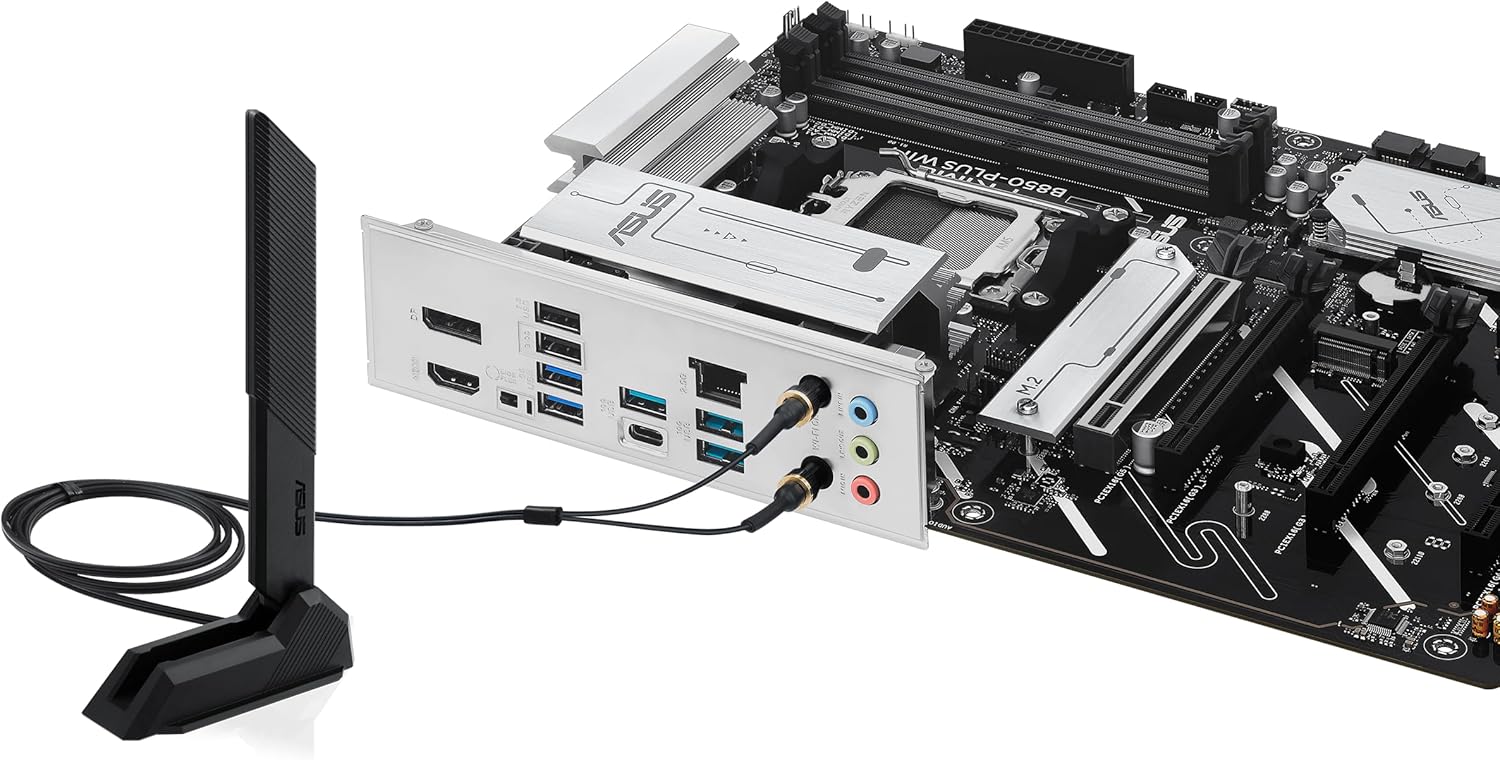
Figure 3.2: Rear I/O panel with Wi-Fi antenna connected, showing various ports including USB, DisplayPort, HDMI, and LAN.
4. Operating the Motherboard
Once the hardware is installed, the next steps involve configuring the system software and drivers.
4.1 BIOS/UEFI Configuration
Upon first boot, press the Delete key or F2 key during the Power-On Self-Test (POST) to enter the BIOS/UEFI setup utility. Here you can:
- Set boot order for your operating system drive.
- Configure memory profiles (e.g., AMD EXPO™ for DDR5 performance).
- Monitor system temperatures and fan speeds.
- Adjust CPU and other component settings.
The BIOS FlashBack™ feature allows you to update the BIOS without a CPU or memory installed, using a USB drive and the dedicated BIOS FlashBack™ port on the rear I/O panel.

Figure 4.1: Key DIY features of the motherboard, including BIOS FlashBack™ for convenient firmware updates.
4.2 Driver and Software Installation
After installing your operating system, install the necessary drivers for optimal performance. ASUS provides a utility called Armoury Crate which can automatically detect and install drivers, utilities, and firmware updates. It also provides access to:
- ASUS AI Advisor: Utilizes AI technology to help users understand and explore motherboard functionalities.
- ASUS Fan Xpert 2+: For advanced fan control and system cooling optimization.
- Aura Sync: For customizing RGB lighting effects across compatible components.

Figure 4.2: ASUS AI Advisor, an AI-powered tool to assist users with motherboard features.
5. Maintenance
Regular maintenance ensures the longevity and optimal performance of your motherboard.
- Dust Removal: Periodically clean dust from the motherboard and components using compressed air. Ensure the system is powered off and unplugged before cleaning.
- BIOS Updates: Keep your BIOS updated to the latest version to benefit from performance improvements, bug fixes, and support for new hardware. Use the ASUS EZ Flash utility within the BIOS or the BIOS FlashBack™ feature.
- Cooling System Check: Ensure all fans (CPU cooler, case fans) are functioning correctly and that heatsinks (VRM, M.2, PCH) are free from obstructions. The motherboard features flexible M.2 heatsinks for improved thermal performance of M.2 SSDs.

Figure 5.1: Features contributing to system cooling and performance, such as the flexible M.2 heatsink.
6. Troubleshooting
This section addresses common issues you might encounter.
| Problem | Possible Cause | Solution |
|---|---|---|
| System does not power on. | Loose power cables, faulty power supply, incorrect front panel connections. | Verify all power cables (24-pin ATX, 8-pin CPU) are securely connected. Check front panel power switch connection. Test power supply. |
| No display output. | Graphics card not seated correctly, monitor cable issue, incorrect display output selected. | Reseat the graphics card. Ensure monitor cable is connected to the graphics card (not motherboard if discrete GPU is used). Try a different display output port or cable. |
| System boots but no OS detected. | Incorrect boot order in BIOS, corrupted OS, faulty storage drive. | Enter BIOS/UEFI and set the correct boot priority for your OS drive. Check storage drive connections. Reinstall OS if necessary. |
| Memory (RAM) issues (e.g., system not booting with all modules). | Incorrect memory seating, incompatible memory, faulty memory module. | Ensure memory modules are fully seated. Refer to the motherboard's QVL (Qualified Vendor List) for compatible memory. Test modules one by one. Update BIOS. |
| Wi-Fi or Bluetooth connectivity issues. | Missing or outdated drivers, antenna not connected, interference. | Install or update Wi-Fi/Bluetooth drivers via Armoury Crate or ASUS support website. Ensure Wi-Fi Q-Antenna is securely connected. Check for physical obstructions or interference. |
7. Specifications
Key technical specifications for the ASUS Prime B850-PLUS WiFi Motherboard:
| Feature | Detail |
|---|---|
| Model Name | PRIME B850-PLUS WIFI |
| CPU Socket | AMD AM5 Socket (Supports Ryzen™ 9000 & 8000 & 7000 Series Desktop Processors) |
| Chipset | AMD B850 |
| RAM Memory Technology | DDR5 |
| Memory Speed | Up to 6 GHz (OC) |
| PCIe Slots | 1 x PCIe 5.0 x16, Multiple PCIe 4.0/3.0 slots |
| M.2 Slots | 3 x M.2 slots (including 1 x PCIe 5.0 M.2) |
| Ethernet | Realtek 2.5Gb Ethernet |
| Wireless Connectivity | Wi-Fi 6E, Bluetooth |
| USB Ports | USB 10Gbps Type-A & Type-C, USB 5Gbps Type-C (front support) |
| Video Output | DisplayPort, HDMI™ (requires integrated graphics on CPU) |
| Form Factor | ATX |
| Dimensions | Approximately 12.0 inch x 9.6 inch (30.5 cm x 24.4 cm) |
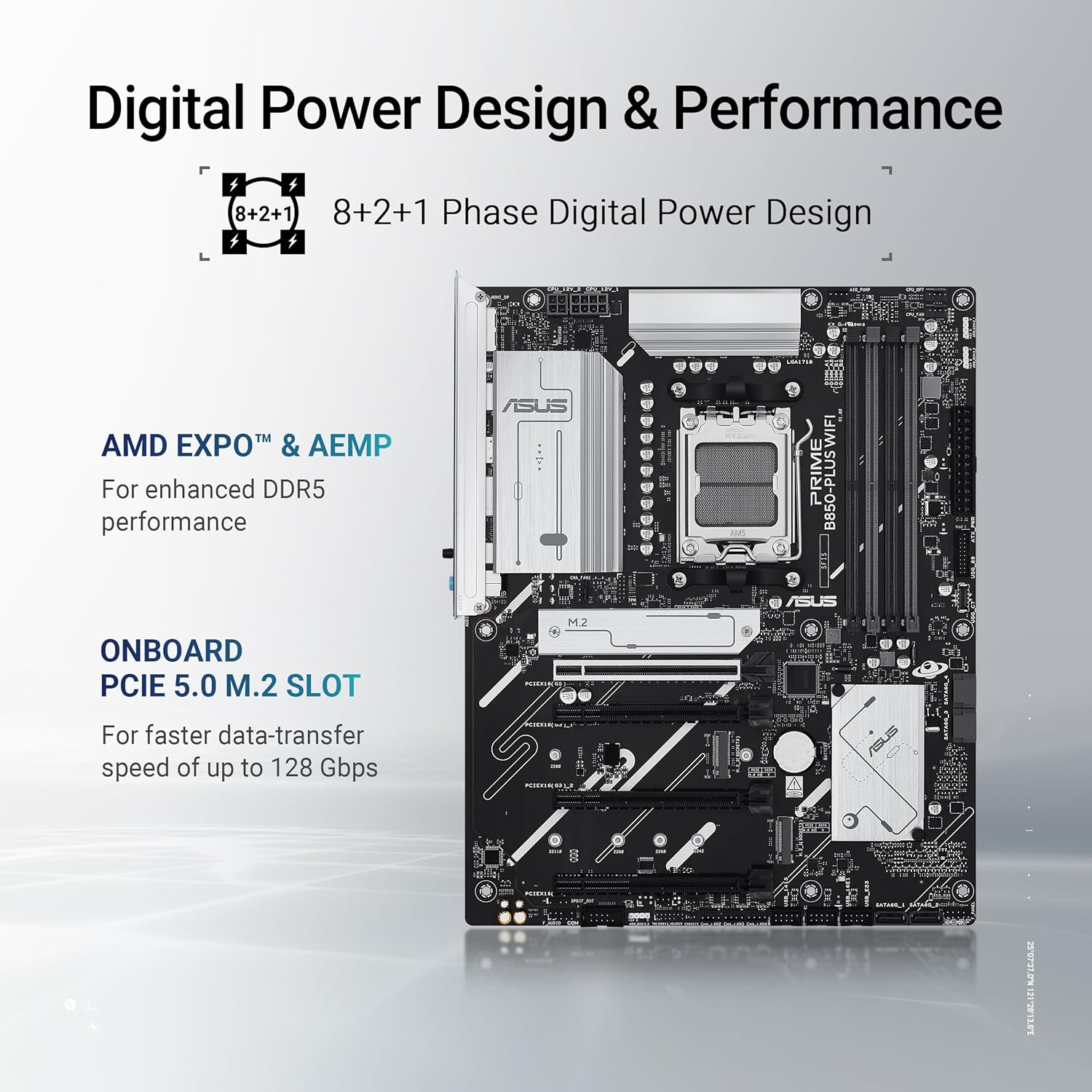
Figure 7.1: Key performance features of the motherboard, including its power delivery system and PCIe 5.0 M.2 slot.
8. Warranty and Support
ASUS provides a limited warranty for its motherboards. For detailed warranty terms and conditions, please refer to the warranty card included with your product or visit the official ASUS support website. Keep your proof of purchase for warranty claims.
8.1 Technical Support
For technical assistance, driver downloads, BIOS updates, and FAQs, please visit the official ASUS support website:
When contacting support, please have your motherboard's model name (PRIME B850-PLUS WIFI) and serial number ready.