1. Introduction
This manual provides essential information for setting up, operating, maintaining, and troubleshooting your Motorola Moto G Power (2021) XT2117 smartphone. Please read this guide carefully to ensure proper use and to maximize your device's capabilities. The Moto G Power (2021) features a 6.6-inch HD+ display, a 48MP triple camera system, and a 5000mAh battery, designed for extended usage and reliable performance.
2. What's in the Box
Verify that all items are present in your product packaging:
- Motorola Moto G Power (2021) XT2117 Phone
- USB-C Cable
- SIM Ejector Tool
3. Device Overview
Familiarize yourself with the physical components of your Moto G Power (2021).
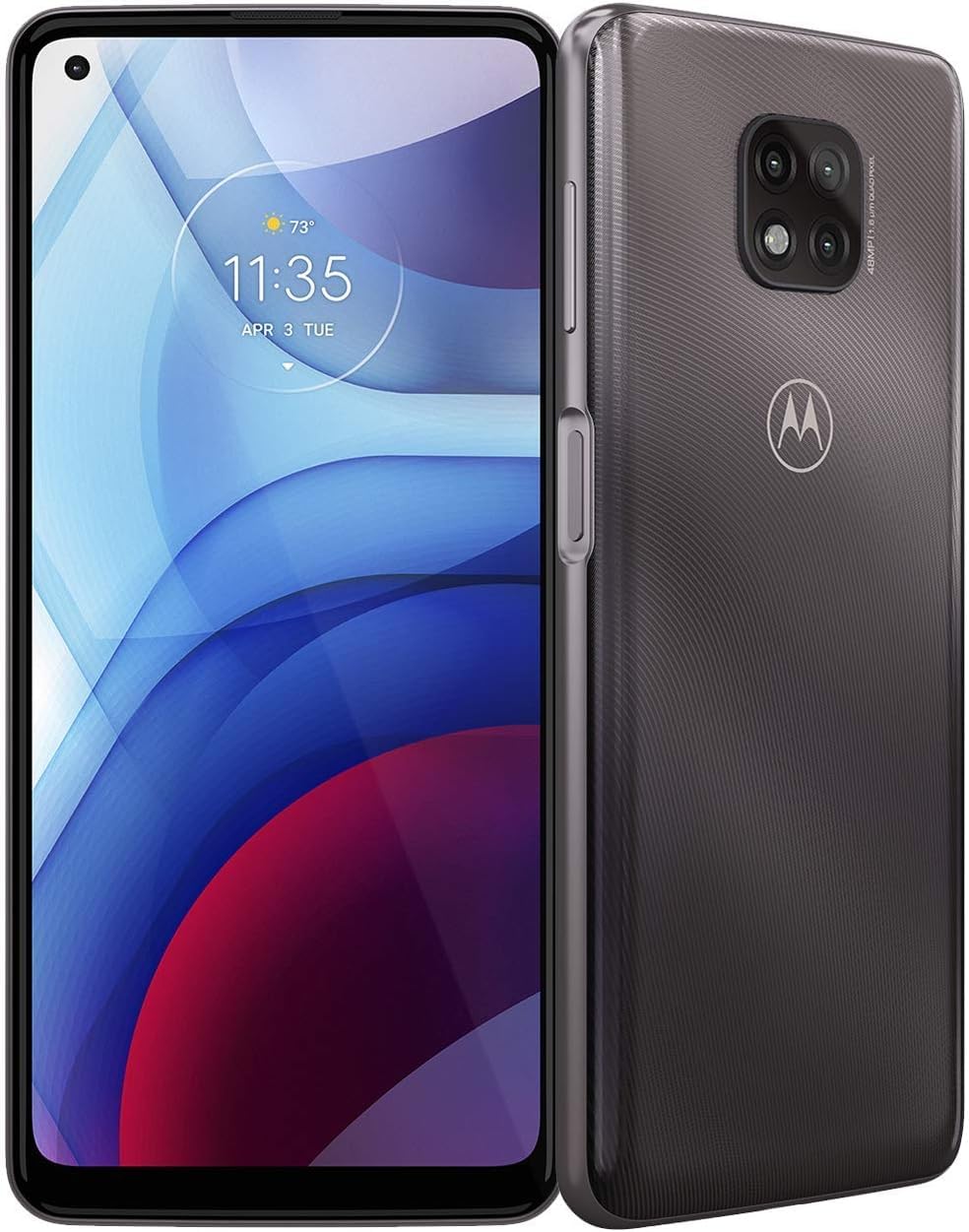
Figure 3.1: Front view of the Motorola Moto G Power (2021) XT2117 in Flash Gray. This image displays the large 6.6-inch display and the front camera cutout.
3.1. Physical Buttons and Ports
- Power Button: Located on the right side. Press to turn the screen on/off, press and hold to power the device on/off or restart.
- Volume Buttons: Located above the power button. Press to adjust media volume, call volume, or notification volume.
- USB-C Port: Located at the bottom. Used for charging and data transfer.
- Headphone Jack: Typically located at the top or bottom. For connecting wired headphones.
- SIM/microSD Card Tray: Located on the left side. Use the SIM ejector tool to open.
- Rear Camera Module: Located on the back, featuring a 48MP triple camera system.
- Fingerprint Sensor: Often integrated into the power button or located on the back.
4. Setup
4.1. Insert SIM Card and microSD Card
- Locate the SIM/microSD card tray on the left side of the phone.
- Insert the SIM ejector tool into the small hole on the tray to pop it open.
- Place your Nano-SIM card into the designated slot with the gold contacts facing down. If using a microSD card for expandable storage (up to 512GB), insert it into the appropriate slot.
- Carefully push the tray back into the phone until it clicks into place.
4.2. Powering On Your Device
Press and hold the Power Button on the right side of the phone until the Motorola logo appears on the screen.
4.3. Initial Setup Wizard
Upon first power-on, the device will guide you through the initial setup process. This includes selecting your language, connecting to Wi-Fi, setting up your Google account, and configuring security features like fingerprint unlock or a PIN/pattern.
4.4. Boost Mobile Activation
This device is optimized for use with the Boost Mobile network. Follow the on-screen instructions or contact Boost Mobile customer service for activation if necessary. Ensure your SIM card is properly inserted for network connectivity.
5. Operating Your Device
5.1. Basic Navigation
- Tap: Touch the screen once to open apps, select items, or press buttons.
- Swipe: Drag your finger across the screen to scroll through lists, move between home screens, or dismiss notifications.
- Pinch: Use two fingers to zoom in or out on photos, maps, and web pages.
- Long Press: Press and hold an item to access contextual menus or move icons.
5.2. Making Calls and Sending Messages
- To make a call, open the Phone app, enter the number, and tap the call icon.
- To send a message, open the Messages app, tap the new message icon, enter the recipient and your message, then tap send.
5.3. Using the Camera
The Moto G Power (2021) features a 48MP triple camera system. Open the Camera app to capture photos and videos.
- Photo Mode: Tap the shutter button to take a picture.
- Video Mode: Switch to video mode and tap the record button to start/stop recording.
- Explore various camera modes and settings for different photography experiences.
5.4. Battery Management
Your device is equipped with a 5000mAh battery for extended usage. To optimize battery life:
- Reduce screen brightness.
- Turn off Wi-Fi, Bluetooth, and GPS when not in use.
- Close unused applications running in the background.
- Enable Battery Saver mode from the settings menu.
6. Maintenance
6.1. Cleaning Your Device
To clean your phone, use a soft, lint-free cloth. Avoid using harsh chemicals or abrasive materials, which can damage the screen or finish. For stubborn smudges, slightly dampen the cloth with water.
6.2. Software Updates
Regularly check for and install software updates to ensure your device has the latest features, security patches, and performance improvements. You can typically find this option in Settings > System > System updates.
7. Troubleshooting
If you encounter issues with your device, try the following common troubleshooting steps:
- Device not powering on: Ensure the battery is charged. Connect the phone to a charger for at least 15 minutes, then try powering it on again.
- No network signal: Check if the SIM card is correctly inserted. Restart the device. Verify that airplane mode is off.
- Apps crashing or freezing: Close and reopen the app. Clear the app's cache (Settings > Apps > [App Name] > Storage > Clear cache). If the issue persists, restart your phone.
- Battery draining quickly: Review section 5.4 on Battery Management. Check for apps consuming excessive power in battery usage settings.
- Screen unresponsive: Perform a forced restart by pressing and holding the power button for about 10-15 seconds.
For more complex issues, refer to Motorola's official support website or contact customer service.
8. Specifications
| Feature | Specification |
|---|---|
| Model Name | Moto G Power (2021) |
| Item Model Number | XT2117 |
| Operating System | Android 10.0 |
| CPU Model | Snapdragon |
| CPU Speed | 2 GHz |
| RAM Memory Installed Size | 4 GB |
| Memory Storage Capacity | 64 GB (expandable via microSD up to 512GB) |
| Display | 6.6-inch HD+ |
| Camera | 48MP Triple Camera |
| Battery Power Rating | 5000 mAh |
| Wireless Carrier | Boost Mobile (Locked) |
| Cellular Technology | 4G |
| Color | Flash Gray |
9. Warranty and Support
For information regarding your device's warranty, please refer to the warranty card included in your product packaging or visit the official Motorola support website. For technical assistance, troubleshooting, or service inquiries, contact Motorola customer support or your Boost Mobile service provider.
Note: Product specifications and features are subject to change without notice.


