1. Introduction
The Molczov ZigBee & Bluetooth Dual Mode Gateway is a smart bridge designed to connect and control a wide range of ZigBee 3.0 and Bluetooth 5.0 smart devices. This intelligent hub enables seamless integration with your home network, allowing for remote control via the Smart Life or Tuya Smart App, and voice control through Amazon Alexa and Google Assistant. Its compact design and stable connection capabilities make it an essential component for a modern smart home ecosystem.
Package Contents:
- 1 x Smart Zigbee & Bluetooth Gateway
- 1 x Data Cable
- 1 x User Manual (this document)

Image 1.1: The Molczov ZigBee & Bluetooth Dual Mode Gateway alongside a smartphone showing its interface for managing connected devices.
2. Key Features
- Dual Mode Connectivity: Supports both ZigBee 3.0 and Bluetooth 5.0 for broad device compatibility.
- APP Remote Control: Monitor and control smart devices from anywhere using the Smart Life or Tuya Smart App (requires 2.4GHz WiFi connection).
- Voice Control Integration: Compatible with Amazon Alexa and Google Assistant for hands-free operation.
- Easy Setup: Simple pairing process with the Smart Life app, requiring only power connection and WiFi.
- Stable and Reliable Connection: Offers wide coverage and strong signal reception with low power consumption.
- Family Sharing: Allows multiple family members to manage devices by sharing the account.
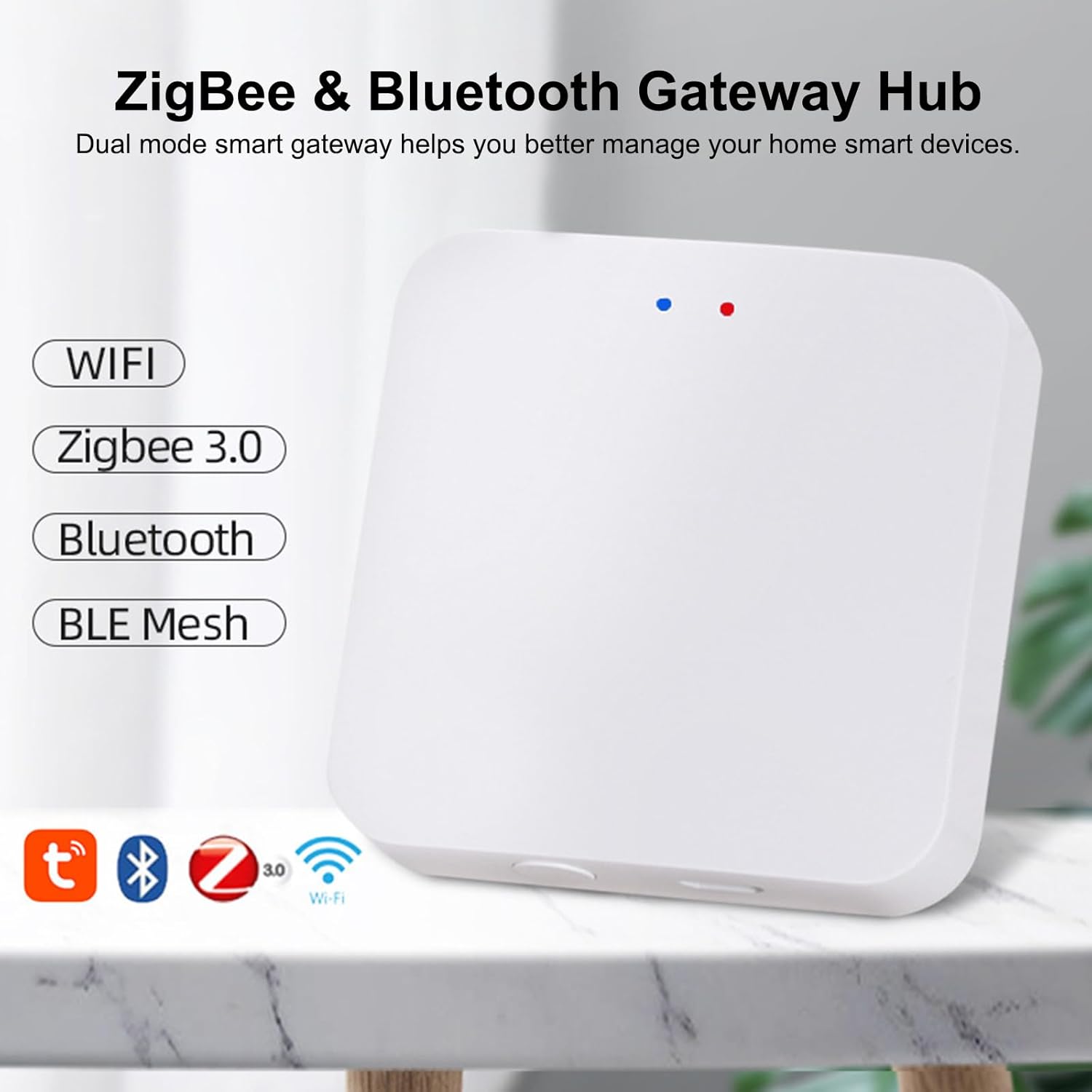
Image 2.1: Visual representation of the gateway's dual-mode capabilities, supporting WiFi, Zigbee 3.0, Bluetooth, and BLE Mesh.
3. Setup Guide
Follow these steps to set up your Molczov ZigBee & Bluetooth Dual Mode Gateway:
- Power On: Connect the provided data cable to the Micro USB port on the gateway and plug it into a DC5V 1A power source. The indicator light on the gateway will illuminate.
- App Installation: Download and install the "Smart Life" or "Tuya Smart" app from your mobile device's app store (available for iOS and Android).
- Account Registration: Open the app and register for a new account or log in if you already have one.
- Add Device:
- Ensure your mobile device is connected to a 2.4GHz WiFi network.
- In the app, tap the "+" icon (usually in the top right corner) to add a new device.
- Select "Gateway Control" or "Others" and then choose "Wireless Gateway" or "ZigBee Gateway" from the list.
- The app will guide you through the pairing process. Ensure the gateway's indicator light is blinking, indicating it's in pairing mode. If not, press and hold the reset button (if available, refer to device diagram) for a few seconds until it blinks.
- Confirm your WiFi network and enter the password when prompted.
- The app will search for and connect to the gateway. Once connected, you will see a confirmation message.
- Add Smart Devices: After the gateway is successfully added, you can start adding your ZigBee and Bluetooth smart devices through the gateway's interface within the app.
Video 3.1: This video demonstrates the step-by-step process of setting up the Molczov ZigBee & Bluetooth Dual Mode Gateway and connecting it to the mobile application. It shows the physical connection, app navigation, and successful device pairing.
4. Operating Instructions
Once your Molczov Gateway is set up and devices are connected, you can begin controlling your smart home.
4.1 App Remote Control
The Smart Life or Tuya Smart app provides comprehensive control over your connected devices:
- Device Management: View all connected ZigBee and Bluetooth devices. Turn devices on/off, adjust settings, and monitor status from anywhere with an internet connection.
- Scene Creation: Create custom scenes to automate multiple devices with a single command (e.g., "Good Morning" scene to turn on lights and open curtains).
- Automation: Set up schedules, timers, and conditional automations based on factors like time, weather, or other device states.
- Notifications: Receive alerts, such as power failure notifications, directly on your smartphone.

Image 4.1: The mobile app interface showing remote control options and a notification for device offline status due to power failure.
4.2 Voice Control
Integrate your gateway with Amazon Alexa or Google Home for convenient voice commands:
- Link Accounts: In the Alexa or Google Home app, search for the "Smart Life" or "Tuya Smart" skill/action and link your account.
- Discover Devices: Once linked, ask your voice assistant to "Discover devices" or manually initiate discovery in the app.
- Voice Commands: Use simple voice commands to control your devices. For example:
- "Alexa, turn on the living room light."
- "Hey Google, set the bedroom temperature to 22 degrees."
- "Alexa, turn off the fan."
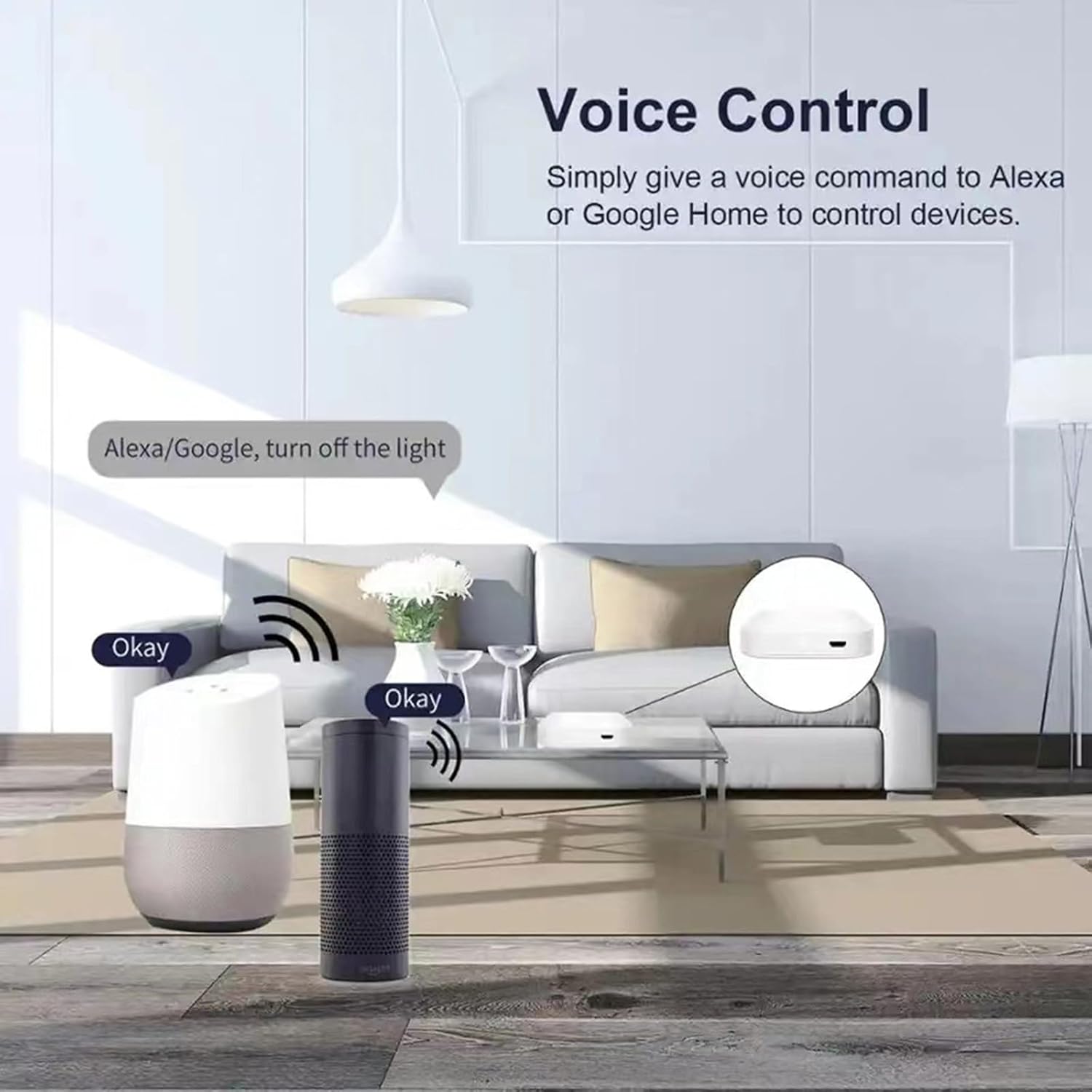
Image 4.2: An illustration of how voice commands through Amazon Alexa or Google Home can control devices connected via the gateway.
4.3 Device Compatibility
The Molczov Gateway supports a wide array of ZigBee and Bluetooth devices, including but not limited to:
- Zigbee Light Bulbs
- Zigbee Sockets
- Zigbee Curtain Switches
- Zigbee Switches
- Thermohygrometers
- Various other ZigBee 3.0 and Bluetooth 5.0 enabled smart home sensors and actuators.

Image 4.3: Examples of widely compatible smart home devices that can be connected to the dual-mode gateway.

Image 4.4: Depiction of the gateway's stable and reliable connection, providing wide coverage throughout a home.

Image 4.5: Illustration of the family sharing control feature, allowing multiple users to manage smart devices.
5. Maintenance
To ensure optimal performance and longevity of your Molczov ZigBee & Bluetooth Dual Mode Gateway, consider the following maintenance tips:
- Keep Clean: Regularly wipe the device with a soft, dry cloth to remove dust. Avoid using liquid cleaners or abrasive materials.
- Optimal Placement: Place the gateway in a central location within your home, away from large metal objects, thick walls, or other sources of interference (like microwaves or cordless phones) to maximize signal strength and coverage.
- Firmware Updates: Check the Smart Life/Tuya Smart app periodically for firmware updates. Keeping the gateway's firmware updated ensures compatibility with new devices, improved performance, and enhanced security.
- Power Stability: Ensure a stable power supply (DC5V 1A). Avoid frequent power interruptions, which can affect device stability.
- Environmental Conditions: Operate the device within the specified working temperature (-10℃ to 55℃) and humidity (10%-90%RH) ranges to prevent damage.
6. Troubleshooting
If you encounter issues with your Molczov Gateway, refer to the following common troubleshooting steps:
| Problem | Possible Cause | Solution |
|---|---|---|
| Gateway not connecting to WiFi. | Incorrect WiFi password; 5GHz WiFi network; Gateway too far from router. | Verify password; Ensure 2.4GHz WiFi; Move gateway closer to router. |
| Devices not pairing with the gateway. | Device not in pairing mode; Interference; Device out of range. | Put device in pairing mode (refer to device manual); Reduce interference; Move device closer to gateway. |
| Voice control not working. | Smart Life/Tuya skill not enabled; Accounts not linked; Incorrect voice command. | Enable skill in Alexa/Google Home app; Link accounts correctly; Use precise commands. |
| Gateway frequently goes offline. | Unstable WiFi connection; Power supply issues. | Check router stability; Ensure stable power source; Relocate gateway. |
If the problem persists, please contact Molczov customer support for further assistance.
7. Specifications
| Feature | Detail |
|---|---|
| Product Name | Wireless Zigbee & Bluetooth Gateway |
| Model Number | ZigBee Gateway |
| Connectivity | ZigBee 3.0, Bluetooth 5.0, 2.4G WiFi Network |
| Power Interface | Micro USB |
| Power Input | DC5V 1A |
| Working Temperature | -10℃ to 55℃ (14°F to 131°F) |
| Working Humidity | 10% to 90% RH (non-condensing) |
| Product Dimensions | 6 x 6 x 1.5 cm (2 x 2 x 0.5 inches) |
| Product Weight | 60g (3.52 ounces) |
| Color | White |
| Manufacturer | Molczov |
| Country of Origin | China |
8. Warranty and Support
Molczov products are designed for reliability and performance. For warranty information and technical support, please refer to the following:
- Warranty: This product typically comes with a standard manufacturer's warranty. Please retain your proof of purchase for warranty claims. Specific warranty terms and duration may vary by region and retailer.
- Technical Support: For any technical issues, setup assistance, or questions not covered in this manual, please contact Molczov customer support.
- Online Support: Visit the official Molczov website for FAQs, troubleshooting guides, and contact forms.
- Email Support: Refer to your product packaging or purchase documentation for specific support email addresses.
Note: Always ensure you are using official Molczov channels for support to avoid misinformation or unauthorized service.