
1. Introduction
This manual provides comprehensive instructions for the setup, operation, and maintenance of your Gimebox R69 Pro H728 Android Box 14.0. Please read this manual thoroughly before using the device to ensure proper functionality and to prevent damage.
The Gimebox R69 Pro H728 is a high-performance streaming media player featuring Android 14.0, an H728 Octa-core ARM Cortex A55 CPU, Mali G57-MC1 GPU, 4GB RAM, 64GB ROM, Wi-Fi 6.0, Bluetooth 5.0, and Gigabit Ethernet, supporting 8K resolution and HDR10.
2. Safety Information
- Use only the provided power adapter. Using unauthorized adapters may damage the device and void the warranty.
- Do not expose the device to water, moisture, or extreme temperatures.
- Avoid placing the device near heat sources or in direct sunlight.
- Do not attempt to open or repair the device yourself. Refer all servicing to qualified personnel.
- Keep the device away from children and pets.
- Ensure proper ventilation around the device to prevent overheating.
3. Package Contents
Verify that all items are present in the package:
- Gimebox R69 Pro H728 Android Box
- Remote Control
- Power Adapter (DC 5V/2A)
- User Manual (this document)
4. Product Overview
Familiarize yourself with the components of your Android Box and its remote control.
4.1. Android Box and Remote Control

Image: The Gimebox R69 Pro H728 Android Box shown alongside its included remote control. The box features USB ports and a card slot on its side.
4.2. Connectivity Ports

Image: A close-up view of the Gimebox R69 Pro H728, highlighting the Gigabit Ethernet port (1000M) for high-speed wired network connections.
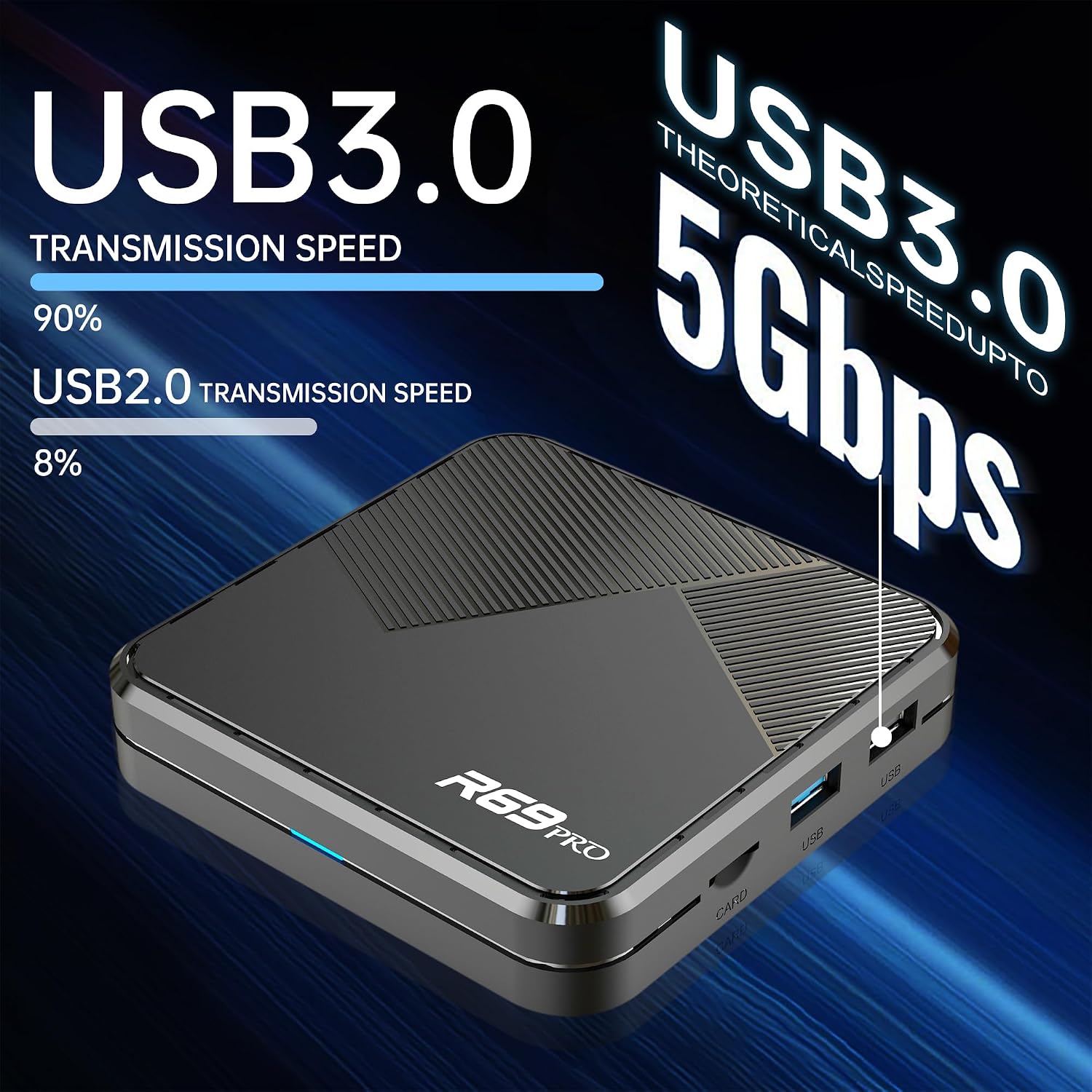
Image: The side of the Gimebox R69 Pro H728, showing the USB 3.0 ports, which offer significantly faster data transmission speeds compared to USB 2.0.
The device includes multiple ports for various connections:
- HDMI Output: Connects to your TV or display for video and audio.
- USB 3.0 Ports: For connecting external storage devices, keyboards, mice, or other USB peripherals.
- Ethernet (RJ-45) Port: For wired internet connection (Gigabit 10/1000M).
- DC 5V Power Input: For connecting the power adapter.
- Card Slot: For expanding storage with a memory card.
5. Setup
Follow these steps to set up your Gimebox R69 Pro H728 Android Box:
- Connect to TV: Connect one end of an HDMI cable (not included) to the HDMI output port on the Android Box and the other end to an available HDMI input port on your television.
- Connect to Network:
- Wired Connection: Connect an Ethernet cable from your router or modem to the Ethernet port on the Android Box.
- Wireless Connection: The device supports Wi-Fi 6.0. You will configure this after powering on.
- Connect Power: Plug the DC 5V power adapter into the power input port on the Android Box, then plug the adapter into a wall outlet. The device should power on automatically, or you may need to press the power button on the remote.
- Select Input: Turn on your TV and select the correct HDMI input source using your TV's remote control. You should see the Gimebox boot screen.
6. Operating Instructions
This section covers basic operation and navigation of your Android Box.
6.1. Initial Setup and Network Configuration
Upon first boot, you may be guided through an initial setup process. Follow the on-screen prompts to select your language, time zone, and connect to a network.
- Wi-Fi Connection:
- Navigate to Settings > Network & Internet.
- Select Wi-Fi and turn it on.
- Choose your Wi-Fi network from the list, enter the password, and select Connect.

Image: The Gimebox R69 Pro H728 highlighting its Wi-Fi 6.0 capability, indicating faster speeds and improved network performance.
- Ethernet Connection: If you connected an Ethernet cable, the device should automatically detect and connect to the wired network.
6.2. Navigating the Android 14.0 System
The Gimebox R69 Pro H728 runs on Android 14.0, offering a smooth and responsive user experience.

Image: A graphical representation showing the evolution of Android versions, with Android 14.0 highlighted as the latest, indicating a higher system and better performance for the Gimebox R69 Pro H728.
Use the included remote control to navigate the interface:
- Directional Pad (D-Pad): Use the up, down, left, and right arrows to move between menu items.
- OK Button: Confirms selections or opens applications.
- Back Button: Returns to the previous screen or menu.
- Home Button: Returns to the main home screen.
- Volume Buttons: Adjusts the audio output level.
- Power Button: Turns the device on or off (standby).
6.3. Installing and Using Applications
You can download and install applications from the Google Play Store or other authorized app stores. Ensure applications are compatible with Android 14.0.
- Open the Play Store app from the home screen.
- Search for desired applications.
- Select an app and choose Install.
- Once installed, the app icon will appear on your home screen or in the app drawer.
7. Specifications
Detailed technical specifications for the Gimebox R69 Pro H728 Android Box.

Image: An internal view diagram of the Gimebox R69 Pro H728's System-on-Chip (SOC), highlighting the Allwinner H728 CPU, Mali G57 MC1 GPU, 8K video support, and 1000M Ethernet capability.
| Feature | Description |
|---|---|
| Operating System | Android 14.0 |
| CPU | H728 Octa-core ARM Cortex A55 |
| GPU | Mali G57-MC1 |
| RAM | 4GB |
| ROM (Internal Storage) | 64GB |
| Wi-Fi | Wi-Fi 6.0 |
| Bluetooth | BT 5.0 |
| Ethernet | Standard 10/1000M, Gigabit RJ-45 |
| Video Output | 8K Resolution Support |
| HDR Support | HDR10 and HLG modes |
| USB Host | High speed USB 3.0 |
| Power Supply | DC 5V/2A |
| Dimensions | 13.78 x 7.09 x 1.18 inches (Product) |
| Weight | 10.6 ounces |
| UPC | 798068994279 |

Image: A comparison demonstrating the visual enhancement provided by HDR10 technology with 8K resolution on the Gimebox R69 Pro H728, showing a more vivid and beautiful picture display compared to standard display.
8. Maintenance
Proper maintenance ensures the longevity and optimal performance of your Android Box.
- Cleaning: Use a soft, dry cloth to clean the device. Do not use liquid cleaners or abrasive materials.
- Ventilation: Ensure the ventilation openings are not blocked to prevent overheating.
- Software Updates: Periodically check for system updates in the device settings to ensure you have the latest features and security patches.
- Storage Management: Regularly clear cache and uninstall unused applications to free up storage space and maintain performance.
9. Troubleshooting
If you encounter issues with your Gimebox R69 Pro H728, refer to the following common solutions:
- No Power:
- Check if the power adapter is securely connected to the device and the wall outlet.
- Ensure the power outlet is functional.
- Try pressing the power button on the remote control.
- No Picture on TV:
- Verify the HDMI cable is securely connected to both the Android Box and the TV.
- Ensure your TV is set to the correct HDMI input source.
- Try a different HDMI cable or TV port.
- No Internet Connection:
- For Wi-Fi: Check Wi-Fi settings, ensure the correct network is selected, and the password is entered correctly. Restart your router.
- For Ethernet: Ensure the Ethernet cable is properly connected and your router is working.
- Remote Control Not Responding:
- Replace the batteries in the remote control.
- Ensure there are no obstructions between the remote and the Android Box.
- Device Freezes or Slows Down:
- Restart the device by unplugging the power adapter for 10 seconds and plugging it back in.
- Close unused applications running in the background.
- Clear the cache of problematic applications.
10. Warranty and Support
For warranty information and technical support, please refer to the official Gimebox website or contact their customer service. Keep your purchase receipt as proof of purchase.
Online Support: Visit Gimebox Store on Amazon for more information and support resources.