1. Introduction to Your Samsung Galaxy S24 FE
Welcome to the world of the Samsung Galaxy S24 FE. This smartphone combines powerful performance with intuitive features, running on One UI 7 and Android 15. This manual provides detailed instructions to help you set up, operate, and maintain your device, ensuring you can fully utilize its capabilities.
This guide is designed to be clear and straightforward, covering everything from initial setup to advanced features, camera usage, and security settings.
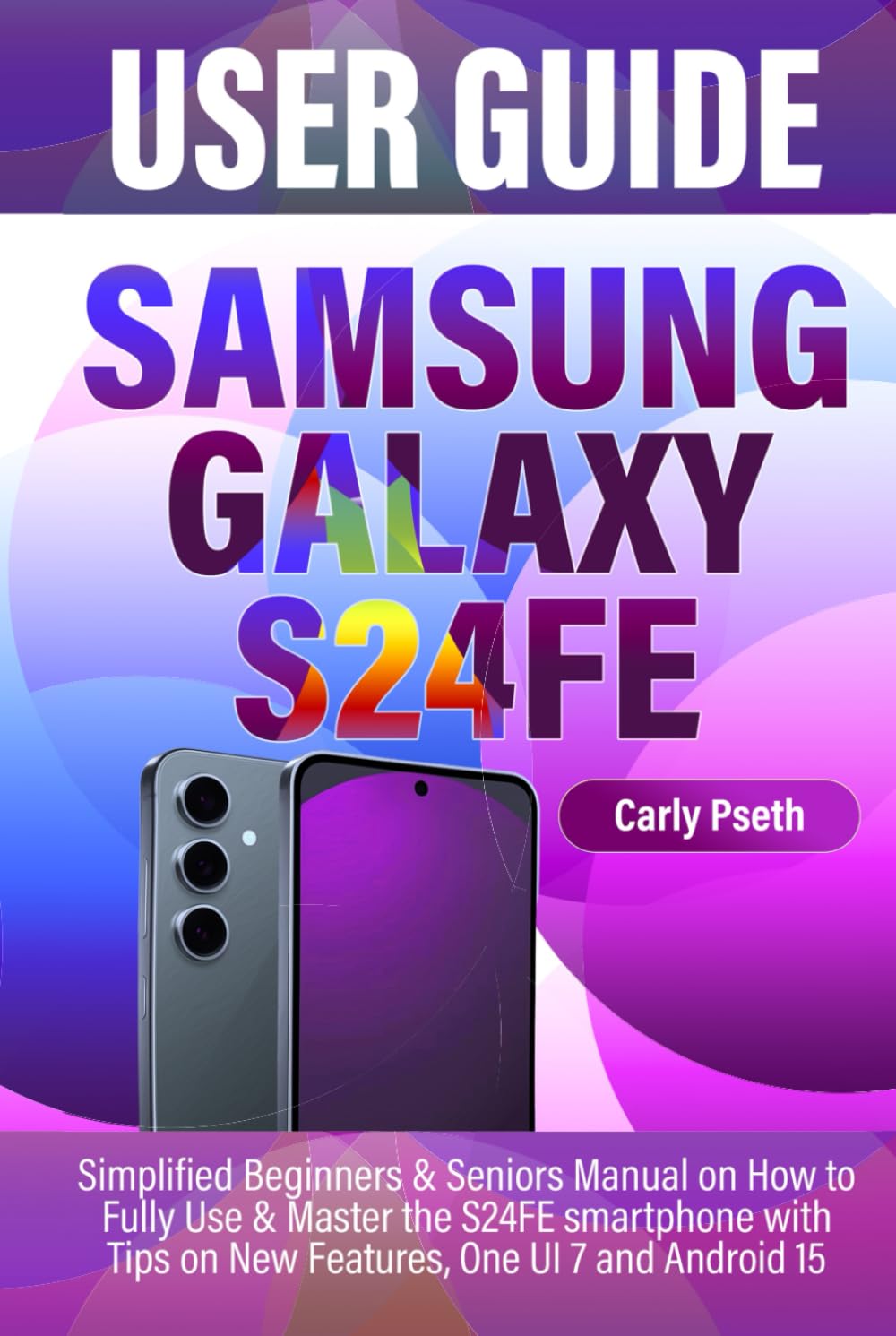
Image: Front cover of the official Samsung Galaxy S24 FE User Guide book.

Image: Back cover of the official Samsung Galaxy S24 FE User Guide book.
2. Getting Started
2.1 Phone Components Overview
Familiarize yourself with the physical layout of your Samsung Galaxy S24 FE. This includes identifying buttons, ports, cameras, and sensors. Understanding these components is essential for proper device interaction.
- Power Button: Located on the side, used to turn the device on/off or wake/sleep the screen.
- Volume Buttons: Adjust media and call volume.
- USB-C Port: For charging and data transfer.
- SIM Card Slot: Insert your Nano-SIM card for cellular service.
- Cameras: Front and rear cameras for photos and videos.
- Sensors: Proximity, ambient light, and other sensors for various functions.
2.2 Initial Setup
When you first power on your S24 FE, you will be guided through a series of steps to set up your device. This includes selecting your language, connecting to Wi-Fi, and agreeing to terms and conditions.
- Power On: Press and hold the Power button until the Samsung logo appears.
- Language Selection: Choose your preferred language.
- Wi-Fi Connection: Connect to a stable Wi-Fi network to download necessary updates and complete setup.
- Terms and Conditions: Review and accept the End User License Agreement and Privacy Policy.
- Google Account: Sign in with your Google account or create a new one. This is essential for accessing the Google Play Store and other Google services.
2.3 Data Transfer with Smart Switch
Samsung Smart Switch allows you to seamlessly transfer data from your old device to your new Galaxy S24 FE. This can include contacts, messages, photos, videos, and app data.
- Install Smart Switch: Ensure Smart Switch is installed on both your old and new devices.
- Connect Devices: Connect the devices wirelessly or via a USB cable.
- Select Data: Choose the data you wish to transfer.
- Start Transfer: Initiate the transfer process and wait for it to complete.
2.4 Samsung Account
Creating and managing a Samsung account provides access to exclusive Samsung services, cloud backup, and device security features.
- Access Settings: Navigate to Settings > Accounts and backup > Samsung account.
- Create/Sign In: Follow the on-screen prompts to create a new account or sign in with an existing one.
- Benefits: Utilize features like Samsung Cloud, Find My Mobile, and Samsung Pay.
3. Basic Operations
3.1 Navigating One UI 7
One UI 7 offers an intuitive and customizable interface. Learn to navigate efficiently using gestures and on-screen elements.
- Home Screen: Your central hub for apps and widgets. Swipe left/right to access additional screens.
- App Drawer: Swipe up from the Home screen to access all installed applications.
- Notification Panel: Swipe down from the top of the screen to view notifications and quick settings.
- Navigation Bar/Gestures: Customize your navigation preference in Settings > Display > Navigation bar.
3.2 App Management
Effectively manage your applications by downloading, organizing, and deleting them as needed.
- Download Apps: Use the Google Play Store to find and install new applications.
- Organize Apps: Create folders on your Home screen or in the App Drawer by dragging one app icon onto another.
- Delete Apps: Long-press an app icon and select 'Uninstall' or 'Remove from Home screen'.
3.3 Communication: Calls and Texts
Your S24 FE is equipped for clear communication. Learn how to make calls, send messages, and manage your contacts.
- Making Calls: Open the Phone app, dial the number, and tap the call icon.
- Sending Texts: Open the Messages app, tap the 'New message' icon, enter the recipient and your message.
- Contacts: Manage your contacts through the Contacts app, where you can add, edit, and organize entries.
3.4 Customization: Ringtones and Sounds
Personalize your device by customizing ringtones, notification sounds, and system sounds.
- Access Sound Settings: Go to Settings > Sounds and vibration.
- Ringtone: Select 'Ringtone' to choose from pre-installed options or add your own.
- Notification Sound: Customize notification sounds for various apps.
3.5 Bixby Voice Assistant
Bixby is Samsung's intelligent assistant, designed to help you perform tasks, get information, and control your device using voice commands.
- Activate Bixby: Press and hold the Side key, or say "Hi Bixby."
- Commands: Ask Bixby to open apps, set alarms, make calls, or provide information.
- Customization: Adjust Bixby settings in the Bixby app to personalize its responses and functions.
4. Advanced Features
4.1 Digital Wellbeing and Parental Controls
Monitor and manage your screen time, set app timers, and configure parental controls to promote healthy digital habits.
- Access Settings: Navigate to Settings > Digital Wellbeing and parental controls.
- Screen Time: View your daily screen time and app usage.
- App Timers: Set limits on how long you can use specific applications.
- Parental Controls: Configure settings to manage a child's device usage, app access, and content filters.
4.2 Multitasking with Split-Screen
Utilize the split-screen feature to run two applications simultaneously, enhancing productivity.
- Recent Apps: Tap the Recent Apps button (or swipe up and hold if using gestures).
- Split Screen: Tap the app icon at the top of a recent app card and select 'Open in split screen view'. Choose a second app to open below it.
4.3 Edge Panels
Edge Panels provide quick access to your favorite apps, contacts, tools, and more with a simple swipe from the edge of your screen.
- Enable Edge Panels: Go to Settings > Display > Edge panels and toggle the feature on.
- Customize Panels: Select which panels to display (e.g., Apps, People, Smart select).
- Access: Swipe the Edge panel handle from the side of your screen to open.
4.4 Camera Usage
Capture high-quality photos and videos with your S24 FE's advanced camera system. Understand the various modes and settings.
- Open Camera: Tap the Camera app icon.
- Modes: Switch between modes like Photo, Video, Portrait, Pro, and more.
- Settings: Adjust resolution, aspect ratio, timer, and other camera preferences.
- Icons: Familiarize yourself with on-screen icons for flash, filters, and camera switching.
4.5 Connectivity: Wi-Fi and Bluetooth
Connect your S24 FE to various networks and devices using Wi-Fi and Bluetooth.
- Wi-Fi: Go to Settings > Connections > Wi-Fi to connect to available networks.
- Bluetooth: Go to Settings > Connections > Bluetooth to pair with headphones, speakers, and other Bluetooth-enabled devices.
4.6 Security: Fingerprint and Face Unlock
Secure your device and data using biometric authentication methods.
- Access Security Settings: Go to Settings > Security and privacy > Biometrics.
- Fingerprint Unlock: Register your fingerprints by following the on-screen instructions.
- Face Unlock: Register your face for quick and convenient unlocking.
5. Maintenance
5.1 Battery Optimization
Extend your device's battery life by managing background usage and optimizing settings.
- Background App Usage: Restrict apps from running in the background when not in use. Go to Settings > Battery and device care > Battery > Background usage limits.
- Power Saving Mode: Enable power saving mode for extended battery life.
- Screen Brightness: Reduce screen brightness or enable adaptive brightness.
- Unused Features: Turn off Wi-Fi, Bluetooth, and GPS when not needed.
5.2 Software Updates
Keep your device's software up-to-date to ensure optimal performance, security, and access to new features.
- Check for Updates: Go to Settings > Software update > Download and install.
- Automatic Updates: Enable automatic updates for convenience.
5.3 Cleaning Your Device
Regularly clean your S24 FE to maintain its appearance and functionality.
- Screen: Use a soft, lint-free cloth, slightly dampened with water or a screen cleaner.
- Ports: Gently remove dust or debris from charging ports and speaker grilles using a soft brush or compressed air. Avoid using sharp objects.
6. Troubleshooting
6.1 Smart Switch Transfer Issues
If you encounter problems while transferring data using Smart Switch, consider the following steps:
- Check Connections: Ensure both devices are properly connected (wirelessly or via cable).
- App Versions: Verify that Smart Switch is updated to the latest version on both devices.
- Restart Devices: Sometimes a simple restart can resolve connectivity issues.
- Sufficient Storage: Ensure your new S24 FE has enough storage space for the incoming data.
6.2 Common Issues and Solutions
Here are solutions for some common problems you might encounter:
- Device Not Responding: Press and hold the Power button and Volume Down button simultaneously for about 7-10 seconds to force restart.
- App Crashing: Clear the app's cache (Settings > Apps > [App Name] > Storage > Clear cache) or reinstall the app.
- Poor Battery Life: Refer to Section 5.1 for battery optimization tips.
- Connectivity Problems: Toggle Wi-Fi or Bluetooth off and on. If issues persist, reset network settings (Settings > General management > Reset > Reset network settings).
7. Specifications Overview
The Samsung Galaxy S24 FE is designed with a balance of performance and features. While specific technical specifications can vary by region and carrier, this section provides a general overview of key areas covered in the user guide.
| Feature | Description |
|---|---|
| Display | Vibrant display technology for clear visuals and responsive touch. |
| Processor | High-performance processor for smooth multitasking and gaming. |
| Memory (RAM) | Sufficient RAM to handle multiple applications efficiently. |
| Storage | Internal storage options for apps, photos, and files. |
| Cameras | Advanced multi-camera system for versatile photography and videography. |
| Battery Life | Optimized battery for extended usage throughout the day. |
| Operating System | Android 15 with Samsung's One UI 7 interface. |
8. Warranty and Support
For detailed warranty information, technical support, and service options for your Samsung Galaxy S24 FE, please refer to the official Samsung website or contact Samsung customer service.
- Official Samsung Website: Visit www.samsung.com for product support, FAQs, and downloads.
- Customer Service: Contact Samsung's dedicated support team for personalized assistance.
- Service Centers: Locate authorized Samsung service centers for repairs and maintenance.


