
Acer AL15-33P-F38Y/S
Acer Aspire Lite AL15-33P-F38Y/S Laptop User Manual
Model: AL15-33P-F38Y/S
Introduction
This manual provides comprehensive instructions for the Acer Aspire Lite AL15-33P-F38Y/S laptop. It covers initial setup, basic operation, maintenance guidelines, and troubleshooting common issues. Please read this manual thoroughly to ensure proper use and longevity of your device.

Image Description: A side view of the Acer Aspire Lite laptop, highlighting its approximate thickness of 18mm and weight of 1.52kg, along with the Intel Core 3 processor branding.
1. Initial Setup
1.1 Unpacking the Laptop
Carefully remove all components from the packaging. Ensure the following items are present:
- Acer Aspire Lite AL15-33P-F38Y/S Laptop
- AC Adapter and Power Cord
- Quick Start Guide (if included)
1.2 Connecting the Power Adapter
- Connect the AC adapter to the DC-in port on the laptop.
- Plug the power cord into the AC adapter, then into a power outlet.
- Allow the laptop to charge for at least 30 minutes before first use, or until the battery indicator shows sufficient charge.
1.3 First Boot and Windows Setup
- Open the laptop lid and press the power button.
- Follow the on-screen instructions to complete the Windows 11 Home setup, including language, region, network connection, and user account creation.
2. Components Overview
2.1 Front View

Image Description: A front view of the Acer Aspire Lite laptop, showcasing its 15.6-inch Full HD IPS display, Intel Core 3 processor, 8GB RAM, and 512GB SSD. The Windows 11 logo is also visible.
2.2 Side Views and Ports

Image Description: This image illustrates the various ports located on the right and left sides of the Acer Aspire Lite laptop. The right side includes a USB 2.0 Type-A port, a headset/speaker jack, and a Kensington lock slot. The left side features an HDMI output port, a USB 3.2 Type-A port (Gen 1), and a USB 3.2 Type-C port (Gen 1) with Power Delivery and display output support.
- Right Side: USB 2.0 Type-A port, Headset/Speaker Jack, Kensington Lock Slot.
- Left Side: HDMI Output Port, USB 3.2 Type-A port (Gen 1), USB 3.2 Type-C port (Gen 1) with Power Delivery and Display Output.
- Other Ports: DC-in Jack (for power adapter).
2.3 Keyboard and Touchpad
The laptop features a 103-key Japanese keyboard with a dedicated Copilot key. The multi-gesture touchpad allows for intuitive navigation and control.
3. Operating the Laptop
3.1 Power On/Off and Sleep Mode
- Power On: Press the power button located on the keyboard.
- Shut Down: Click the Start button, then Power > Shut down.
- Sleep Mode: Close the lid or click the Start button, then Power > Sleep.
3.2 Connecting to a Network
The Acer Aspire Lite supports Wi-Fi 6 for high-speed wireless connectivity.

Image Description: This image highlights the laptop's support for Wi-Fi 6 and Bluetooth 5.0, indicating advanced wireless communication capabilities.
- Click the network icon in the taskbar.
- Select your desired Wi-Fi network from the list.
- Enter the network password if prompted and click Connect.
3.3 Using Bluetooth Devices
The laptop is equipped with Bluetooth 5.0 for connecting wireless peripherals.
- Go to Settings > Bluetooth & devices.
- Ensure Bluetooth is turned on.
- Click "Add device" and select the Bluetooth device you wish to pair.
3.4 Utilizing Windows 11 and Copilot

Image Description: This image displays the Acer Aspire Lite laptop with the Windows 11 logo and the Copilot icon, indicating its integration with the latest Windows operating system and AI assistant.
The laptop comes with Windows 11 Home 64-bit and features a dedicated Copilot key for quick access to the AI assistant. Copilot assists with search, creative tasks, and collaborative work.
3.5 Display Features
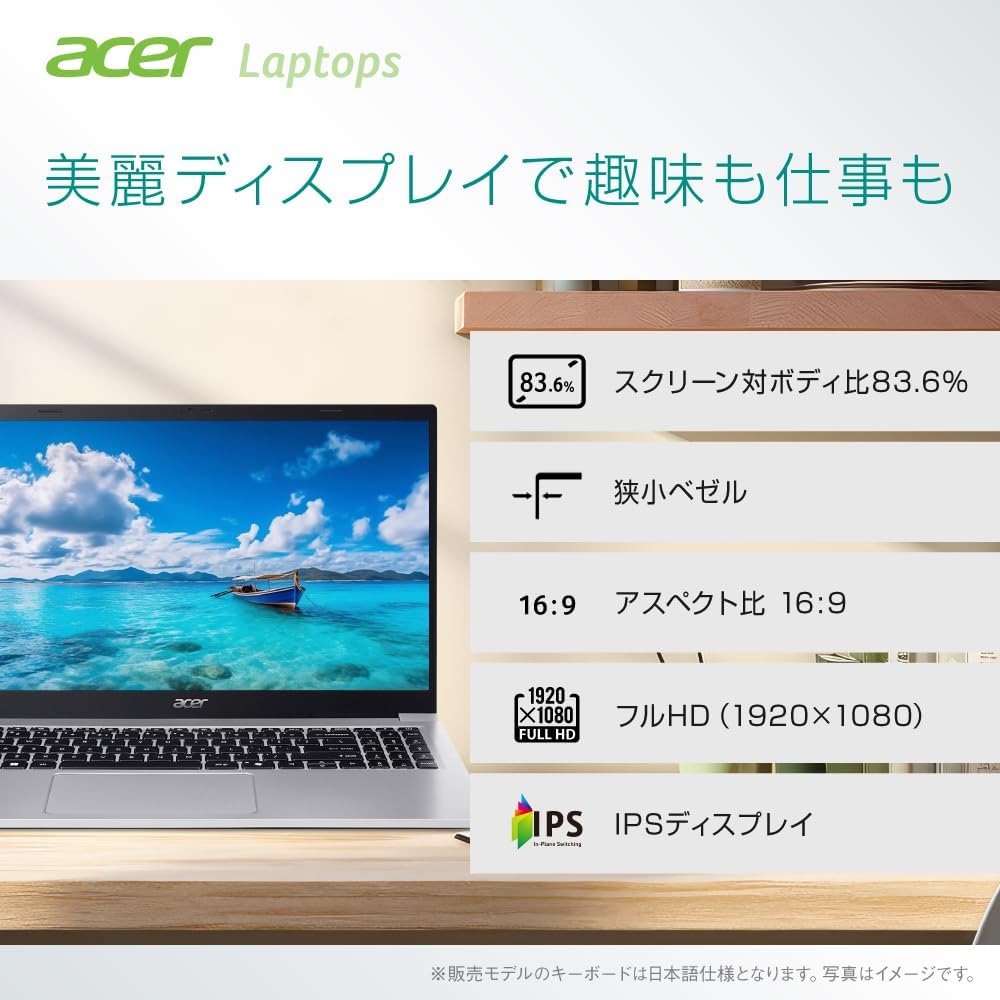
Image Description: This image highlights the display features of the Acer Aspire Lite laptop, including an 83.6% screen-to-body ratio, narrow bezels, 16:9 aspect ratio, Full HD (1920x1080) resolution, and an IPS panel for wide viewing angles.
- Screen Size: 15.6 inches
- Resolution: Full HD (1920x1080)
- Panel Type: IPS (In-Plane Switching) for wide viewing angles
- Aspect Ratio: 16:9
- Features: Narrow bezels, 83.6% screen-to-body ratio.
3.6 Audio and Camera

Image Description: This image shows the Acer Aspire Lite laptop in a video conference setting, emphasizing its Full HD webcam with a slide cover, dual speakers, dual microphones, and Intel High-Definition Audio compliance for clear audio and video communication.
- Webcam: Full HD (2 million pixels) with a privacy slide cover.
- Audio: Dual speakers and dual microphones for clear sound. Intel High-Definition Audio compliant.
4. Maintenance
4.1 Cleaning the Laptop
- Use a soft, lint-free cloth to clean the screen and exterior surfaces.
- For stubborn marks, dampen the cloth with a small amount of water or a screen-safe cleaner. Avoid harsh chemicals.
- Use compressed air to clear dust from keyboard keys and vents.
4.2 Battery Care
- To prolong battery life, avoid fully discharging the battery frequently.
- Store the laptop in a cool, dry place when not in use for extended periods.
- The typical battery life is approximately 9 hours, with a standby time of up to 17.5 hours.
4.3 Software Updates
Regularly check for and install Windows updates and driver updates to ensure optimal performance and security.
5. Troubleshooting
5.1 Laptop Does Not Power On
- Ensure the AC adapter is securely connected to both the laptop and a working power outlet.
- Check if the power outlet is functional by plugging in another device.
- If the battery is completely drained, allow it to charge for a while before attempting to power on.
5.2 No Display on Screen
- Ensure the laptop is powered on.
- Try adjusting the display brightness using the keyboard function keys.
- If an external monitor is connected, try disconnecting it or pressing Windows key + P to cycle through display modes.
5.3 Wi-Fi Connection Issues
- Verify that Wi-Fi is enabled in Windows settings.
- Restart your router and modem.
- Forget the network and reconnect, entering the password again.
6. Specifications
| Feature | Detail |
|---|---|
| Brand | Acer |
| Model Name | Aspire Lite 16 (AL15-33P-F38Y/S) |
| Operating System | Windows 11 Home 64-bit |
| Processor | Intel Core 3 Processor N355 (2.2 GHz, 2 Cores) |
| Memory | 8GB DDR5-4800MHz SDRAM (Max 16GB) |
| Storage | 512GB SSD |
| Graphics | Integrated Intel Graphics |
| Display | 15.6-inch Full HD (1920x1080) IPS, 16:9, Non-glare |
| Keyboard | 103-key Japanese keyboard with Copilot key |
| Pointing Device | Multi-gesture Touchpad |
| USB Ports | 1x USB 3.2 Type-C (Gen 1, 5Gbps, PD/DisplayPort), 1x USB 3.2 Type-A (Gen 1, 5Gbps), 1x USB 2.0 Type-A |
| Video Output | HDMI Output Port |
| Audio Jack | Headset/Speaker Jack |
| Wireless Connectivity | Wi-Fi 6 (802.11ax), Bluetooth 5.0 |
| Webcam | Full HD (2 million pixels) with slide cover |
| Battery Life | Approx. 9 hours (Standby: 17.5 hours) |
| Dimensions | Approx. 18mm thickness |
| Weight | Approx. 1.52 kg |
| Color | Light Silver |
7. Warranty and Support
7.1 Product Warranty
Information regarding your product's warranty period and terms can be found in the documentation included with your purchase or on the official Acer support website.
7.2 Technical Support
For technical assistance, frequently asked questions, and driver downloads, please visit the official Acer support page:
https://www.acer.com/jp-ja/support/
Support Operating Hours: 10:00 AM - 7:00 PM JST, 365 days a year (excluding company-designated holidays).
Ask a question about this manual
Ask about setup, troubleshooting, compatibility, parts, safety, or missing instructions. Manuals+ will review the question and use this page’s manual context to help answer it.