1. Introduction
This manual provides comprehensive instructions for the installation, operation, and maintenance of your LinkThai Smart Door Lock with Knob. Please read this manual thoroughly before installation and use to ensure proper function and safety. Keep this manual for future reference.

Image 1.1: Overview of the LinkThai Smart Door Lock and its mobile application interface.
2. Safety Information
- Do not attempt to disassemble or repair the lock yourself. Contact customer support for assistance.
- Use only specified AAA alkaline batteries. Do not mix old and new batteries or different types of batteries.
- Avoid exposing the lock to direct sunlight, rain, or corrosive substances.
- Ensure the door is properly aligned and closes smoothly before installing the lock.
- Keep physical keys in a secure location outside the property.
3. Package Contents
Verify that all components are present before beginning installation:
- Exterior Assembly (Keypad and Knob)
- Interior Assembly (Knob and Battery Cover)
- Latch
- Strike Box
- Strike Plate
- IC Cards (2)
- Physical Keys (2)
- Mounting Screws
- Mounting Parts

Image 3.1: Included components for the LinkThai Smart Door Lock.
4. Product Features
- 5-in-1 Unlocking Methods: Fingerprint, Passcode, Key Fob, Mobile App (Bluetooth), and Physical Key.
- Touchscreen Keypad: Backlit for visibility in low light.
- Fingerprint Sensor: Fast and accurate recognition (0.3 seconds).
- Mobile App Control: Manage users, generate temporary codes, view unlock records, and control the lock via Bluetooth.
- Auto-Lock Function: Automatically locks the door after a set time (configurable via app).
- Passage Mode: Keep the door unlocked for continuous access during specific periods.
- Security Mode: Lockout for 2 minutes after 5 incorrect entries.
- Emergency Power: Micro-USB port for temporary power with a power bank (not included) if batteries are depleted.
- Low Battery Alarm: Visual and audible alerts when batteries are low.
- Durable Construction: Made from aluminum alloy.

Image 4.1: Multiple unlocking methods available.

Image 4.2: Built-in Bluetooth for app control and management.
5. Specifications
| Feature | Specification |
|---|---|
| Model Name | LT-US-LOCK |
| Item Model Number | LT-US-LOCK-P02-K10 |
| Dimensions (L x W x H) | 5.68 x 2.9 x 3.5 inches |
| Material | Aluminum |
| Color | Black |
| Lock Type | Combination Lock, Keypad |
| Control Method | App (Bluetooth) |
| Power Source | 4 x AAA Batteries (not included) |
| Door Thickness Compatibility | 1-3/8" to 2-1/8" (35mm to 54mm) |
| Backset Compatibility | 2-3/8" or 2-3/4" (60mm or 70mm) |
| Hole Diameter Compatibility | 2-1/8" (54mm) |
| Item Weight | 2.5 Pounds |
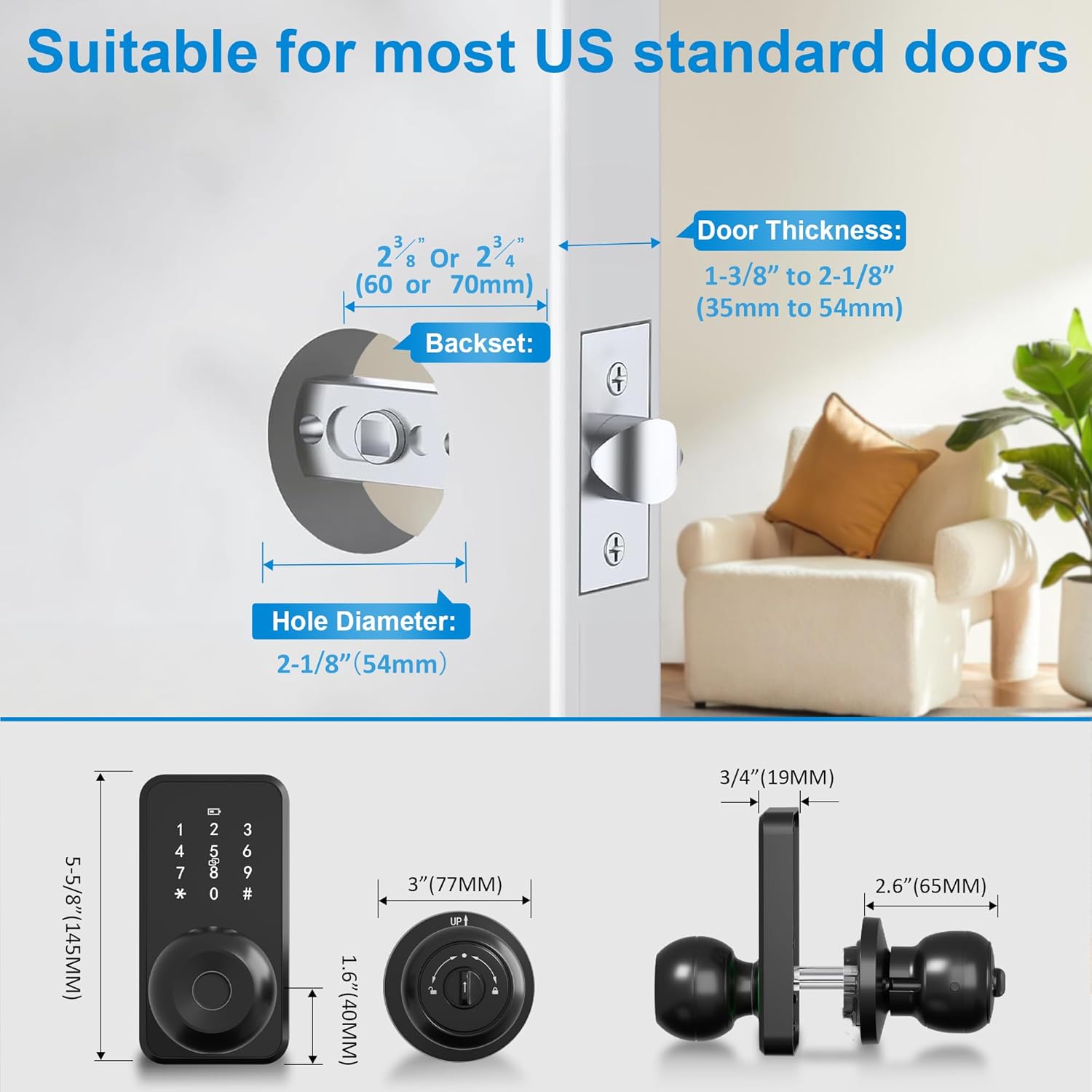
Image 5.1: Door compatibility measurements.
6. Installation Guide
The LinkThai Smart Door Lock is designed for easy installation. A screwdriver is the only tool required (not included).
6.1 Prepare Your Door
- Ensure your door meets the specifications listed in Section 5.
- Remove any existing lock hardware from your door.
6.2 Install the Latch
- Insert the latch into the door edge. Ensure the latch bolt faces the door frame.
- Secure the latch with the provided screws.
6.3 Install the Exterior Assembly
- Feed the cable from the exterior assembly through the hole in the door.
- Align the exterior assembly with the latch and secure it to the door.
6.4 Install the Interior Assembly
- Connect the cable from the exterior assembly to the interior assembly.
- Align the interior assembly with the exterior assembly and secure it with the long screws.
- Ensure the interior knob spindle engages correctly with the latch mechanism.
6.5 Install Batteries
- Remove the battery cover from the interior assembly.
- Insert 4 AAA alkaline batteries (not included), observing polarity.
- Replace the battery cover.
6.6 Install Strike Plate and Box
- Install the strike box and strike plate on the door frame, aligning them with the latch bolt.
- Secure with the provided screws.

Image 6.1: Easy installation process with a screwdriver.
7. Initial Setup and App Configuration
7.1 Download the Mobile App
- Search for the LinkThai Smart Lock app in your device's app store (iOS or Android).
- Download and install the app.
- Register an account and log in.
7.2 Pair the Lock with the App
- Enable Bluetooth on your smartphone.
- Open the LinkThai Smart Lock app and follow the on-screen instructions to add a new device.
- The app will search for nearby locks. Select your lock from the list.
- Follow prompts to complete the pairing process.
7.3 Add Users and Access Methods
Once paired, you can add various access methods:
- Fingerprints: In the app, navigate to 'Member Management' or 'Fingerprint Management' to add new fingerprints. Follow the on-screen instructions to scan the finger multiple times for accurate registration.
- Passcodes: Generate permanent, time-limited, or one-time passcodes through the app.
- IC Cards: Register the included IC cards via the app.

Image 7.1: Member management within the mobile app.
8. Operating Instructions
8.1 Unlocking the Door
- Fingerprint: Place your registered finger on the fingerprint sensor. The lock will unlock if verification is successful (indicated by a green light).
- Passcode: Enter your registered passcode on the keypad, then press '#'. The lock will unlock if the passcode is correct.
- IC Card: Tap the registered IC card against the keypad. The lock will unlock upon successful verification.
- Mobile App: Open the app and tap the unlock icon when within Bluetooth range.
- Physical Key: Insert the physical key into the keyhole and turn to unlock.

Image 8.1: Fast fingerprint identification.

Image 8.2: Visual indicators for successful (green) and failed (red) verification.
8.2 Locking the Door
- Automatic Locking: If enabled in the app, the lock will automatically engage after a set delay once the door is closed.
- Manual Locking: From the interior, turn the knob to the locked position. From the exterior, press '#' on the keypad or use the app to lock.
8.3 Advanced App Features
- Temporary Codes: Generate one-time or time-limited access codes for guests or service providers.
- Unlock Records: View a history of who unlocked the door and when via the app.
- Silent Mode: Enable or disable keypad sounds for quiet operation.
- Passage Mode: Configure the lock to remain unlocked for specific periods, allowing free entry and exit.

Image 8.3: Viewing unlock records in the app.

Image 8.4: Auto-lock and Passage Mode functionalities.

Image 8.5: Silent Mode for discreet operation.
9. Maintenance
9.1 Battery Replacement
The lock requires 4 AAA alkaline batteries. When the battery level is low, the lock will provide a low battery alarm (visual and audible). Replace all four batteries promptly.
- Remove the battery cover on the interior assembly.
- Remove the old batteries.
- Insert new AAA alkaline batteries, ensuring correct polarity.
- Replace the battery cover.

Image 9.1: Low battery alarm and battery life information.
9.2 Cleaning
Wipe the lock's exterior with a soft, dry cloth. Do not use abrasive cleaners or solvents, as these can damage the finish and electronic components.
10. Troubleshooting
- Lock not responding: Check battery levels. If batteries are completely depleted, use a power bank connected to the emergency Micro-USB port for temporary power.
- Fingerprint not recognized: Ensure your finger is clean and dry. Re-register your fingerprint if issues persist.
- Keypad not responding: Check battery levels. If the lock enters security mode (locked for 2 minutes after 5 incorrect entries), wait for the lockout period to expire.
- App connection issues: Ensure Bluetooth is enabled on your phone and you are within range of the lock. Restart the app or your phone if necessary.
- Lock not engaging/disengaging smoothly: Check for any obstructions in the door frame or latch area. Ensure the lock is installed correctly and the door is properly aligned.

Image 10.1: Emergency backup power using a power bank.

Image 10.2: Security mode lockout feature.
11. Warranty and Support
LinkThai provides the following support for your smart door lock:
- 30-Day Money Back Guarantee: If you are not satisfied with your purchase, you may return it within 30 days for a full refund.
- 2-Year Warranty: The product is covered by a 2-year warranty against manufacturing defects.
- Lifetime After-Sales Support: For any questions or issues, please contact LinkThai customer service.
For assistance, please refer to the contact information provided with your product packaging or visit the official LinkThai website.