
1. Introduction
This manual provides detailed instructions for the installation, operation, and maintenance of your INQMEGA 6MP TUYA Smart Camera. Please read this manual thoroughly before using the product to ensure correct usage and optimal performance. Keep this manual for future reference.
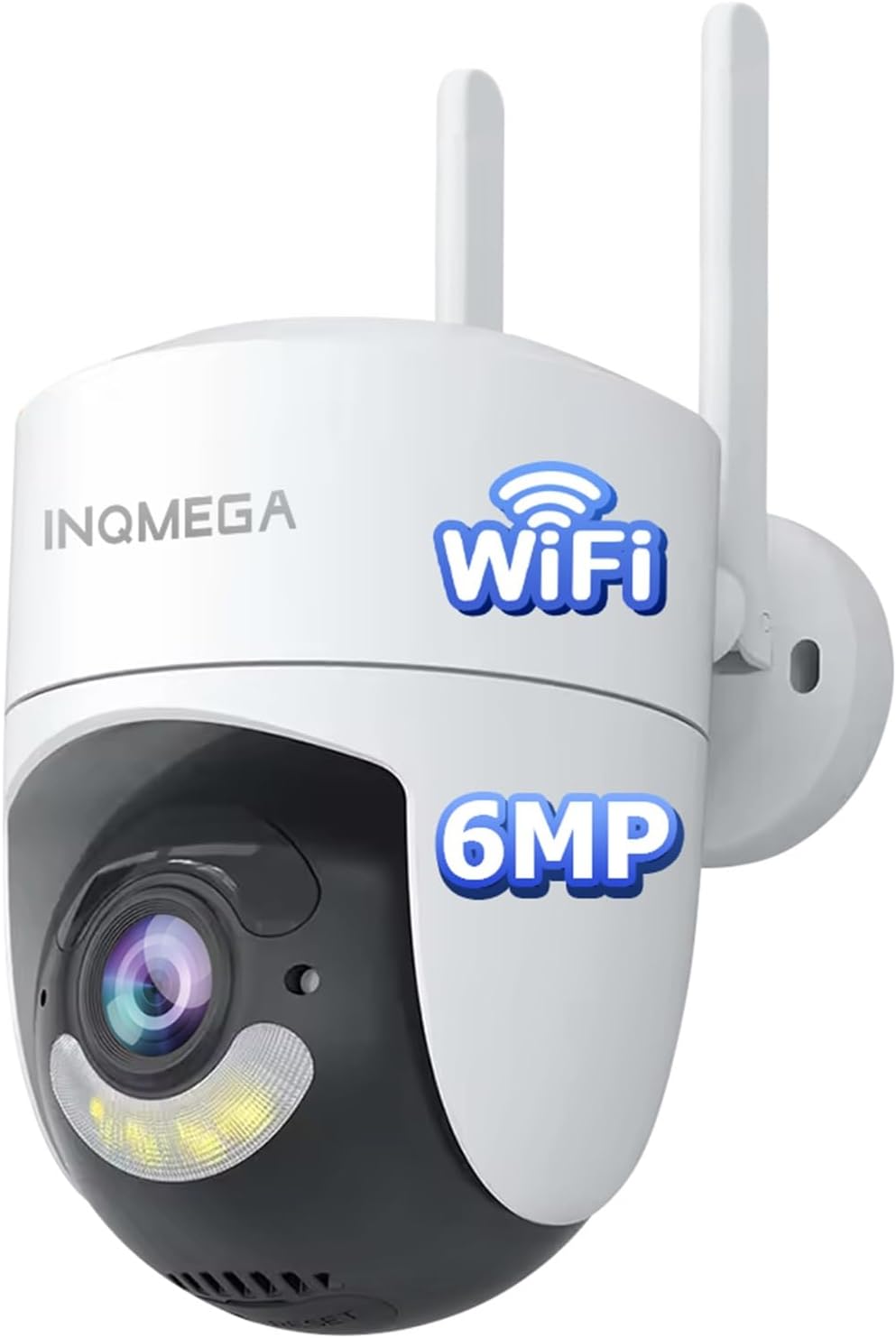
Image 1.1: The INQMEGA 6MP TUYA Smart Camera, a white dome-shaped camera with two antennas, a lens, and a spotlight, designed for outdoor surveillance.
2. Product Overview
2.1 Key Features
- 6MP HD Resolution: Provides clear and detailed video footage.
- 355° Pan & 120° Tilt: Offers extensive coverage with remote control via the app.
- 2.4GHz Wi-Fi Connectivity: Supports stable wireless connection (5GHz Wi-Fi is not supported).
- Two-Way Audio: Built-in microphone and speaker for communication.
- Color & IR Night Vision: Switchable modes for clear visibility in low-light conditions.
- Motion Detection & Auto Tracking: Detects movement and tracks subjects, sending instant alerts.
- IP66 Waterproof: Designed to withstand various weather conditions.
- Flexible Storage: Supports local storage via SD card (not included) and cloud storage (subscription required).
- Easy Installation: Features an upgraded mounting bracket for quick setup and removal.
2.2 Package Contents
- INQMEGA 6MP TUYA Smart Camera (Model: ST-986-6M-TY)
- Mounting Bracket
- Power Adapter with 6.5ft Power Cord
- Mounting Screws and Wall Plugs
- User Manual (this document)

Image 2.1: The INQMEGA Smart Camera shown installed outdoors, illustrating its IP66 waterproof and dustproof capabilities against rain, snow, and sun.
3. Setup
3.1 App Installation
- Download the 'TUYA Smart' or 'Smart Life' app from your mobile device's app store (Google Play Store for Android or Apple App Store for iOS).
- Register for a new account or log in if you already have one.
3.2 Device Pairing
- Power on the camera using the provided power adapter. Ensure the camera is within range of your 2.4GHz Wi-Fi router.
- Open the TUYA Smart app and tap the '+' icon to add a new device.
- Select 'Security & Video Surveillance' and then 'Smart Camera (Wi-Fi)'.
- Follow the on-screen instructions to connect the camera to your 2.4GHz Wi-Fi network. You may need to scan a QR code displayed on your phone with the camera lens.
- Once connected, the camera will appear in your device list.

Image 3.1: The INQMEGA Smart Camera with two antennas, indicating its 2.4GHz Wi-Fi connectivity and showing a router for network connection. Note that 5GHz Wi-Fi is not supported.
3.3 Mounting
The camera features an upgraded mounting bracket for flexible installation. It can be mounted on a wall, ceiling, or placed on a desktop.
- Choose a Location: Select a suitable location that provides the desired viewing angle and is within range of your 2.4GHz Wi-Fi network and a power outlet.
- Install the Bracket: Use the provided screws and wall plugs to securely attach the mounting bracket to the chosen surface.
- Attach the Camera: Align the camera with the bracket and twist it into place until it locks securely. The quick-release design allows for easy removal of the camera from the mounted bracket without unscrewing the entire mount.

Image 3.2: Illustration of various installation methods including wall mounting, ceiling hanging, and desktop placement for the INQMEGA Smart Camera.

Image 3.3: A hand demonstrating the quick-release feature, easily removing the INQMEGA Smart Camera from its mounted bracket without needing to unscrew the mount itself.
4. Operating Instructions
4.1 Live View
Once the camera is paired, open the TUYA Smart app and select the camera from your device list to access the live video feed. You can view the 6MP HD video stream in real-time.
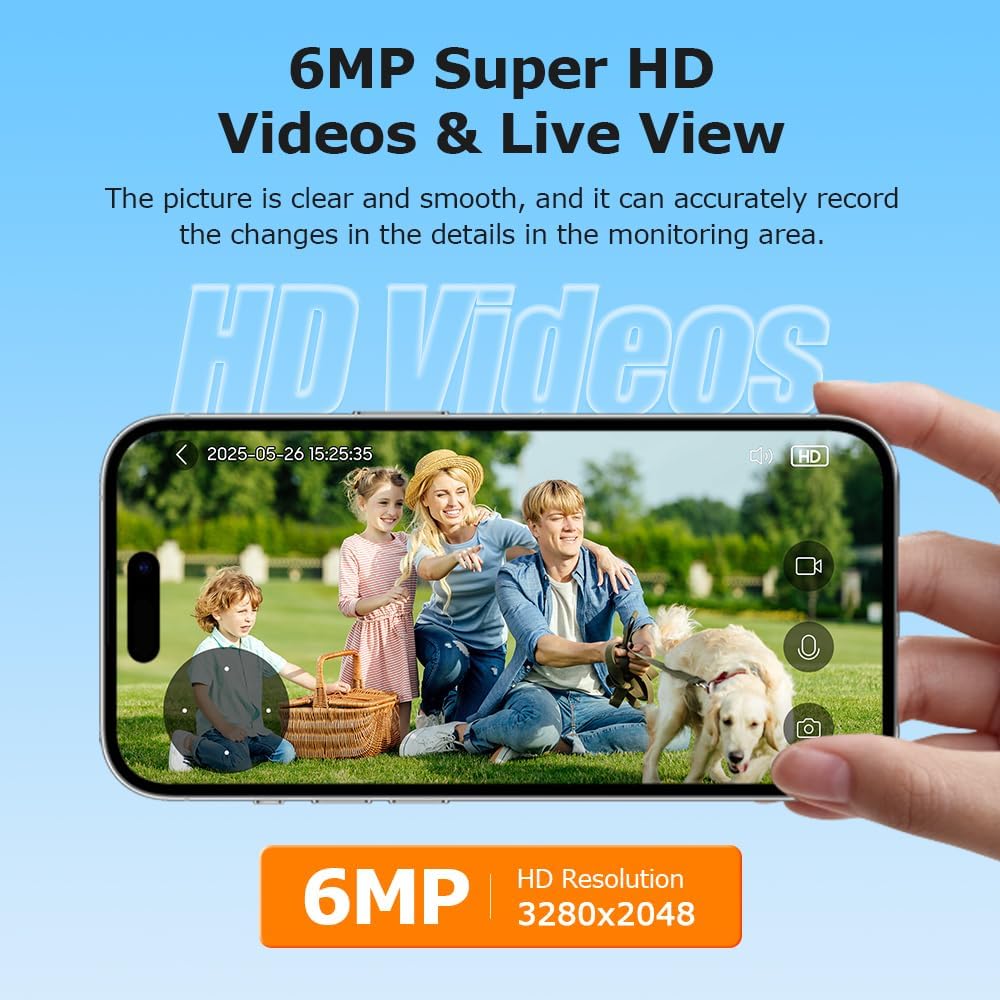
Image 4.1: A smartphone screen showing a clear 6MP HD live video feed from the INQMEGA Smart Camera, capturing a family in a garden.
4.2 Two-Way Audio
The camera is equipped with a built-in microphone and speaker, allowing for two-way communication. Tap the microphone icon in the app to speak through the camera, and listen to audio from the camera's surroundings.

Image 4.2: A delivery person at a door, with a smartphone displaying the camera's live view and a text bubble indicating two-way audio communication: "Hello, your package is arriving."
4.3 Motion Detection & Auto Tracking
The camera can detect motion and automatically track moving objects. When motion is detected, the camera will send instant alerts to your phone, often including a picture preview of the event. Configure motion detection sensitivity and alert settings within the app.

Image 4.3: A visual representation of the camera detecting and tracking a person carrying boxes, with a smartphone displaying a 'Motion detected' alarm notification.
4.4 Night Vision Modes
The camera offers two night vision modes:
- Color Night Vision: Utilizes built-in white light LEDs to provide full-color video in low-light conditions.
- IR Night Vision: Uses infrared LEDs for black and white video in complete darkness, with a range of up to 85 feet.
You can switch between these modes or set them to automatic activation based on ambient light levels within the app settings.

Image 4.4: A side-by-side comparison showing the camera's Color Night Vision (with white light illumination) and IR Night Vision (infrared, black and white) capabilities.
4.5 Pan/Tilt/Zoom Control
Control the camera's viewing angle remotely using the pan (horizontal) and tilt (vertical) controls in the app. The camera supports 355° pan and 120° tilt. Digital zoom (up to 4x) is also available to magnify specific areas of the live feed.

Image 4.5: A smartphone screen displaying the live view from the INQMEGA Smart Camera, with on-screen controls indicating 355° pan and 120° tilt rotation capabilities.
4.6 Recording & Storage
The camera offers flexible recording options:
- SD Card Storage: Insert a microSD card (up to 128GB, not included) into the camera's designated slot for local storage of recordings. This option incurs no additional monthly fees.
- Cloud Storage: Subscribe to a cloud storage plan through the TUYA Smart app for secure, remote storage of your video recordings.

Image 4.6: The INQMEGA Smart Camera with an SD card being inserted into its slot, alongside icons representing both Cloud Storage and SD Card storage options.
5. Maintenance
- Cleaning: Gently wipe the camera lens and body with a soft, damp cloth. Do not use harsh chemicals or abrasive cleaners.
- Firmware Updates: Regularly check the TUYA Smart app for available firmware updates to ensure optimal performance and security. Follow the in-app instructions for updating.
- Power Supply: Ensure the power cord and adapter are in good condition and free from damage.
6. Troubleshooting
- Camera Offline: Ensure the camera is powered on and within range of your 2.4GHz Wi-Fi router. Check your Wi-Fi network status. If the issue persists, try restarting the camera and your router.
- Unable to Connect to Wi-Fi: Verify that you are connecting to a 2.4GHz Wi-Fi network. Ensure the Wi-Fi password is entered correctly. Move the camera closer to the router during setup.
- Poor Video Quality: Check your internet connection speed. Ensure the camera lens is clean and free from obstructions.
- Motion Detection Not Working: Verify that motion detection is enabled in the app settings. Adjust sensitivity levels as needed. Ensure the camera's view is not obstructed.
- Two-Way Audio Issues: Check the volume settings on your phone and within the app. Ensure there are no obstructions blocking the camera's microphone or speaker.
7. Specifications
| Feature | Specification |
|---|---|
| Model Name | ST-986-6M-TY |
| Video Capture Resolution | 6MP |
| Pan/Tilt Range | 355° Pan, 120° Tilt |
| Connectivity Technology | 2.4G WIFI (5G WIFI not supported) |
| Night Vision Range | 85 Feet |
| Water Resistance Level | IP66 Waterproof |
| Storage Options | SD Card (up to 128GB), Cloud Storage |
| Power Source | Corded Electric |
| Controller Type | App (TUYA Smart/Smart Life), Amazon Alexa |
| Material | Plastic |
| Item Dimensions (L x W x H) | 1 x 1 x 1 inches |
| Item Weight | 15.5 ounces |
8. Warranty and Support
For warranty information and technical support, please refer to the product packaging or contact INQMEGA customer service directly. You can typically find contact details on the manufacturer's official website or through your purchase platform.


