
1. Setup
1.1 Unboxing
Upon opening the package, ensure all components are present:
- MelGeek REAL67 Keyboard
- USB-C Cable
- Key Puller
- 5 Additional Keycaps
- Quick Start Guide
- Brand Card

Figure 1: Contents of the MelGeek REAL67 package.
1.2 Connection
The MelGeek REAL67 keyboard uses a USB-C wired connection. Connect the provided USB-C cable to the keyboard's port and the other end to your computer or compatible device.
The keyboard is compatible with Windows, MacOS, iOS, Android, and PS5 systems. For PS5 compatibility, ensure to close the 'Toggle NKRO' setting in the HIVE software.

Figure 2: MelGeek REAL67 connected to a device via USB-C cable.
1.3 Initial Configuration
For full customization and advanced settings, download and install the MelGeek HIVE software. This software allows you to:
- Customize RGB lighting effects.
- Adjust trigger points for magnetic switches.
- Set up 4-in-1 action buttons for custom combos.
- Manage firmware updates.

Figure 3: MelGeek REAL67's technical specifications for performance.
2. Operating the Keyboard
2.1 Key Features
The MelGeek REAL67 incorporates several advanced features for an enhanced user experience:
- TTC RGB Sacred Heart KOM Switch: Co-developed with TTC, these switches feature a mortise and tenon split structure for stable and reliable conduction, high rebound, and a crisp, bright sound. They are optimized for cool RGB lighting effects.
- High-sensitivity Magnetic Keyboard: Offers full-key 16K resolution, an 8KHz polling rate, and an ultra-low 0.125ms latency for fast response and high sensitivity, ideal for gaming and efficient work.
- Adjustable Trigger Point: The total switch travel is 3.4±0.2mm, supporting 0.01mm RT accuracy. Customize the trigger point via HIVE to match your preferences or set special combination super keys.
- Advanced Settings: The 4-in-1 action button is customizable through HIVE, allowing you to trigger four preset moves or create advanced combos with a single tap.
- Excellent RGB Lighting Effects: Transparent keycaps and a specially designed switch body enhance the 16 million color RGB lighting effects. Personalize colors and rhythms via HIVE.
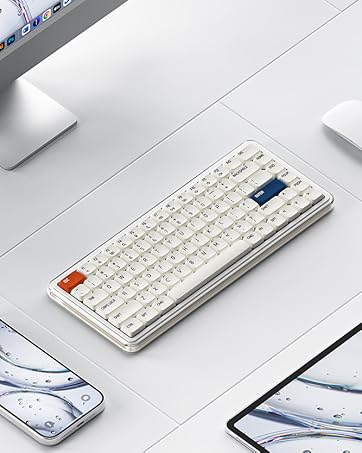
Figure 4: Detail of the TTC RGB Sacred Heart KOM Switch.

Figure 5: MelGeek REAL67 with active RGB lighting.
2.2 Keyboard Layout and Function Keys
The REAL67 features a compact 67-key layout, omitting the number pad for a smaller footprint while retaining essential keys. Specific function key combinations (using the Fn key) are detailed in the Quick Start Guide for controlling media, lighting, and other system functions.

Figure 6: MelGeek REAL67 Potassium-Purple layout.
2.3 Typing Sound Demo (MADE68Ultra - Seller Video)
Video 1: Typing sound demonstration on a MelGeek MADE68Ultra keyboard with TTC KOM switches. While not the exact REAL67 model, this video from the seller provides an example of typing sound from MelGeek keyboards with similar switch technology.
2.4 MelGeek REAL67 Wired Keyboard Overview (Seller Video)
Video 2: A brief overview of the MelGeek REAL67 Wired Keyboard, showcasing its design and features.
3. Maintenance
3.1 Cleaning
To maintain optimal performance and appearance, regularly clean your keyboard. Use a soft, dry cloth to wipe down the keycaps and chassis. For deeper cleaning, use the provided key puller to remove keycaps and clean any dust or debris from beneath.
3.2 Keycap and Switch Replacement
The MelGeek REAL67 features hot-swappable switches, allowing for easy replacement or customization without soldering. Use the included key puller to carefully remove keycaps and switches. Refer to the HIVE software for specific switch type settings if you replace them.
3.3 Firmware Updates
Periodically check the MelGeek HIVE software for firmware updates. Updates can improve performance, add new features, or resolve bugs. Follow the on-screen instructions within HIVE for firmware updates. Note that firmware updates may reset custom settings to default, requiring re-configuration.

Figure 7: MelGeek HIVE software interface for firmware updates.
4. Troubleshooting
4.1 General Issues
- Keyboard not responding: Ensure the USB-C cable is securely connected to both the keyboard and your device. Try a different USB port or cable.
- Lighting issues: Check HIVE software settings for RGB customization. Ensure the keyboard's lighting is enabled and configured as desired.
4.2 HIVE Software Issues
- Custom bindings not working: Some users have reported issues with certain bindings not saving or functioning correctly. Ensure your HIVE software and keyboard firmware are up to date. If issues persist, try resetting the keyboard settings within HIVE.
- Firmware update errors: If an error occurs during a firmware update (e.g., 'Error in obtaining SOCD...'), try resetting the keyboard via 'Device Settings > Reset Keyboard' in HIVE after the update.
4.3 PS5 Compatibility
For optimal compatibility with PS5, it is recommended to close the 'Toggle NKRO' setting in the HIVE software before connecting the keyboard to the console.
5. Specifications
| Product Name | REAL67 |
| Product Dimensions | 12.56 x 1.57 x 1.57 inches (330 x 115 x 40 mm) |
| Item Weight | 1.87 pounds (~940g) |
| Manufacturer | MelGeek |
| Item Model Number | REAL67 |
| Connectivity Technology | USB-C |
| Keyboard Description | Gaming |
| Recommended Uses | Gaming |
| Special Feature | Backlit, Hot-Swappable |
| Keyboard Backlighting | RGB (16 million colors, Multiple Modes) |
| Ambient Light | Front tooth ambient light (breathing, always on, off effect) |
| Switches (Potassium-Purple/Calcium-Gray) | TTC RGB Sacred Heart KOM Switches |
| Keycap Material (Potassium-Purple/Calcium-Gray) | Original height PC transparent keycap |
| Switches (Silicon-Gray/Sodium-White) | TTC Tai E Switches |
| Keycap Material (Silicon-Gray/Sodium-White) | Original height PBT two-color injection keycap |
| System Support | Windows / macOS / Linux |
| Slope | ~6.5° |
6. Warranty and Support
6.1 Protection Plans
Optional protection plans are available for your MelGeek REAL67 keyboard:
- 3-Year Protection Plan
- 4-Year Protection Plan
- Complete Protect: One plan covers all eligible past and future purchases (monthly billing)
6.2 Return Policy
The product is eligible for a 30-day refund/replacement return policy.
6.3 Manufacturer Support
For further assistance, please visit the official MelGeek website or contact their customer support. The MelGeek HIVE software also provides resources and tools for product management.
