
FeiyuTech S3M-FY-SPM3-03
FeiyuTech SCORP MINI 3 User Manual
Model: S3M-FY-SPM3-03
Brand: FeiyuTech
Introduction
This manual provides comprehensive instructions for the safe and effective operation of your FeiyuTech SCORP MINI 3 AI Tracking Camera Gimbal. Please read this manual thoroughly before use to ensure optimal performance and to prevent damage to the device.
Product Overview
The FeiyuTech SCORP MINI 3 is an all-in-one 3-axis stabilizer designed for a wide range of cameras, including mirrorless cameras, compact cameras, action cameras, and smartphones. It features advanced AI tracking technology, versatile control options, and a robust design for stable and professional video capture.

Figure 1: FeiyuTech SCORP MINI 3 Gimbal and accessories.
Key Features:
- AI Tracking 4.0: Fast and precise subject tracking up to 18 meters with 0.003 seconds response time.
- All-in-One Versatility: Compatible with mirrorless cameras, compact cameras, action cameras, and smartphones with a max payload of 4.41 lbs (2 kg).
- Gesture Control: Built-in AI module recognizes 5 gestures for hands-free operation.
- Camera Control: Supports camera control via Bluetooth and included control cables for compatible models.
- Built-in Cooling Phone Holder: Prevents smartphone overheating during extended use.
- Upgraded 3-Axis Locker: Enhanced stability and ease of transport.
- 1.3-inch Touchscreen: Intuitive control and mode selection.
- Native Vertical Quick Release System 3.0: Seamless transition between horizontal and vertical shooting.
What's in the Box
The FeiyuTech SCORP MINI 3 Kit includes the following components:

Figure 2: Contents of the SCORP MINI 3 Kit.
- Feiyu SCORP MINI 3 Gimbal
- Tripod
- Smartphone Holder with Cooling Fan
- USB Type-C to Lightning Cable
- USB Type-C to Type-C Cable
- Gimbal Charging Cable
- Hex Key
- Camera Mounting Screw
- Lens Support Screw
- Vertical Mounting Rail
- L-Bracket Base
- Camera Quick Release Plate
- Action Camera Thumb Screw
- Lens Support Bracket
- Action Camera Mount Adapter
- Camera Control Cables (USB-C to Micro, USB-C to Multi, USB-C to 2.5mm, USB-C to TRS3.5, USB-C to Mini)
Setup
1. Charging the Gimbal
Before first use, fully charge the gimbal using the provided USB-C charging cable and a compatible USB power adapter (not included). The battery indicator on the touchscreen will show charging status.
2. Mounting Your Device
The SCORP MINI 3 supports various devices. Ensure the gimbal is powered off and locked before mounting.
For Cameras (Mirrorless, Compact, Action Cameras):
- Attach the Camera Quick Release Plate to the bottom of your camera using the Camera Mounting Screw.
- If necessary, attach the Lens Support Bracket and Lens Support Screw to provide additional support for longer lenses.
- Unlock the gimbal's axis locks.
- Slide the camera with the quick release plate onto the gimbal's mounting arm until it clicks into place.
- For action cameras, use the Action Camera Mount Adapter and Action Camera Thumb Screw to secure it to the quick release plate.
For Smartphones:
- Attach the Smartphone Holder with Cooling Fan to the gimbal's mounting arm.
- Secure your smartphone into the holder. Ensure it is centered and stable.
- The cooling fan can be activated to prevent overheating during prolonged use.

Figure 3: Camera mounted on the gimbal.
3. Balancing the Gimbal
Proper balancing is crucial for optimal performance and battery life. Follow these steps for each axis:
- Tilt Axis (Vertical Balance): Unlock the tilt axis. Adjust the vertical arm until the camera remains level when tilted forward or backward. Tighten the lock.
- Tilt Axis (Horizontal Balance): Unlock the tilt axis. Adjust the horizontal arm until the camera remains level when tilted left or right. Tighten the lock.
- Roll Axis: Unlock the roll axis. Adjust the roll arm until the camera remains level horizontally. Tighten the lock.
- Pan Axis: Unlock the pan axis. Hold the gimbal horizontally. Adjust the pan arm until the gimbal remains stable without drifting. Tighten the lock.
Note: Always ensure all axes are unlocked before balancing and locked after balancing to prevent damage.
Operating Instructions
1. Power On/Off
Press and hold the power button to turn the gimbal on or off. The touchscreen will illuminate upon power-on.
2. Touchscreen Interface
The 1.3-inch touchscreen provides access to various modes and settings. Navigate by swiping and tapping.
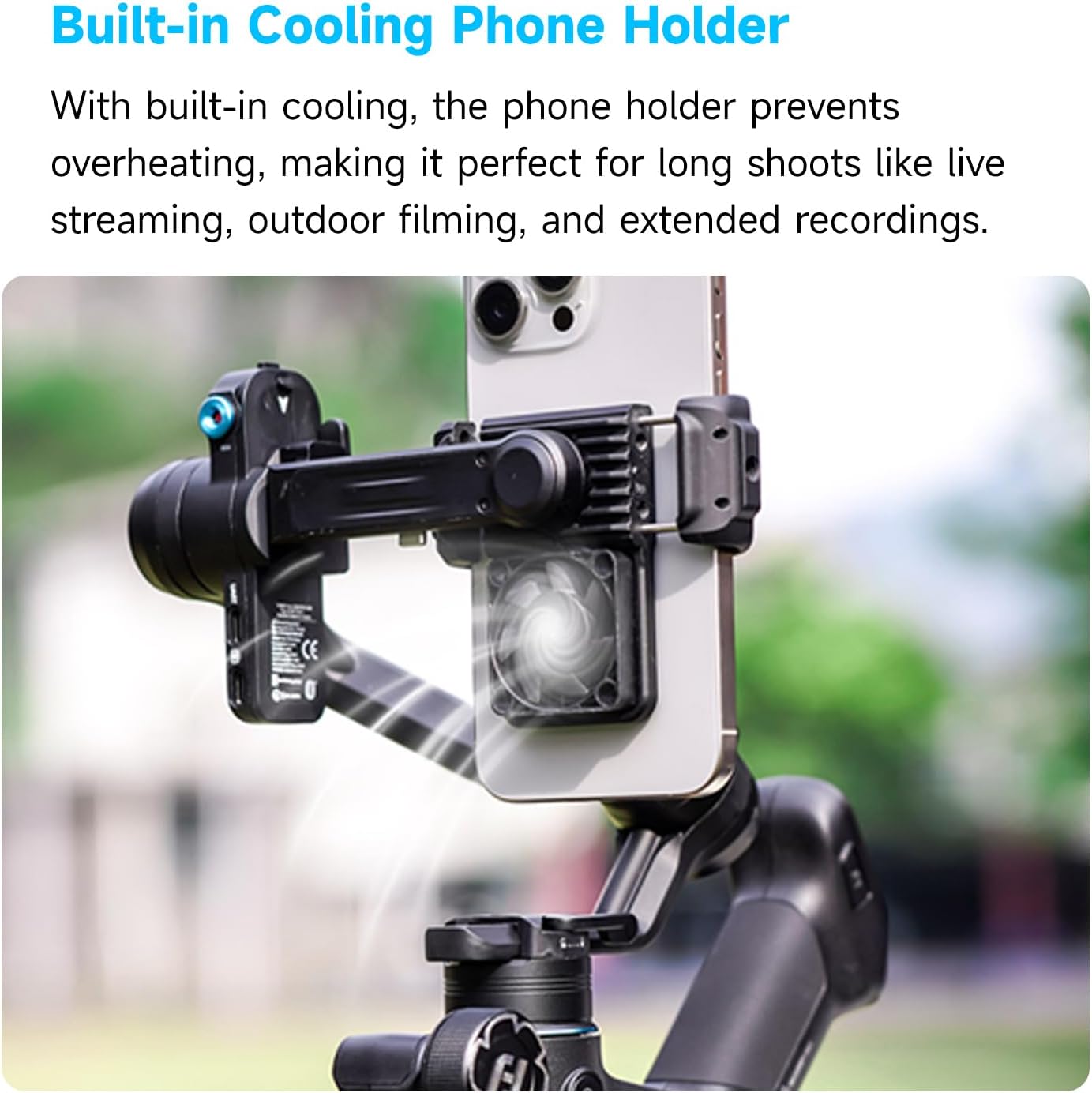
Figure 4: Gimbal touchscreen interface.
3. AI Tracking 4.0
The built-in AI module enables intelligent subject tracking. To activate:
- Ensure the AI tracking camera is unobstructed (refer to Figure 5).
- From the touchscreen, select the AI tracking mode.
- Position your subject within the frame. The gimbal will automatically detect and track the subject.

Figure 5: AI tracking camera location.
4. Gesture Control
The SCORP MINI 3 supports five distinct hand gestures for control:
- Open Palm: Initiates photo or video recording.
- OK Gesture: Starts or stops face tracking.
- Thumbs Opposite Direction: Stops tracking.
- Double L-Shaped Gesture: Activates custom framing.
- Double Thumbs-up Gesture: Turns off gesture control.

Figure 6: Gesture control guide.
5. Camera Control (Bluetooth & Cable)
Connect your camera to the gimbal for integrated control over photo and video functions.
Bluetooth Connection:
- Enable Bluetooth on your camera and the gimbal.
- On the gimbal's touchscreen, navigate to the Bluetooth pairing menu.
- Select your camera from the list of available devices and pair.
Cable Connection:
- Identify the correct camera control cable for your camera model from the included accessories.
- Connect one end of the cable to the camera's control port and the other end to the designated port on the gimbal.
Note: Refer to the compatibility section for supported camera models and control methods.
6. Using the Feiyu SCORP and Feiyu ON Apps
Two dedicated applications enhance the gimbal's functionality:
- Feiyu SCORP App: For advanced control and features when using cameras.
- Feiyu ON App: For enhanced control and shooting tips when using smartphones.
Download these apps from your device's application center or app store.
Compatibility
The FeiyuTech SCORP MINI 3 is designed for broad compatibility. Below are tables detailing supported camera models and control methods (Bluetooth or Cable Control).
Sony Camera Compatibility:

Figure 7: Sony Camera Compatibility Chart.
Canon Camera Compatibility:

Figure 8: Canon Camera Compatibility Chart.
Nikon, Fujifilm, Panasonic, DJI, GoPro Camera Compatibility:

Figure 9: Multi-Brand Camera Compatibility Chart.
For the most up-to-date compatibility list, please refer to the official FeiyuTech website.
Maintenance
- Cleaning: Use a soft, dry cloth to clean the gimbal body. Do not use liquid cleaners or solvents.
- Storage: Store the gimbal in a dry, cool place, away from direct sunlight and moisture. Ensure all axes are locked before storage.
- Battery Care: For long-term storage, charge the battery to approximately 50-60% every three months to maintain battery health.
- Firmware Updates: Regularly check the FeiyuTech official website or the Feiyu SCORP/ON apps for firmware updates to ensure optimal performance and new features.
Troubleshooting
- Gimbal not powering on:
- Ensure the battery is sufficiently charged. Connect the gimbal to a power source and try again.
- Gimbal vibrates or does not stabilize:
- Check if the camera/smartphone is properly balanced on all three axes. Re-balance the gimbal if necessary. Ensure all axis locks are disengaged before powering on.
- AI tracking not working:
- Ensure the AI tracking camera is clean and unobstructed. Check lighting conditions; very low light may affect performance. Ensure AI tracking mode is activated on the touchscreen.
- Camera control not responding:
- Verify that your camera model is compatible with the gimbal's control methods (Bluetooth or cable). Ensure the correct cable is used and securely connected. For Bluetooth, ensure successful pairing.
- Phone overheating in holder:
- Ensure the cooling fan on the smartphone holder is activated. Reduce background apps on your phone if possible.
If issues persist, please refer to the official FeiyuTech support resources or contact customer service.
Specifications
| Feature | Detail |
|---|---|
| Model Number | S3M-FY-SPM3-03 |
| Product Dimensions | 11.8 x 3.2 x 11.2 inches (30 x 8.1 x 28.4 cm) |
| Item Weight | 2.07 pounds (940 grams) |
| Max Payload | 4.41 lbs (2 kg) |
| Compatible Devices | Action Camera, Cellphone, DSLR/Mirrorless/Compact Camera |
| AI Tracking Response Time | 0.003 seconds |
| Max Tracking Distance | 18 meters |
| Battery Type | Nonstandard Battery (included) |
| Manufacturer | Guilin FeiYu Technology Incorporated Company |
| Date First Available | April 25, 2025 |
Warranty and Support
FeiyuTech products typically come with a manufacturer's warranty. For detailed warranty information, including terms and conditions, please refer to the warranty card included with your product or visit the official FeiyuTech website.
For technical support, troubleshooting assistance, or to inquire about repairs, please contact FeiyuTech customer service through their official website or the contact information provided in your product packaging.
Official FeiyuTech Store: FeiyuTech Amazon Store
Related documentsS3M-FY-SPM3-03


Ask a question about this manual
Ask about setup, troubleshooting, compatibility, parts, safety, or missing instructions. Manuals+ will review the question and use this page’s manual context to help answer it.