
ULTIMEA Skywave F30
ULTIMEA Skywave F30 (Model U392A)
3.1.2ch Sound Bar with Dolby Atmos User Manual
Introduction
Thank you for choosing the ULTIMEA Skywave F30 3.1.2ch Sound Bar with Dolby Atmos. This manual provides detailed instructions to help you set up, operate, and maintain your new sound system, ensuring you get the best possible audio experience. Please read this manual thoroughly before use and keep it for future reference.
Important Safety Information
To reduce the risk of electric shock, fire, or damage to your device, please observe the following precautions:
- Do not expose this appliance to dripping or splashing.
- Do not place objects filled with liquids, such as vases, on the apparatus.
- Ensure proper ventilation and do not block any ventilation openings.
- Do not install near any heat sources such as radiators, heat registers, stoves, or other apparatus (including amplifiers) that produce heat.
- Only use attachments/accessories specified by the manufacturer.
- Unplug this apparatus during lightning storms or when unused for long periods of time.
What's in the Box
Verify that all components are present in the packaging:
- 1 x ULTIMEA Skywave F30 Sound Bar
- 1 x 5.25 inch Subwoofer
- Power Adapter
- Remote Control
- HDMI Cable
- Optical Cable
- User Manual

Image: The ULTIMEA Skywave F30 sound bar and its accompanying wireless subwoofer, as packaged.
Product Overview
The ULTIMEA Skywave F30 is a 3.1.2 channel sound system designed to deliver an immersive audio experience for your home theater.
3.1.2ch Surround Sound System
This system features a 3.1.2-channel architecture, combining front-firing drivers, dedicated up-firing speakers, and a powerful 5.25" subwoofer. This configuration creates a multidimensional soundstage, enveloping you in audio from all directions, including overhead effects, without the need for additional rear speakers. Please note: This system is not compatible with DTS audio formats.

Image: An illustration demonstrating how Dolby Atmos sound is projected and reflected to create an immersive, overhead audio experience in a room.

Image: A detailed diagram showing the internal components of the 3.1.2 channel sound bar, including left, center, and right channels, along with the up-firing channels and the separate subwoofer unit.
BassMX Technology
The included subwoofer incorporates BassMX Technology, featuring a larger 23mm voice coil, 16mm excursion, and an expanded 5.1L wooden cabinet. This design allows for more powerful and resonant low frequencies, extending bass response down to 40Hz. It provides deeper punch and enhanced control for action scenes, explosions, and music, creating a broader soundstage and stronger physical impact.
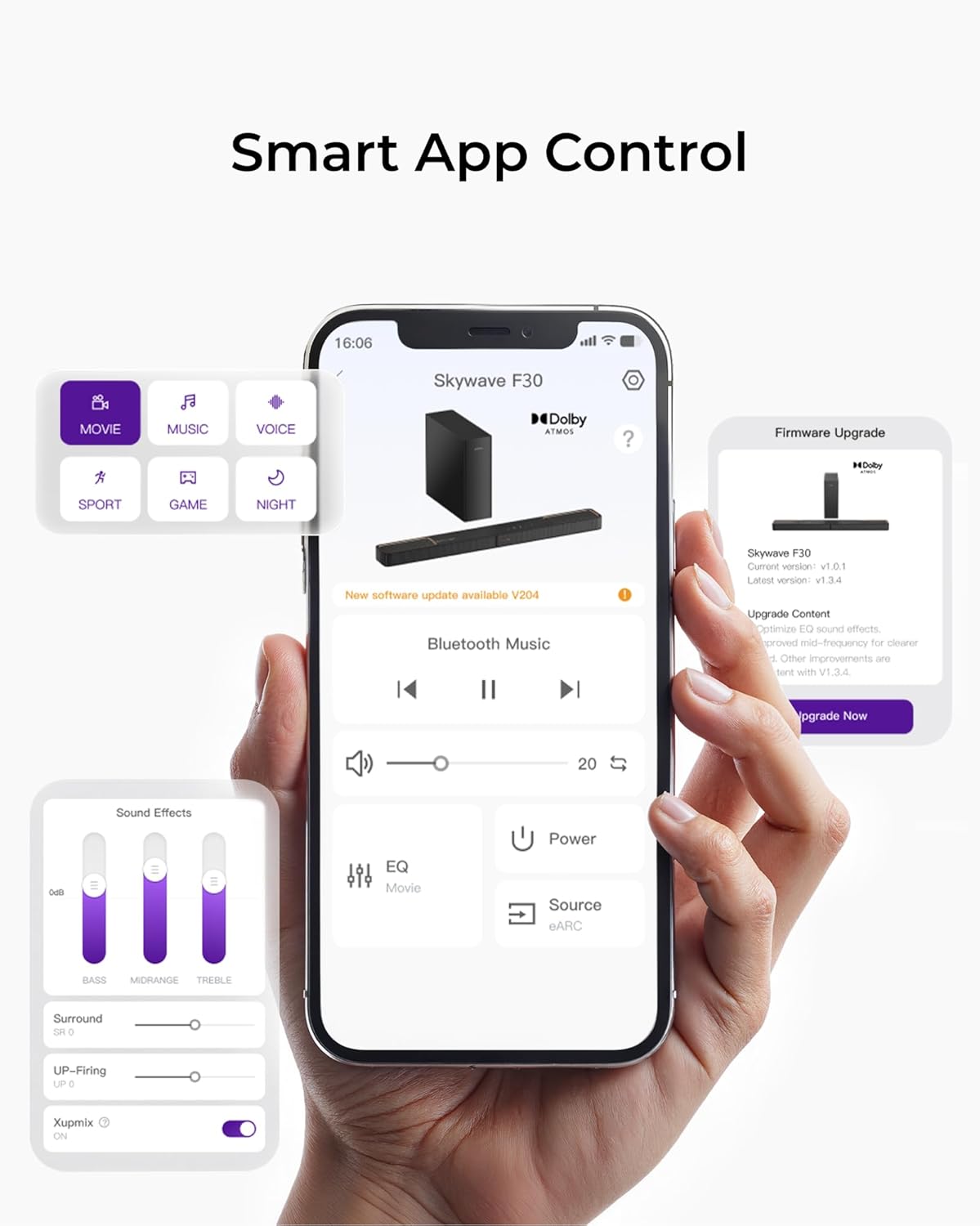
Image: The BassMX subwoofer positioned next to a TV cabinet in a living room, illustrating its compact yet powerful presence.
Clear Dialogue with VoiceMX
VoiceMX Technology, combined with DSP processing, ensures crystal-clear dialogue in any scene. Real-time Digital Signal Processing (DSP) optimizes audio for better channel separation, minimal distortion, and consistent detail across all volume levels, making conversations easy to understand.

Image: An illustration showing the sound bar enhancing dialogue clarity from a TV screen, with sound waves emanating from the sound bar towards the viewer.
Lossless Audio Transmission and CEC Function
Achieve full Dolby Atmos performance with HDMI eARC, which supports up to 37Mbps bandwidth for lossless 3.1.2-channel audio. Unlike regular ARC, eARC delivers richer detail and superior surround effects without compression. With CEC (Consumer Electronics Control), your TV and sound bar can work seamlessly together, automatically syncing power, volume, and input for effortless control.

Image: A close-up of the sound bar's rear panel showing the HDMI eARC port, with a graphic comparing eARC's 37Mbps lossless audio to ARC's 1Mbps compressed audio.
Wireless Connection (Bluetooth 5.4)
Bluetooth 5.4 provides a more stable and responsive connection compared to Bluetooth 5.3, offering faster device syncing and enhanced resistance to wireless interference. Enjoy smooth audio streaming and low-latency performance, ideal for movies, music, and gaming.

Image: A person relaxing on a couch, streaming music from their phone to the sound bar via Bluetooth 5.4, with sound waves illustrating the wireless connection.
Product Dimensions

Image: A diagram showing the dimensions of the sound bar (31.50 inches long, 1.81 inches high, 3.54 inches deep) and the subwoofer (11.10 inches wide, 12.48 inches high, 4.17 inches deep).
Setup
Follow these steps to set up your ULTIMEA Skywave F30 sound system.
Connecting the Sound Bar
The sound bar offers multiple connection options. Choose the one that best suits your TV and devices.

Image: A diagram of the sound bar's rear panel, clearly labeling the HDMI to TV (eARC), Optical, USB, SUB OUT, and DC IN ports.
HDMI eARC Connection (Recommended)
For the best audio quality and seamless control, connect your sound bar to your TV's HDMI eARC/ARC port.
- Locate the HDMI port on your TV labeled 'eARC' or 'ARC'.
- Connect one end of the provided HDMI cable to the HDMI to TV (eARC) port on the sound bar.
- Connect the other end of the HDMI cable to the eARC/ARC port on your TV.
- Ensure your TV's audio output is set to HDMI ARC/eARC.
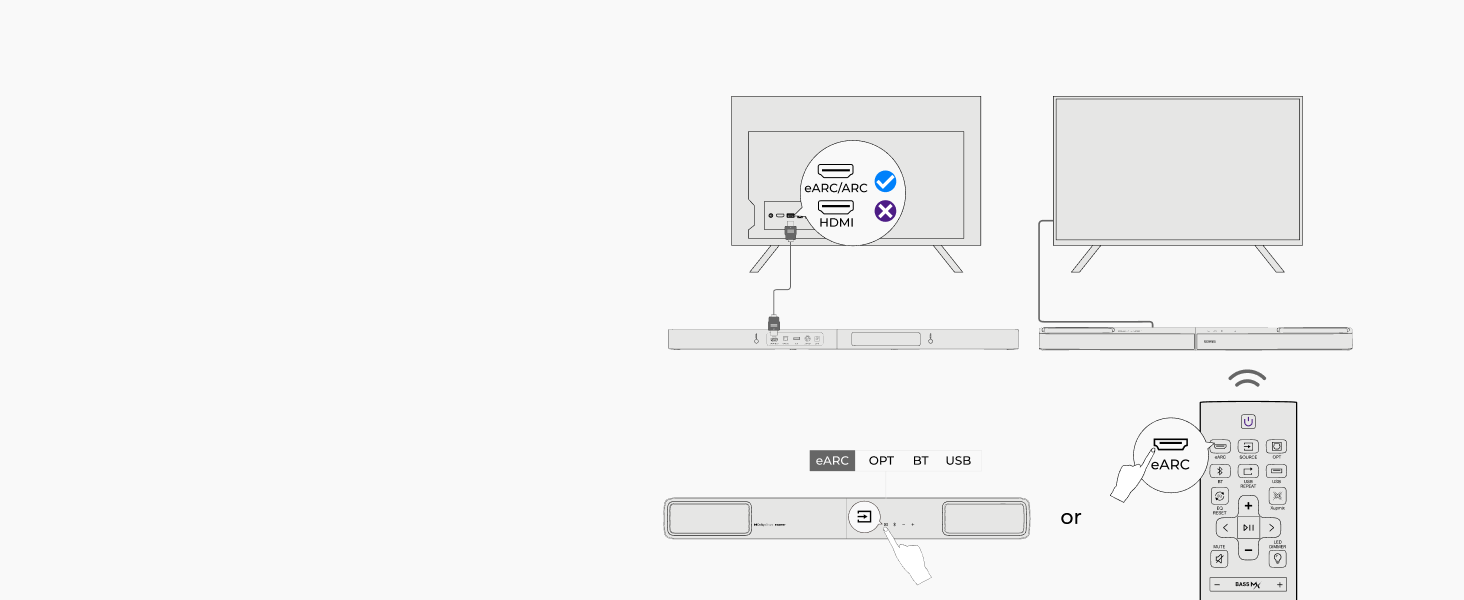
Image: A visual guide showing how to connect the sound bar to a TV using an HDMI cable to the eARC/ARC port, and how to select the eARC input on the sound bar.
Optical Connection
If your TV does not have an HDMI eARC/ARC port, you can use an Optical cable.
- Connect one end of the provided Optical cable to the OPTICAL port on the sound bar.
- Connect the other end of the Optical cable to the Digital Audio Out (Optical) port on your TV.
- Ensure your TV's audio output is set to Optical/PCM.

Image: A visual guide demonstrating how to connect the sound bar to a TV using an Optical cable, and how to select the OPT input on the sound bar.
Power Connection
After connecting the audio cables, connect the power.
- Connect the power adapter to the DC IN port on the sound bar.
- Plug the power adapter into a wall outlet.
- Connect the subwoofer to a power outlet. The subwoofer will automatically pair with the sound bar.
Operating the Sound Bar
Learn how to control your sound bar using the remote control or the dedicated mobile app.
Remote Control
The included remote control allows you to manage power, volume, input source, sound modes, and more.
- Power Button: Turns the sound bar on or off.
- Input Source: Cycle through HDMI eARC, Optical, Bluetooth, and USB inputs.
- Volume +/-: Adjust the master volume level.
- Sound Modes: Select preset EQ modes (e.g., Movie, Music, Voice, Game, Night, Sport).
- Bass/Treble +/-: Adjust bass and treble levels independently.
- Up-Firing +/-: Adjust the intensity of the up-firing channels.
Smart App Control
Download the ULTIMEA App from the App Store or Google Play to unlock advanced control and customization options for your Skywave F30.
- Sound Effects: Fine-tune bass, midrange, and treble.
- EQ Customization: Create and save custom equalizer settings.
- Firmware Upgrade: Receive notifications and perform over-the-air firmware updates.
- Input Selection: Easily switch between different audio sources.

Image: Screenshots of the ULTIMEA mobile application interface, showing options for sound effects, equalizer customization, firmware updates, and general control of the sound bar.
Maintenance and Care
Proper care will ensure the longevity and optimal performance of your sound system.
- Cleaning: Use a soft, dry cloth to clean the surfaces of the sound bar and subwoofer. Do not use liquid cleaners or aerosol sprays.
- Placement: Avoid placing the unit in direct sunlight, near heat sources, or in areas with high humidity or dust.
- Ventilation: Ensure adequate airflow around the sound bar and subwoofer to prevent overheating.
- Storage: If storing the unit for an extended period, disconnect it from power and store it in a cool, dry place.
Troubleshooting
If you encounter issues with your sound bar, refer to the following common problems and solutions.
| Problem | Possible Cause | Solution |
|---|---|---|
| No Sound | Incorrect input source selected; Cables not connected properly; TV audio output settings incorrect. | Verify the correct input source on the sound bar. Check all cable connections. Adjust TV audio output to HDMI ARC/eARC or Optical/PCM. |
| Subwoofer Not Pairing | Subwoofer not powered on; Interference. | Ensure the subwoofer is plugged in and powered on. Move the subwoofer closer to the sound bar. Restart both units. |
| Remote Control Not Working | Batteries are low or dead; Obstruction between remote and sound bar. | Replace batteries. Ensure no objects are blocking the remote's signal to the sound bar. |
| Distorted Sound | Volume too high; Incorrect audio format; Loose connections. | Lower the volume. Check if the audio source is compatible (e.g., not DTS). Re-secure all audio cables. |
Specifications
| Feature | Detail |
|---|---|
| Model Name | Skywave F30 |
| Item Model Number | U392A |
| Speaker Type | Soundbar |
| Included Components | 1 X SOUNDBAR, 1 x subwoofer |
| Product Dimensions | 31.5"D x 1.81"W x 3.54"H |
| Item Weight | 14.1 pounds |
| Manufacturer | ULTIMEA |
| Speaker Maximum Output Power | 300 Watts |
| Connectivity Technology | Auxiliary, Bluetooth 5.4, HDMI eARC, Optical, USB |
Warranty and Support
ULTIMEA products are designed and manufactured to the highest quality standards. For detailed warranty information, please refer to the warranty card included with your product or visit the official ULTIMEA website.
If you require technical support or have questions about your product, please contact ULTIMEA customer service:
- Phone (US): +1 800 590 0975
- Email: support@ultimea.com