
Montech HS02 PRO Glass Black with Fans
MONTECH HS02 PRO ATX Mid-Tower PC Case User Manual
Model: HS02 PRO Glass Black with Fans (HS02PB)
Brand: Montech
1. Safety Information
Please read and understand all safety instructions before installing or using the MONTECH HS02 PRO PC Case. Failure to follow these instructions may result in damage to the product, personal injury, or voiding of the warranty.
- Electrical Safety: Ensure all power components are properly grounded and connected. Disconnect power before performing any installation or maintenance.
- Handling: The case contains tempered glass panels. Handle with care to prevent breakage. Avoid dropping or subjecting the case to strong impacts.
- Ventilation: Ensure adequate airflow around the case to prevent overheating. Do not block ventilation openings.
- Environment: Operate the case in a dry, stable environment. Avoid extreme temperatures, humidity, and direct sunlight.
- Children and Pets: Keep the product and its components out of reach of children and pets. Small parts can be a choking hazard.
2. Package Contents
Verify that all items listed below are present in your package. If any items are missing or damaged, please contact Montech customer support.
- MONTECH HS02 PRO ATX Mid-Tower PC Case
- Accessory Box (screws, zip ties, standoffs, etc.)
- User Manual (this document)
- Pre-installed GF120 V2 ARGB Fans (5x)
3. Product Overview
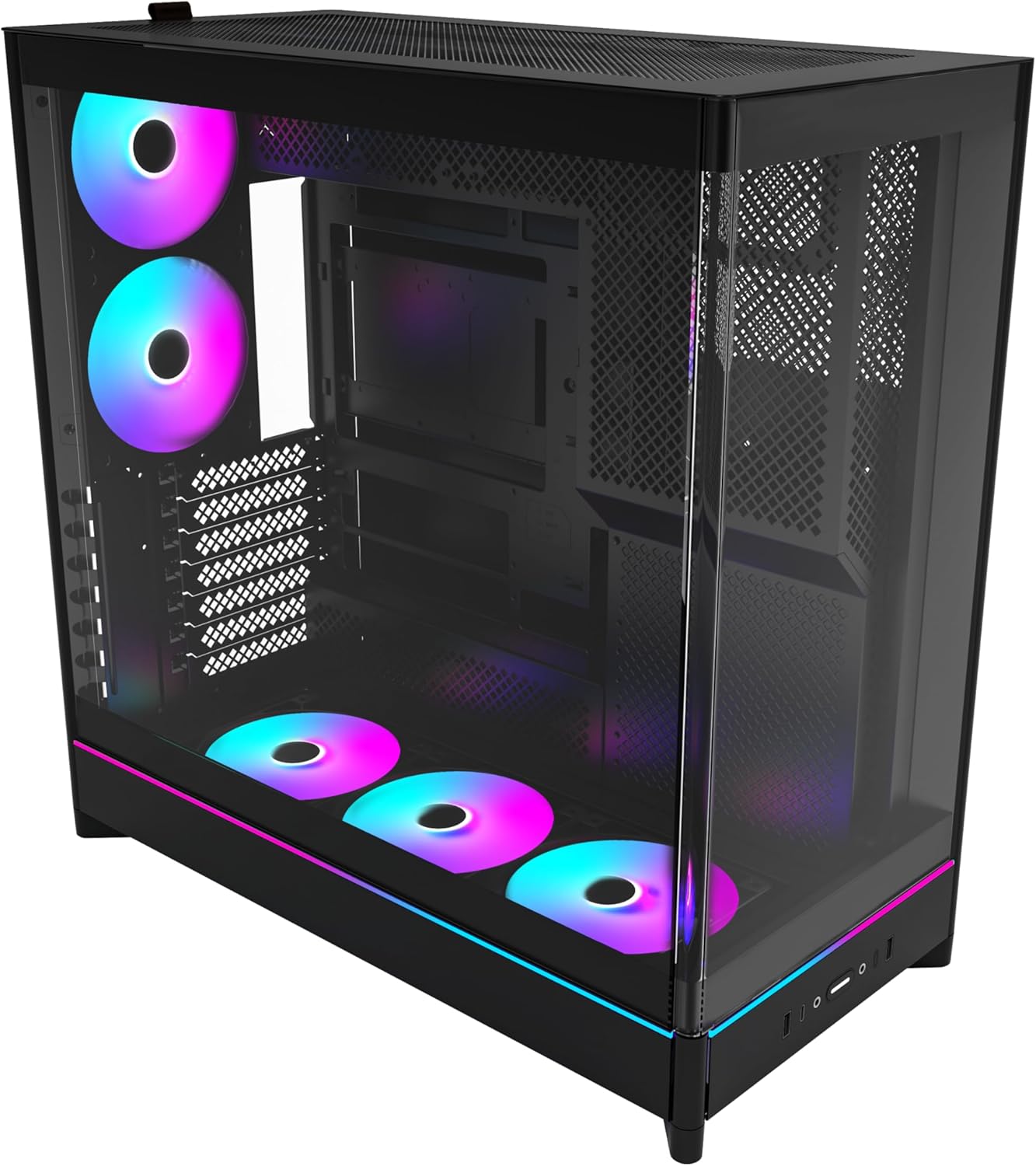
The MONTECH HS02 PRO is a high-airflow ATX mid-tower PC case designed for optimal thermal performance and aesthetic appeal. It features a unique reversible layout and a sturdy curved tempered glass front panel.
Key Features:
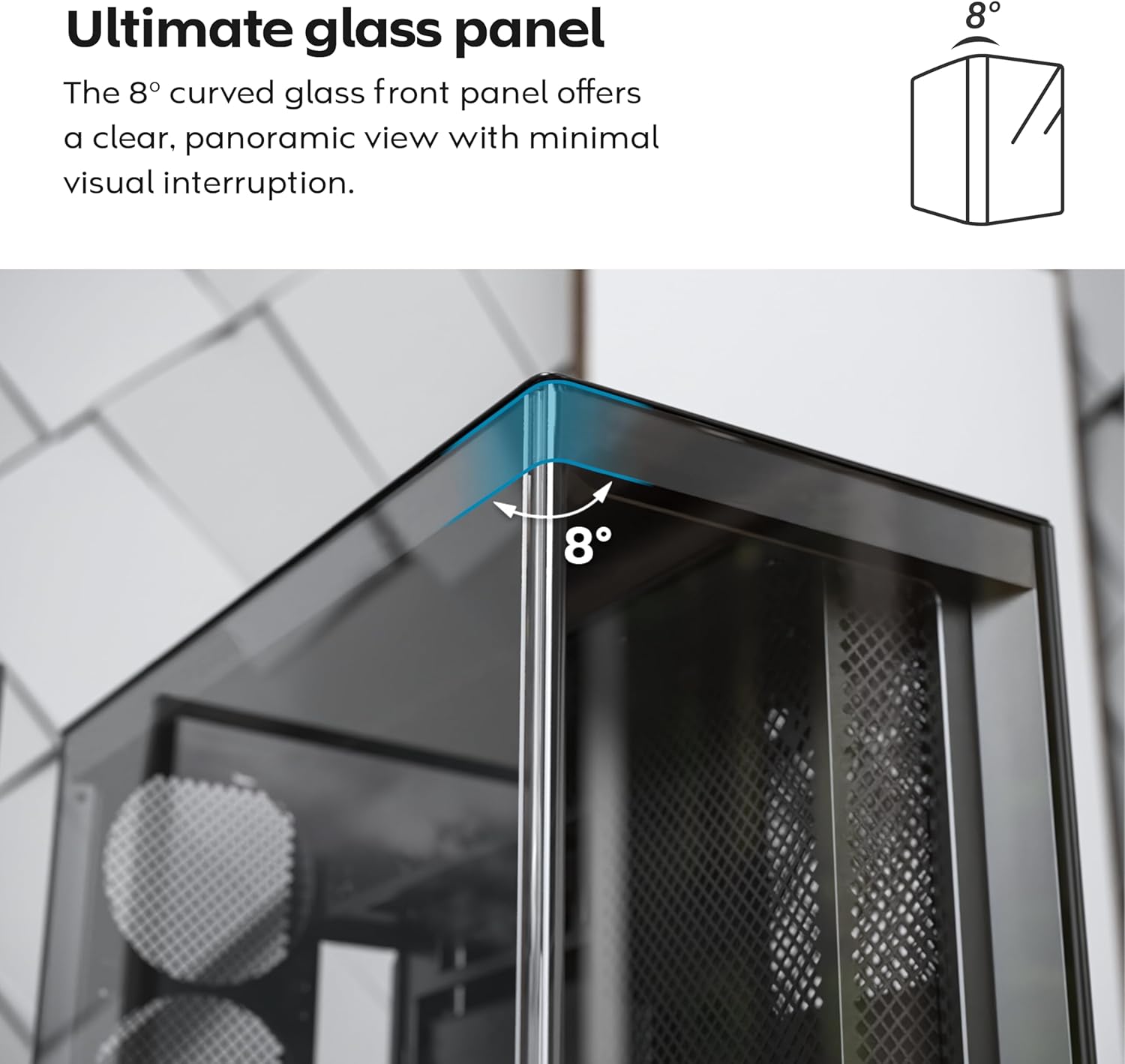
- 8-Degree Curved Glass Panel: The front tempered glass panel features a subtle 8-degree curved edge, offering a distinctive and refined view of the interior with minimal visual distortion.
- Reversible Design: A top-down reversible layout allows the entire setup to be positioned on either the left or right side, showcasing your build from your preferred angle.
- Vertical Ventilation: Bottom air intake and top exhaust create a natural chimney effect for efficient heat dissipation.
- Vertical GPU Ready: Rotatable PCIe slots enable an instant vertical GPU setup without requiring an extra holder or stand.
- Sink-In Design: A recessed bottom fan and motherboard layout maintain a clean, unobstructed side view.
- Pre-installed ARGB PWM Fans: Comes with 5 pre-installed GF120 V2 ARGB fans, fully syncable with motherboard lighting control.
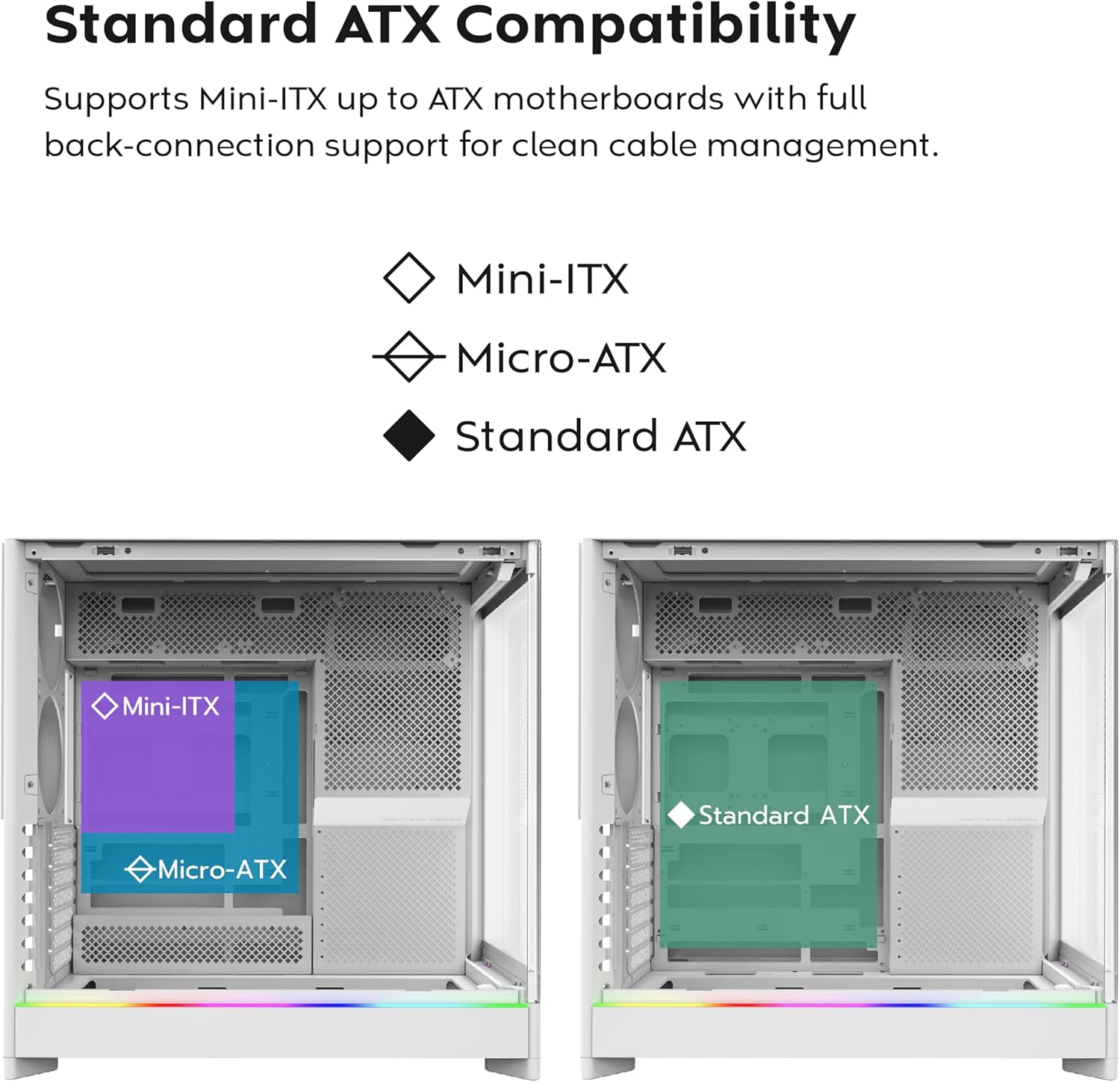
- Back-Connect Motherboard Ready: Supports standard and back-connect motherboards, including MSI Project Zero, ASUS BTF, and more.
- Ample Storage Capacity: Supports multiple storage drives (HDD/SSD) for flexible and expandable storage options.
Component Identification:





4. Setup and Installation
This section provides general guidelines for setting up your MONTECH HS02 PRO PC case. For detailed component-specific instructions, refer to your motherboard, GPU, and PSU manuals.
4.1 Preparing the Case
- Unpacking: Carefully remove the case from its packaging. Inspect for any shipping damage.
- Panel Removal: Gently remove the tempered glass side panel and the rear metal side panel. The tempered glass panel is secured with toolless latches.
- Accessory Box: Locate the accessory box inside the case, which contains all necessary screws and mounting hardware.
4.2 Motherboard Installation
- Standoffs: Ensure the correct standoffs are installed for your motherboard form factor (Mini-ITX, Micro-ATX, or ATX). Adjust if necessary.
- I/O Shield: Install your motherboard's I/O shield into the rear opening of the case.
- Mounting: Carefully align your motherboard with the standoffs and gently lower it into place. Secure it with the provided screws.
- Back-Connect Motherboards: If using a back-connect motherboard, ensure proper alignment with the designated cutouts for cable routing.
4.3 Power Supply Unit (PSU) Installation
- Mounting: The PSU mounts at the bottom of the case. Slide the PSU into its designated bay from the rear.
- Securing: Secure the PSU with screws from the rear of the case.
- Cabling: Route necessary power cables through the cable management cutouts to the motherboard and other components.
4.4 Storage Drive Installation (HDD/SSD)
- Drive Bays: Utilize the designated drive bays for 3.5" HDDs and 2.5" SSDs.
- Mounting: Secure drives using the provided screws or toolless mechanisms where applicable.
4.5 Graphics Card (GPU) Installation
- PCIe Slots: Remove the necessary PCIe slot covers.
- Horizontal Installation: Insert the GPU into the primary PCIe slot on your motherboard and secure it with screws.
- Vertical Installation (Optional): The rotatable PCIe slots allow for vertical GPU mounting. Rotate the bracket and install your GPU vertically. A PCIe riser cable (not included) is required for vertical mounting.
4.6 Cooling System Installation (Fans/Radiators)
- Pre-installed Fans: The case comes with 5 pre-installed ARGB PWM fans. Connect their power and ARGB cables to your motherboard or a fan controller.
- Additional Fans/Radiators: The case supports additional fans and radiators at the top, rear, and bottom. Refer to the specifications for supported sizes.
- AIO Cooler: Install your All-in-One (AIO) liquid cooler radiator and fans according to the cooler's instructions, utilizing the available mounting points.
4.7 Cable Management
Utilize the ample space behind the motherboard tray and the cable management cutouts to route and secure cables. This improves airflow and aesthetics.
5. Operating Instructions
Once all components are installed and secured, you can power on your system.
5.1 Powering On
- Connect Peripherals: Connect your monitor, keyboard, mouse, and other peripherals to your system.
- Power Cable: Connect the PSU power cable to a wall outlet and flip the PSU's power switch to the 'ON' position.
- Power Button: Press the power button on the front I/O panel of the case.
5.2 Front I/O Panel Functions
- USB 3.0 Ports: For connecting USB 3.0 compatible devices.
- USB Type-C Port: For connecting USB Type-C compatible devices.
- Audio Jack: For headphones or speakers.
- Microphone Jack: For connecting a microphone.
- Power Button: To turn the system on or off.
- LED Button: To cycle through the 29 ARGB lighting modes for the pre-installed fans and integrated light strip.
6. Maintenance
Regular maintenance helps ensure optimal performance and longevity of your PC components.
- Dust Cleaning: Periodically clean dust filters (top, bottom, front) to maintain optimal airflow. Use compressed air to remove dust from internal components.
- Glass Panel Cleaning: Use a soft, lint-free cloth and a non-abrasive glass cleaner to clean the tempered glass panels. Avoid harsh chemicals.
- Cable Management: Periodically check cable routing to ensure no cables are obstructing airflow or fan blades.
- Fan Inspection: Ensure all fans are spinning freely and quietly. Clean fan blades if dust buildup is significant.
7. Troubleshooting
This section addresses common issues you might encounter. For more complex problems, consult Montech customer support or a qualified technician.
Common Issues and Solutions:
| Problem | Possible Cause | Solution |
|---|---|---|
| System does not power on. | PSU switch off, power cables loose, faulty PSU/motherboard. | Ensure PSU switch is ON. Check all power connections (24-pin, CPU, GPU). Test PSU if possible. |
| Fans are not spinning or RGB is not working. | Fan cables disconnected, ARGB cables disconnected, faulty fan/controller. | Verify fan power and ARGB headers are securely connected to motherboard/controller. Use the LED button to cycle modes. |
| Poor airflow or high temperatures. | Dust buildup, obstructed vents, incorrect fan orientation. | Clean dust filters and internal components. Ensure fans are oriented correctly for intake/exhaust. Check for cable obstructions. |
| Front I/O ports not functioning. | Front panel connectors loose or incorrectly connected to motherboard. | Refer to your motherboard manual to ensure all front panel headers (USB, audio) are correctly connected. |
8. Specifications
Detailed technical specifications for the MONTECH HS02 PRO ATX Mid-Tower PC Case.
| Feature | Specification |
|---|---|
| Model Name | HS02 PRO Glass Black with Fans |
| Model Number | HS02PB |
| Case Type | Mid Tower |
| Motherboard Compatibility | ATX, Micro-ATX, Mini-ITX (with back-connect support) |
| Dimensions (LxWxH) | 32 x 52.4 x 58.8 inches (approx. 81.3 x 133.1 x 149.4 cm) |
| Item Weight | 24.2 pounds (approx. 10.98 kg) |
| Front Panel | Curved Tempered Glass (8-degree) |
| Pre-installed Fans | 5x GF120 V2 ARGB PWM Fans |
| Cooling Method | Air (Vertical Ventilation / Chimney Effect) |
| Power Supply Mounting Type | Bottom Mount |
| Front I/O Ports | 2x USB 3.0, 1x USB Type-C, Audio, Mic, Power Button, LED Button |
| GPU Clearance | Up to 420mm (supports vertical GPU with rotatable PCIe slots) |
| Storage Bays | Multiple HDD/SSD support |
| Color | Black |
9. Warranty and Support
For warranty information and technical support, please refer to the official Montech website or contact their customer service directly. Keep your proof of purchase for warranty claims.
- Montech Official Website: www.montechpc.com
- Customer Service: Refer to the website for contact details, including email and phone support.
Related documentsHS02 PRO Glass Black with Fans


Ask a question about this manual
Ask about setup, troubleshooting, compatibility, parts, safety, or missing instructions. Manuals+ will review the question and use this page’s manual context to help answer it.