
1. Safety Information
Please read all instructions carefully before using this monitor. Keep this manual for future reference.
- Do not expose the monitor to rain or moisture to prevent fire or shock hazards.
- Do not open the monitor casing. There are no user-serviceable parts inside. Refer all servicing to qualified personnel.
- Place the monitor on a stable, flat surface to prevent it from falling.
- Ensure proper ventilation around the monitor. Do not block ventilation openings.
- Use only the power adapter and cables provided with the monitor.
- Unplug the monitor from the power outlet during lightning storms or when unused for extended periods.
2. Package Contents
Verify that all items are present in your package:
- CRUA 32-inch Curved Monitor (CR320C)
- Monitor Base and Support
- DP Cable (1.5m/4.92ft)
- Power Cord (1.5m/4.92ft)
- User Manual
3. Setup
3.1 Monitor Assembly
- Carefully remove the monitor from its packaging, keeping the screen protected.
- Attach the monitor support to the monitor panel.
- Attach the base to the monitor support and secure it with the provided screws.

Figure 3.1: Assembled CRUA 32-inch Curved Monitor.
3.2 Connectivity
Connect the monitor to your computer or other devices using the appropriate cables.
- HDMI Connection: Use an HDMI 2.0 cable to connect the monitor's HDMI port to your device's HDMI output.
- DisplayPort Connection: Use the provided DP 1.4 cable to connect the monitor's DP port to your device's DisplayPort output.
- Audio Output: Connect external speakers or headphones to the 3.5mm audio output jack if desired. The monitor also has built-in speakers.
- Power Connection: Connect the power cord to the monitor's power input and then to a power outlet.

Figure 3.2: Monitor rear panel with connectivity ports.
3.3 Wall Mounting
The monitor supports VESA wall mounting (75mm x 75mm). Ensure you use appropriate wall mount hardware (not included) and follow the wall mount manufacturer's instructions.

Figure 3.3: Rear view highlighting the VESA mount compatibility.
3.4 Tilt Adjustment
The monitor stand allows for tilt adjustment from -5° to 15° for optimal viewing comfort. Gently adjust the monitor panel to your desired angle.
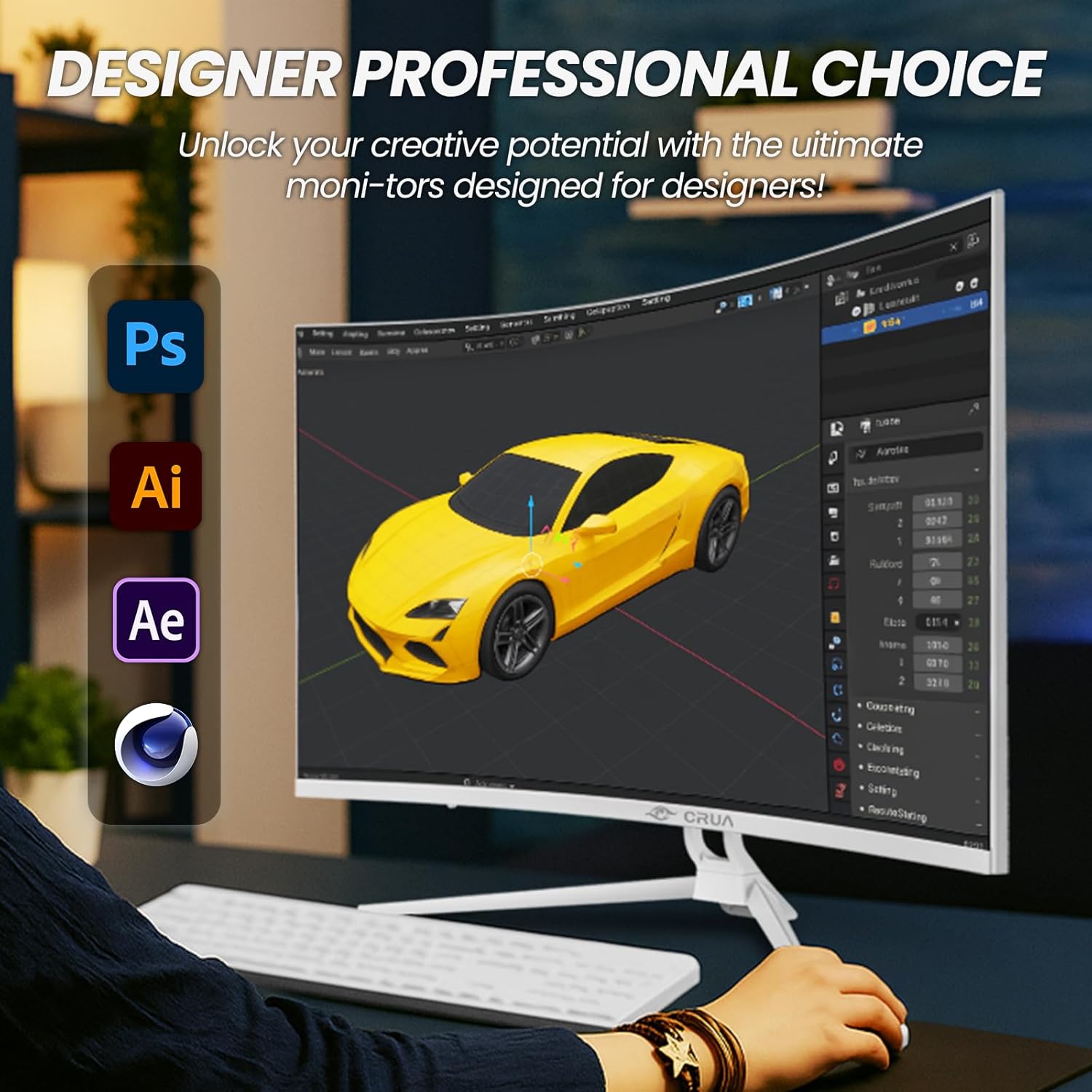
Figure 3.4: Monitor tilt adjustment in an office setting.
4. Operating Instructions
4.1 Power On/Off
Press the power button located on the monitor to turn it on or off. The power indicator light will illuminate when the monitor is on.
4.2 Input Source Selection
Use the monitor's control buttons (typically located on the back or bottom right) to access the On-Screen Display (OSD) menu. Navigate to the 'Input Source' option to select between HDMI and DisplayPort inputs.
4.3 OSD Menu Navigation
The OSD menu allows you to adjust various monitor settings:
- Picture Settings: Brightness, Contrast, Sharpness, Color Temperature.
- Display Settings: Aspect Ratio, Blue Light Filter.
- Audio Settings: Volume control for built-in speakers or 3.5mm output.
- System Settings: Language, OSD Timeout, RGB atmosphere light modes.
4.4 Key Features
- 4K UHD Resolution (3840x2160): Provides sharp and detailed visuals.
- 75Hz Refresh Rate: Offers smoother motion compared to standard 60Hz monitors.
- FreeSync Support: Synchronizes the monitor's refresh rate with compatible graphics cards to reduce screen tearing and stuttering.
- 1500R Curved VA Panel: Delivers an immersive viewing experience with wide viewing angles.
- 120% sRGB Color Accuracy: Ensures vibrant and accurate color reproduction.
- Built-in Speakers: Provides integrated audio for convenience.
- Blue Light Filter: Reduces eye strain during prolonged use.
- RGB Atmosphere Light: Customizable lighting on the rear of the monitor.

Figure 4.1: Visual clarity of 4K UHD resolution.
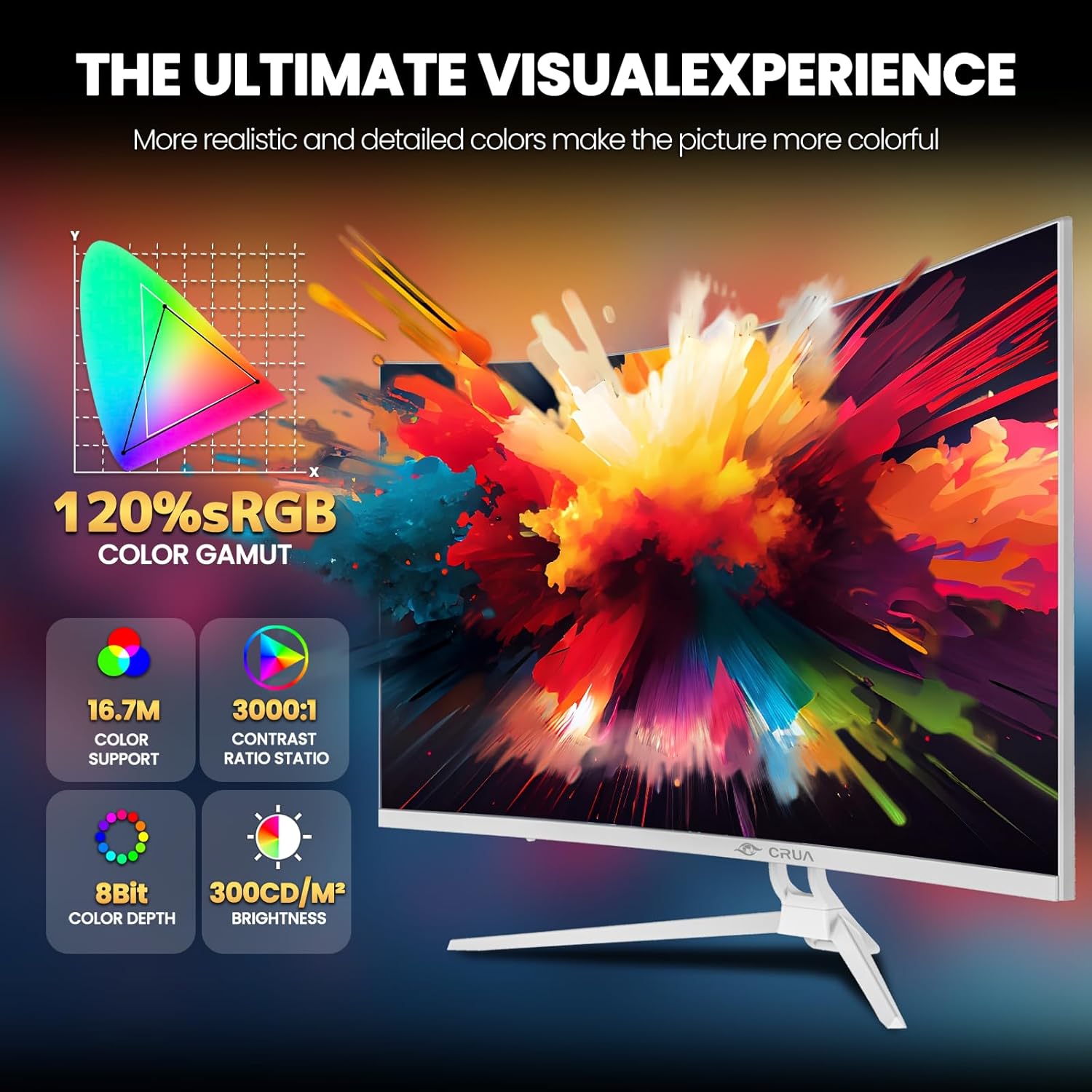
Figure 4.2: Color and display specifications.
5. Maintenance
5.1 Cleaning the Monitor
To clean the monitor screen and casing:
- Turn off the monitor and unplug the power cord.
- Use a soft, lint-free cloth slightly dampened with water or a mild, non-abrasive screen cleaner.
- Do not spray cleaner directly onto the screen.
- Avoid using benzene, thinner, ammonia-based cleaners, or abrasive materials, as these can damage the monitor surface.
5.2 General Care
- Avoid placing heavy objects on the monitor or its cables.
- Keep the monitor away from direct sunlight, heat sources, and excessive dust.
- Do not block the ventilation holes on the monitor.
6. Troubleshooting
If you encounter issues with your monitor, refer to the following common problems and solutions:
| Problem | Possible Solution |
|---|---|
| No image on screen | Ensure the power cable is securely connected and the monitor is turned on. Check that the video cable (HDMI/DP) is properly connected to both the monitor and the computer. Select the correct input source via the OSD menu. |
| Image is blurry or distorted | Check the video cable connection. Ensure the display resolution and refresh rate are set correctly in your computer's display settings. |
| No sound from speakers | Increase the volume via the OSD menu or your computer's sound settings. Ensure the correct audio output device is selected on your computer. If using external speakers, check their connection. |
| Screen flickering | Check the video cable connection. Ensure the refresh rate is set to 75Hz in your computer's display settings. Update your graphics card drivers. |
If the problem persists after trying these solutions, please contact CRUA customer support.
7. Specifications
| Feature | Specification |
|---|---|
| Model | CR320C |
| Screen Size | 31.5 Inches |
| Panel Type | VA, 1500R Curved |
| Resolution | 3840 x 2160 (4K UHD) |
| Refresh Rate | 75 Hz |
| Response Time | 3 Milliseconds |
| Brightness | 300 cd/m² |
| Contrast Ratio | 3000:1 |
| Color Gamut | 120% sRGB |
| Viewing Angle | 178° (H) / 178° (V) |
| Connectivity | 1x HDMI 2.0, 1x DisplayPort 1.4, 1x 3.5mm Audio Out |
| Special Features | FreeSync, Built-In Speakers, Blue Light Filter, RGB Atmosphere Light, Tilt Adjustment, Wall Mountable (75x75mm VESA) |
| Product Dimensions (with stand) | 71.12 x 10.16 x 50.8 cm (W x D x H) |
| Weight (with stand) | 7.46 kg |

Figure 7.1: Monitor dimensions.
8. Warranty and Support
8.1 Warranty Information
The CRUA 32-inch 4K Curved Monitor (CR320C) includes a 1-3 year warranty. Please refer to your purchase documentation for specific warranty terms and duration.
8.2 Customer Support
For any questions, technical assistance, or warranty claims, please contact CRUA customer support. We are committed to providing high-quality service and resolving any issues you may encounter.
Contact information can typically be found on the CRUA official website or through your purchase platform.

