
Introduction
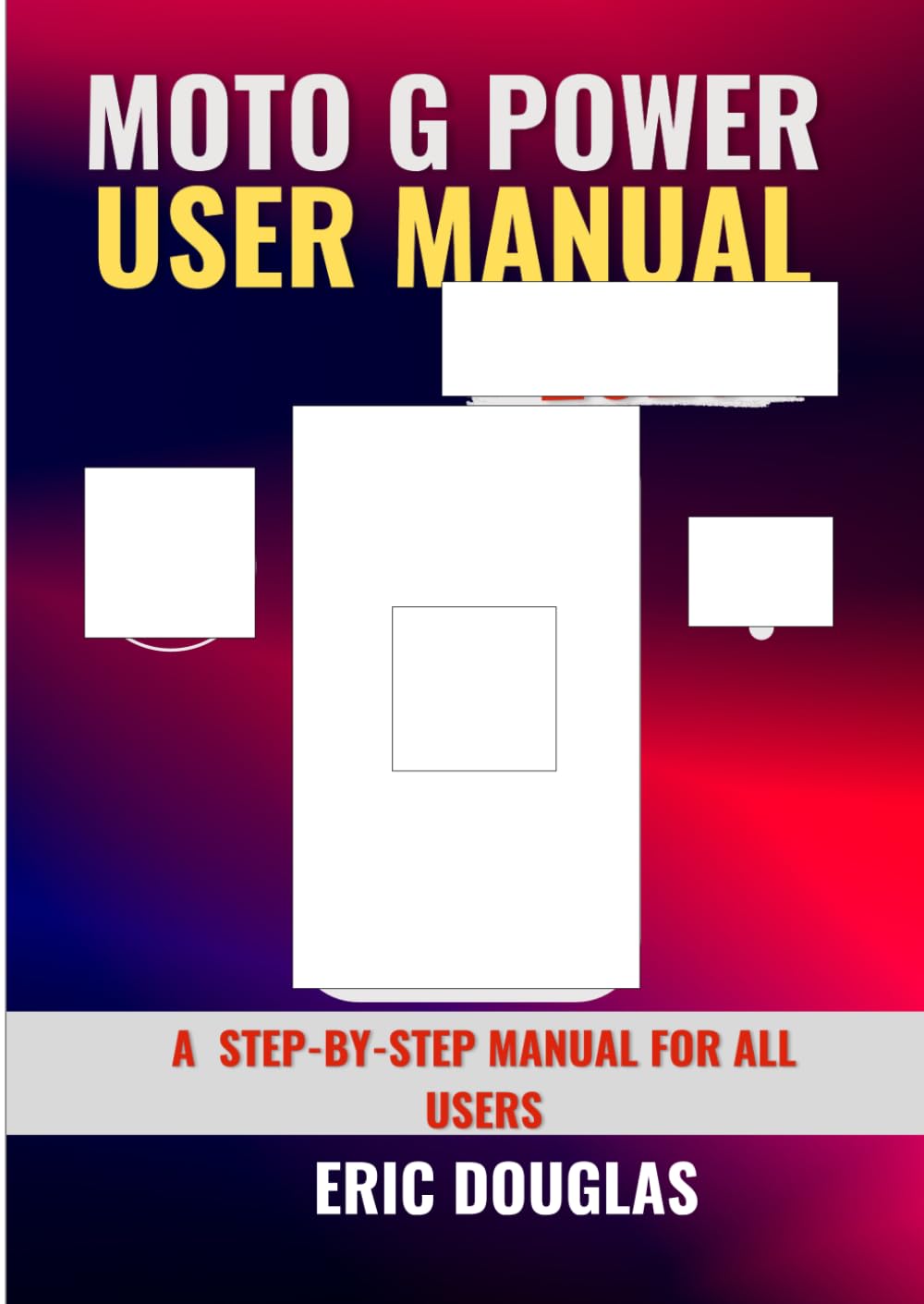
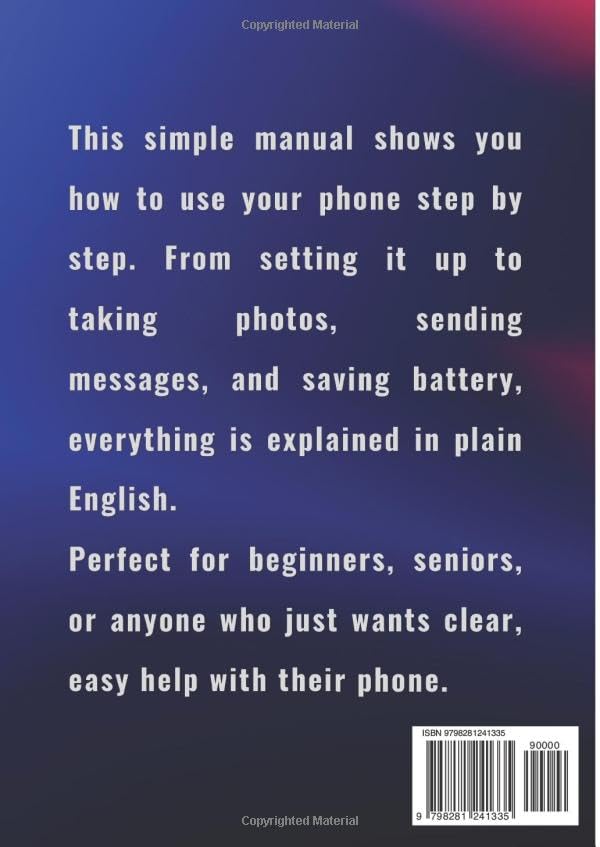
This manual provides clear, step-by-step instructions for using your Moto G Power (2025) smartphone. It is designed for all users, regardless of technical experience, to help you understand and utilize your device's features effectively. From initial setup to advanced functions, this guide aims to make your experience seamless and enjoyable.
The information presented here is based on the official user manual for the Moto G Power (2025).
Getting Started: Device Setup
Follow these steps to set up your Moto G Power (2025) for the first time:
- Power On: Press and hold the power button until the Motorola logo appears.
- Language Selection: Choose your preferred language from the list.
- Connect to Wi-Fi: Select an available Wi-Fi network and enter the password to connect. This is recommended for faster setup and software updates.
- Copy Data (Optional): You can transfer data from an old device during this step. Follow the on-screen prompts.
- Google Account: Sign in with your Google account or create a new one. This is essential for downloading apps and accessing Google services.
- Security Setup: Set up a screen lock (PIN, pattern, password, or fingerprint) to protect your device.
- Review & Finish: Review the terms and conditions, and complete the setup process.
Your phone is now ready for use.
Basic Operation
Making Calls and Sending Texts
- To Make a Call: Open the Phone app, enter the number, and tap the call icon. To call a contact, open the Contacts app, select a contact, and tap the phone icon.
- To Send a Text Message: Open the Messages app, tap 'Start chat', enter the recipient's name or number, type your message, and tap the send icon.
Using Bluetooth and Wi-Fi
- Wi-Fi: Go to Settings > Network & internet > Wi-Fi. Toggle Wi-Fi on, select a network, and enter the password.
- Bluetooth: Go to Settings > Connected devices > Connection preferences > Bluetooth. Toggle Bluetooth on, then tap 'Pair new device' to connect to accessories.
Camera and Multimedia
Taking Pictures and Videos
The Moto G Power (2025) features a versatile camera system for capturing high-quality photos and videos.
- Open Camera: Tap the Camera app icon.
- Switch Modes: Swipe left or right to switch between Photo, Video, Portrait, and other modes.
- Focus: Tap on the screen to set the focus point.
- Capture: Tap the shutter button to take a photo or start/stop video recording.
Apps and Connectivity
Downloading and Using Apps
Access a wide range of applications through the Google Play Store:
- Open Play Store: Tap the Play Store app icon.
- Search: Use the search bar to find apps by name or category.
- Install: Select an app and tap 'Install'.
- Manage Apps: Go to Settings > Apps & notifications to manage installed applications.
Battery Management
Saving Battery Life and Charging
To optimize battery performance and ensure quick charging:
- Battery Saver: Enable Battery Saver mode via Settings > Battery > Battery Saver to extend battery life.
- Screen Brightness: Reduce screen brightness or enable adaptive brightness in Settings > Display.
- Background Apps: Close unnecessary apps running in the background.
- Charging: Use the official Moto G Power (2025) charger for optimal charging speed and safety. Avoid using your phone extensively while charging.
Security and Safety
Keeping your phone safe and secure is crucial:
- Screen Lock: Always use a strong PIN, pattern, password, or fingerprint lock.
- Software Updates: Install system updates promptly to ensure you have the latest security patches.
- App Permissions: Review app permissions regularly in Settings > Apps & notifications > Permission manager.
- Find My Device: Ensure 'Find My Device' is enabled (Settings > Security > Find My Device) to locate or wipe your phone if lost or stolen.
Troubleshooting Common Issues
Here are tips to quickly fix common problems:
- Device Unresponsive: Press and hold the power button for about 10-15 seconds to force a restart.
- App Crashing: Clear the app's cache and data (Settings > Apps & notifications > App info > Storage & cache). If the issue persists, uninstall and reinstall the app.
- Connectivity Problems: Toggle Wi-Fi or Bluetooth off and on. For mobile data, ensure airplane mode is off and your data plan is active.
- Poor Battery Life: Review the Battery Management section for tips. Check battery usage in Settings > Battery to identify power-hungry apps.
Specifications
Key specifications for the Moto G Power (2025) (as detailed in the manual book):
- Publisher: Independently published
- Publication Date: April 24, 2025
- Language: English
- Print Length: 115 pages
- Item Weight: 10.4 ounces
- Dimensions: 7.17 x 0.26 x 10.12 inches
- ISBN-13: 979-8281241335
Manual Book Images
Warranty and Support
Information regarding the warranty for the Moto G Power (2025) device and specific support contact details are not provided within this manual. Please refer to the official Motorola website or your device's packaging for comprehensive warranty information and customer support options.


