
1. Product Overview
The MAMBASNAKE M3 Wireless Gaming Mouse is engineered for high-performance gaming and versatile connectivity. Featuring a PAW3395PRO optical sensor, ultra-lightweight design, and tri-mode connectivity, it offers precision and comfort for extended use across various platforms.

Image: The MAMBASNAKE M3 Wireless Gaming Mouse, showcasing both black and white models with key features highlighted, including tri-mode connectivity, 100 million clicks, 39g ultra-light design, PixArt PAW3395PRO sensor, up to 40000 DPI, and BK3633 MCU.
2. Package Contents
- MAMBASNAKE M3 Wireless Gaming Mouse
- USB-C to USB-A Charging/Data Cable
- 2.4G USB Receiver
- Anti-slip Grip Tape
- User Manual
3. Product Features
3.1. PAW3395PRO Optical Sensor
Equipped with an eSports-grade 40K DPI PAW3395PRO custom optical sensor and Broadcom BK3633 chipset. Offers 40,000 programmable DPI, 700 IPS tracking speed, 60g acceleration, and a 1000Hz/1ms polling rate for precise and responsive movements.
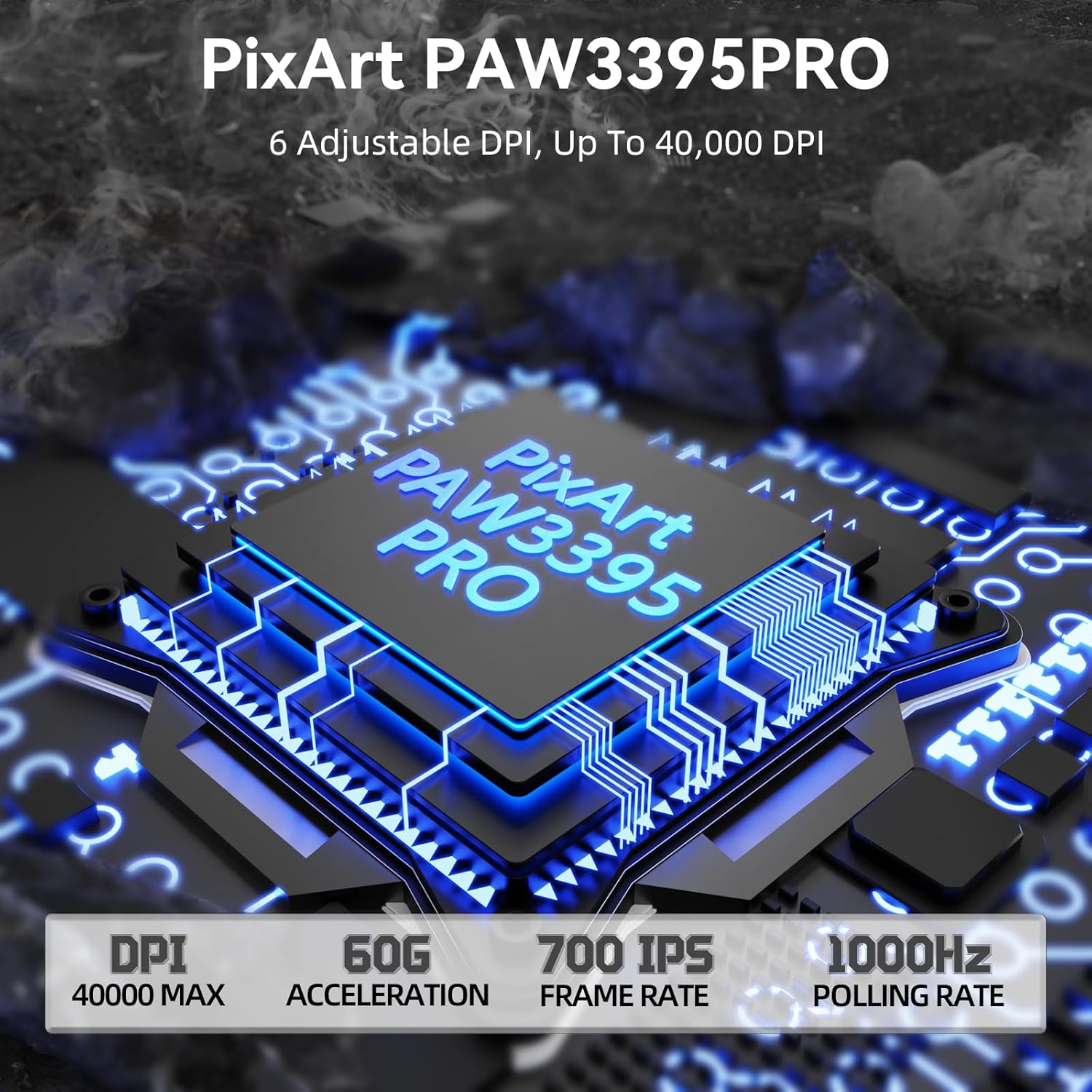
Image: A detailed view of the PixArt PAW3395PRO optical sensor chip, highlighting its capabilities such as 40000 Max DPI, 60G acceleration, 700 IPS frame rate, and 1000Hz polling rate.
3.2. Ultra-Lightweight Design
Weighing just 39g, this mouse reduces wrist strain during long sessions, enhancing agility and responsiveness.
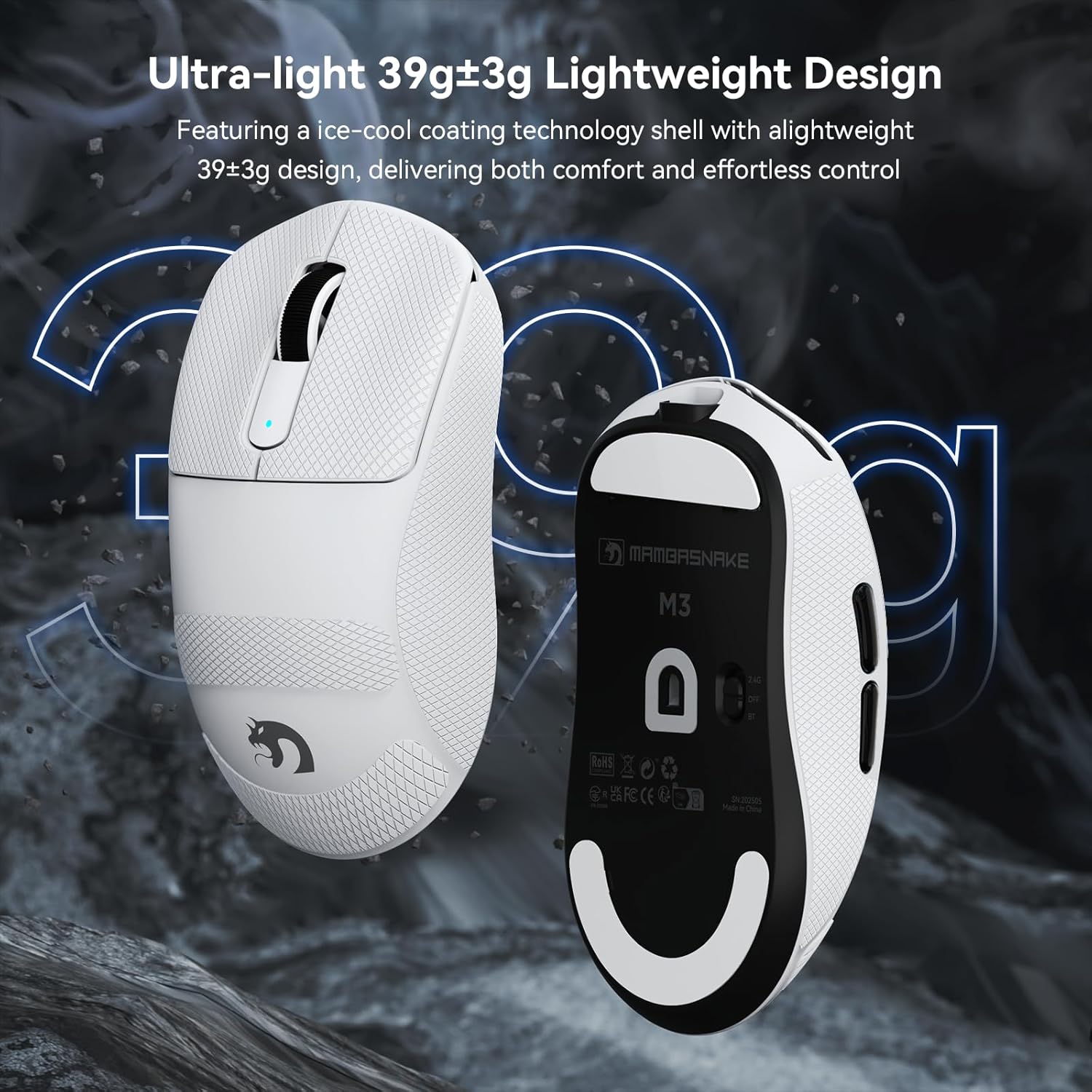
Image: The MAMBASNAKE M3 mouse from top and bottom views, emphasizing its ultra-light 39g design and ice-cool coating technology for comfort and effortless control.
3.3. Tri-Mode Connectivity
Supports wired (USB-C), Bluetooth 5.1, and 2.4G wireless connections for seamless adaptation to any scenario.

Image: The MAMBASNAKE M3 mouse connected via its USB-C cable to a laptop, with visual indicators for Performance Mode (2.4GHz), Efficiency Mode (Bluetooth 5.2), and Wired USB-C Mode.
3.4. Programmable Buttons
Customize buttons, DPI/IPS settings, lift-off distance, key remapping, and macros using intuitive software.

Image: A screenshot of the MAMBASNAKE mouse software interface, showing options for Mouse Settings, DPI Settings, Parameter Settings, Macro Edit, and Personal Center, with both black and white mouse models displayed.
3.5. Durable Microswitches
Advanced Flagship microswitches provide over 100 million clicks (3x longer than mechanical switches) with 0.2ms actuation, eliminating double-click failures. The F-Switch scroll wheel encoder offers precise, tactile feedback.

Image: An exploded view of the mouse's internal components, focusing on the Omron microswitches (rated for 100 million clicks) and the F-Switch E10 encoder for the scroll wheel, indicating 2X faster response than traditional mechanical switches.
3.6. Ice-Feel Coating & Non-Slip Grip
Exclusive custom cool-touch coating dissipates heat quickly, keeping hands dry. Includes anti-slip grip tape and PTFE high-speed glide feet for superior control and smoothness.
4. Setup Guide
4.1. Charging the Mouse
Connect the mouse to your computer using the provided USB-C cable. The mouse can be used while charging. A built-in 300mAh rechargeable battery provides weeks of continuous use on a single charge.
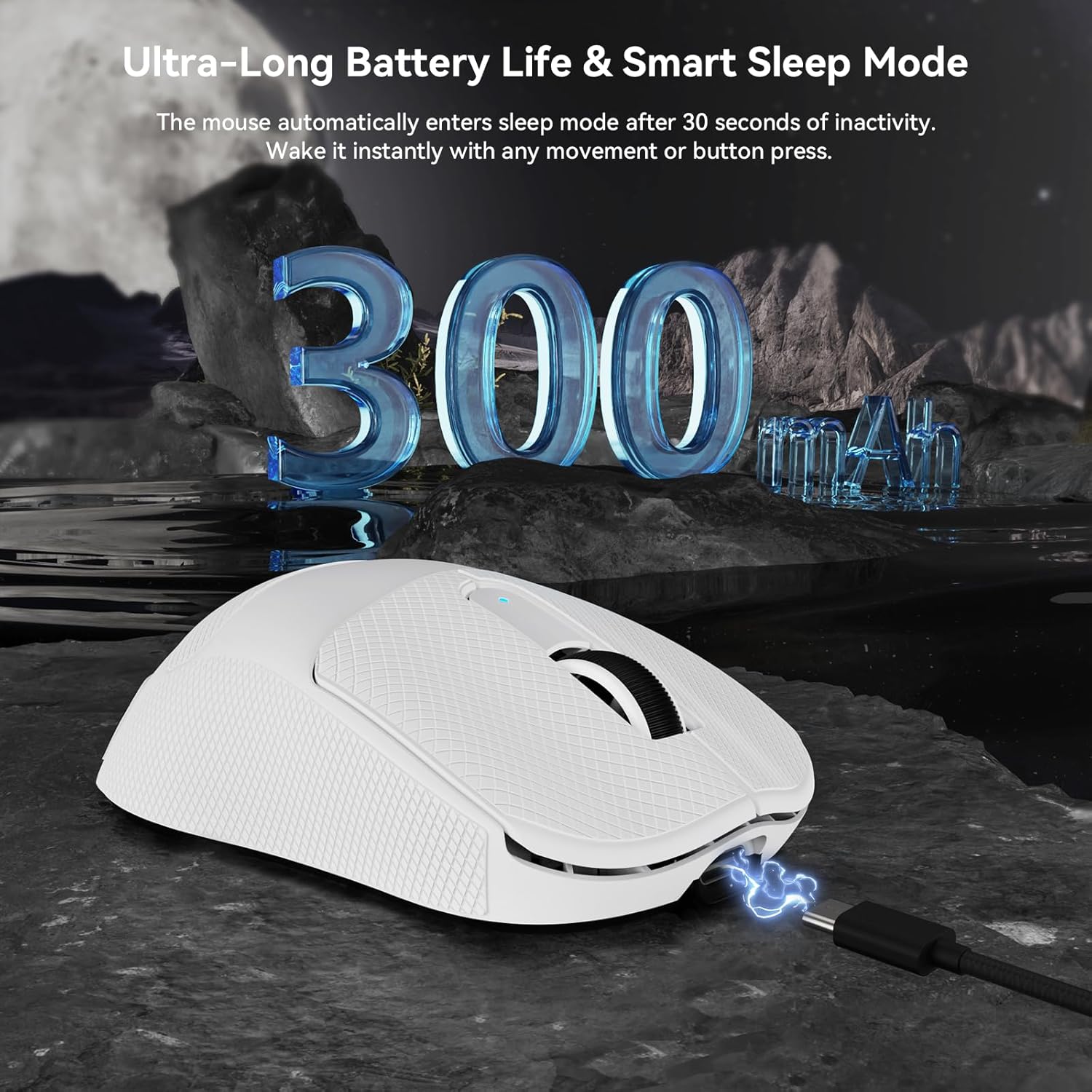
Image: The MAMBASNAKE M3 mouse connected via USB-C cable, illustrating its ultra-long 300mAh battery life and smart sleep mode feature, which activates after 30 seconds of inactivity.
4.2. Connecting via 2.4G Wireless
- Locate the 2.4G USB receiver (often stored in a compartment on the mouse's underside).
- Plug the receiver into an available USB port on your computer.
- Slide the switch on the bottom of the mouse to the '2.4G' position.
- The mouse should automatically connect.
4.3. Connecting via Bluetooth
- Slide the switch on the bottom of the mouse to the 'BT' position.
- On your computer, open Bluetooth settings and search for new devices.
- Select 'MAMBASNAKE M3' from the list of available devices to pair.
4.4. Connecting via USB-C Wired
Simply connect the mouse to your computer using the provided USB-C cable. The mouse will function as a wired mouse and charge simultaneously.
Video: An official product video from Hoopond US demonstrating the unboxing and setup of the M3 Wireless Mouse, including connecting the USB receiver and pairing via Bluetooth. The video highlights the mouse's lightweight design and various features.
5. Operating Instructions
5.1. DPI Adjustment
The mouse features a dedicated DPI button or combination for on-the-fly sensitivity adjustments. Refer to the software for precise DPI level customization up to 40,000 DPI.
5.2. Programmable Buttons
Utilize the MAMBASNAKE software to assign custom functions, macros, or key remappings to the mouse's buttons. This allows for personalized control tailored to your gaming or work style.
5.3. Smart Sleep Mode
The mouse automatically enters a smart sleep mode after 30 seconds of inactivity to conserve battery. Wake it instantly with any movement or button press.
6. Maintenance
6.1. Cleaning
To clean the mouse, use a soft, dry cloth. For stubborn dirt, slightly dampen the cloth with water or a mild cleaning solution. Avoid harsh chemicals or abrasive materials. Ensure no liquid enters the mouse's internal components.
6.2. Storage
When not in use for extended periods, store the mouse in a cool, dry place away from direct sunlight and extreme temperatures. Ensure the mouse is fully charged before long-term storage to maintain battery health.
7. Troubleshooting
7.1. Mouse Not Responding
- Check battery level and charge if necessary.
- Ensure the connectivity switch on the bottom of the mouse is in the correct position (2.4G, BT, or OFF/Wired).
- For 2.4G wireless, ensure the USB receiver is securely plugged into a working USB port.
- For Bluetooth, ensure Bluetooth is enabled on your device and the mouse is paired correctly. Try re-pairing if issues persist.
- If using wired mode, ensure the USB-C cable is securely connected to both the mouse and the computer.
7.2. Cursor Movement is Erratic or Laggy
- Clean the optical sensor on the bottom of the mouse with a soft, dry cloth.
- Ensure you are using the mouse on a suitable surface (preferably a mouse pad).
- Check for interference from other wireless devices if using 2.4G or Bluetooth.
- Adjust DPI settings to a lower value if the cursor is too sensitive.
7.3. Buttons Not Functioning
- Ensure the mouse is powered on and connected.
- Check software settings to ensure buttons are correctly assigned and not disabled.
- Restart your computer and reconnect the mouse.
8. Specifications
| Feature | Detail |
|---|---|
| Brand | MAMBASNAKE |
| Model | M3 |
| Connectivity Technology | Bluetooth 5.1, 2.4G Wireless, USB-C Wired |
| Movement Detection Technology | Optical (PAW3395PRO Sensor) |
| Max DPI | 40,000 |
| Tracking Speed | 700 IPS |
| Acceleration | 60g |
| Polling Rate | 1000Hz/1ms |
| Weight | 39g (mouse only) / 5.3 ounces (package) |
| Battery | 300mAh Rechargeable |
| Microswitches | Flagship microswitches (100 Million Clicks) |
| Special Features | Tri-Mode Connection, 40K DPI, PixArt PAW3395PRO Sensor, 39g Ultra Lightweight, Programmable Buttons, Rechargeable, Ice-feel Coating, Non-Slip Grip, PTFE High-Speed Feet |
9. Warranty and Support
MAMBASNAKE products are covered by a limited warranty against defects in materials and workmanship. For detailed warranty information, technical support, or customer service, please refer to the official MAMBASNAKE website or contact your retailer. Keep your proof of purchase for warranty claims.