1. Introduction
The CASCHO F17 Wallet Tracker Card is an ultra-slim, rechargeable smartcard designed to help you locate your valuable items using the Apple Find My network. This device is Apple MFi Certified, ensuring seamless integration with your iOS devices. It is ideal for tracking wallets, bags, passports, laptops, and other personal belongings.
2. Product Features
- Apple MFi Certified: Works directly with the Apple Find My app on your iOS devices.
- Ultra-Slim Design: At just 0.06 inches thick, it fits easily into wallet card slots.
- Rechargeable Battery: High-density lithium battery provides up to 2 years of use on a single charge.
- IP68 Water & Dust Resistance: Protected against spills, rain, and dust.
- Loud Sound Alert: Emits a 90-100dB sound to help locate nearby items.
- Lost Mode: Lock your tracker and display contact information for easy recovery.
- Anti-Loss Alert: Receive notifications when the tracker exceeds a set range.
- Privacy Protection: Anonymous and encrypted location data.
3. Package Contents
Upon unboxing your CASCHO F17 Wallet Tracker Card, you should find the following items:
- CASCHO F17 Wallet Tracker Card
- 5V Magnetic Charging Cable
- User Manual

Image: The CASCHO F17 Wallet Tracker Card shown with a wallet and an iPhone displaying the Apple Find My app, illustrating its primary use.
4. Getting Started (Setup)
4.1 Powering On/Off
- Startup: Long-press the power button on the card for 3 seconds. You will hear a startup prompt tone.
- Shutdown: Double-click the power button, then press and hold it for at least 3 seconds.
4.2 Connecting to Apple Find My
- Ensure your CASCHO F17 card is powered on.
- Open the Find My app on your iPhone, iPad, or Mac.
- Navigate to the Items tab.
- Tap + Add Item, then select Other Supported Item.
- The app will search for nearby items. When "Loshall Card" (CASCHO F17) appears, tap Connect.
- Follow the on-screen prompts to name your item and choose an emoji.
- Register the card to your Apple ID.
- Tap Finish to complete the setup.

Image: A visual step-by-step guide demonstrating the connection process of the CASCHO F17 card to the Apple Find My application.
Video: This official product video demonstrates the unboxing, startup, connection to the Apple Find My app, playing a sound, charging, and shutdown procedures for the CASCHO F17 Wallet Tracker Card.
5. Using Your Tracker (Operation)
5.1 Locating Your Item (Play Sound)
To find your item when it's nearby, open the Find My app, select your CASCHO F17 card, and tap Play Sound. The card will emit a loud sound (90-100dB) to help you pinpoint its location.

Image: The 'Play Sound' feature in the Find My app, showing how to activate an audible alert from the tracker card to locate a hidden wallet.
5.2 Lost Mode for Added Security
If you misplace your tracker card, enable Lost Mode in the Find My app. This locks your device and allows you to display a custom message with your contact information to anyone who finds it. The finder can view your details without accessing any personal data, facilitating a secure return.
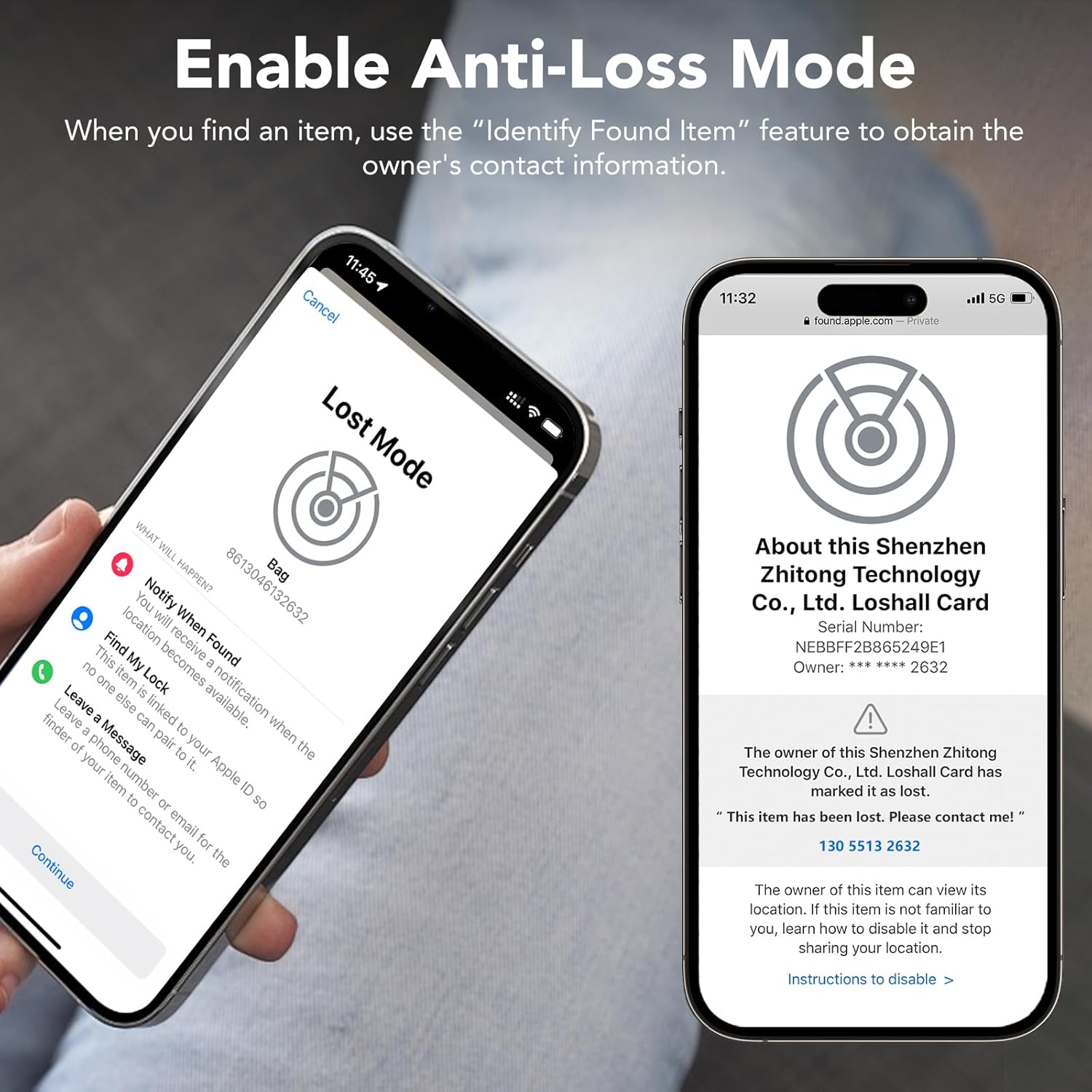
Image: The 'Lost Mode' screen within the Apple Find My app, detailing options for securing your lost item and providing contact information.
5.3 Smart Anti-Loss Alert
Receive instant notifications via the Find My app if your CASCHO F17 card exceeds a 130-foot range from your device. The app will display the last known location of the card, helping you retrace your steps.

Image: A notification on an iPhone screen alerting the user that their wallet, containing the tracker card, was left behind.
5.4 Sharing Location
You can share real-time location access of your CASCHO F17 card with family members or trusted contacts through the Find My app, allowing multiple people to help locate your items if needed.

Image: Illustration of shared location tracking, where multiple users can see the location of the tracker card on a map.
6. Charging the Device
The CASCHO F17 Wallet Tracker Card features a long-lasting, rechargeable battery. To charge your device:
- Connect the provided 5V magnetic charging cable to a standard USB charger or computer USB port.
- Align the magnetic end of the cable with the charging contacts on the CASCHO F17 card. It will snap into place.
- During charging, the indicator light on the card will be red.
- Once fully charged, the indicator light will turn green.
A single full charge can provide up to 2 years of usage, eliminating the need for frequent battery replacements.
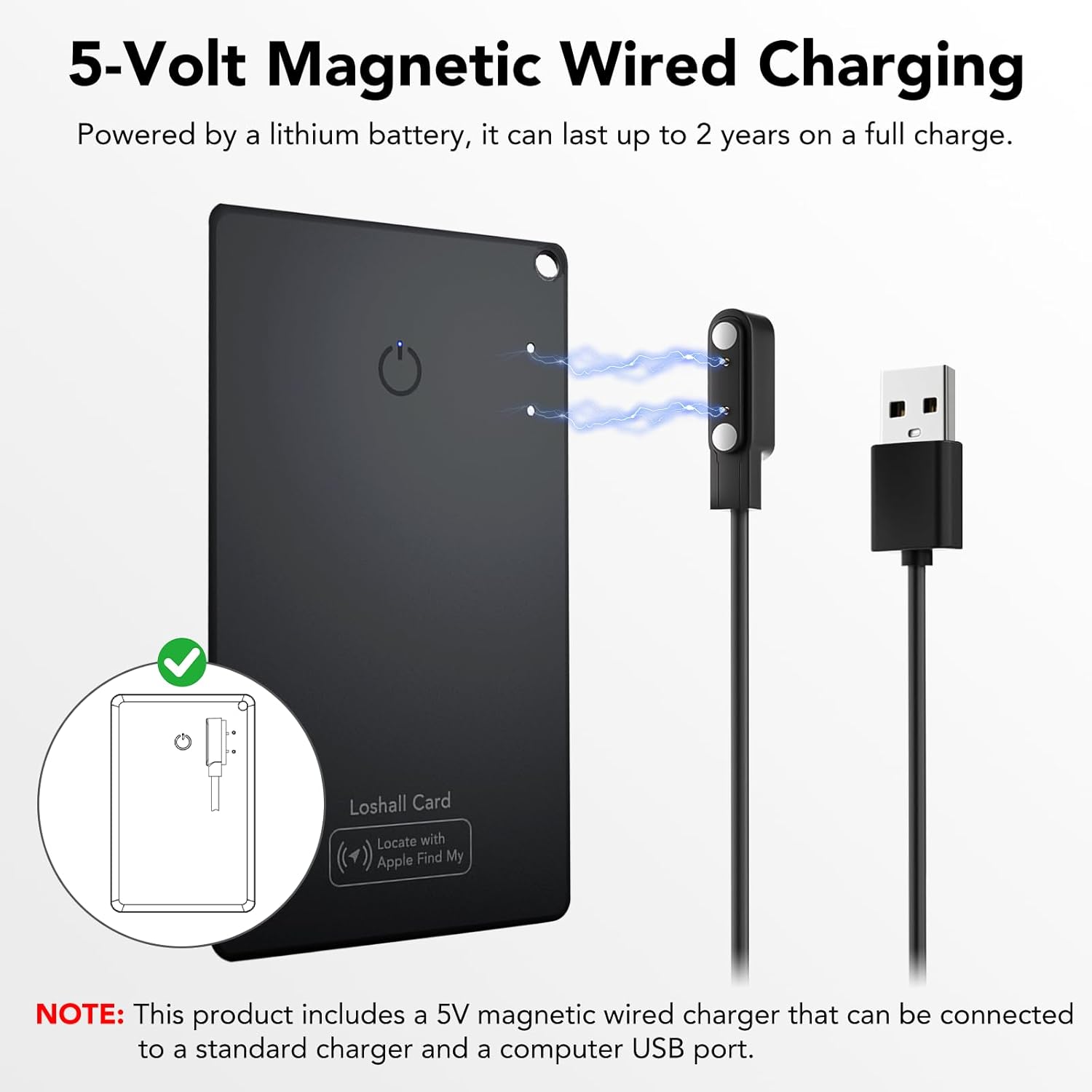
Image: Visual representation of the magnetic charging process for the CASCHO F17 card, highlighting the charging port and indicator light colors.
7. Privacy and Security
Your privacy is paramount. The CASCHO F17 Wallet Tracker Card ensures that your location data remains anonymous and end-to-end encrypted. Location history is never stored publicly, and only you have access to your tracking information.

Image: The Find My app interface with a privacy shield, illustrating the secure and encrypted nature of the tracker card's location data.
8. Product Specifications
| Specification | Detail |
|---|---|
| Model Number | F17 |
| Product Dimensions | 3.39"L x 2.12"W x 0.06"Th (86mm x 54mm x 1.6mm) |
| Item Weight | 1.44 ounces (0.06 lbs) |
| Connectivity | Bluetooth (Apple Find My network) |
| Battery Type | High-density Lithium (Rechargeable) |
| Battery Life | Up to 2 years on a single charge |
| Charging | 5V Magnetic Wired Charging |
| Water & Dust Resistance | IP68 Rated |
| Material | Plastic |
| Color | Black |
9. Troubleshooting
- Device not powering on: Ensure the device is fully charged. Long-press the power button for 3 seconds.
- Cannot connect to Find My app:
- Ensure the tracker card is powered on and within Bluetooth range of your iOS device.
- Verify that Bluetooth is enabled on your iOS device.
- Check your iOS device's internet connection.
- Ensure you have enabled Two-Factor Authentication for your Apple ID, as this is required for connecting to Find My accessories.
- Try restarting both your iOS device and the tracker card.
- Sound alert not working: Check the volume settings on your iOS device. Ensure the tracker card is within Bluetooth range.
- Charging issues: Ensure the magnetic charging cable is correctly aligned and securely connected to both the card and the power source. Check if the power source is active. The indicator light should be red during charging.
- Inaccurate location: The Find My network relies on nearby Apple devices. Location accuracy may vary in areas with fewer devices.
10. Warranty and Support
The CASCHO F17 Wallet Tracker Card comes with a 1-Year Warranty. For any product inquiries, technical support, or warranty claims, please contact us:
- Email: kaxiong002@gmail.com
- WhatsApp: +86 19129546773


