
Lenovo RM937ef262-fd9c-4028-8ddf-210a5dca759f
Lenovo V15 Pro 15.6" FHD Business Laptop User Manual
Model: RM937ef262-fd9c-4028-8ddf-210a5dca759f
1. Introduction and Overview
The Lenovo V15 Pro is a powerful and versatile 15.6-inch Full HD business laptop designed for professionals, students, and multitaskers. It features a 12th Gen Intel Core i7-1255U processor, up to 40GB DDR4 RAM, and a 1TB NVMe SSD, ensuring high performance and quick responsiveness for demanding applications.
This manual provides essential information for setting up, operating, maintaining, and troubleshooting your Lenovo V15 Pro laptop to ensure optimal performance and longevity.
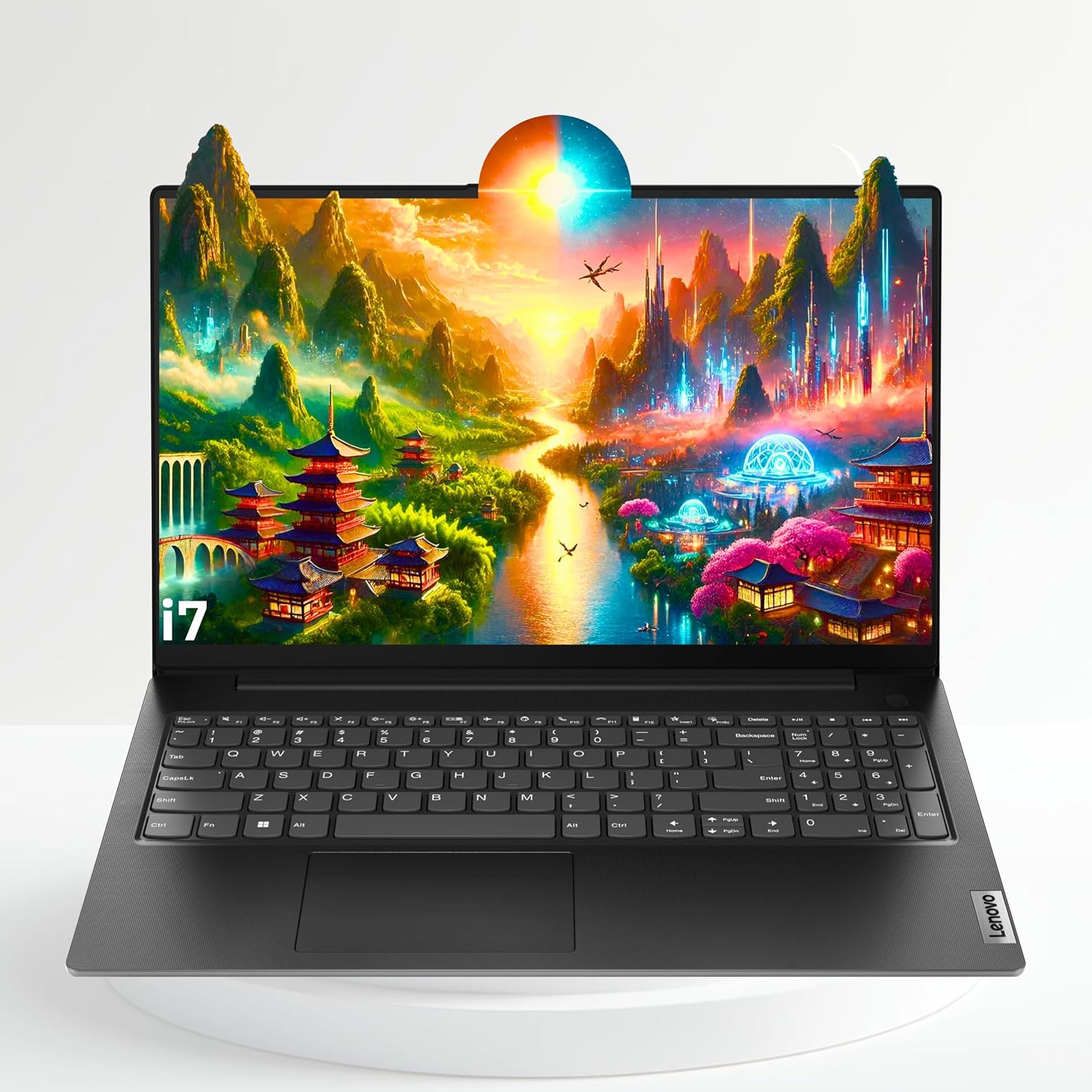
Figure 1.1: Front view of the Lenovo V15 Pro laptop, showcasing its sleek design and display.
2. Setup
2.1 Unboxing and Initial Inspection
- Carefully remove the laptop and all accessories from the packaging.
- Verify that all components listed in the packing slip are present.
- Inspect the laptop for any physical damage. If damage is found, contact your vendor immediately.
2.2 Power Connection
- Connect the power adapter to the power connector on the laptop.
- Plug the power cord into a grounded electrical outlet.
- Allow the battery to charge fully before initial use, though you can begin setup while charging.
2.3 First Boot and Windows 11 Pro Setup
- Press the power button located on the side or top of the keyboard deck.
- Follow the on-screen prompts to complete the Windows 11 Pro setup process. This includes selecting your region, language, connecting to a network, and creating a user account.
- Ensure you have an active internet connection for Windows activation and updates.
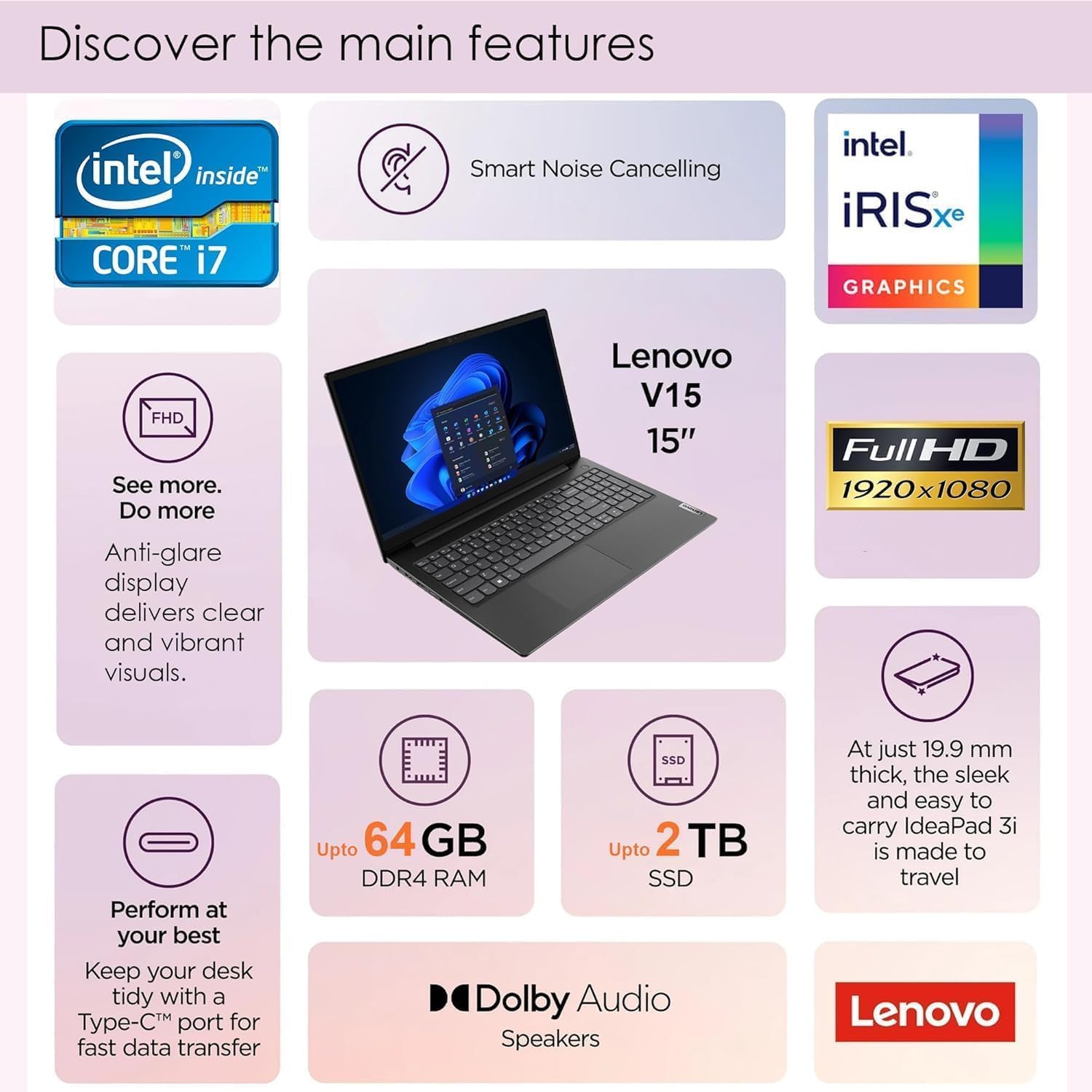
Figure 2.1: Overview of main features, useful for identifying components during setup.
2.4 Connecting Peripherals
The Lenovo V15 Pro offers various ports for connecting external devices. Refer to the diagram below for port locations and types:

Figure 2.2: Detailed view of the laptop's ports and slots for connecting external devices.
- USB Ports: Connect USB devices such as mice, keyboards, external hard drives, or flash drives.
- HDMI Port: Connect an external monitor or projector for extended display.
- Audio Jack: Connect headphones or external speakers.
- Ethernet Port (RJ-45): Connect to a wired network for stable internet access.
3. Operating Your Laptop
3.1 Keyboard and Touchpad
- The keyboard features a standard QWERTY layout with function keys (Fn) for quick access to system controls like volume, brightness, and Wi-Fi.
- The precision touchpad supports multi-touch gestures for navigation, scrolling, and zooming. Refer to Windows settings for customizing touchpad gestures.
3.2 Display Features
The 15.6-inch Full HD (1920x1080) anti-glare display provides clear and vibrant visuals. The laptop also features a 180-degree hinge, allowing the screen to lay flat for collaborative viewing or presentations.
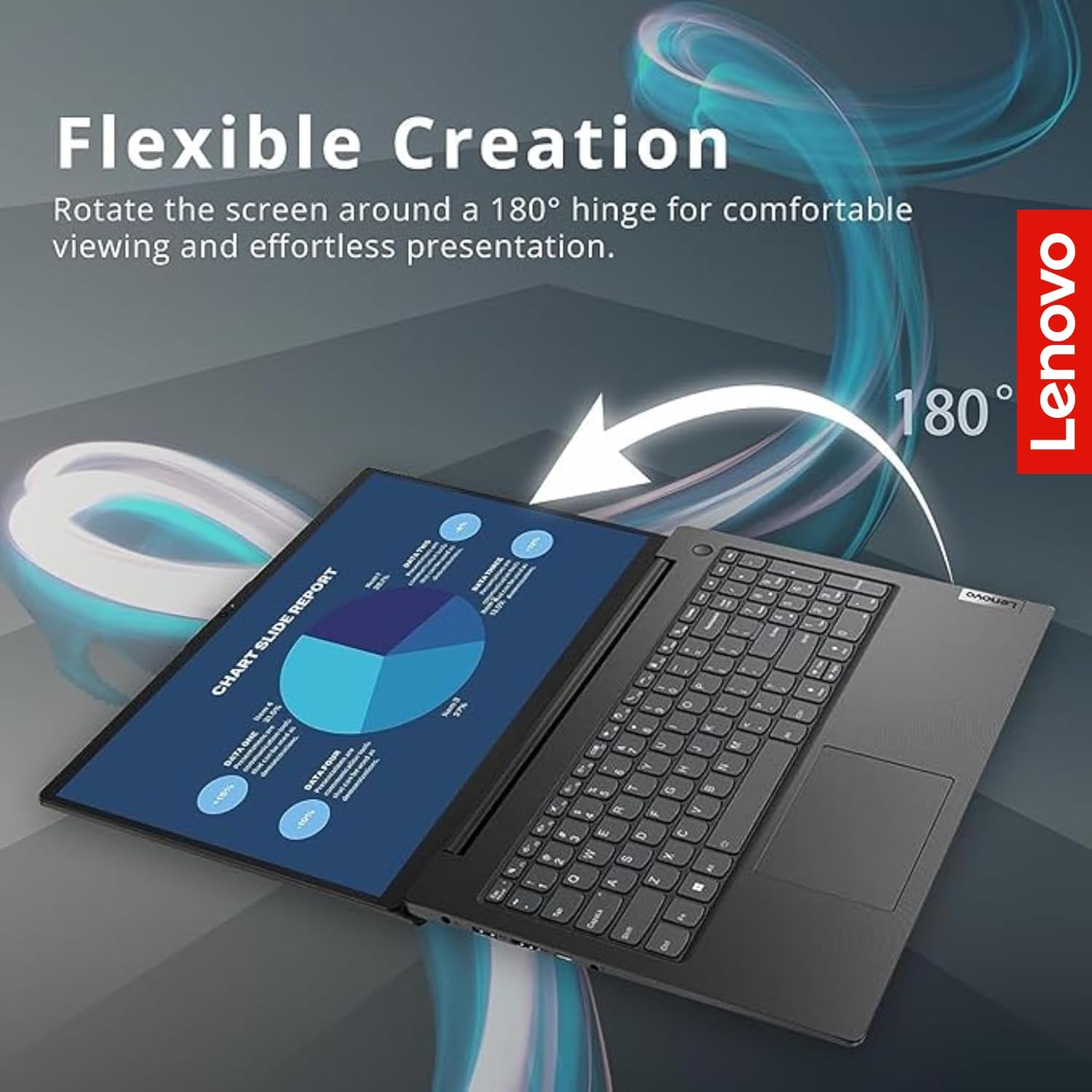
Figure 3.1: The 180-degree hinge allows for flexible viewing and presentation.
3.3 Audio and Microphone
Equipped with Dolby Audio speakers and a dual array microphone, the Lenovo V15 Pro delivers enhanced sound quality for media consumption and clear voice capture for video calls and recordings.

Figure 3.2: Audio and microphone features, along with environmental certifications.
3.4 Wireless Connectivity
- Wi-Fi: Connect to wireless networks for internet access. Manage Wi-Fi connections through the Windows network settings.
- Bluetooth: Pair with Bluetooth-enabled devices such as headphones, speakers, or external input devices.
4. Maintenance
4.1 Cleaning Your Laptop
- Use a soft, lint-free cloth slightly dampened with water or a screen cleaner to clean the display.
- For the keyboard and chassis, use a soft cloth. Avoid harsh chemicals or abrasive materials.
- Regularly clean the vents to prevent dust buildup, which can affect cooling performance.
4.2 Software Updates
- Keep your Windows operating system updated by regularly checking for updates in Windows Settings > Windows Update.
- Install driver updates from the official Lenovo support website to ensure optimal hardware performance and compatibility.
4.3 Battery Care
- Avoid fully discharging the battery frequently.
- Store the laptop in a cool, dry place if not used for extended periods.
- For optimal battery health, avoid exposing the laptop to extreme temperatures.
4.4 Storage Management
- Regularly delete unnecessary files and empty the Recycle Bin.
- Utilize cloud storage or external drives for large files to free up internal SSD space.
- Run Disk Cleanup (built-in Windows tool) periodically to remove temporary files.
5. Troubleshooting
5.1 Power Issues
- Laptop not turning on: Ensure the power adapter is securely connected to both the laptop and a working electrical outlet. Try a different outlet.
- Battery not charging: Verify the power adapter is functioning correctly. Check for any damage to the power cord or adapter.
5.2 Display Problems
- No display: Connect an external monitor to the HDMI port to check if the issue is with the laptop's internal display. Restart the laptop.
- Flickering screen: Update your graphics drivers. Adjust display refresh rate in Windows settings.
5.3 Connectivity Issues
- Wi-Fi not connecting: Ensure Wi-Fi is enabled (Fn + F7 or F8 key, depending on model). Restart your router and the laptop. Check network settings in Windows.
- Bluetooth device not pairing: Ensure Bluetooth is enabled. Make sure the device is in pairing mode and within range. Remove and re-add the device in Bluetooth settings.
5.4 System Performance
- Slow performance: Close unnecessary applications. Check Task Manager for resource-intensive processes. Ensure sufficient free storage space.
- Overheating: Ensure vents are clear and not obstructed. Use the laptop on a hard, flat surface. Consider reducing workload if consistently overheating.
6. Specifications
| Feature | Specification |
|---|---|
| Model Name | V15 |
| Processor | 12th Gen Intel Core i7-1255U (4.1 GHz) |
| RAM | 40GB DDR4 SDRAM |
| Storage | 1TB NVMe SSD (PCIE x 4) |
| Display | 15.6 Inches Full HD (1920 x 1080 pixels) Anti-Glare |
| Graphics | Integrated Intel Iris Xe Graphics |
| Operating System | Windows 11 Pro |
| Wireless Connectivity | 802.11n, Bluetooth |
| Ports | 1x USB 3.0, 2x USB 2.0, HDMI, Audio Jack, Ethernet (RJ-45), USB 3.2 Type-C |
| Color | Iron Grey |
| Dimensions (LxWxH) | 14.14 x 9.31 x 0.78 inches |
| Item Weight | 8 pounds |
| Battery | 1 Lithium Ion battery required |
7. Warranty and Support
Your Lenovo V15 Pro laptop comes with a standard manufacturer's warranty. For detailed information regarding warranty terms, coverage, and duration, please refer to the warranty card included with your product or visit the official Lenovo support website.
For technical support, driver downloads, and additional resources, please visit the Lenovo support portal. You can typically find support contact information and FAQs on their website.
- Online Support: Visit the official Lenovo support website for drivers, manuals, and troubleshooting guides.
- Contact Support: Refer to the Lenovo website for regional contact numbers for technical assistance.