
1. Introduction
Thank you for choosing the Havit Gamenote KB904L Magnetic Switch Mechanical Keyboard. This manual provides essential information for setting up, operating, maintaining, and troubleshooting your new keyboard. Please read it thoroughly to ensure optimal performance and longevity of your device.
2. Safety Information
- Keep the keyboard away from liquids and excessive moisture.
- Avoid exposing the keyboard to extreme temperatures.
- Do not attempt to disassemble or modify the keyboard, as this may void the warranty and cause damage.
- Use only the provided USB cable for connection.
- Clean the keyboard with a soft, dry cloth.
3. Package Contents
Please check the package for the following items:
- Havit Gamenote KB904L Mechanical Keyboard
- USB-C to USB-A Cable
- Keycap Puller (may be included)
- Switch Puller (may be included)
- User Manual (this document)
4. Setup
4.1 Connecting the Keyboard
- Locate the USB-C port on the back or side of the Havit Gamenote KB904L keyboard.
- Connect the USB-C end of the provided cable to the keyboard.
- Connect the USB-A end of the cable to an available USB port on your computer.
- The keyboard will be automatically recognized by your operating system. No additional drivers are typically required for basic functionality.

Image: The Havit Gamenote KB904L keyboard shown with its detachable USB-C cable, illustrating the connection point.
5. Operating Instructions
5.1 Basic Keyboard Functions
The Havit Gamenote KB904L functions as a standard mechanical keyboard. All keys perform their labeled functions. For special characters and secondary functions, use the Shift key as usual.
5.2 RGB Lighting Control
The keyboard features customizable RGB backlighting. Use the Function (Fn) key in combination with specific keys to adjust lighting effects and brightness.
- Fn + [Key]: Specific key combinations will cycle through various RGB lighting modes, adjust brightness, or change color patterns. Refer to the keycaps for printed legends indicating lighting controls (e.g., Fn + F1-F12, or dedicated lighting keys).
- Brightness Adjustment: Typically, Fn + Up/Down arrow keys or similar combinations control brightness.
- Speed Adjustment: Some lighting effects allow speed adjustment via Fn + Left/Right arrow keys or similar.
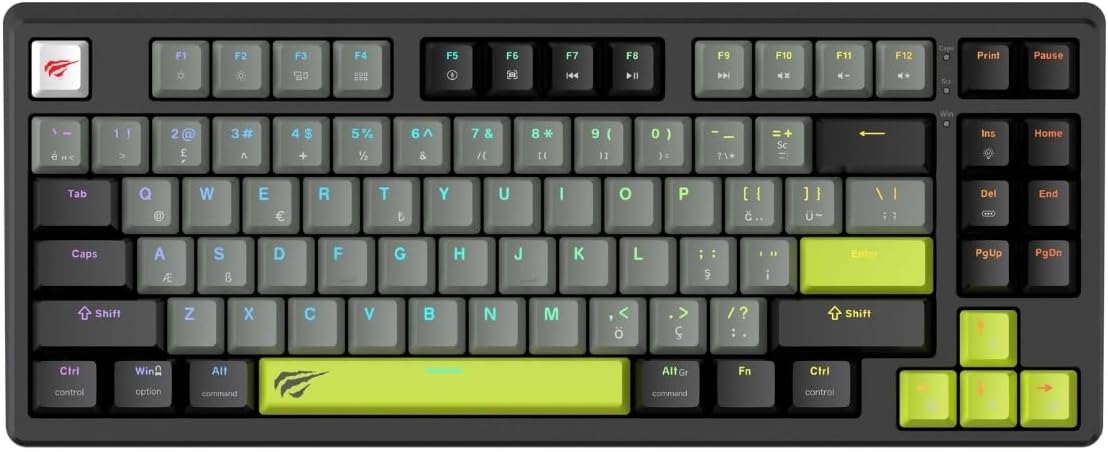
Image: A full view of the Havit Gamenote KB904L keyboard, showcasing its layout and potential RGB lighting.
5.3 Magnetic Switches & Rapid Trigger
The KB904L utilizes magnetic switches, which allow for adjustable actuation points and the Rapid Trigger feature.
- Adjustable Actuation: Magnetic switches allow you to customize how deep a key needs to be pressed before it registers an input. This can be configured via the keyboard's dedicated software (if available) or specific onboard commands.
- Rapid Trigger: This feature allows a key to reset instantly when it begins to move upwards, enabling faster, more responsive repeated presses without needing to release the key fully. This is particularly beneficial for gaming. Configuration for Rapid Trigger is typically done through the keyboard's software.
5.4 Hot-Swappable Design
The Havit Gamenote KB904L features a hot-swappable design, allowing you to change the mechanical switches without soldering. This enables customization of typing feel and sound.
- Switch Compatibility: Ensure replacement switches are compatible with the keyboard's socket type (e.g., 3-pin or 5-pin, depending on the specific model's design).
- Using the Switch Puller: Gently use the provided switch puller to remove existing switches. Align the puller's prongs with the clips on the switch and squeeze firmly while pulling upwards.
- Installing New Switches: Align the pins of the new switch with the holes on the PCB. Press down firmly until the switch clicks into place. Ensure pins are not bent during installation.

Image: An angled view of the Havit Gamenote KB904L keyboard, illustrating the individual keycaps and the underlying switch structure, relevant for hot-swapping.
5.5 8kHz Polling Rate
The keyboard operates at an 8kHz polling rate, meaning it reports inputs to your computer 8000 times per second. This significantly reduces input latency, providing an extremely responsive experience, especially critical for competitive gaming.
6. Maintenance
6.1 Cleaning the Keyboard
- General Cleaning: Use a soft, dry, lint-free cloth to wipe down the keycaps and chassis.
- Dust Removal: Use compressed air to blow away dust and debris from between the keycaps.
- Deep Cleaning (Keycaps): For stubborn dirt, you can carefully remove keycaps using a keycap puller and clean them with mild soap and water. Ensure they are completely dry before reattaching.

Image: A clear top-down view of the Havit Gamenote KB904L keyboard, useful for illustrating areas to clean.
6.2 Replacing Switches
As mentioned in the operating section, the hot-swappable design allows for easy switch replacement. Always ensure the keyboard is disconnected from the computer before attempting to remove or install switches.
- Use the switch puller to carefully remove the desired switch.
- Insert the new switch, ensuring its pins align correctly with the PCB sockets.
- Press down gently but firmly until the switch is fully seated.
7. Troubleshooting
- Keyboard Not Responding:
- Ensure the USB cable is securely connected to both the keyboard and the computer.
- Try connecting the keyboard to a different USB port on your computer.
- Test the keyboard on another computer to rule out a system-specific issue.
- Restart your computer.
- RGB Lighting Not Working:
- Check if the lighting is turned off or set to minimum brightness using the Fn key combinations.
- Ensure any keyboard software is running correctly and not conflicting.
- Specific Keys Not Registering:
- If the keyboard is hot-swappable, carefully remove and re-seat the problematic switch. Ensure its pins are not bent.
- Clean around the keycap and switch to remove any debris.
- If possible, swap the problematic switch with a known working switch from another key to determine if the issue is with the switch or the PCB socket.
- Keyboard Lag or Input Delay:
- Ensure no other high-bandwidth USB devices are connected to the same USB hub.
- Try connecting to a different USB port, preferably a USB 3.0 or higher port.
- Check for any background processes on your computer that might be consuming excessive CPU resources.
8. Specifications
| Feature | Description |
|---|---|
| Model | KB904L |
| Brand | Havit |
| Keyboard Type | Mechanical, Magnetic Switch |
| Polling Rate | 8kHz |
| Backlighting | RGB |
| Key Features | Magnetic Switches, Rapid Trigger, Hot-Swappable Design |
| Recommended Use | Gaming |
9. Warranty and Support
The Havit Gamenote KB904L Mechanical Keyboard comes with a 2-year distributor warranty. Please retain your proof of purchase for warranty claims.
For technical support, warranty inquiries, or further assistance, please contact your local Havit distributor or visit the official Havit website for support resources.
Note: Warranty terms and conditions may vary by region.
