
1. Introduction
The FREEWOLF M75 is a versatile 75% layout wireless gaming keyboard designed for various operating systems and devices. It features dual-mode connectivity (Bluetooth and 2.4GHz wireless), a multi-functional knob, an OLED display, and gradient PBT keycaps. This manual provides detailed instructions for setting up, operating, and maintaining your M75 keyboard.
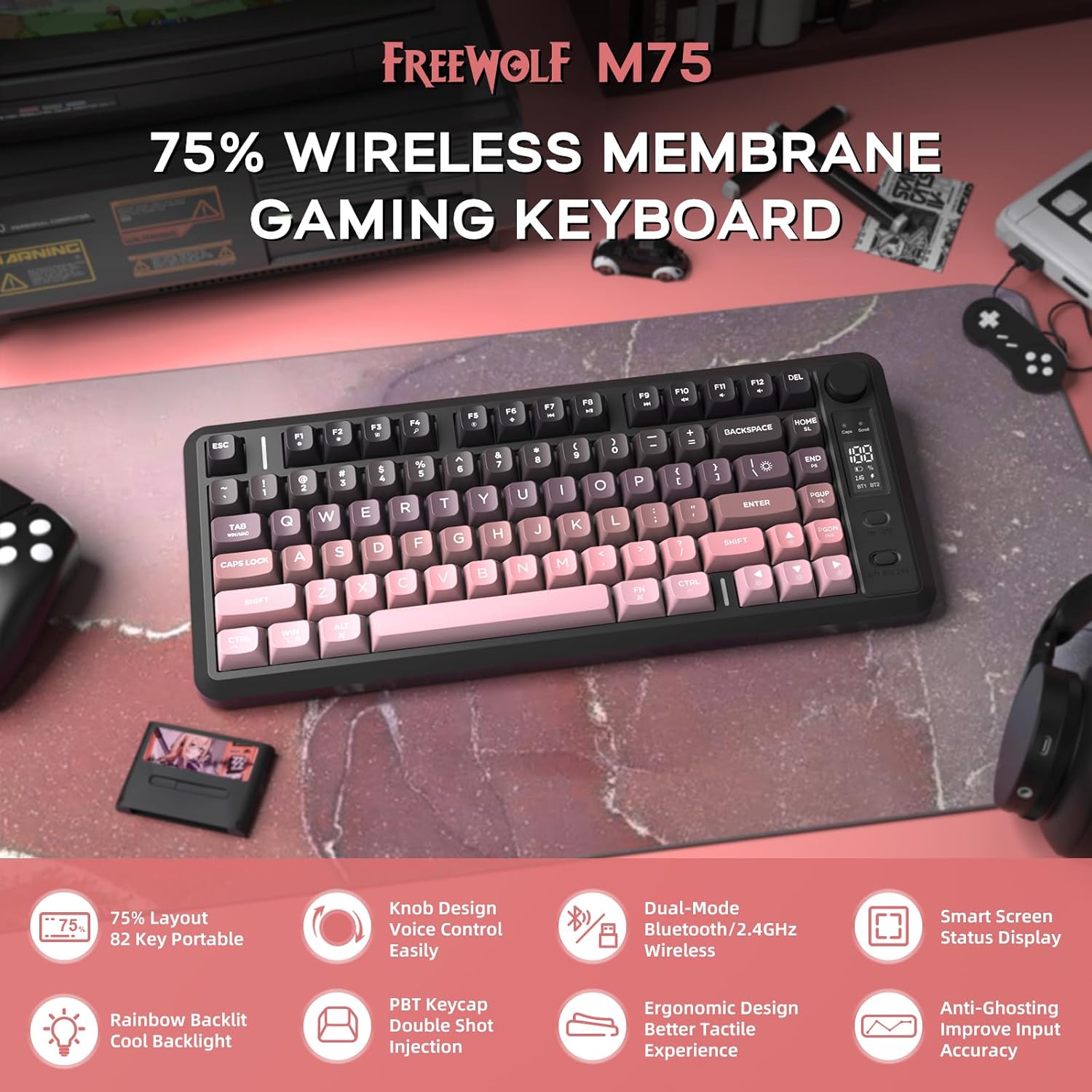
Image 1: Overview of the FREEWOLF M75 Wireless Gaming Keyboard.
2. Package Contents
Please check the package for the following items:
- M75 Keyboard x 1
- USB-C Cable x 1
- 2.4GHz Receiver x 1
- User Manual x 1
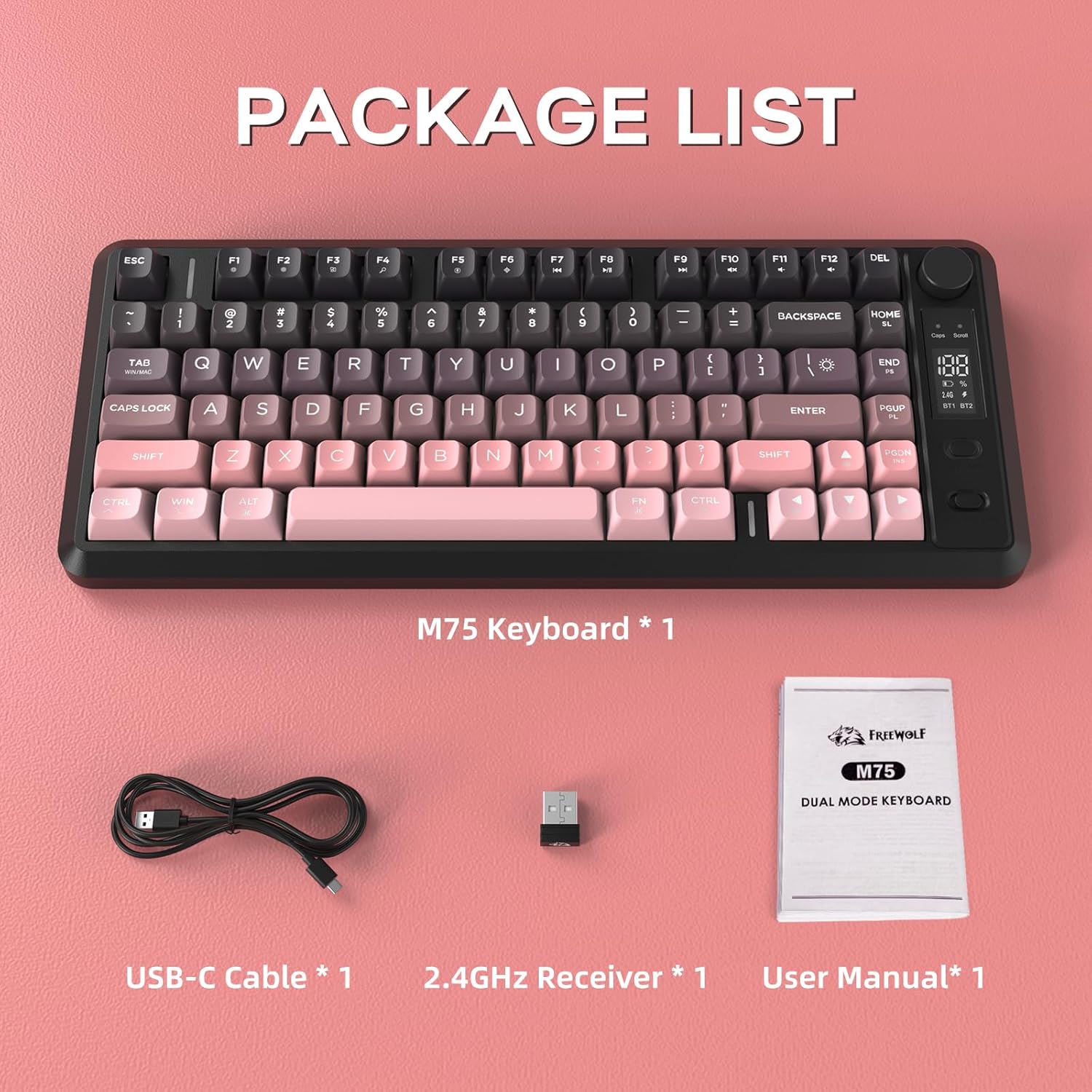
Image 2: Contents included in the FREEWOLF M75 keyboard package.
3. Specifications
| Model | M75 |
| Layout | 75% (82-Key Compact Layout) |
| Connectivity | Bluetooth 5.1/5.2, 2.4GHz Wireless |
| Keycaps | Gradient PBT Double-Shot |
| Backlight | Rainbow Backlit |
| Battery Capacity | 2000mAh |
| Anti-Ghosting | 26-Key Rollover |
| Compatible Devices | Laptop, PC, Tablet (Windows, macOS, Linux) |
| Special Features | OLED Display, Multi-functional Knob, Ergonomic Design |

Image 3: The 75% compact layout and 26-key anti-ghosting feature of the M75 keyboard.
4. Setup
4.1 Charging the Keyboard
Before first use, or when the OLED display indicates low battery, connect the keyboard to a power source using the provided USB-C cable. The OLED display will show the charging status.

Image 4: The M75 keyboard features a 2000mAh rechargeable battery.
4.2 Connecting the Keyboard
The M75 keyboard supports two wireless connection modes:
- 2.4GHz Wireless Mode:
- Insert the 2.4GHz USB receiver into an available USB port on your computer or device.
- Turn on the keyboard. The keyboard should automatically connect. The OLED display will indicate the 2.4G connection status.
- Bluetooth Mode (BT1/BT2):
- Turn on the keyboard.
- Press the dedicated Bluetooth button (usually marked BT1 or BT2) to select a Bluetooth channel.
- On your device (PC, laptop, tablet), enable Bluetooth and search for new devices.
- Select "FREEWOLF M75" from the list of available devices to pair. The OLED display will show the Bluetooth connection status.
- To switch between paired Bluetooth devices, press the corresponding BT1 or BT2 button.
The keyboard is compatible with Windows PC, MacBook, and Linux systems. For gaming consoles like Switch, Xbox, or PlayStation, an adapter may be required for connectivity.

Image 5: The M75 keyboard supports both 2.4GHz wireless and Bluetooth modes for multi-device compatibility.
5. Operating Instructions
5.1 Multi-functional Knob and OLED Display
The M75 keyboard features a multi-functional knob and an OLED display for enhanced control and information.
- Knob Functions:
- Press the knob: Play/Pause media.
- Rotate right: Increase volume.
- Rotate left: Decrease volume.
- Press and hold the knob for 5 seconds: Adjust backlight settings.
- OLED Display: Shows real-time information including battery level, current connection mode (2.4G, BT1, BT2), charging status, and low battery warnings.
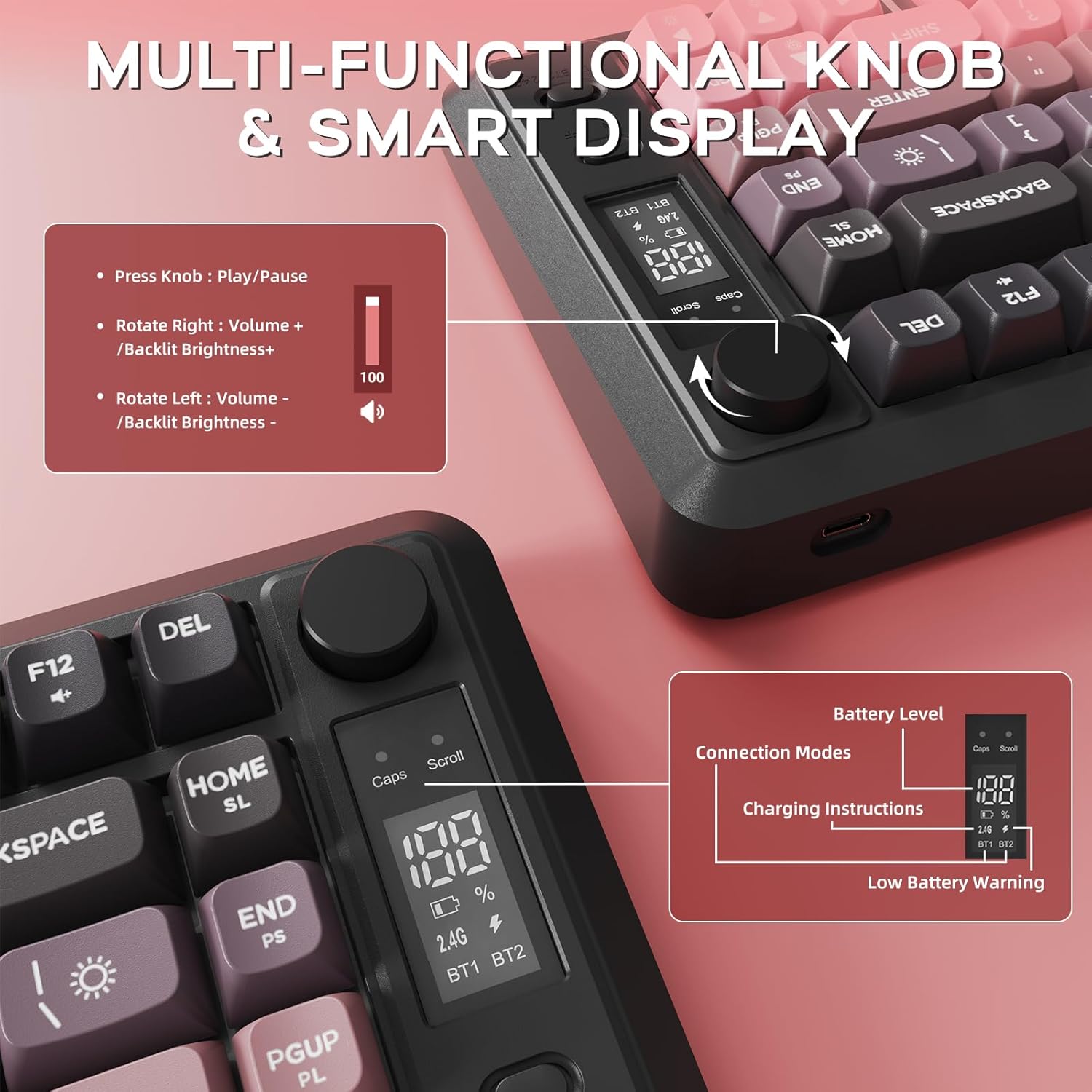
Image 6: Detailed view of the multi-functional knob and OLED display on the M75 keyboard.
5.2 Backlight Control
The M75 keyboard features a rainbow backlight. Note that the keycaps themselves are opaque, meaning the light illuminates around and beneath the keys, not through the legends.
- Switch Light Modes: Press Fn + I to cycle through different backlight modes.
- Adjust Brightness: Press Fn + ↑ (Up Arrow) to increase brightness, and Fn + ↓ (Down Arrow) to decrease brightness.
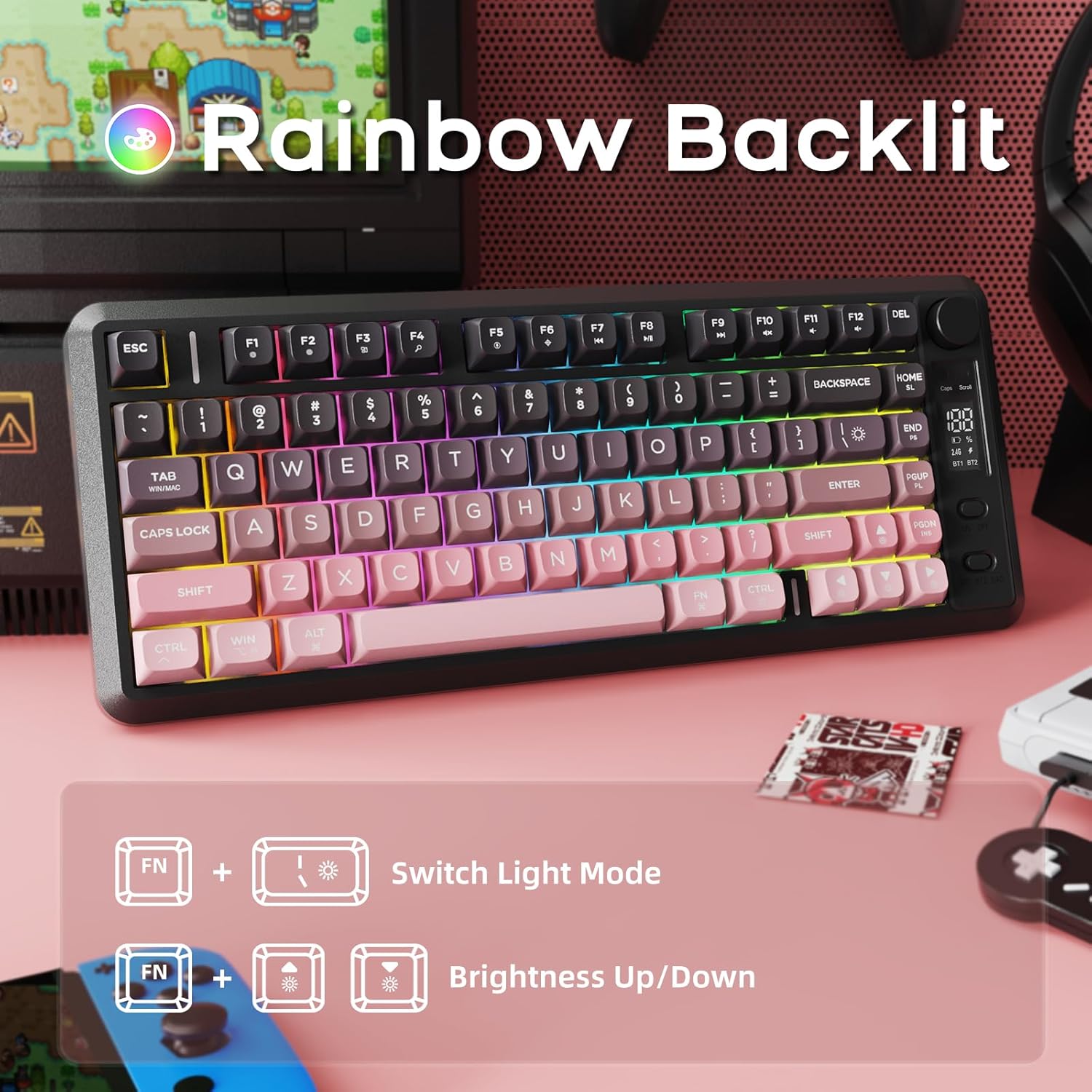
Image 7: The M75 keyboard features a vibrant rainbow backlight.
5.3 Anti-Ghosting
The keyboard is equipped with 26-key rollover technology, ensuring that multiple key presses are registered accurately and simultaneously. This prevents 'ghosting' or missed inputs during fast typing or complex gaming commands.
6. Maintenance
6.1 Cleaning the Keyboard
- Disconnect the keyboard from all devices before cleaning.
- Use a soft, dry cloth to wipe the surface of the keyboard.
- For stubborn dirt, lightly dampen the cloth with water or a mild cleaning solution. Avoid excessive moisture.
- Use compressed air to remove dust and debris from between the keycaps.
6.2 PBT Keycaps Care
The M75 keyboard features durable double-shot PBT keycaps, which are resistant to oils, fading, and yellowing. Regular cleaning as described above will help maintain their appearance and longevity.

Image 8: The M75 keyboard is equipped with durable double-shot PBT keycaps.
6.3 Battery Care
- Avoid exposing the keyboard to extreme temperatures.
- Charge the keyboard regularly to maintain battery health, especially if it will not be used for an extended period.
7. Troubleshooting
- Keyboard not connecting:
- Ensure the keyboard is powered on.
- Check the battery level on the OLED display and charge if necessary.
- For 2.4GHz mode, ensure the USB receiver is securely plugged in.
- For Bluetooth mode, ensure Bluetooth is enabled on your device and the correct channel (BT1/BT2) is selected on the keyboard. Try re-pairing the device.
- Try connecting the keyboard via USB-C cable to check if it functions in wired mode.
- Keys not responding:
- Check for debris under the keycaps.
- Ensure the keyboard is properly connected.
- Restart your computer/device.
- Backlight not working or dim:
- Adjust brightness using Fn + ↑/↓.
- Ensure the battery has sufficient charge.
- OLED display not showing information:
- Ensure the keyboard is powered on.
- Check battery level.
8. Warranty and Support
For warranty information and technical support, please refer to the documentation provided with your purchase or contact FREEWOLF customer service through their official website or the retailer where the product was purchased.


