1. Introduction
Thank you for choosing the VUEKIME 4K Portable Projector. This manual provides essential information for setting up, operating, and maintaining your projector. Please read it thoroughly before use to ensure optimal performance and longevity of your device. This projector features automatic focus, 6D automatic keystone correction, Android 13.0, 1000 ANSI lumens, 4K video support, dual 8W HiFi speakers, bidirectional Bluetooth 5.2, and WiFi 6 connectivity.
2. Product Overview
The VUEKIME 4K Portable Projector is designed for versatile entertainment and professional use, offering high-quality visuals and immersive audio in a compact form factor.
Key Features:
- Intelligent Screen Adjustment: Automatic focus and 6D automatic keystone correction for a clear, rectangular image within 10 seconds.
- Superior Image Quality: 1000 ANSI lumens (equivalent to 40,000 lumens) with 4K video support, 20,000:1 contrast ratio, and 99% NTSC color gamut.
- Integrated Android 13.0: Access to over 5000 applications including YouTube, Netflix, MAX, Prime Video, Disney+, and more, without external devices.
- Enhanced Audio: Two built-in 8W HiFi speakers and bidirectional Bluetooth 5.2 for connecting external speakers or using the projector as a Bluetooth speaker.
- Stable Connectivity: Advanced WiFi 6 (2.4/5GHz) and an Ethernet (RJ45) port for fast and stable wireless or wired connections.
- Multiple Connection Options: HDMIx2, USBx2, AV, Ethernet, and 3.5mm audio output for compatibility with various devices like TV sticks, Chromecast, Roku, iOS/Android phones, PCs, laptops, PS4, and PS5.
- Flexible Projection: Up to 300-inch screen size with a 50% to 100% zoom function.
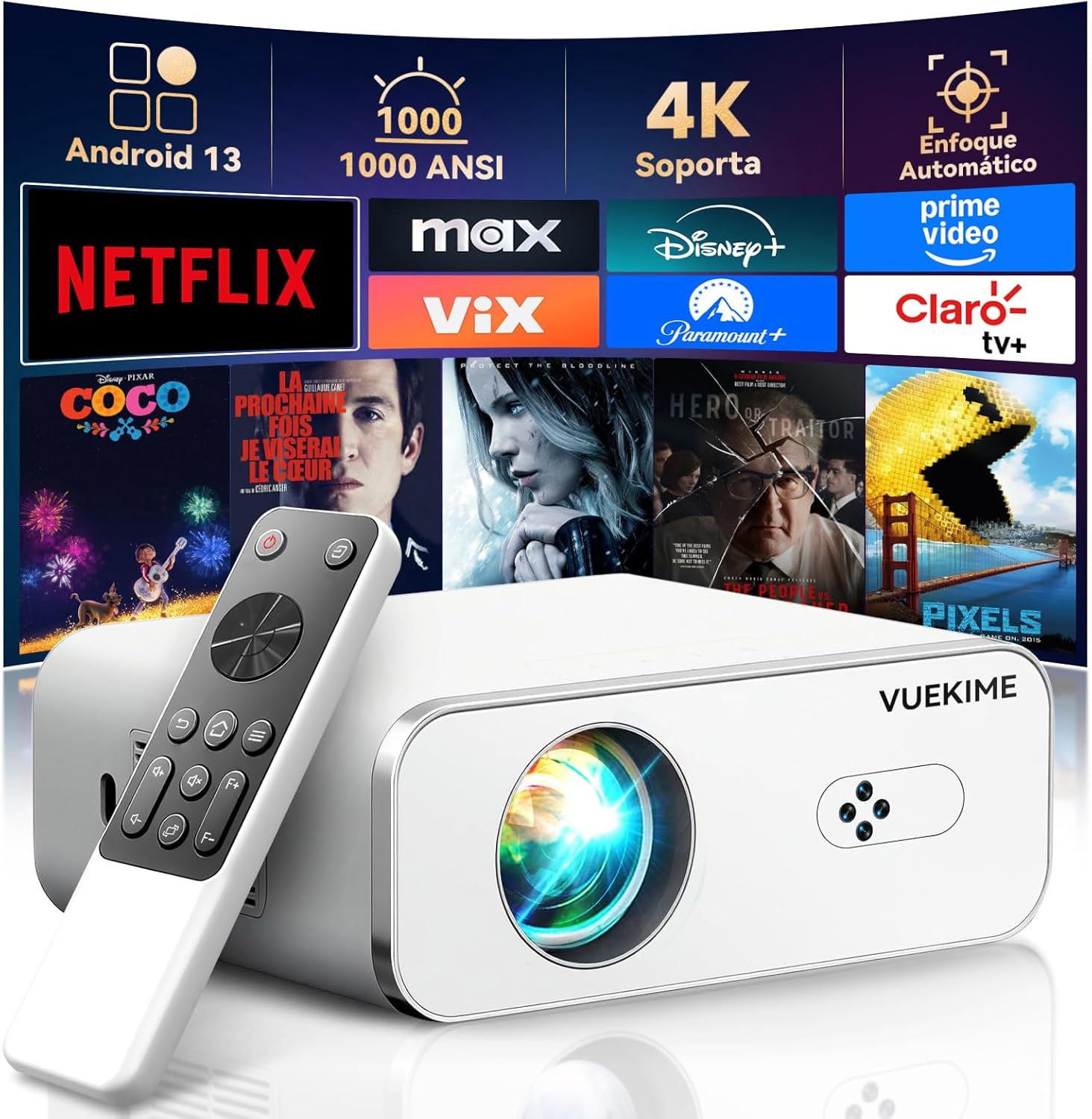
Figure 2.1: VUEKIME 4K Portable Projector with remote and interface elements.
3. Setup
3.1 Unpacking and Placement
- Carefully remove the projector and all accessories from the packaging.
- Place the projector on a stable, flat surface or mount it securely. Ensure proper ventilation around the device.
- Position the projector at an appropriate distance from the projection surface (wall or screen). Refer to the projection distance guide below for optimal screen sizes.
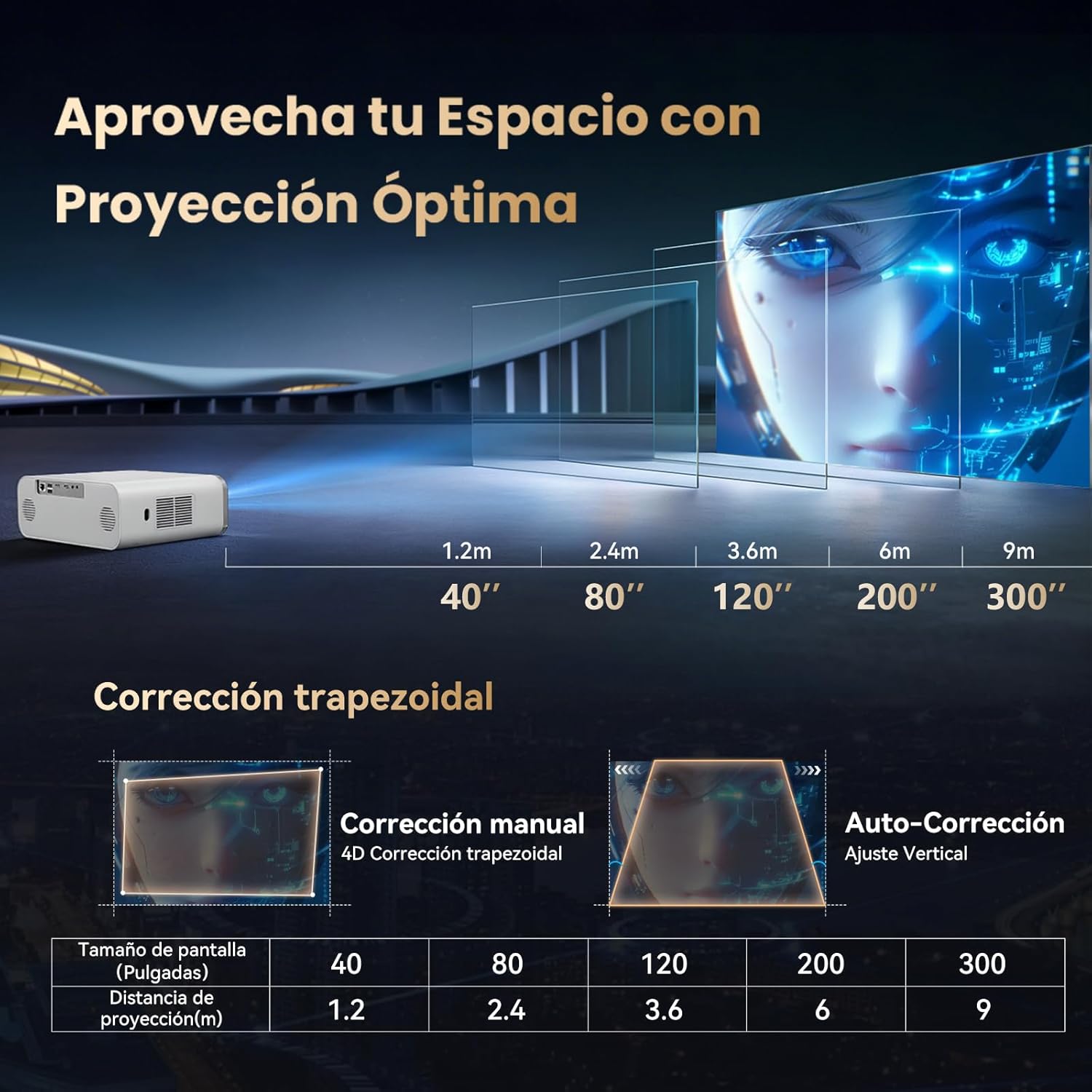
Figure 3.1: Optimal projection distances for various screen sizes.
3.2 Power Connection
Connect the power adapter to the projector's power input port, then plug the adapter into a suitable electrical outlet. The projector will power on automatically or can be turned on using the power button on the device or remote control.
3.3 Initial Screen Adjustment
Upon powering on, the projector will automatically perform focus and keystone correction. This process typically takes about 10 seconds to achieve a clear and rectangular image. Manual adjustments are generally not required.

Figure 3.2: Automatic focus and keystone correction in action.
4. Operating Instructions
4.1 Navigating the Android 13.0 Interface
The projector runs on Android 13.0, providing a smart TV experience. Use the included remote control to navigate the interface. The home screen displays various applications and settings.
4.2 Using Applications
The integrated app store offers access to over 5000 applications, including popular streaming services like Netflix, YouTube, MAX, Prime Video, Disney+, Paramount+, ClaroVideo, Vix, and Hulu. Ensure the projector is connected to Wi-Fi to download and use these applications.

Figure 4.1: Integrated application store interface.
4.3 Screen Mirroring
The projector supports screen mirroring from iOS and Android devices. Connect your mobile device to the same Wi-Fi network as the projector and use the appropriate screen mirroring function on your device (e.g., AirPlay for iOS, Cast for Android).
4.4 Zoom Function
Adjust the screen size from 50% to 100% using the zoom function in the projector settings. This allows you to fine-tune the image size without moving the projector.
5. Connectivity
5.1 Wireless Connectivity
- WiFi 6: Supports 2.4GHz and 5GHz networks for fast and stable wireless streaming and screen mirroring.
- Bluetooth 5.2: Bidirectional Bluetooth allows you to connect external Bluetooth speakers for enhanced audio or use the projector as a standalone Bluetooth speaker to play music from your phone.

Figure 5.1: Wireless and wired connectivity options.
5.2 Wired Connectivity
The projector is equipped with multiple ports for connecting various external devices:
- HDMI (x2): Connect TV sticks, Chromecast, Roku, laptops, gaming consoles (PS4, PS5), and other HDMI-enabled devices.
- USB (x2): Connect USB drives for media playback or other USB accessories.
- AV: Connect older devices with AV output.
- Ethernet (RJ45): Provides a stable wired internet connection, ideal for 4K content streaming without interruptions.
- 3.5mm Audio Out: Connect headphones or external wired speakers.
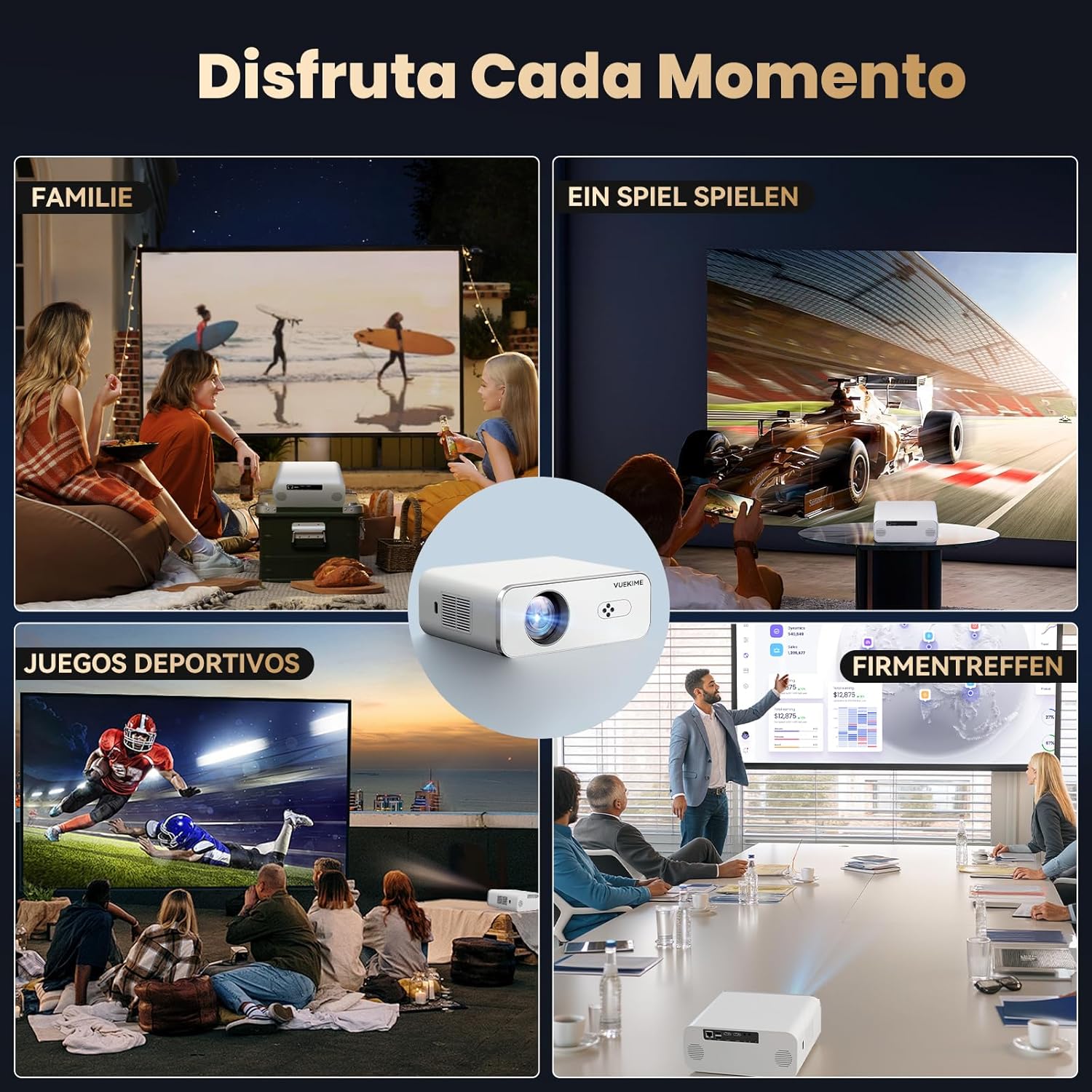
Figure 5.2: Available input/output ports and compatible devices.
6. Maintenance
6.1 General Care
- Keep the projector in a clean, dry environment away from excessive dust, moisture, and extreme temperatures.
- Avoid placing heavy objects on top of the projector.
- Do not block the ventilation openings, as this can lead to overheating.
6.2 Cleaning the Lens
Use a soft, lint-free cloth specifically designed for optical lenses to gently wipe the projector lens. Avoid using abrasive cleaners or excessive force, which can scratch the lens.
6.3 Fan and Ventilation
The projector features a silent cooling system. Periodically check the air vents for dust accumulation. If necessary, use a can of compressed air to gently clear any dust from the vents to maintain optimal airflow and prevent overheating.
7. Troubleshooting
If you encounter issues with your VUEKIME 4K Portable Projector, please refer to the following common problems and solutions:
| Problem | Possible Cause | Solution |
|---|---|---|
| No image or blurry image | Power issue, incorrect input source, focus/keystone problem | Ensure power is connected. Check input source. Allow automatic focus/keystone to complete. If still blurry, manually adjust focus if available in settings. |
| No sound | Volume too low, incorrect audio output, external device issue | Increase projector volume. Check audio settings to ensure internal speakers are selected or external Bluetooth device is properly paired. Verify audio output from the source device. |
| Wi-Fi/Bluetooth connection unstable | Interference, distance from router, incorrect password | Ensure projector is within range of the router. Reduce interference from other devices. Re-enter Wi-Fi password. Consider using the Ethernet port for a more stable connection. |
| Streaming apps not working (e.g., Netflix) | App update required, system incompatibility, internet issue | Check for app updates within the projector's app store. Ensure a stable internet connection. Some apps may have specific system requirements; verify compatibility or try reinstalling the app. |
| Projector overheating | Blocked vents, prolonged use in hot environment | Ensure all ventilation openings are clear. Operate in a well-ventilated area. Turn off the projector and allow it to cool down if it feels excessively hot. |
8. Specifications
| Feature | Specification |
|---|---|
| Brand | VUEKIME |
| Model | Proyector 4K |
| Operating System | Android 13.0 |
| Brightness | 1000 ANSI Lumens |
| Resolution Support | Native 1080P, Supports 4K Video |
| Display Resolution | 3840 x 2160 (Input) |
| Contrast Ratio | 20,000:1 |
| Color Gamut | 99% NTSC |
| Aspect Ratio | 16:9 |
| Special Features | Automatic Focus, 6D Automatic Keystone Correction |
| Connectivity Technology | HDMI (x2), USB (x2), AV, Ethernet (RJ45), 3.5mm Audio Jack |
| Wireless Connectivity | WiFi 6 (2.4GHz/5GHz), Bluetooth 5.2 (Bidirectional) |
| Built-in Speakers | 2 x 8W HiFi Speakers |
| Max Projection Size | 300 inches |
| Zoom Function | 50% - 100% |
| Form Factor | Portable |
| Dimensions | 35.9 x 27.8 x 13.4 cm |
| Weight | 2.2 kg |
9. Warranty and Support
VUEKIME is committed to providing excellent customer service and product reliability. Your VUEKIME 4K Portable Projector comes with the following:
- 24/7 Customer Attention: Dedicated support available around the clock.
- 2-Year Money-Back Guarantee: For your peace of mind.
- 3-Year Warranty: Covers manufacturing defects and ensures product quality.
- Lifetime Technical Support: Assistance with any technical issues you may encounter throughout the product's lifespan.
If you have any questions, concerns, or require technical assistance, please contact VUEKIME customer support through the official channels provided at the point of purchase or on the VUEKIME website. Please have your product model and purchase information ready when contacting support.


