
1. Introduction
This manual provides detailed instructions for the setup, operation, and maintenance of your FREEWOLF M75 Wireless Dual-Mode Keyboard. Please read this manual thoroughly before using the product to ensure proper functionality and longevity.

Image 1.1: The FREEWOLF M75 Wireless Dual-Mode Keyboard, showcasing its compact layout and gradient keycaps.
2. Package Contents
Before proceeding with setup, please verify that all items are present in the package:
- FREEWOLF M75 Keyboard x 1
- USB-C Cable x 1
- 2.4GHz Wireless Receiver x 1
- User Manual x 1

Image 2.1: Contents of the FREEWOLF M75 keyboard package, including the keyboard, USB-C cable, 2.4GHz receiver, and user manual.
3. Setup Instructions
3.1 Charging the Keyboard
The M75 keyboard is equipped with a 2000mAh rechargeable battery. For optimal performance, fully charge the keyboard before first use.
- Connect the supplied USB-C cable to the keyboard's charging port.
- Connect the other end of the USB-C cable to a USB power source (e.g., computer USB port, wall adapter).
- The OLED display will indicate charging status. A full charge provides approximately 150 hours of use with the backlight off, or 24 hours with the backlight on.

Image 3.1: Visual representation of the M75 keyboard's 2000mAh battery, highlighting its estimated usage duration with and without backlighting.
3.2 Connecting the Keyboard
The M75 keyboard supports dual-mode connectivity: 2.4GHz wireless and Bluetooth 5.1/5.2.

Image 3.2: The M75 keyboard demonstrating its dual-mode connection capabilities, supporting 2.4GHz wireless and Bluetooth for various devices.
3.2.1 2.4GHz Wireless Connection
- Locate the 2.4GHz wireless receiver in the package.
- Plug the 2.4GHz receiver into an available USB port on your computer or compatible device.
- Turn on the keyboard using the switch located on the right side.
- The keyboard will automatically connect to the receiver. The OLED display will show the 2.4G connection status.
3.2.2 Bluetooth Connection
The M75 keyboard supports up to two Bluetooth devices (BT1 and BT2).
- Turn on the keyboard using the switch on the right side.
- Press and hold the Fn key and the BT1 or BT2 key (usually located on the right side near the OLED display) for 3-5 seconds until the indicator light flashes, indicating pairing mode.
- On your device (Windows PC, MacBook, Linux system, tablet, or smartphone), navigate to Bluetooth settings and search for new devices.
- Select "FREEWOLF M75" from the list of available devices to pair.
- Once connected, the OLED display will show the corresponding Bluetooth connection status (BT1 or BT2).
- To switch between connected Bluetooth devices, short press Fn + BT1 or Fn + BT2.
4. Operating Instructions
4.1 Multi-functional Knob and OLED Display
The M75 keyboard features a multi-functional knob and an OLED display for enhanced control and information.

Image 4.1: Close-up view of the M75 keyboard's multi-functional knob and OLED display, detailing their functions and indicators.
- Knob Functionality:
- Rotate left/right: Adjusts system volume.
- Press down: Play/Pause media.
- Press down for 5 seconds: Adjusts backlight brightness.
- OLED Display: Shows real-time information including battery level, current connection mode (2.4G, BT1, BT2), charging status, and low battery warnings.
4.2 Backlight Control
The M75 keyboard features rainbow backlighting.
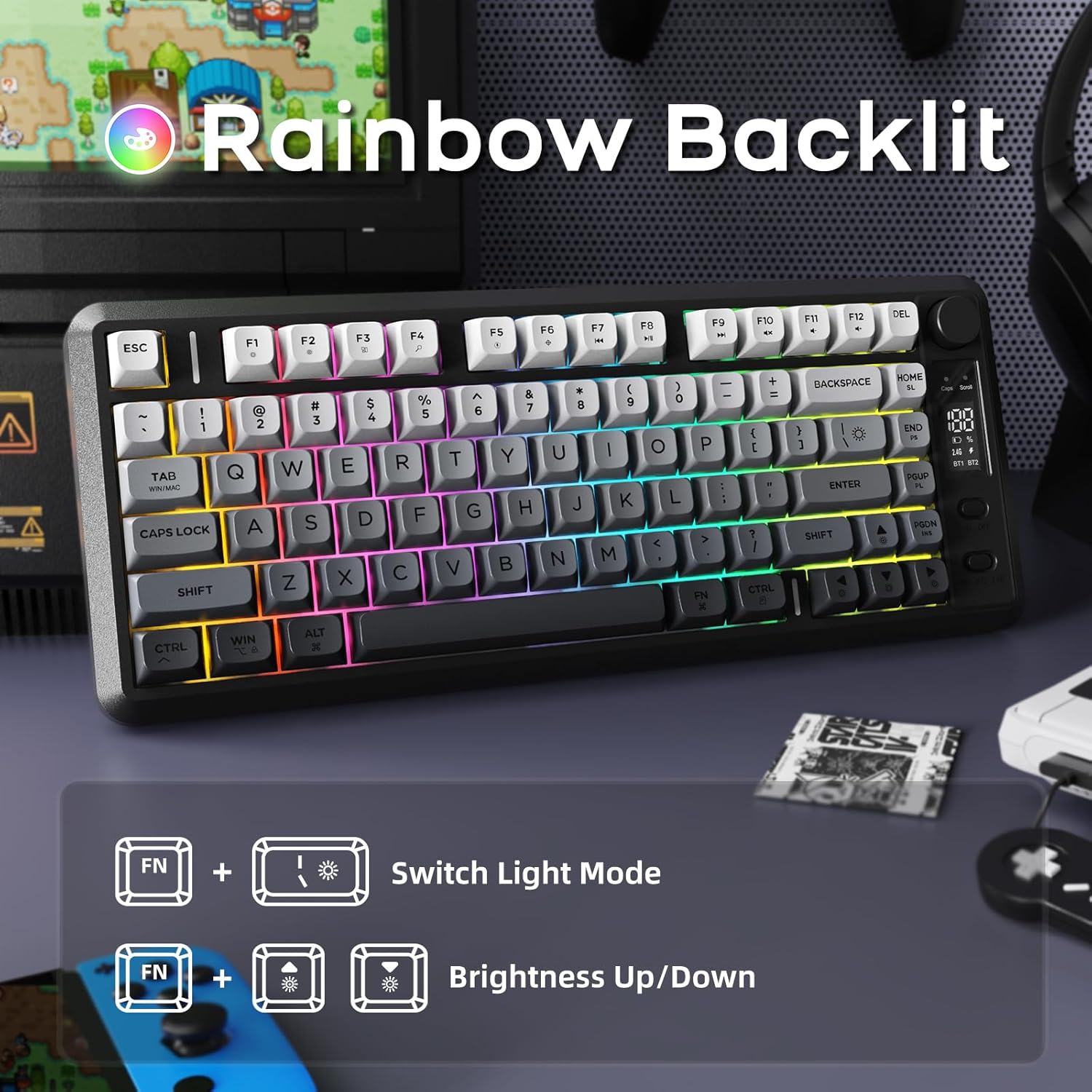
Image 4.2: Instructions for controlling the M75 keyboard's rainbow backlight, showing key combinations for mode switching and brightness adjustment.
- Press Fn + I: Switches between different backlight modes.
- Press Fn + ↑ (Up Arrow): Increases backlight brightness.
- Press Fn + ↓ (Down Arrow): Decreases backlight brightness.
Note: The keycaps are opaque, meaning the light illuminates around the keys, not through the legends.
4.3 Anti-Ghosting
The M75 keyboard features 26-key rollover technology, ensuring that multiple simultaneous key presses are registered accurately without conflicts. This is particularly beneficial for gaming and fast typing.

Image 4.3: Illustration of the M75 keyboard's 26-key anti-ghosting feature, highlighting its compact 75% layout.
5. Maintenance
5.1 Cleaning the Keyboard
To maintain the keyboard's appearance and functionality:
- Disconnect the keyboard from all power sources and devices before cleaning.
- Use a soft, lint-free cloth slightly dampened with water or a mild cleaning solution to wipe the keycaps and surface.
- Avoid using harsh chemicals, abrasive materials, or excessive moisture.
- For dust and debris between keys, use compressed air.
5.2 Battery Care
To prolong battery life:
- Avoid fully discharging the battery frequently.
- Store the keyboard in a cool, dry place when not in use for extended periods.
- If the keyboard will not be used for a long time, charge it to about 50% before storage.
6. Troubleshooting
If you encounter issues with your FREEWOLF M75 keyboard, refer to the following common solutions:
| Problem | Possible Cause | Solution |
|---|---|---|
| Keyboard not connecting via 2.4GHz | Receiver not plugged in, keyboard off, low battery, interference. | Ensure receiver is securely plugged in. Turn keyboard on. Charge keyboard. Try a different USB port. |
| Keyboard not connecting via Bluetooth | Keyboard not in pairing mode, device Bluetooth off, already connected to another device, low battery. | Ensure keyboard is in pairing mode (Fn+BT1/BT2 long press). Enable Bluetooth on your device. Disconnect from other devices. Charge keyboard. |
| Backlight not working or dim | Backlight turned off, brightness set to minimum, low battery. | Press Fn+I to cycle modes. Press Fn+↑ to increase brightness. Charge keyboard. |
| Keys not responding or ghosting | Low battery, software issue, physical obstruction. | Charge keyboard. Restart your computer. Clean under keycaps. |
| OLED display not showing information | Keyboard off, low battery, display issue. | Ensure keyboard is on and charged. If issue persists, contact support. |
| Rapid battery drain | Backlight constantly on at high brightness, frequent use. | Reduce backlight brightness or turn it off when not needed. Ensure keyboard is fully charged. |
7. Specifications
| Feature | Detail |
|---|---|
| Brand | FREEWOLF |
| Model | M75 |
| Connectivity Technology | 2.4G Wireless, Bluetooth 5.1/5.2 |
| Keyboard Description | Membrane, Wireless |
| Keycaps Material | Polybutylene Terephthalate (PBT) |
| Special Features | Backlit, Ergonomic, Rechargeable, Silent, Volume Roller, OLED Display, Anti-Ghosting |
| Battery Capacity | 2000mAh |
| Estimated Battery Life | 150 hours (backlight off), 24 hours (backlight on) |
| Compatible Devices | Laptop, PC, Tablet (Windows, MacBook, Linux) |
| Item Weight | 1.65 pounds |
| Package Dimensions | 15.75 x 6.02 x 1.89 inches |
8. Warranty and Support
For warranty information and technical support, please refer to the documentation included with your purchase or contact the manufacturer directly. Keep your proof of purchase for warranty claims.
Manufacturer: FREEWOLF


