1. Introduction
Thank you for choosing the Liretope Hidden Camera 4K Spy Camera. This manual provides detailed instructions for the proper setup, operation, and maintenance of your device. Please read this manual thoroughly before use to ensure optimal performance and to prevent damage.
2. Product Overview
The Liretope 4K Hidden Camera is a compact and versatile security device designed for indoor monitoring. It features 4K resolution, night vision, motion detection, and app control for real-time alerts and remote viewing.
2.1 Key Features
- Ultra 4K Clarity with Night Vision: Captures sharp 4K resolution live streaming with advanced infrared technology for clear 24/7 visibility.
- 160° Wide-Angle Lens: Provides extensive coverage, minimizing blind spots.
- Dual Storage Options: Supports local SD card storage (up to 256GB) and encrypted cloud storage.
- Easy Setup: 3-step Wi-Fi configuration for quick activation.
- AI Motion Alerts: Smart detection technology sends real-time alerts to your phone.
- Extended Battery Life: Built-in 1000mAh battery provides 4-6 hours of cordless recording, with continuous power option.
2.2 Package Contents
Please verify that all items are present in the package:
- Liretope 4K Hidden Camera
- USB Charging Cable
- User Manual
- Mounting Accessories (if applicable)

Image: The Liretope 4K Hidden Camera, shown with a smartphone displaying live feed and a small component, likely the camera module itself.
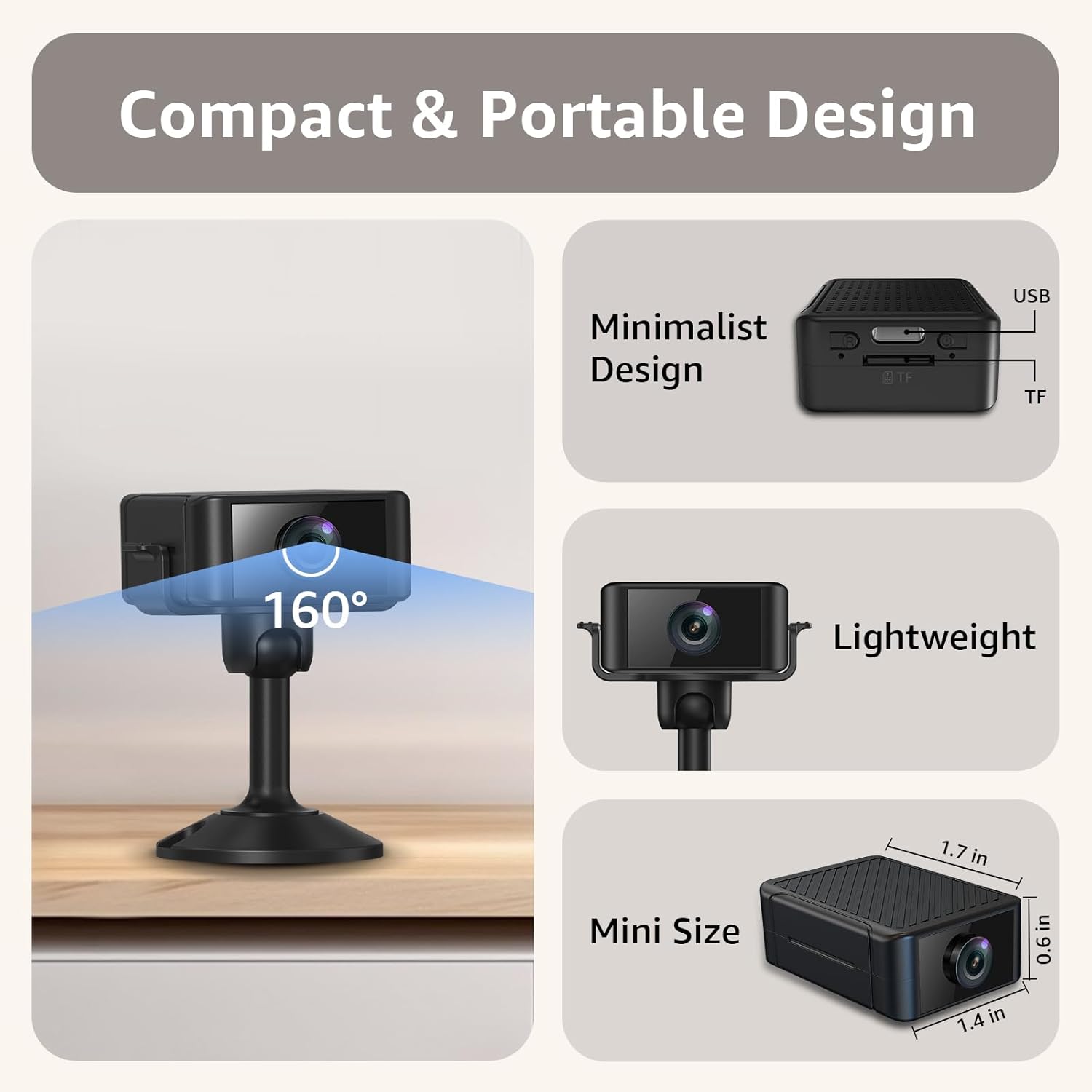
Image: A visual representation of the camera's compact and portable design, highlighting its small size (1.7 in x 1.4 in x 0.6 in) and lightweight nature, along with a 160-degree wide-angle view illustration.
3. Setup Instructions
3.1 Charging the Camera
Before initial use, fully charge the camera using the provided USB cable. Connect the USB cable to the camera's charging port and a standard USB power adapter (not included). The charging indicator light will typically change color or turn off once fully charged.
3.2 Inserting an SD Card (Optional)
For local storage, insert a Micro SD card (up to 256GB, not included) into the designated slot. Ensure the card is inserted correctly with the contacts facing the proper direction. The camera supports continuous 24/7 recording with an SD card.
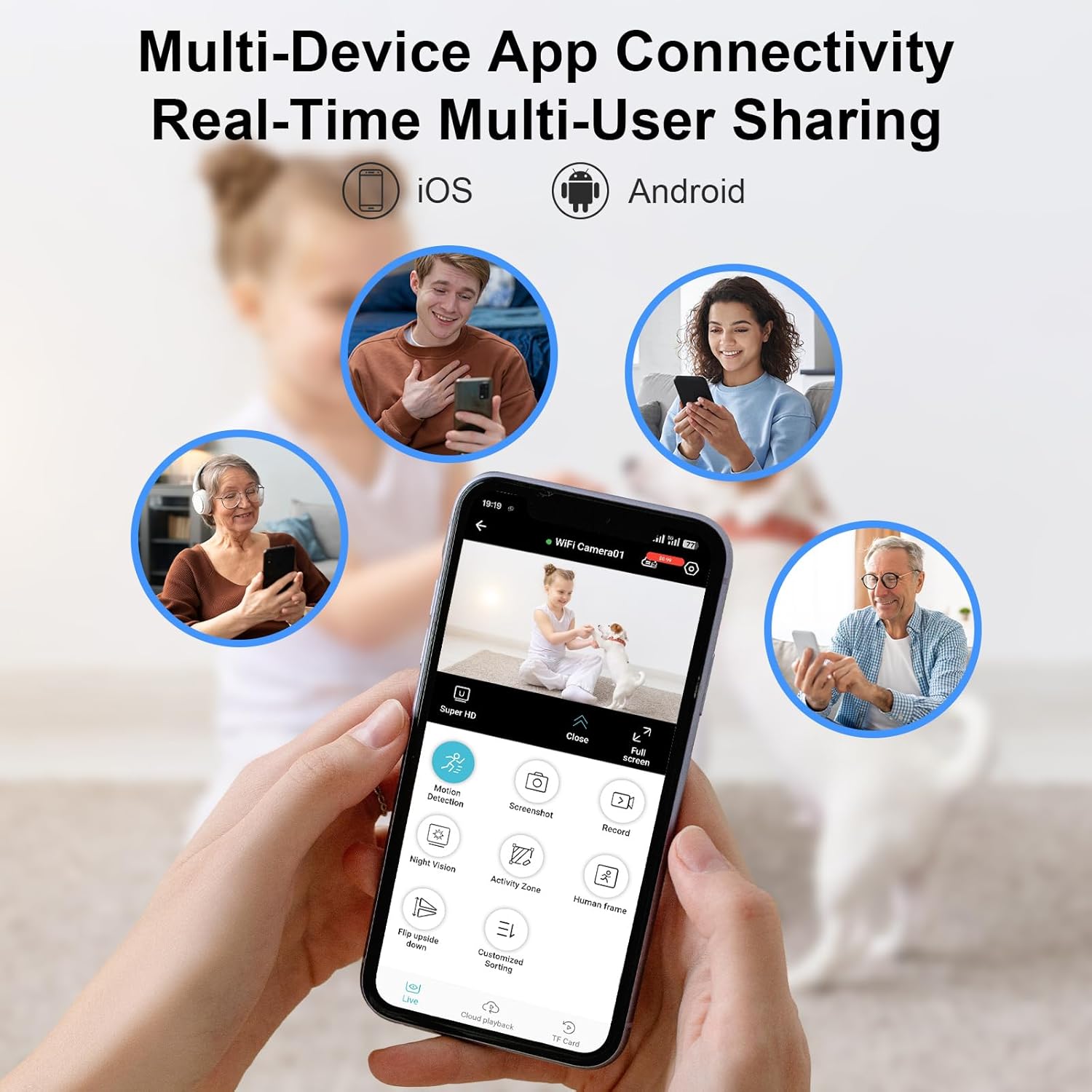
Image: A close-up view of the camera's side, indicating the USB port and the TF (Micro SD) card slot, also showing multi-user app interface.
3.3 App Installation and Wi-Fi Connection
Follow these steps to connect your camera to your Wi-Fi network and smartphone app:
- Download the App: Search for the recommended companion app (name not specified in product details, assume generic "companion app") in your smartphone's app store (iOS or Android) and install it.
- Power On Camera: Turn on the camera. Refer to the camera's physical buttons for the power switch.
- Add Device: Open the app, create an account if necessary, and follow the in-app instructions to add a new device.
- Connect to 2.4GHz Wi-Fi: The camera supports 2.4GHz Wi-Fi only. Select your 2.4GHz Wi-Fi network and enter the password when prompted by the app. Ensure your phone is also connected to the 2.4GHz network during setup.
- Pairing: The app will guide you through the pairing process, which typically involves scanning a QR code generated by the app with the camera, or connecting to the camera's temporary Wi-Fi hotspot.
- Completion: Once connected, the camera's status indicator will confirm a successful connection, and you will see the live feed in the app.
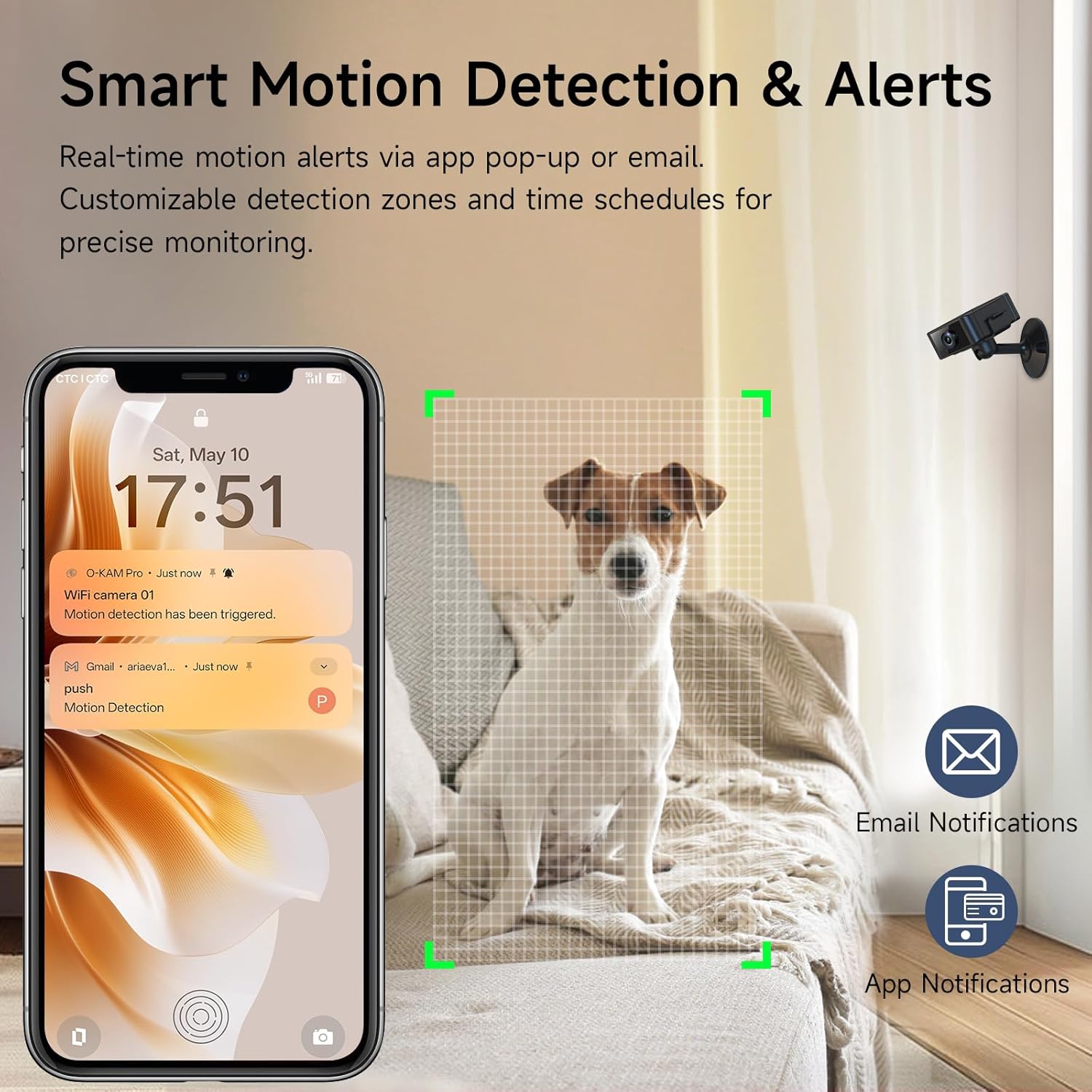
Image: A smartphone screen displaying the Wi-Fi connection interface for the camera, emphasizing the requirement for a 2.4GHz Wi-Fi network.
4. Operating Instructions
4.1 Live View and Recording
Once connected, open the companion app to view the live feed from your camera. You can initiate manual recordings, take screenshots, and access recorded footage directly through the app interface.
4.2 Night Vision
The camera is equipped with infrared night vision for clear monitoring in low-light or no-light conditions. Night vision typically activates automatically when ambient light levels are insufficient. You may also have an option to manually control it via the app.
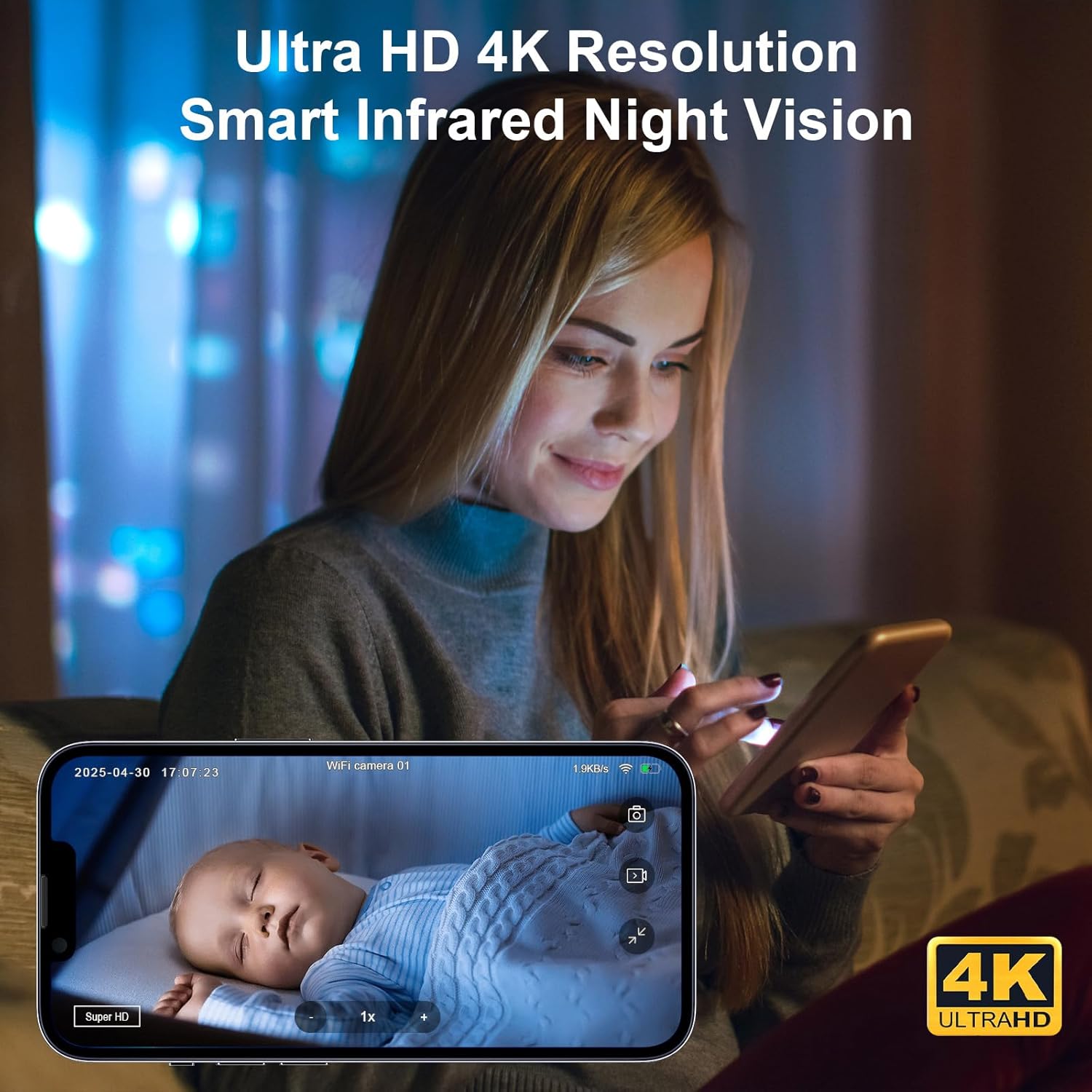
Image: A user viewing the camera's Ultra HD 4K resolution and smart infrared night vision capabilities on a smartphone, showing a clear image of a sleeping baby in a dark room.
4.3 Motion Detection and Alerts
The camera features AI motion detection. When motion is detected, the camera can send instant notifications to your smartphone via the app or email. You can customize detection zones and set schedules for alerts within the app settings.
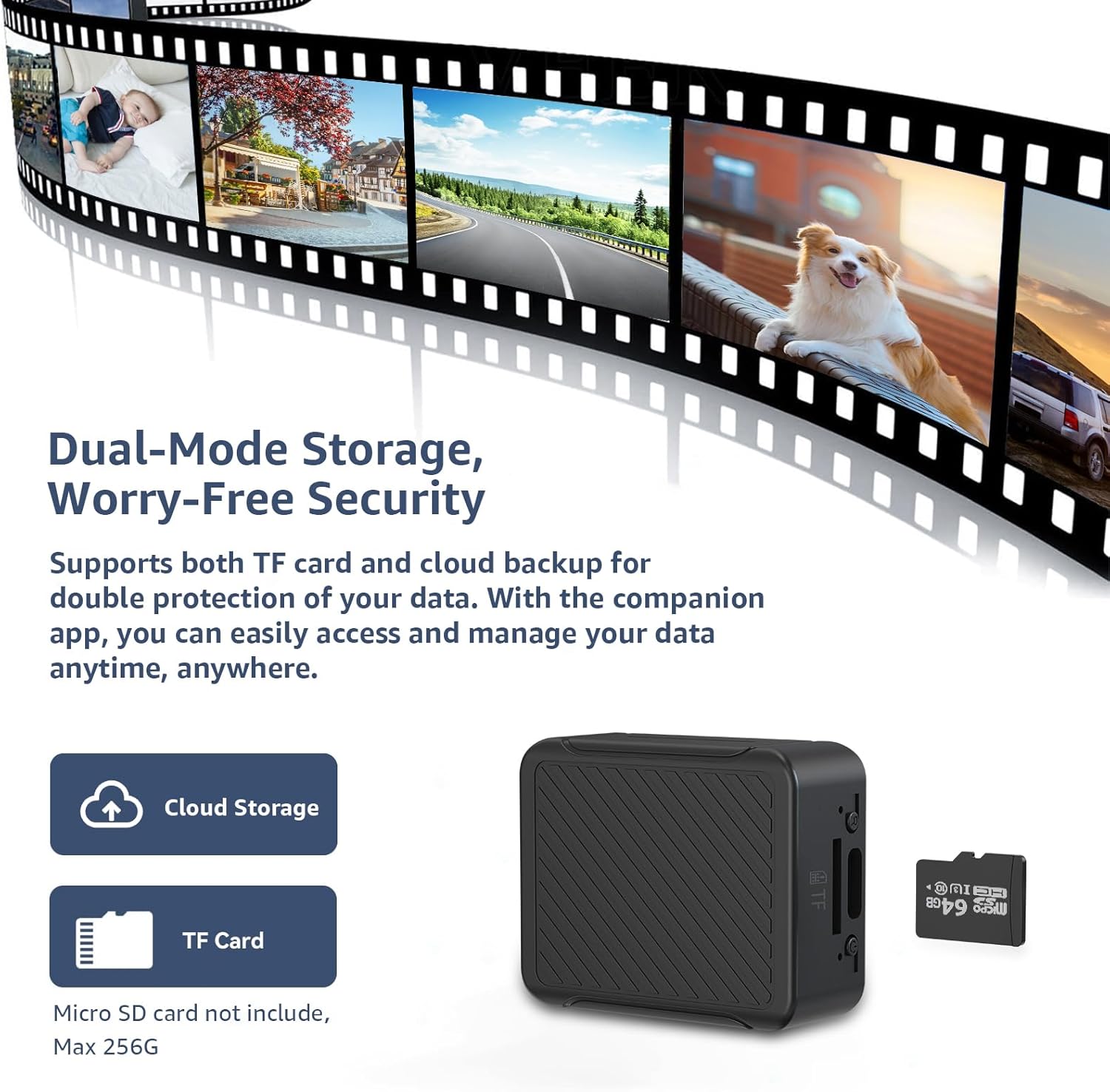
Image: A smartphone displaying real-time motion detection alerts and notifications from the camera, with a dog in the background within a highlighted detection zone.
4.4 Multi-Device and Multi-User Sharing
The companion app supports multi-device connectivity and real-time multi-user sharing. You can add multiple cameras to one account and share access to camera feeds with other authorized users.
5. Storage Options
The Liretope Hidden Camera offers flexible storage solutions:
- Local Storage (Micro SD Card): Supports up to 256GB Micro SD cards for continuous 24/7 recording. Footage is stored directly on the card and can be accessed via the app or by removing the card and viewing on a computer.
- Cloud Storage: Securely store critical moments with encrypted cloud storage. A 7-day free trial is typically included. Cloud storage provides an additional layer of data protection and remote access to recordings.
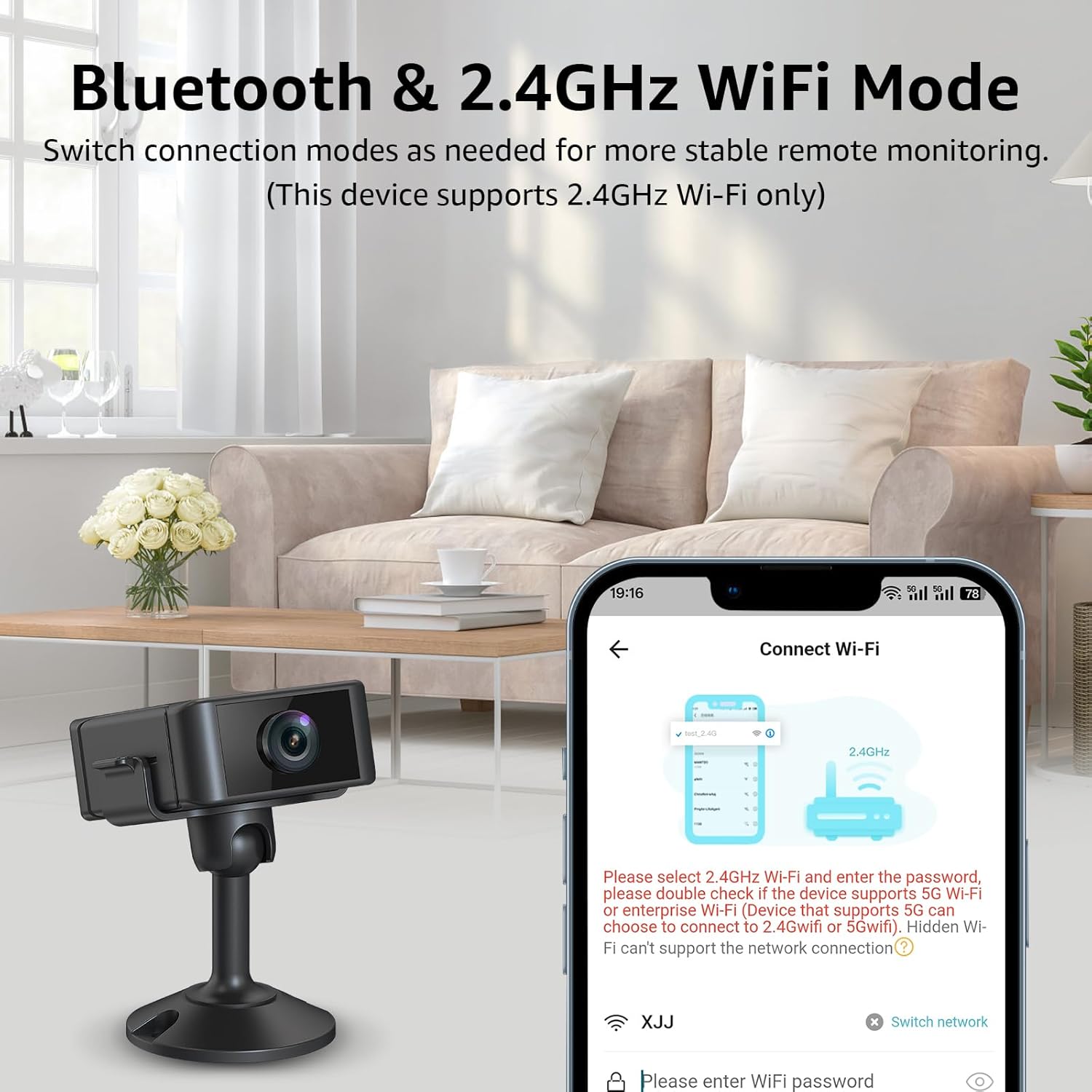
Image: An illustration depicting the dual storage options available for the camera: cloud storage and TF (Micro SD) card storage, with a note that the Micro SD card is not included and supports up to 256GB.
6. Battery Life and Continuous Power
The camera is equipped with a robust 1000mAh battery, providing approximately 4-6 hours of cordless recording. For extended or continuous monitoring, the camera can be powered via a USB power bank or a standard wall outlet using the provided USB cable.

Image: The Liretope 4K Hidden Camera with an overlay indicating "4 HOURS" of remarkable rechargeable battery life.
7. Maintenance
- Cleaning: Use a soft, dry cloth to clean the camera lens and body. Avoid using liquid cleaners or abrasive materials.
- Placement: Place the camera in a stable location, away from direct sunlight, extreme temperatures, and moisture.
- Firmware Updates: Regularly check the companion app for available firmware updates to ensure optimal performance and security.
- Data Backup: Periodically back up important recordings from your SD card or cloud storage.
8. Troubleshooting
| Problem | Possible Solution |
|---|---|
| Camera not connecting to Wi-Fi |
|
| No live feed in the app |
|
| Motion alerts not received |
|
| SD card not recording |
|
9. Specifications
| Feature | Detail |
|---|---|
| Model | B0F66HMYG9 |
| Brand | Liretope |
| Resolution | 4K Ultra HD |
| Night Vision | Infrared |
| Connectivity | Wi-Fi (2.4GHz only) |
| Power Source | Battery Powered (1000mAh) |
| Battery Life | 4-6 hours (cordless) |
| Storage Options | Micro SD Card (up to 256GB), Cloud Storage |
| Motion Detection | AI-based, with real-time alerts |
| Controller Type | Push Button |
| Recommended Use | Indoor Security |
| Package Dimensions | 4.17 x 4.13 x 1.73 inches |
| Item Weight | 3.2 ounces |
10. Warranty and Support
For warranty information and technical support, please refer to the contact details provided with your product packaging or visit the official Liretope website. Keep your purchase receipt as proof of purchase for warranty claims.
For further assistance, please contact Liretope customer service.