1. Introduction
The CMSTEDCD KVM Docking Station (Model: SW523-Grey) is a versatile 13-in-1 device designed to streamline your workspace by allowing two computers (laptops or desktops) to share two monitors, a mouse, a keyboard, and other peripherals. It supports dual monitor resolutions up to 4K120Hz, providing a high-quality visual experience. This manual provides detailed instructions for setup, operation, and troubleshooting to ensure optimal performance of your KVM docking station.

Figure 1.1: CMSTEDCD KVM Docking Station (Model: SW523-Grey) with included cables.
Video 1.1: Overview of the USB-C & DP Docking Station Dual Monitor functionality.
2. Important Notes Before Purchase and Use
- macOS Compatibility: When connecting MacBook or Mac OS devices to two monitors through this switch, it is not possible to extend two different images. Only copy mode (mirror display) is supported. This is a limitation of Mac OS devices themselves.
- No Power Delivery (PD) Function: For better protection of the device's power supply, the USB-C port connected to the computer on this switch is not equipped with the function of charging the computer (no PD function).
- Cable Recommendations: Please do not use DisplayPort (DP) cables longer than 9 feet (2.7 meters) and ensure they are DP1.4 or higher for optimal performance. Avoid using any conversion cables. We recommend using 3.3 feet (1 meter) DP1.4 cables for more stable video transmission.
- USB-C Input Requirement: The computer's USB-C port needs to support Thunderbolt 3 or higher for proper functionality.
- Front Panel USB-C Port: The USB-C port on the front panel only supports data transfer, not video output or charging.
- No Hotkey Switching: Keyboard shortcuts (hotkeys) switching is not supported by this device.

Figure 2.1: Important notes regarding USB-C charging and macOS display limitations.
3. Package Contents
Please verify that all items listed below are included in your package:
- CMSTEDCD KVM Docking Station (Model: SW523-Grey) X1
- DC12V Power Adapter X1
- USB-C to C Cable (3.3FT) X1
- USB 3.0 A to A Cable (3.3FT) X1
- Desktop Controller X1
- User's Manual X1

Figure 3.1: Contents of the CMSTEDCD KVM Docking Station package.
4. Setup Guide
Follow these steps to set up your KVM Docking Station:
- Connect Power: Connect the DC12V Power Adapter to the 'DC12V' port on the KVM docking station and plug it into a power outlet.
- Connect Monitors: Connect your two monitors to the 'DP OUT A' and 'DP OUT B' ports on the KVM docking station using DP1.4 cables (recommended length 3.3ft).
- Connect Computer 1 (USB-C Laptop):
- Connect the USB-C to C Cable from your USB-C laptop's Thunderbolt 3 (or higher) port to the 'PC1 IN - USB C' port on the KVM docking station.
- Connect Computer 2 (Desktop/Laptop with DP):
- Connect two DisplayPort cables from your desktop/laptop's DisplayPort outputs to the 'DP A' and 'DP B' ports under 'PC2 IN' on the KVM docking station.
- Connect the USB 3.0 A to A Cable from a USB 3.0 port on your desktop/laptop to one of the 'USB 3.0' ports under 'PC2 IN' on the KVM docking station.
- Connect Peripherals: Connect your USB keyboard and mouse to the 'USB 3.0' ports on the front panel of the KVM docking station. For other high-speed USB devices, use the 'USB 3.2' or 'USB C' data transfer ports on the front.
- Connect Desktop Controller (Optional): If desired, connect the Desktop Controller to the 'Control' port on the front panel for remote switching.
- Power On: Flip the 'ON/OFF' switch to the 'ON' position.

Figure 4.1: Detailed port layout and connection points of the KVM Docking Station.
5. Operating Instructions
5.1 Switching Between Computers
The KVM docking station supports two methods for switching between connected computers:
- Button Switch: Press the 'Select' button located on the front panel of the docking station to switch between PC1 and PC2. The LED indicators (PC1, PC2) will illuminate to show the currently active computer.
- Desktop Control: Use the included Desktop Controller. Connect it to the 'Control' port on the front panel. Press the button on the Desktop Controller to switch between PC1 and PC2. This allows for convenient switching if the docking station is placed out of reach.

Figure 5.1: Two methods for switching between connected computers.
5.2 Display Modes
The KVM docking station supports various display modes depending on your operating system:
- Windows: Supports dual-screen docking mode (extended display) and dual-screen mirroring mode. This allows for flexible multi-tasking, graphic design, video editing, or data analysis across multiple screens.
- macOS: Only supports mirroring mode. Due to macOS limitations, extended display (MST) is not supported when connecting two monitors through this KVM switch. Both monitors will display the same content as your MacBook/Mac OS device.
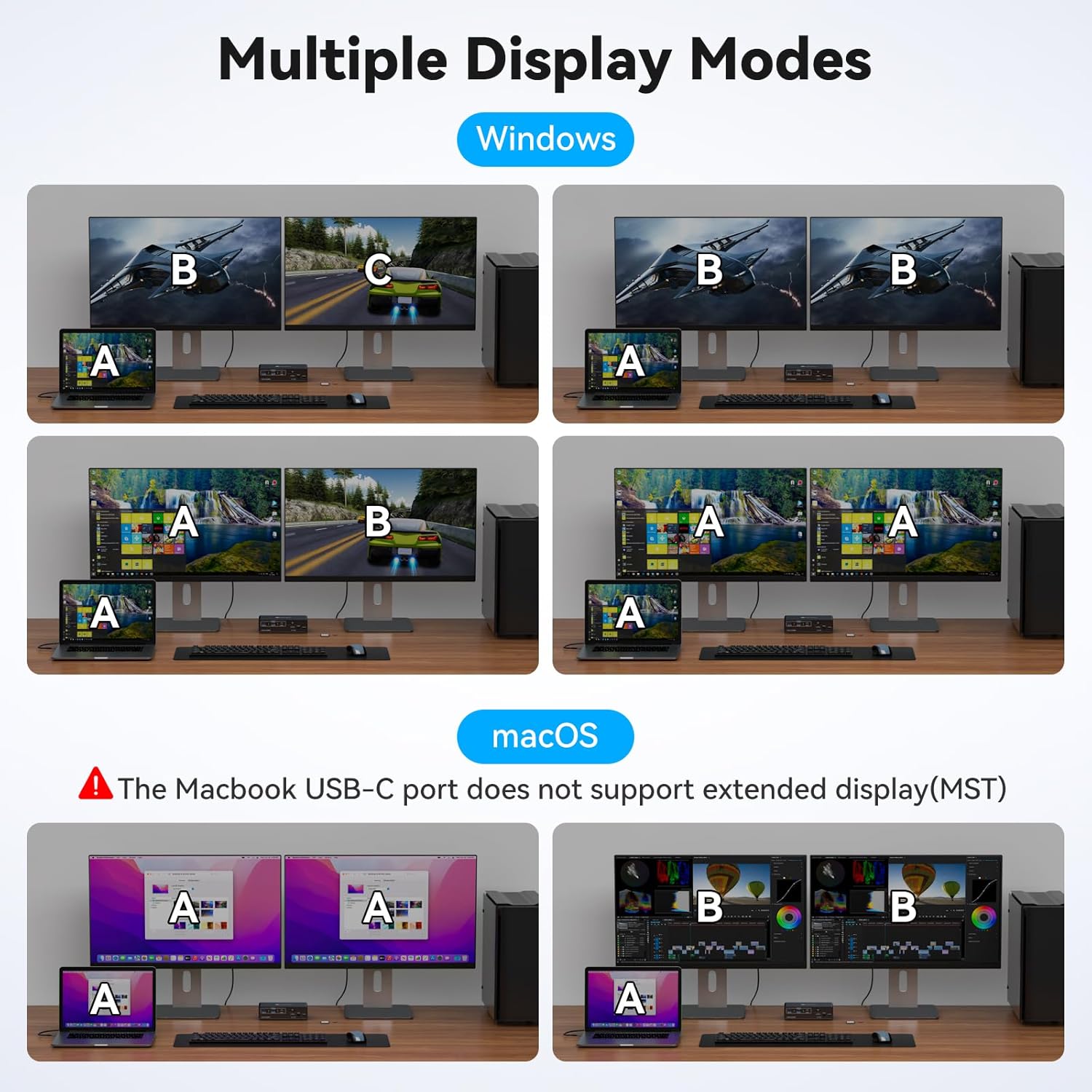
Figure 5.2: Multiple display modes supported by the KVM docking station for Windows and macOS.

Figure 5.3: Example setup of two computers sharing two monitors with 4K120Hz output.
6. Connectivity and Ports
The CMSTEDCD KVM Docking Station features a comprehensive set of ports to meet your connectivity needs:
- USB-A 3.2 x2: High-speed data transfer ports (up to 10Gbps) for connecting peripherals like external hard drives, USB flash drives, or other high-bandwidth devices.
- USB-A 3.0 x2: Standard USB ports, typically used for keyboard and mouse connections.
- USB-C 3.2 x1: Data transfer port on the front panel (up to 10Gbps). Note: This port is for data only and does not support video output or charging.
- SDXC Card Slot x1: For reading and writing to SDXC memory cards.
- Micro SD Card Slot x1: For reading and writing to Micro SD memory cards.
- USB-C Input x1 (PC1 IN): Connects to your USB-C laptop (requires Thunderbolt 3 or higher support).
- DP Input x2 (PC2 IN - DP A, DP B): Connects to your desktop or laptop's DisplayPort outputs for PC2.
- USB 3.2 Input x1 (PC2 IN): Connects to a USB 3.0/3.2 port on your desktop or laptop for PC2's peripheral sharing.
- DP Output x2 (DP OUT A, DP OUT B): Connects to your two monitors, supporting resolutions up to 4K120Hz.
- DC12V Power Input: For connecting the included power adapter.
- ON/OFF Switch: Main power switch for the device.
- Control Port: For connecting the Desktop Controller.

Figure 6.1: Overview of the 13-in-1 multifunctional docking station and its capabilities.

Figure 6.2: USB 3.2 ports offering high-speed data transfer up to 10Gbps.
7. Troubleshooting
If you encounter issues with your KVM Docking Station, please refer to the following common problems and solutions:
- No Display on Monitors:
- Ensure the KVM docking station is powered on.
- Verify all DisplayPort cables are securely connected to both the KVM and your monitors/computers.
- Check that you are using DP1.4 cables and they are not longer than 9ft. Avoid conversion cables.
- Confirm your computer's USB-C port supports Thunderbolt 3 or higher if using PC1 (USB-C input).
- Try restarting the connected computers and the KVM docking station.
- Peripherals (Keyboard/Mouse) Not Responding:
- Ensure the USB 3.0 A to A cable is properly connected from PC2 to the KVM.
- Verify keyboard and mouse are connected to the designated USB 3.0 ports on the KVM's front panel.
- Try connecting the peripherals directly to the computer to confirm they are functional.
- macOS Display Issues (No Extended Display):
- As noted in Section 2, macOS only supports mirror display mode through this KVM. This is a system limitation, not a device malfunction.
- Slow Data Transfer Speeds:
- Ensure you are using USB 3.2 compatible devices and cables for the 10Gbps ports.
- Check if the connected device is operating at its maximum speed.
- Switching Not Working:
- Ensure the KVM is powered on.
- Press the 'Select' button firmly. If using the Desktop Controller, ensure it is securely connected to the 'Control' port.
8. Specifications
| Feature | Specification |
|---|---|
| Product Dimensions | 5.55 x 2.68 x 1.5 inches |
| Item Weight | 1.28 Pounds |
| Model Number | SW523-Grey |
| Manufacturer | CMSTEDCD |
| Display Output | Dual DisplayPort (DP) up to 4K@120Hz |
| USB Data Transfer Speed | USB 3.2 Gen2 up to 10Gbps |
| Input Ports (PC1) | 1x USB-C (requires Thunderbolt 3 or higher) |
| Input Ports (PC2) | 2x DisplayPort, 1x USB 3.2 |
| Peripheral Ports | 2x USB-A 3.2, 2x USB-A 3.0, 1x USB-C 3.2 (data only), 1x SDXC, 1x Micro SD |
| Switching Modes | Button Switch, Desktop Controller |
| Housing Material | Metal |
| Power Supply | DC12V Power Adapter |

Figure 8.1: Dual DisplayPort output supporting up to 4K@120Hz resolution.

Figure 8.2: Physical features including metal body, non-slip rubber mat, and SD/Micro SD card slots.
9. Warranty and Support
CMSTEDCD provides technical support and product replacement or refund service for 24 months after purchase if there is any problem with the product. For any inquiries or assistance, please contact our customer support team. Refer to the contact information provided with your product packaging or on the official CMSTEDCD website.


