1. Introduction
This manual provides essential information for setting up, operating, and maintaining your Samsung QN65S85FA 65 Inch OLED HDR 4K Smart TV. Please read these instructions carefully before using your television to ensure proper function and safety.
2. Safety Information
Before operating the TV, ensure all packaging materials are removed. Do not block ventilation openings. Avoid exposing the TV to rain or moisture. For cleaning, use a soft, dry cloth. Refer to the full safety guidelines in the included printed manual for detailed precautions.
3. Setup
3.1 Unboxing and Initial Preparation
Carefully remove the television from its packaging. It is recommended to have at least two people for this process due to the size and weight of the unit. Place the TV screen-down on a soft, flat surface to avoid damage during stand assembly.

Image: The Samsung S95F QD-OLED TV being unboxed, showing the careful removal of the television from its protective packaging.
3.2 Attaching the Stand
The TV stand consists of a mounting bracket and a base. Attach the mounting bracket to the back of the TV using the provided screws. Then, secure the base to the mounting bracket. Ensure all screws are tightened securely, but do not overtighten to prevent stripping.
Image: A person attaching the metal stand components to the back of the Samsung OLED TV, illustrating the screw-in process.
3.3 Connecting the One Connect Box
The One Connect Box centralizes all your connections, simplifying cable management. Connect the single One Connect Cable from the box to the designated port on the back of the TV. Then, connect your external devices (HDMI, USB, Ethernet, etc.) to the One Connect Box.
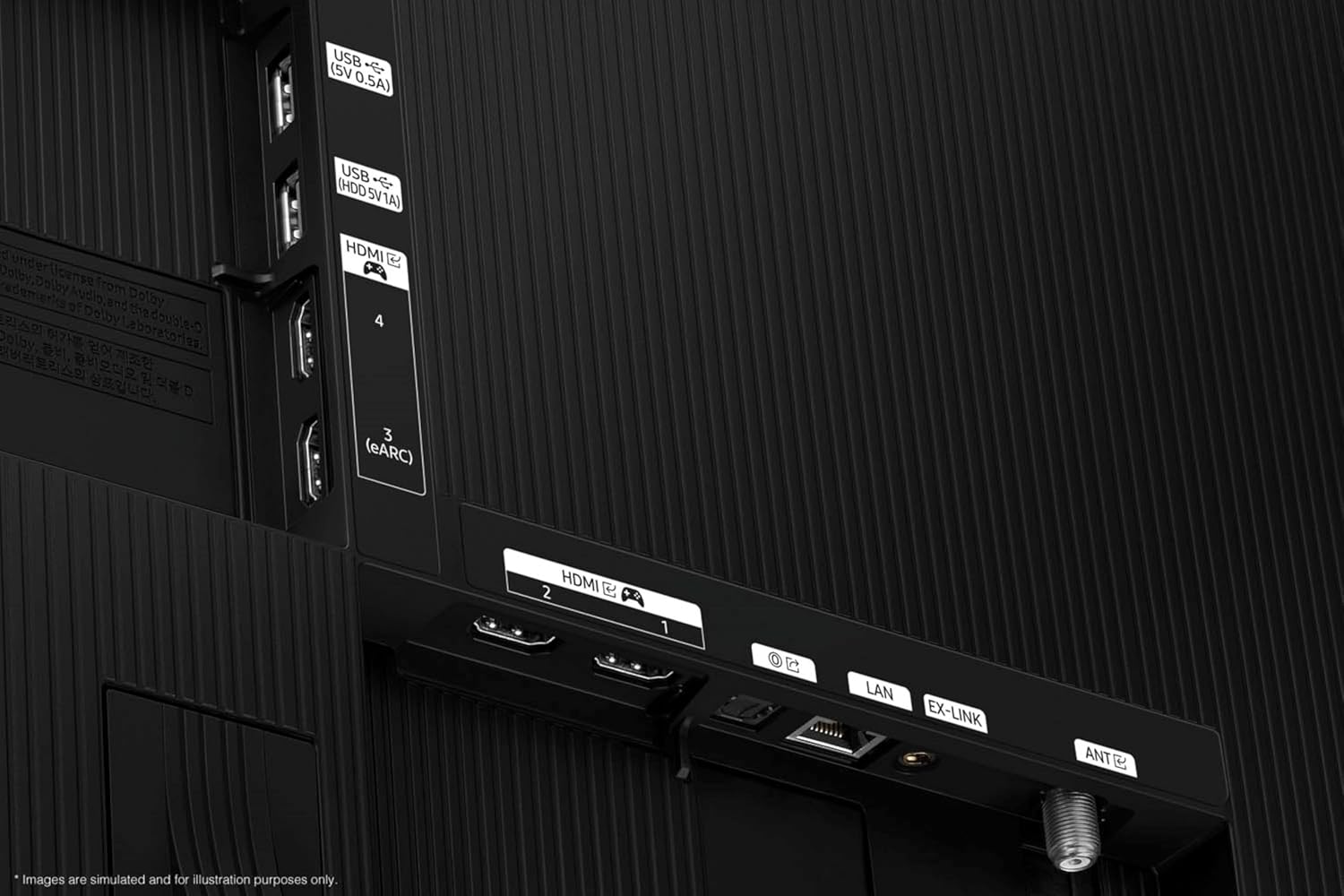
Image: A close-up view of the One Connect Box, highlighting its various input ports including HDMI, USB, LAN, and antenna connections.
3.4 Initial Setup with SmartThings App
For a streamlined setup, download the Samsung SmartThings app on your smartphone. The app will guide you through connecting the TV to your Wi-Fi network, logging into your Samsung account, and configuring initial settings.
Video: A demonstration of the initial setup process for a Samsung TV using the SmartThings mobile application, showing device detection and configuration steps.
4. Features
4.1 NQ4 AI Gen2 Processor & 4K AI Upscaling
The NQ4 AI Gen2 Processor enhances picture and sound quality. It utilizes AI-enhanced 4K clarity and 4K AI Upscaling to boost your favorite content to captivating 4K resolution, regardless of the original source quality.

Image: A visual representation of the NQ4 AI Gen2 Processor chip, highlighting its advanced processing capabilities for AI-enhanced clarity and 4K upscaling.
4.2 OLED HDR & Pantone Validated
Experience dynamic brightness and infinite contrast with OLED HDR. The display is Pantone Validated, ensuring expert-validated color and skin tones for a realistic and accurate picture.
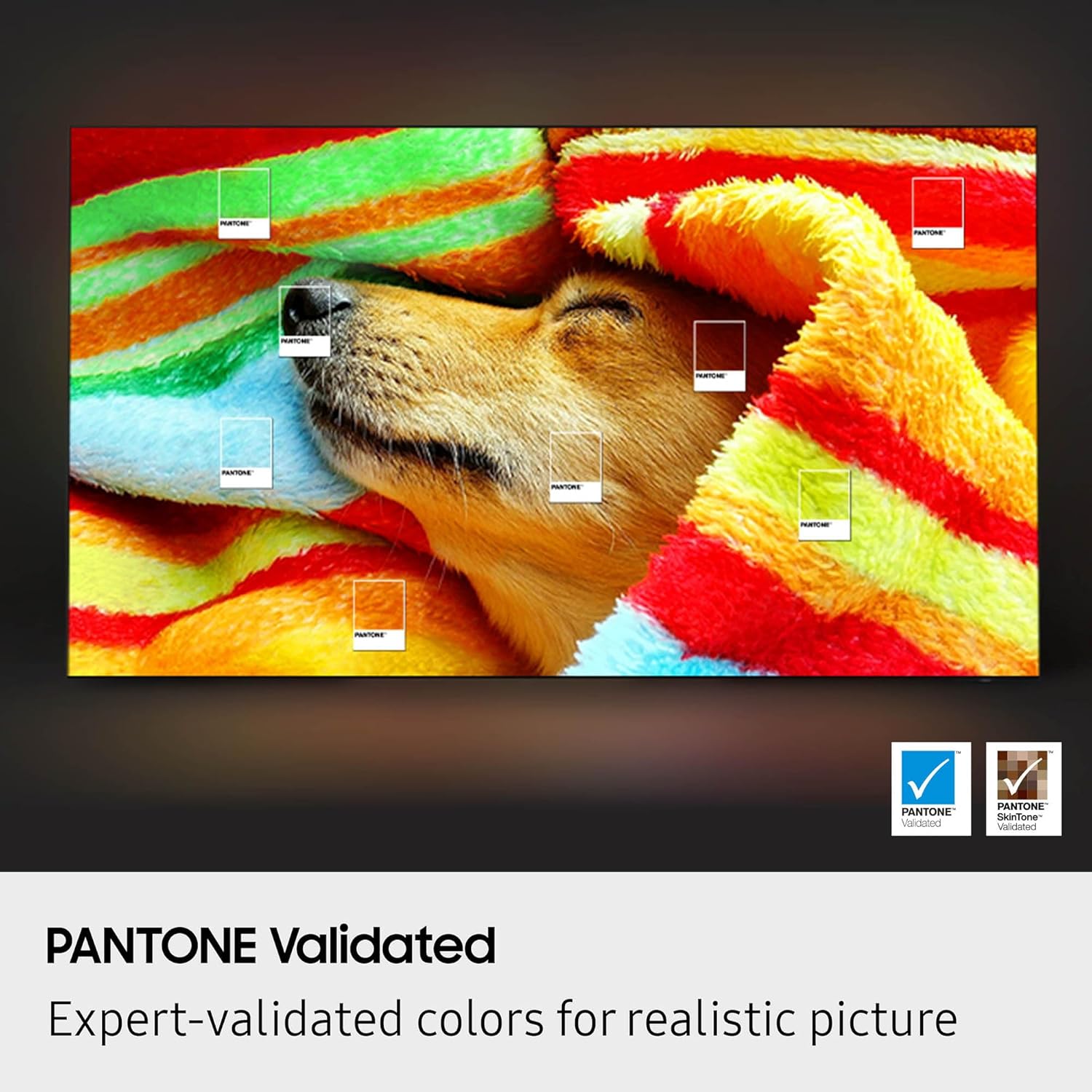
Image: A vibrant display showcasing the deep blacks and bright highlights of OLED HDR technology, illustrating optimized brightness and infinite contrast.

Image: A television screen displaying a colorful image with Pantone color swatches, indicating expert-validated colors for realistic picture quality.
4.3 Q-Symphony Pro & Dolby Atmos
Q-Symphony Pro allows the TV's built-in speakers to synchronize with a compatible Samsung soundbar, creating an immersive audio experience. Enjoy multi-dimensional sound with Dolby Atmos support, bringing cinematic audio directly to your living room.
4.4 Tizen Smart TV & Supported Internet Services
The Tizen Smart TV platform provides intuitive access to a wide range of streaming services and apps. Supported services include Netflix, Prime Video, Disney+, Hulu, Apple TV, YouTube, HBO Max, Peacock, Sling, and more.
4.5 Gaming Features
The QN65S85FA supports a 120Hz refresh rate, AMD FreeSync Premium Pro, and various Game Mode settings for an optimized gaming experience. It offers low input lag and features like Virtual Aim Point and Dynamic Black Equalizer.
Video: A demonstration of the Samsung TV's gaming features, including various game mode settings and how they enhance the visual experience for gamers.
4.6 Ambient Mode
Transform your TV into a dynamic display when not watching content. Ambient Mode allows you to showcase useful information, beautiful designs, or blend the TV into your decor.
4.7 Voice Assistants
The TV supports multiple voice assistants, including Bixby and Amazon Alexa. Use voice commands to control your TV, search for content, check the weather, and manage smart home devices.
4.8 Multi View
Watch multiple sources simultaneously on your TV screen. Multi View allows you to display content from your TV and a mirrored mobile device side-by-side.
4.9 Live Translate
Utilize the Live Translate feature to view subtitles in various languages. This feature is primarily available for Samsung TV Plus content and certain supported channels.
4.10 BT SolarCell Remote
The included remote control features a SolarCell panel for charging, reducing the need for disposable batteries. It also includes dedicated hotkeys for popular streaming services.
5. Operating the TV
5.1 Picture Modes
Adjust the picture settings to suit your viewing preferences and content type:
- Dynamic: Enhances brightness and color for a more vivid picture.
- Standard: Suitable for general viewing with balanced picture settings.
- Eco: Optimizes brightness to reduce power consumption.
- Movie: Calibrates the picture for a cinematic experience, often with warmer tones.
- Filmmaker Mode: Preserves the director's creative intent by disabling post-processing effects.
- HDR Mode: Automatically activated for High Dynamic Range content, providing enhanced contrast and color.
5.2 Sound Modes
Select from various sound modes to optimize your audio experience:
- Amplified: Boosts overall volume and clarity.
- Standard: Balanced audio for general content.
- Adaptive Sound Pro: Analyzes the viewing environment and content to optimize sound automatically.
- Active Voice Amplifier Pro: Enhances dialogue clarity, especially in noisy environments.
5.3 Motion Clarity Settings
Customize motion settings to reduce blur and judder in fast-moving scenes. Access these settings via the Picture Clarity menu:
- Blur Reduction: Reduces motion blur.
- Judder Reduction: Smooths out uneven or jumpy visual processing.
- Clear Motion: Enhances picture sharpness for fast-moving images.
6. Maintenance
6.1 Screen Cleaning
Use the provided Amber Protection HDTV Screen Cleaner Kit. The non-ammonia and alcohol-free solution effectively removes dust, dirt, and fingerprints without damaging the display. Apply the liquid to a microfiber cloth and gently wipe the screen.

Image: The Amber Protection Screen Cleaner Kit, including a spray bottle of cleaning solution and two microfiber cloths, designed for safe and effective screen cleaning.
6.2 Pixel Refresh
The TV features an automatic pixel refresh function to maintain picture quality and prevent image retention. The TV will prompt you when it's time to perform this process, which helps keep the pixels sharp and vibrant.
7. Troubleshooting
If you encounter any issues with your TV, refer to the following common solutions:
- No Signal: Check power connections for external devices and cable connections. Press the input button on your remote to change to another input.
- Picture Quality: Adjust picture modes (Dynamic, Standard, Movie, Filmmaker) or fine-tune individual settings like brightness, contrast, and color.
- Sound Issues: Check sound output settings and ensure external audio devices are correctly connected. Adjust sound modes as needed.
- Remote Not Responding: Ensure the remote is charged (SolarCell remote) or replace batteries. Re-pair the remote if necessary by holding the return and play/pause buttons simultaneously.
For more detailed troubleshooting, consult the full user guide available through the TV's settings menu or on the Samsung support website.
8. Specifications
| Feature | Specification |
|---|---|
| Brand | Samsung |
| Model Name | QN65S85FAFXZA |
| Screen Size | 65 Inches |
| Display Technology | OLED |
| Resolution | 4K (3840 x 2160) |
| Refresh Rate | 120 Hz |
| Processor | NQ4 AI Gen2 Processor |
| Special Features | OLED HDR, Pantone Validated, Q-Symphony Pro, Dolby Atmos, Tizen Smart TV, Multi Voice Assistant, Gaming Hub, Ambient Mode |
| Connectivity | 4 x HDMI, 2 x USB-A, Wi-Fi 5, Bluetooth 5.3 |
| Product Dimensions | 10.4"D x 56.8"W x 35.3"H |
| Item Weight | 36.4 Pounds |
| Color | Graphite Black |
9. Warranty and Support
This Samsung TV comes with a full 1-year manufacturer's warranty. Additionally, this bundle includes a 1-year Amber Protection Plan, covering mechanical and electrical failures and power surge protection. For customer support, refer to the contact information provided with your purchase or visit the Samsung support website.

Image: A graphic detailing the features and benefits of the Extended Protection Plan, including coverage for mechanical and electrical failures, power surge protection, and 24/7 customer support.


