
1. Introduction
This manual provides comprehensive instructions for the setup, operation, and maintenance of your Yaregelun MK321 Programmable Macro Mini Keyboard. Please read this manual thoroughly before using the device to ensure proper functionality and to maximize your user experience.
2. Product Overview
2.1. Key Features
- Mechanical Blue Switches: Designed for a tactile and audible typing experience with a crisp sound.
- Ergonomic Design: Button curve fits ergonomic principles for comfortable use.
- Programmable Functions: Customize buttons for keyboard functions, mouse functions, multimedia controls, character strings, game functions, and macro definitions.
- Anti-Slip Pads: Equipped with anti-slip pads on the bottom to prevent movement during use.
- Wide Application: Suitable for various uses including office tasks, gaming, and multimedia control.
2.2. Package Contents
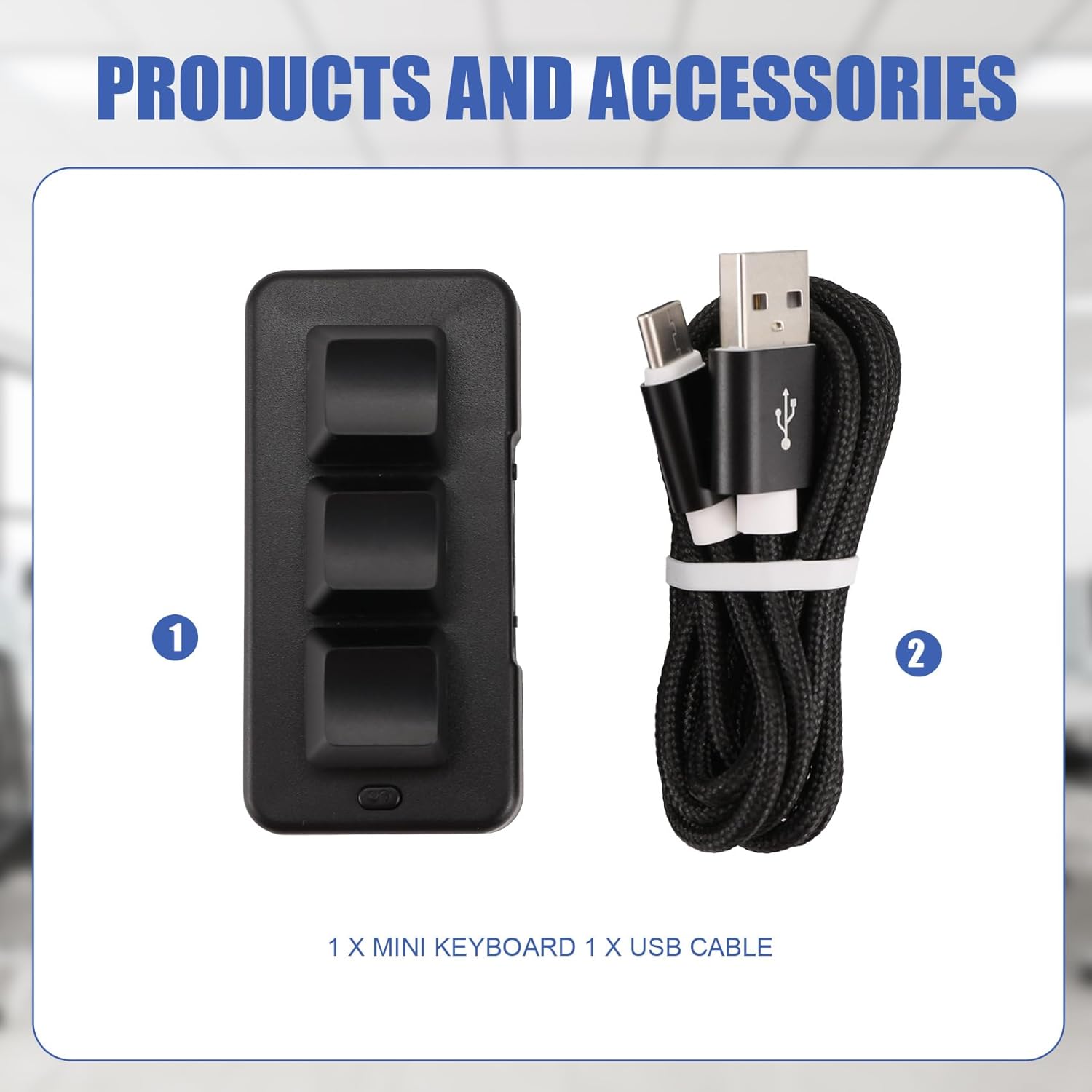
Image 2.2.1: The Yaregelun MK321 Mini Keyboard and its accompanying USB cable. The keyboard is black with three keys, and the cable is braided black with USB-A and USB-C connectors.
- 1 x Yaregelun MK321 Mini Keyboard
- 1 x USB Cable (Type-A to Type-C)
3. Setup
The Yaregelun MK321 Mini Keyboard is a plug-and-play device for basic functionality. For advanced programming, software is required.
3.1. Initial Connection
- Connect the USB-C end of the provided cable to the port on the Yaregelun MK321 Mini Keyboard.
- Connect the USB-A end of the cable to an available USB port on your computer.
- The device should be recognized automatically by your operating system.
3.2. Software Installation for Programming
To customize the key functions and macros, you will need to use the dedicated key definition setting software. This software is typically provided by the manufacturer or available for download from their official support website. Refer to the label on the back of the device for potential QR codes or website links.

Image 3.2.1: Various views of the MK321 Mini Keyboard. One view shows the back of the device with a label that may contain a QR code for software download or instructions.
Note for Linux/macOS Users: If you are using Linux or macOS, you may need to perform the initial setup and programming on a Windows-based system first. After programming, the customized functions will be stored on the device and can then be used on your Linux or macOS device.
4. Operating Instructions
4.1. Basic Operation
Once connected, the mini keyboard will execute the functions assigned to its keys. If no custom programming has been done, the keys will likely perform default functions or no function until programmed.
4.2. Programming Key Functions
The MK321 allows for extensive customization of its three keys. This is done through the dedicated software.
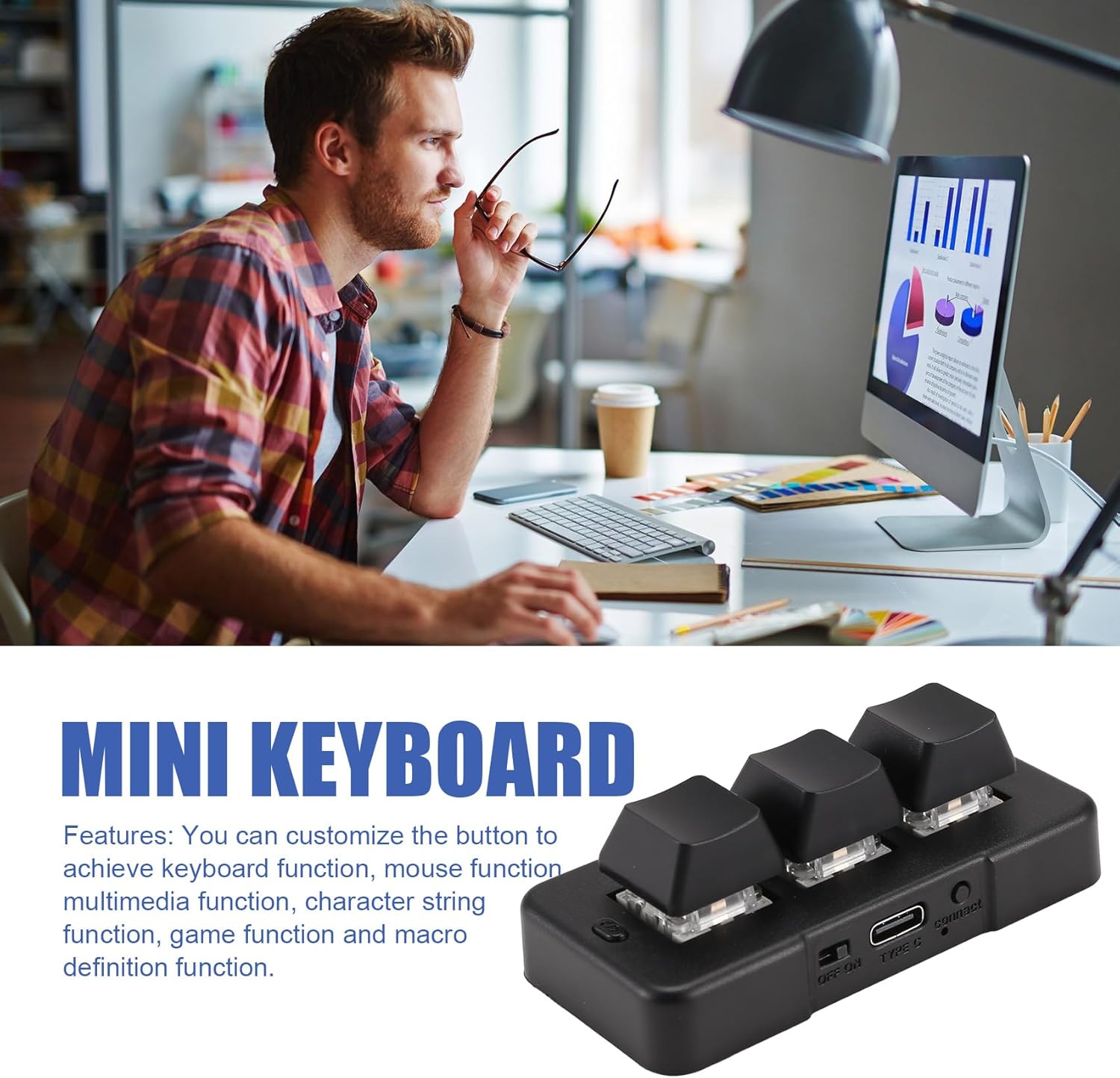
Image 4.2.1: The MK321 Mini Keyboard, emphasizing its customizable nature for various functions.
- Install Software: Download and install the key definition setting software on a compatible computer (preferably Windows for initial setup).
- Connect Keyboard: Ensure the MK321 is connected to the computer via the USB cable.
- Launch Software: Open the installed programming software.
- Select Key: Within the software interface, select the key you wish to program.
- Assign Function: Choose from the available function types:
- Keyboard Function: Assign any standard keyboard key (e.g., A, Ctrl, Shift, F1).
- Mouse Function: Assign mouse clicks (left, right, middle) or scroll functions.
- Multimedia Function: Control media playback (e.g., Play/Pause, Volume Up/Down, Next Track).
- Character String Function: Input a predefined sequence of characters (e.g., a password, a common phrase).
- Game Function: Assign specific in-game commands.
- Macro Definition Function: Record and assign a sequence of key presses and/or mouse actions.
- Save Settings: Apply and save your programmed settings to the device through the software. The settings are stored directly on the keyboard's internal memory.
Once programmed, the mini keyboard will retain these settings even when disconnected and reconnected to a different computer or operating system (with the Linux/macOS note above). The device is designed to be versatile for various applications.
5. Maintenance
The Yaregelun MK321 Mini Keyboard requires minimal maintenance to ensure its longevity and performance.
- Cleaning: Use a soft, dry cloth to wipe the surface of the keyboard. For stubborn dirt, a slightly damp cloth with mild soap can be used, ensuring no liquid enters the device.
- Avoid Liquids: Do not expose the keyboard to excessive moisture or immerse it in liquids.
- Storage: Store the keyboard in a cool, dry place away from direct sunlight and extreme temperatures.
- Cable Care: Handle the USB cable gently. Avoid sharp bends or excessive pulling to prevent damage.
6. Troubleshooting
| Problem | Possible Cause | Solution |
|---|---|---|
| Keyboard not recognized by computer. | Loose USB connection, faulty USB port, damaged cable. |
|
| Keys do not perform desired functions. | Incorrect programming, software not applied, default settings. |
|
| Software does not detect the keyboard. | Driver issue, connection problem, software compatibility. |
|
7. Specifications
| Model | MK321U |
| Manufacturer | Yaregelun |
| Connectivity | Wired USB (USB-A to USB-C) |
| Key Type | Mechanical Blue Switches |
| Number of Keys | 3 |
| Material | Plastic |
| Color | Black |
| Product Dimensions | 3.94 x 3.15 x 0.79 inches (10 x 8 x 2 cm) |
| Item Weight | 2.5 ounces (70.87 grams) |
| Compatibility | Windows (for programming), Linux, macOS (after programming) |
8. Warranty and Support
Specific warranty information for the Yaregelun MK321 Mini Keyboard is not provided in the product details. For warranty claims, technical support, or further assistance, please contact the retailer where you purchased the product or visit the official Yaregelun support website if available.
Always retain your proof of purchase for warranty purposes.