1. Introduction
The SWITCHFLUX DP to Dual DP with HDMI Adapter is designed to expand your display capabilities by converting a single DisplayPort (DP) output from your source device into two DisplayPort outputs and one HDMI output. This allows for a multi-monitor setup, enhancing productivity and visual experience across various applications.
This adapter supports high resolutions and refresh rates, including 4K@60Hz, 2K@120/60Hz, and 1080P@120/60Hz, ensuring clear and fluid visuals. It is backward compatible with lower resolutions and refresh rates.
2. Product Features
- Multi-Display Output: Converts one DisplayPort input to two DisplayPort outputs and one HDMI output.
- High Resolution Support: Capable of 4K@60Hz, 2K@120/60Hz, and 1080P@120/60Hz resolutions.
- Multiple Display Modes: Supports Extended Display, Mirrored Display, and Video Wall modes.
- Durable Construction: Features an aluminum shell for heat dissipation and durability, with a nylon braided cable for enhanced longevity.
- External Power: Includes a micro USB port for stable power delivery, essential for optimal performance with multiple displays.

Image: The adapter features a stylish and portable design with an aluminum shell, a micro USB power connector, and a durable nylon braided cable.
3. Setup Instructions
Follow these steps to set up your SWITCHFLUX DP to Dual DP with HDMI Adapter:
- Connect the Source: Plug the DisplayPort (DP) input cable from the adapter into the DisplayPort output of your source device (e.g., PC, desktop, graphics card).
- Connect Displays:
- Connect your primary DisplayPort monitor to one of the 'Output' DisplayPort ports on the adapter.
- Connect your secondary DisplayPort monitor to the other 'Output' DisplayPort port on the adapter.
- Connect your HDMI monitor to the 'HDMI Port' on the adapter using an HDMI cable.
- Provide Power: Connect a micro USB cable (not included) from a 5V power source (e.g., USB port on your computer or a USB wall adapter) to the micro USB power input port on the adapter. This step is crucial for stable operation, especially with multiple high-resolution displays.
- Power On: Turn on your source device and all connected monitors.
- Configure Display Settings: Access your operating system's display settings to configure the desired display mode (Extended, Mirrored, or Video Wall) and resolution for each monitor.

Image: Connection diagram illustrating the DP source, dual DP outputs, and HDMI output ports on the adapter.

Image: A desktop PC connected to the adapter, which distributes the signal to three 4K displays. Ensure the micro USB power is connected for proper function.
4. Operating Instructions
Once connected, you can configure your display setup through your computer's operating system settings. The adapter supports the following display modes:
- Extended Display: Each monitor displays a different part of your desktop, allowing for an expanded workspace. This is ideal for multitasking and increased productivity.
- Mirrored Display: All connected monitors display the same content. This is useful for presentations or sharing content with multiple viewers.
- Video Wall Mode: The displays combine to form a single, larger virtual screen, often used for immersive gaming or professional applications.
To switch between modes, navigate to your operating system's display settings (e.g., Windows Display Settings, macOS System Preferences > Displays) and select the desired arrangement.

Image: Examples of multi-screen display effects: Extended Display, Mirrored Display, and Video Wall Mode.

Image: A typical setup demonstrating three screens displaying different images at 4K@60Hz, enhancing productivity.
5. Compatibility
The SWITCHFLUX DP to Dual DP with HDMI Adapter is designed for broad compatibility with various devices and display types:
- Source Devices: Compatible with desktop PCs, personal computers, and graphics cards from manufacturers like NVIDIA and AMD that feature a DisplayPort output.
- Output Devices: Supports connection to DisplayPort monitors, HDMI monitors, TVs, and HDTVs.
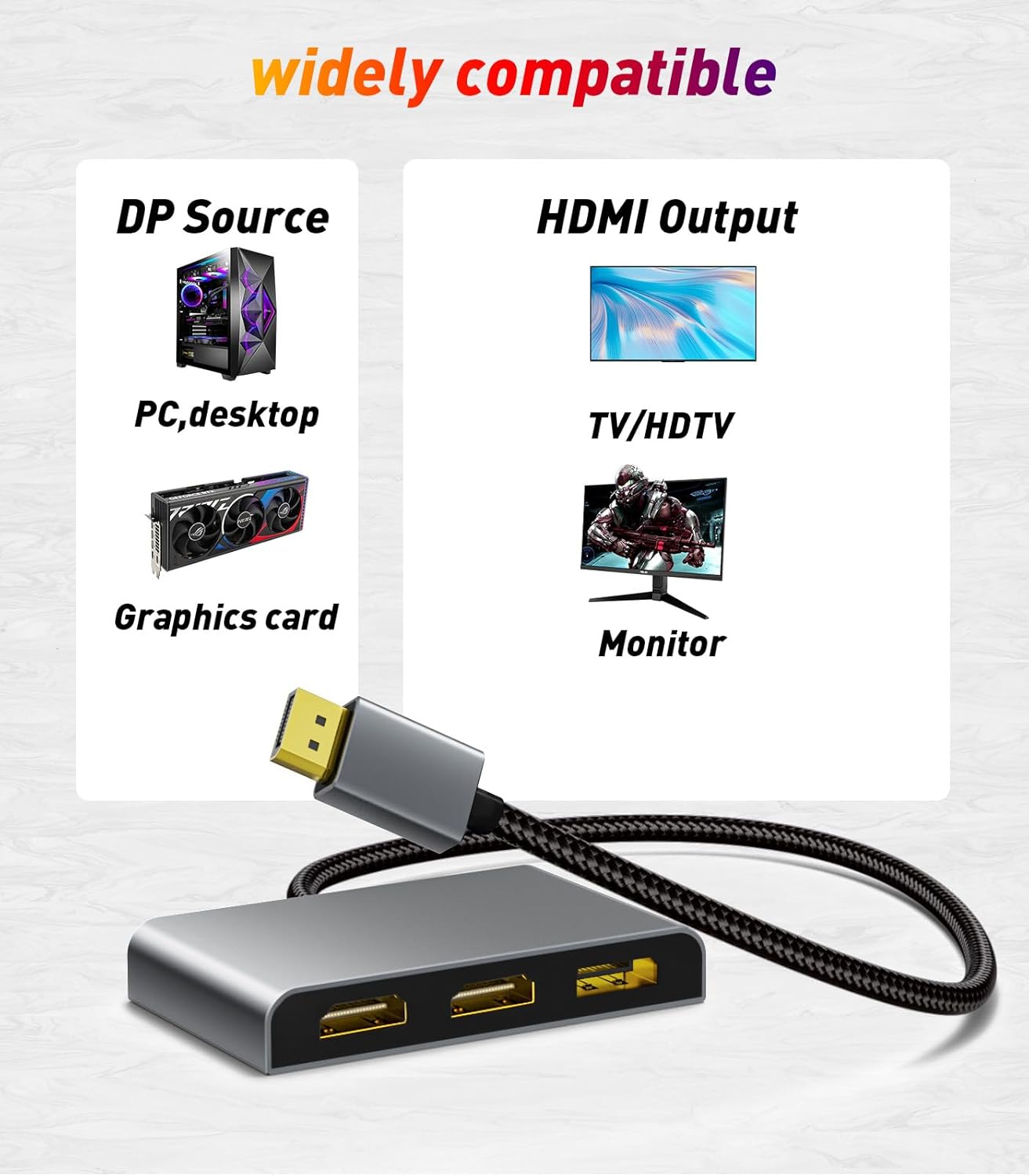
Image: Compatibility overview for DP sources (PC, desktop, graphics card) and HDMI outputs (TV/HDTV, monitor).
6. Specifications
| Feature | Specification |
|---|---|
| Manufacturer | SWITCHFLUX |
| Input Connector | 1 x DisplayPort (DP) |
| Output Connectors | 2 x DisplayPort (DP), 1 x HDMI |
| Power Input | 1 x Micro USB (5V) |
| Color | Black |
| Compatible Devices | Desktop PCs, Personal Computers, NVIDIA/AMD Graphic Cards |
| Dimensions (L x W x H) | 14.3 x 10.11 x 2.11 cm |
| Weight | 132 grams |
7. Troubleshooting
If you encounter issues with your adapter, please refer to the following common troubleshooting steps:
- No Display on Monitors:
- Ensure all cables (DisplayPort, HDMI, Micro USB power) are securely connected.
- Verify that the micro USB power cable is connected to a stable 5V power source.
- Check if your source device's DisplayPort output is active and functioning correctly.
- Confirm that your monitors are set to the correct input source (DisplayPort or HDMI).
- Incorrect Resolution or Refresh Rate:
- Ensure your source device's graphics card and all connected monitors support the desired resolution and refresh rate.
- Update your graphics card drivers to the latest version.
- Adjust display settings in your operating system.
- Flickering or Unstable Display:
- Ensure the micro USB power connection is stable and providing sufficient power.
- Try using different DisplayPort or HDMI cables, as faulty cables can cause issues.
- Reduce the resolution or refresh rate to see if stability improves.
- Only One or Two Monitors Detected:
- Verify that all output cables are correctly plugged into the adapter and monitors.
- Check your operating system's display settings to ensure all connected displays are detected and enabled.
- Ensure your graphics card supports the number of displays you are trying to connect.
8. Maintenance
To ensure the longevity and optimal performance of your SWITCHFLUX DP to Dual DP with HDMI Adapter, follow these maintenance guidelines:
- Keep Clean: Gently wipe the adapter with a soft, dry cloth to remove dust and debris. Avoid using liquid cleaners or abrasive materials.
- Avoid Moisture: Do not expose the adapter to water or excessive humidity.
- Proper Storage: Store the adapter in a cool, dry place when not in use.
- Handle with Care: Avoid dropping or subjecting the adapter to strong impacts.
9. Warranty and Support
For information regarding warranty coverage, technical support, or service inquiries, please refer to the official SWITCHFLUX website or contact their customer support directly. Details are typically provided with your product packaging or on the manufacturer's website.


