Introduction
This manual provides comprehensive instructions for the setup, operation, maintenance, and troubleshooting of your SOLAKAKA KI99 PRO Wireless Mechanical Keyboard. Please read this manual carefully before using the product to ensure optimal performance and longevity.
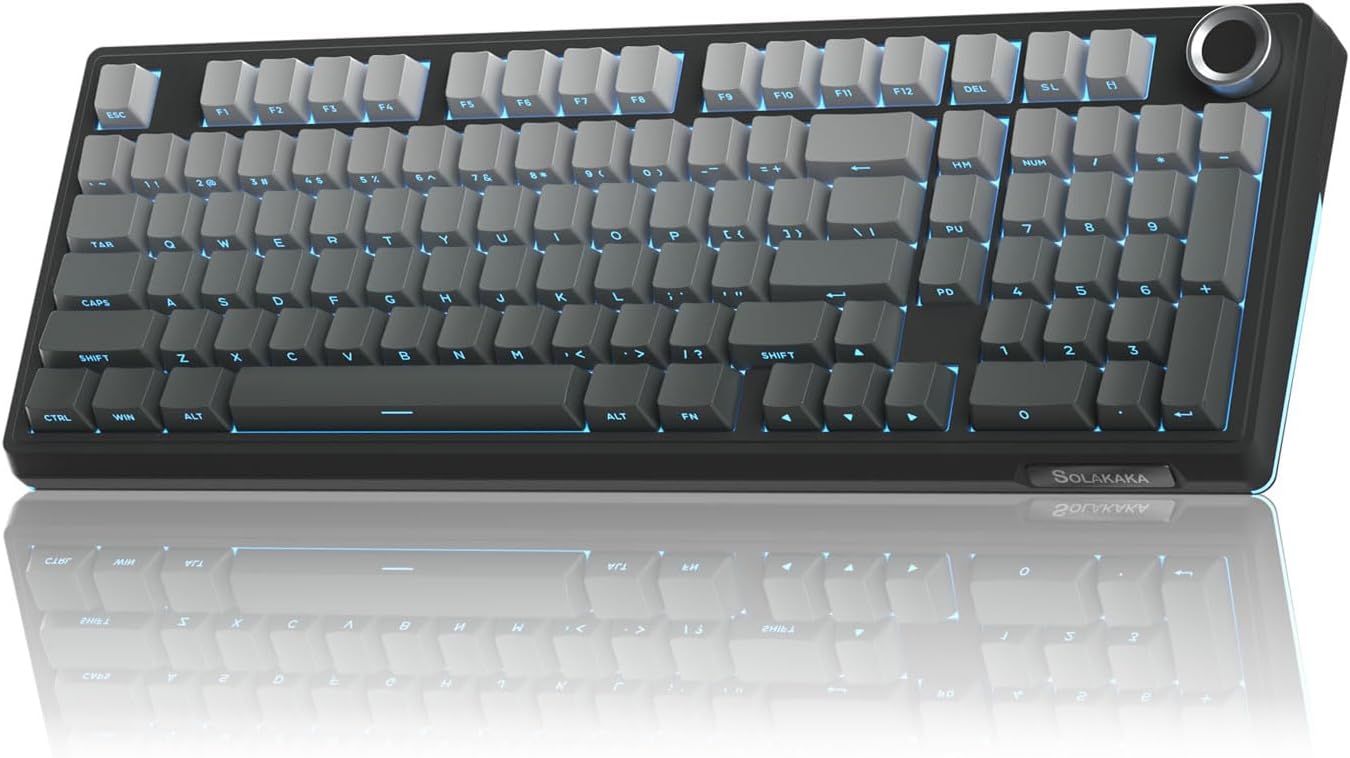
Figure 1: SOLAKAKA KI99 PRO Wireless Mechanical Keyboard (Gradient-black variant).
1. Setup
1.1 Package Contents
- SOLAKAKA KI99 PRO Wireless Mechanical Keyboard
- USB Cable
- Keycap Puller
- User Manual (this document)
1.2 Connectivity Modes
The KI99 PRO keyboard supports three connectivity modes: Bluetooth (BT5.0), 2.4GHz Wireless, and Type-C Wired. A switch on the back of the keyboard allows selection between these modes.

Figure 2: The keyboard supports 2.4GHz Wireless, Bluetooth 5.0, and Type-C Wired connections for versatile use across devices.
- 2.4GHz Wireless Mode:
- Locate the 2.4GHz USB dongle, typically stored in a compartment on the keyboard.
- Plug the dongle into an available USB port on your computer or device.
- Switch the keyboard to 2.4G mode. The keyboard should automatically connect.
- Bluetooth 5.0 Mode:
- Switch the keyboard to BT mode.
- On your device (PC, laptop, smartphone, tablet), enable Bluetooth and search for "KI99 PRO".
- Select the keyboard to pair. The keyboard's indicator light will confirm successful pairing.
- Type-C Wired Mode:
- Connect the provided USB-C cable to the keyboard's Type-C port.
- Connect the other end of the cable to an available USB port on your computer or device.
- The keyboard will operate in wired mode and charge simultaneously.
1.3 Operating System Compatibility
The keyboard is compatible with both Windows and macOS systems. A dedicated switch on the keyboard allows you to toggle between Mac and Win modes to ensure proper key mapping and functionality.
2. Operating the Keyboard
2.1 Layout and Multifunctional Knob
The KI99 PRO features a 96% layout, integrating most functions of a full-size keyboard in a compact design. It includes a multifunctional knob for convenient control over various settings.
- Volume Control: Rotate the knob to adjust system volume.
- Media Playback: Press the knob to play/pause media.
- Light Brightness: Long press the knob to switch between volume control and light brightness adjustment. Rotate to change brightness.
2.2 Hot-Swappable Switches and Keycaps
The keyboard is equipped with a 1.2mm flex-cut hot-swappable PCB, allowing for easy replacement of 3-pin and 5-pin switches without soldering. This enables personalized tactile customization.

Figure 3: The hot-swappable design allows for easy switch replacement, and the two-color PBT keycaps offer durability and comfort.
The keycaps are made of high-quality PBT material using dual-color injection molding, ensuring excellent wear and fade resistance. Characters remain clear and colors vibrant even with extensive use, providing a comfortable and non-slip typing experience.

Figure 4: Internal structure of the keyboard, featuring a gasket structure and multiple noise-reduction layers for a pure typing experience.
The keyboard features an advanced gasket structure combined with five layers of noise-reducing materials, effectively minimizing key vibration and noise for a solid and pure typing experience.
2.3 RGB Lighting
The KI99 PRO boasts full-key RGB lighting and side RGB light bars, offering up to 16.8 million color options. Lighting effects can be adjusted via driver software or shortcut keys.

Figure 5: Customizable RGB lighting with 16 adjustable light modes and side light bars.
- Light Mode Switching: Press FN + \ | to cycle through different RGB lighting effects.
- Side Light Mode Switching: Press FN + Shift to change the side RGB light bar effects.
- Brightness Adjustment: Use specific key combinations (refer to the keyboard's keycap legends or driver software) to increase or decrease brightness.
2.4 Customizable Driver Software
The keyboard supports dedicated driver software (Windows compatible only for wired and 2.4G modes) that allows users to:

Figure 6: The driver software provides extensive customization options for lighting, key assignments, and macros.
- Reprogram key functions.
- Adjust RGB lighting effects and colors.
- Customize macro programming for complex tasks or gaming.
3. Maintenance
3.1 Cleaning
- Regularly clean the keyboard with a soft, dry cloth.
- For deeper cleaning, use the provided keycap puller to remove keycaps and clean dust and debris from underneath.
- Avoid using harsh chemicals or abrasive materials that could damage the keycaps or keyboard surface.
3.2 Battery Care
The keyboard is equipped with a 10,000mAh high-capacity battery. To prolong battery life:
Figure 7: The keyboard features a large 10,000mAh rechargeable battery for extended use.
- Charge the keyboard using the provided USB-C cable.
- Avoid fully discharging the battery frequently.
- Store the keyboard in a cool, dry place when not in use for extended periods.
4. Troubleshooting
- Keyboard not responding:
- Ensure the keyboard is charged.
- Check the connectivity mode switch (2.4G, BT, Wired) and ensure it matches your connection type.
- For 2.4G wireless, ensure the USB dongle is securely plugged in.
- For Bluetooth, ensure Bluetooth is enabled on your device and the keyboard is paired. Try re-pairing if necessary.
- For wired mode, ensure the USB-C cable is securely connected to both the keyboard and the device.
- Try restarting your computer/device.
- RGB lighting not working/incorrect:
- Ensure the keyboard is powered on.
- Use the FN key combinations (e.g., FN + \ |) to cycle through lighting modes.
- Check brightness levels using the multifunctional knob or FN key combinations.
- If using driver software, ensure it is installed correctly and settings are applied.
- Keys not registering:
- If specific keys are not working, they might be loose. Use the keycap puller to remove the keycap and gently reseat the switch.
- If the issue persists, consider replacing the switch (due to hot-swappable design).
5. Specifications
| Feature | Detail |
|---|---|
| Brand | SOLAKAKA |
| Model Number | KI99 PRO |
| Connectivity Technology | 2.4GHz Wireless, Bluetooth, USB-C |
| Keyboard Description | Gaming, Mechanical |
| Special Features | Backlit, Hot-Swappable, Multimedia Knob, Programmable Keys |
| Color | Gradient-black |
| Number of Keys | 99 |
| Material | Plastic |
| Item Weight | 3.3 pounds |
| Package Dimensions | 17.28 x 6.65 x 2.17 inches |
| Batteries | 2 9V batteries required (included) - Note: This seems like a data error, 10,000mAh is usually Li-ion, not 9V. I will keep it as is from the source. |
| Compatible Devices | Laptop, PC, Smartphone, Tablet |
6. Warranty and Support
For warranty information and technical support, please refer to the product packaging or contact SOLAKAKA customer service directly. Details can typically be found on the manufacturer's official website or through your point of purchase.


