
1. Introduction
This manual provides essential information for the setup, operation, maintenance, and troubleshooting of your Samsung 43-inch QLED Q7F 4K Smart TV (2025). This television features QLED technology for vibrant colors, a Q4 AI Processor for enhanced picture and sound, Quantum HDR for improved contrast, and Samsung Knox Security for data protection.
2. What's in the Box
Carefully unpack your television and ensure all components are present. The package should contain:
- Samsung QLED Q7F 4K Vision AI Smart TV (2025)
- SOLARCELL REMOTE TM2560E (Remote Control)
- Power Cable
- User Manual (this document)
- Limited Protection Information
Note: Additional bundled items such as HDMI cables, streaming cards, and guidebooks are separate accessories and not part of the standard TV package.

Image: The Samsung 43-inch QLED Q7F 4K Smart TV shown with its remote control, power cable, and other bundled accessories.
3. Setup
3.1. Assembling the Stand
- Carefully place the TV screen-down on a soft, flat surface to prevent damage.
- Align the TV stand components with the designated slots on the back or bottom of the TV.
- Secure the stand using the provided screws. Refer to the quick setup guide included in the box for specific instructions and screw types.
- Once assembled, carefully lift the TV and place it on a stable, level surface.
3.2. Connecting External Devices
Connect your external devices (e.g., cable box, Blu-ray player, gaming console) to the appropriate ports on the back of the TV.
- HDMI Ports: Use HDMI cables for high-definition video and audio. This TV includes multiple HDMI ports, with HDMI 3 supporting eARC for enhanced audio return.
- USB Port: Connect USB storage devices for media playback or software updates.
- LAN Port: For a wired internet connection. Alternatively, use Wi-Fi for wireless connectivity.
- ANT/CABLE In: Connect an antenna or cable for broadcast TV.

Image: A close-up of the back panel of the Samsung QLED TV, illustrating the HDMI, USB, LAN, and antenna input ports for connecting external devices.
3.3. Power Connection and Initial Power-On
- Connect the power cable to the TV's power input and then to a wall outlet.
- Press the power button on the remote control or the TV itself to turn it on.
- Follow the on-screen instructions to complete the initial setup, including language selection, network connection (Wi-Fi or wired), and channel scanning.
4. Operating Your TV
4.1. Q4 AI Processor
The Q4 AI Processor enhances your viewing experience by optimizing picture and audio quality. It can upscale content to stunning 4K resolution, even if the original source is lower, and intelligently adjusts color and sound based on the content type.
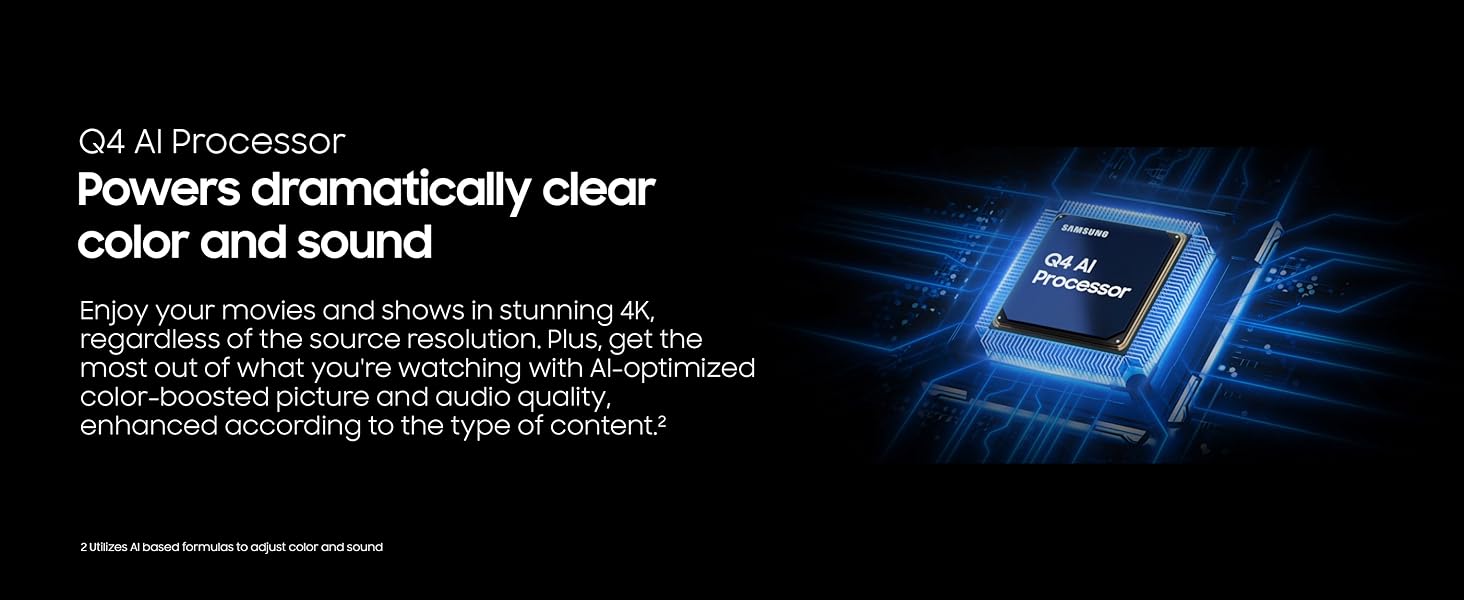
Image: A visual representation of the Q4 AI Processor, highlighting its role in enhancing picture and sound quality.
4.2. 100% Color Volume with Quantum Dot
Experience over one billion authentic hues with remarkable precision. Quantum Dot technology allows the TV to display 100% Color Volume, ensuring vibrant and accurate colors at any brightness level, from the darkest shadows to the brightest highlights.
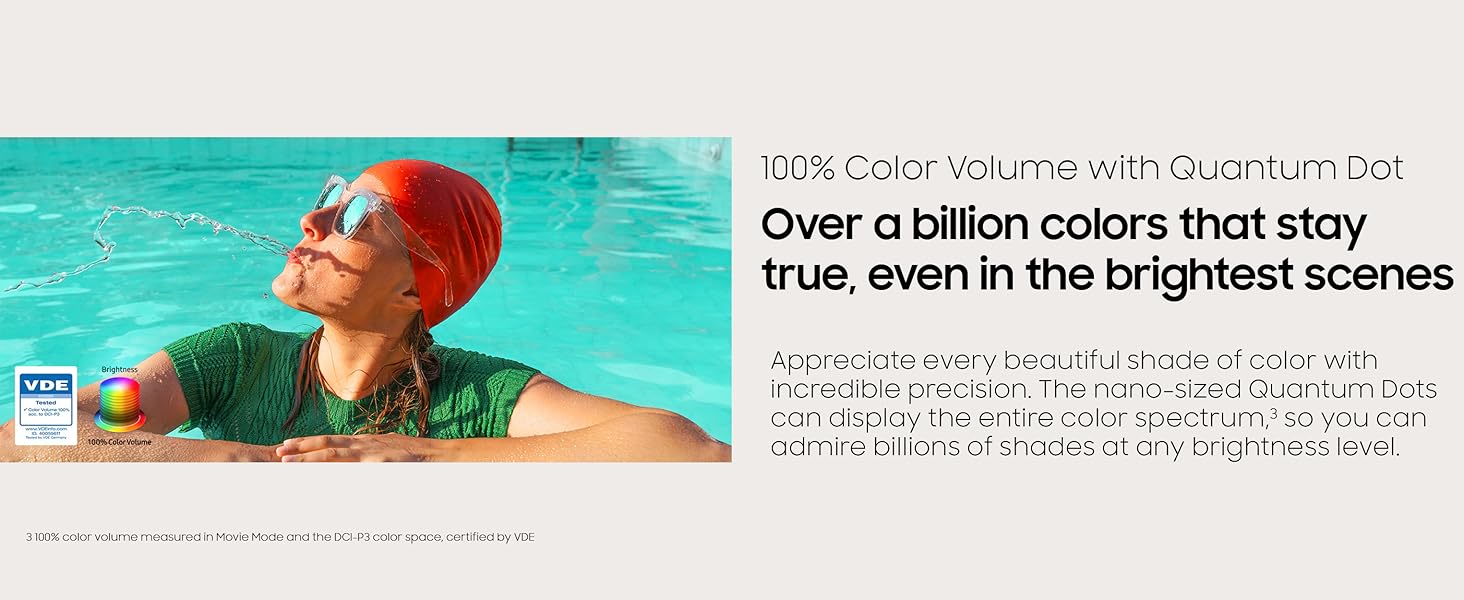
Image: A graphic demonstrating the wide color spectrum achieved by 100% Color Volume with Quantum Dot technology, showing a person splashing water in a pool with vibrant colors.
4.3. Quantum HDR
Quantum HDR reveals hidden details in both dark and bright scenes. The dynamic tone mapping of HDR10+ enhances contrast, delivering vibrant imagery and ensuring all critical details stand out for a more immersive viewing experience.
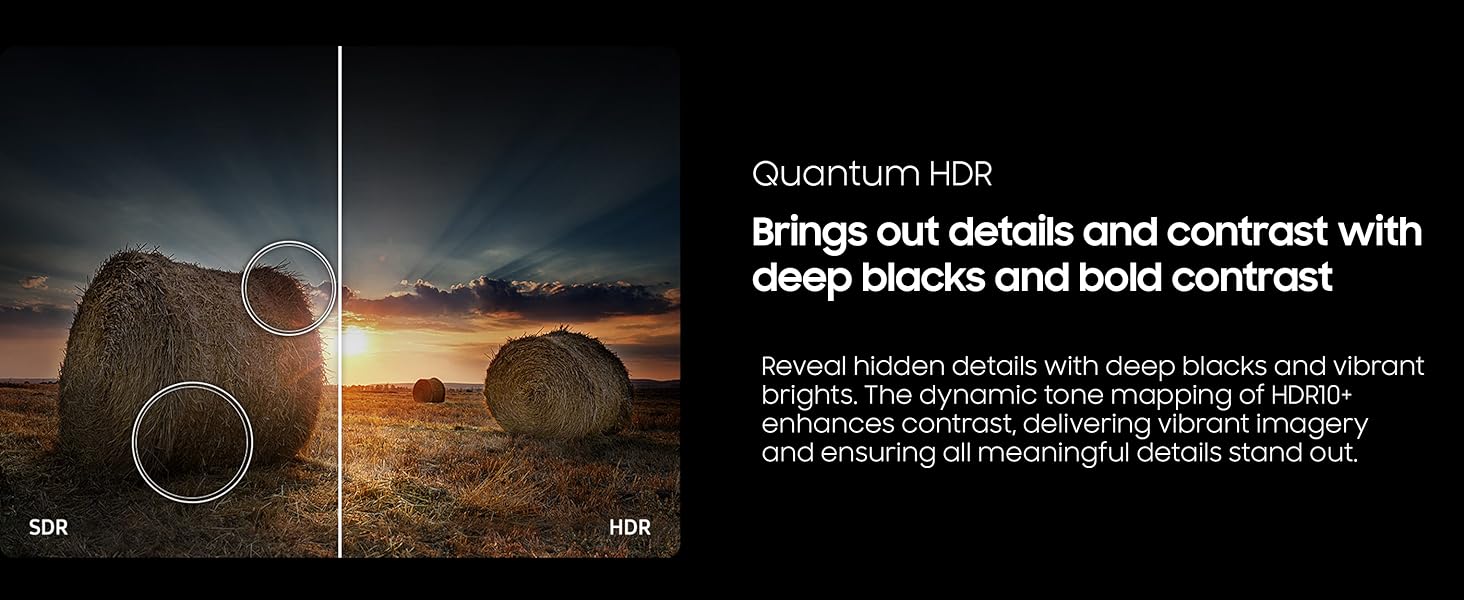
Image: A split image comparing a Standard Dynamic Range (SDR) view with a High Dynamic Range (HDR) view, illustrating how Quantum HDR brings out more detail in both bright and dark areas of a scene.
4.4. Samsung Knox Security
Your TV experiences are secured by Samsung Knox Security, which provides triple-layer protection. It automatically blocks unauthorized apps and phishing websites, safeguards IoT devices connected to your TV, and protects sensitive information like PIN codes and passwords. Regular updates ensure continuous security.
Image: A graphic depicting the Samsung Knox Security shield icon, emphasizing its role in securing personal data and protecting against harmful attacks.
4.5. Endless Free Content
Access a world of content without subscriptions. Your Samsung Smart TV offers over 2,700 free channels, including more than 400 Samsung TV Plus premium channels and various free streaming apps. Explore national and local news, sports, movies, and more, with new content added regularly.
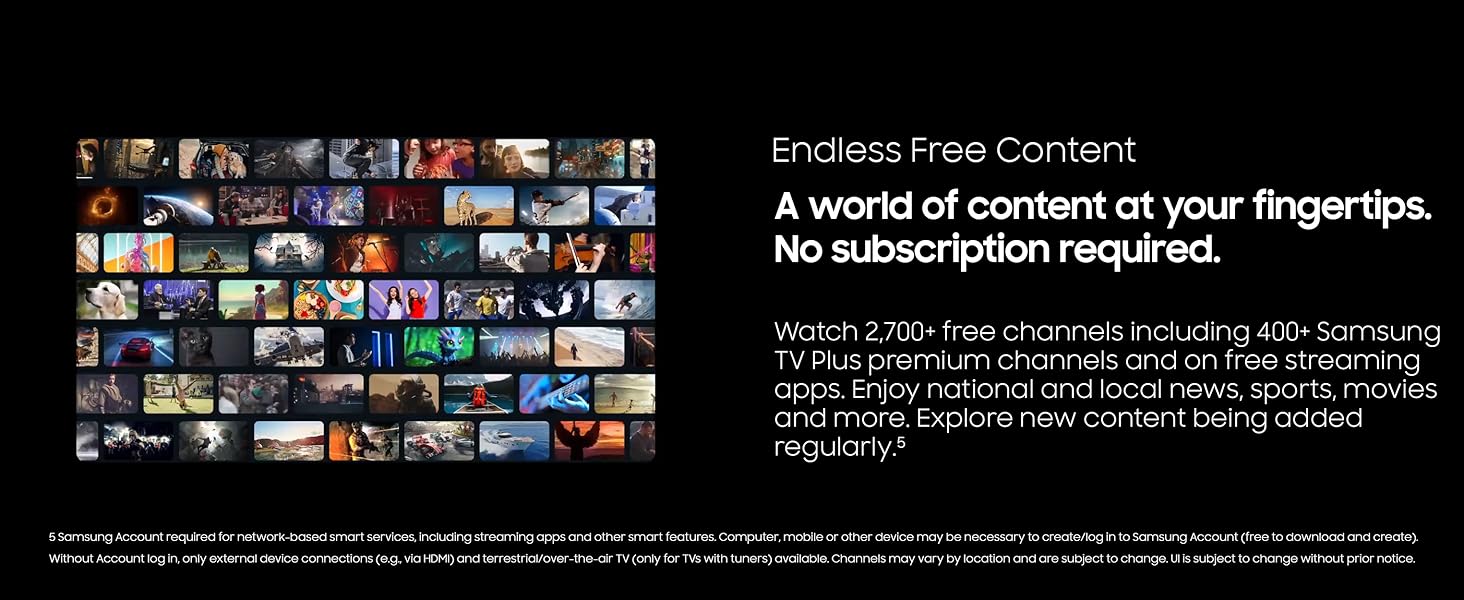
Image: A collage of various streaming content thumbnails, representing the 'Endless Free Content' available on the Samsung Smart TV.
4.6. Motion Xcelerator 60Hz
Experience clear picture and smooth motion, especially in fast-paced content like games and sports. Motion Xcelerator technology estimates and smooths movement between frames, improving picture clarity at up to 60Hz.
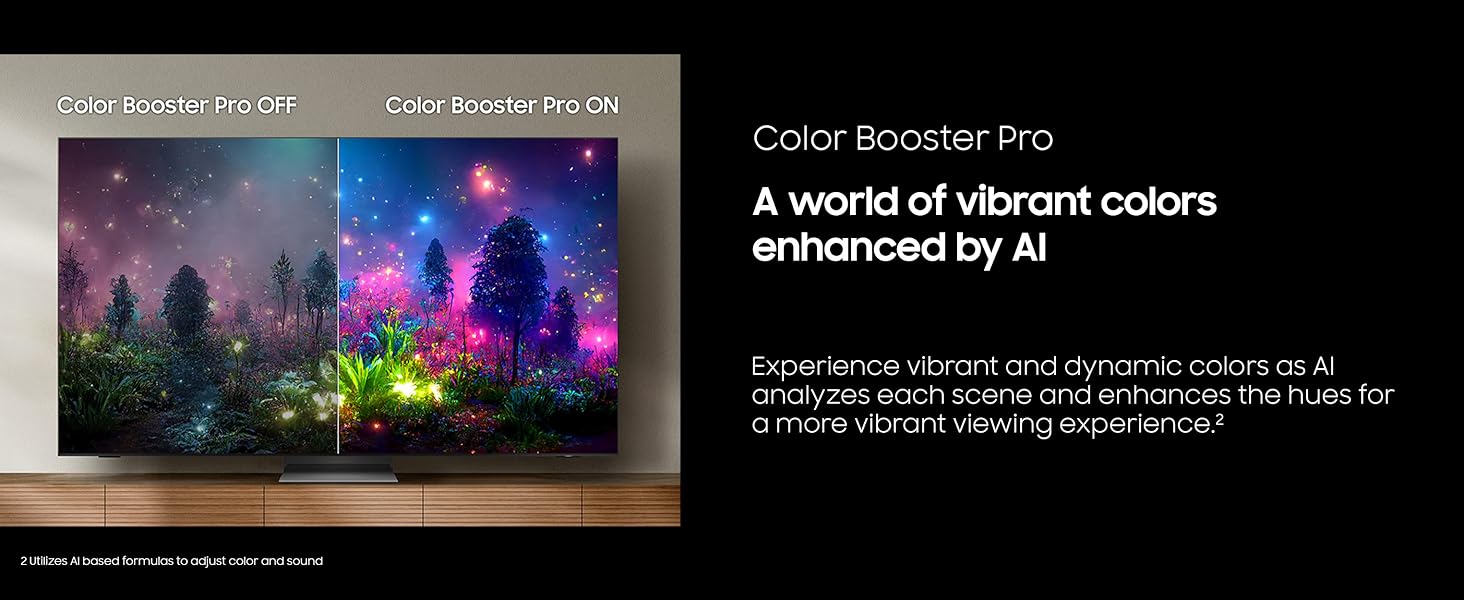
Image: A dynamic image of a motocross rider, demonstrating the smooth motion and clarity provided by Motion Xcelerator 60Hz technology.
4.7. Color Booster Pro
Color Booster Pro utilizes AI to analyze each scene and enhance hues, creating a world of vibrant and dynamic colors for a more engaging viewing experience.
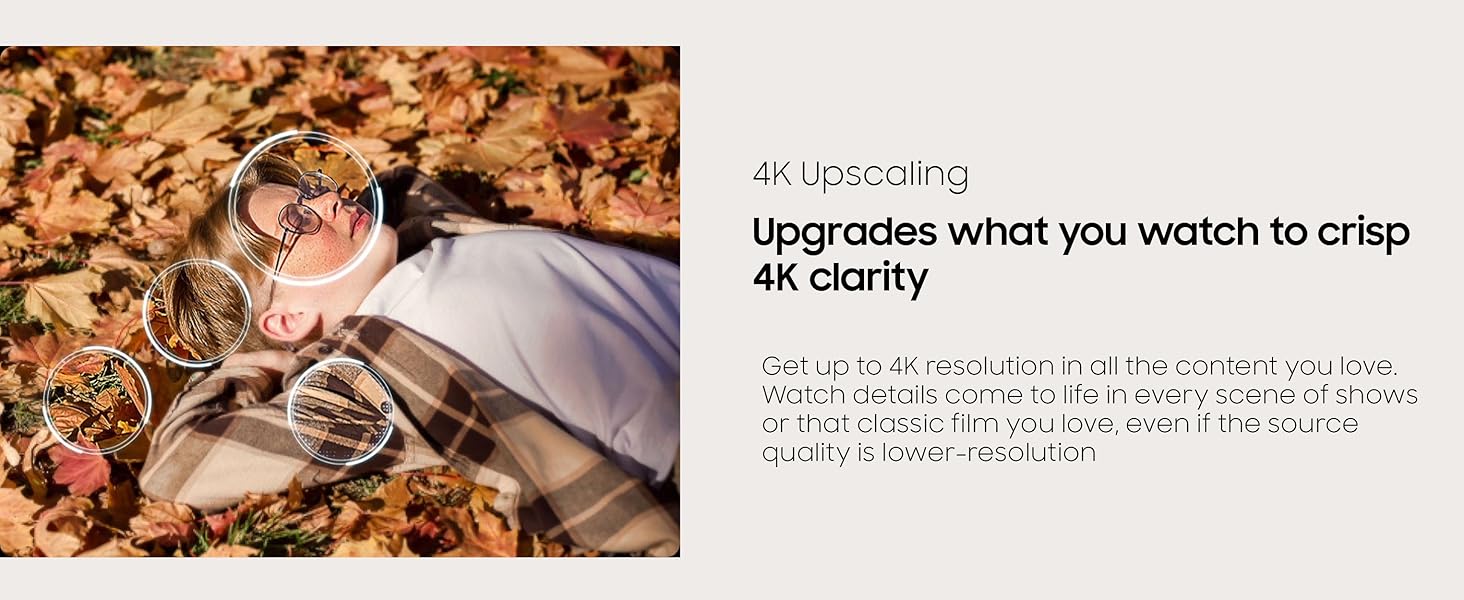
Image: A split screen showing a scene with 'Color Booster Pro Off' on one side and 'Color Booster Pro On' on the other, illustrating the enhanced vibrancy of colors with the feature activated.
4.8. 4K Upscaling
The TV's processor can upgrade lower-resolution content to crisp 4K clarity. This means you can enjoy details in every scene of your favorite shows or classic films, even if their original quality is not 4K.
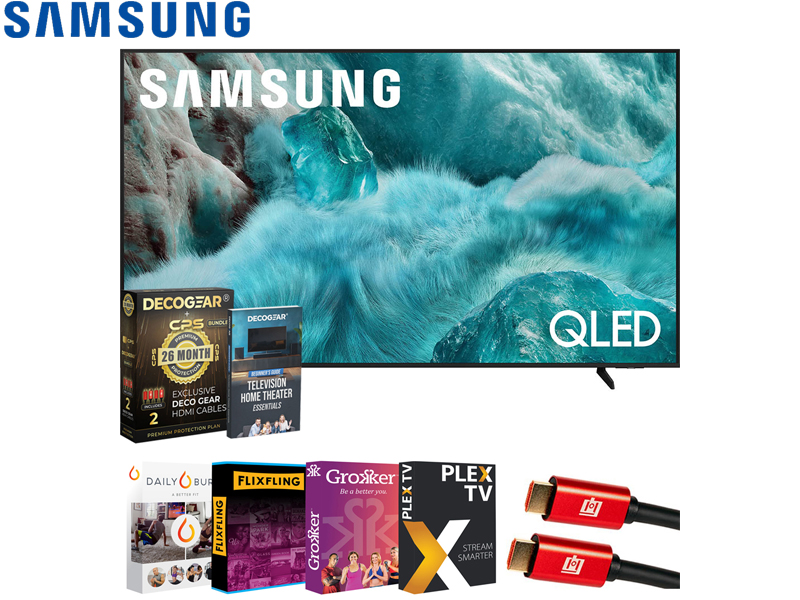
Image: A graphic demonstrating 4K Upscaling, showing a person lying on autumn leaves with highlighted areas indicating enhanced detail and clarity.
5. Maintenance
5.1. Cleaning the Screen
To clean the screen, gently wipe it with a soft, dry microfiber cloth. For stubborn smudges, lightly dampen the cloth with distilled water or a screen-specific cleaning solution. Avoid using harsh chemicals, abrasive materials, or spraying liquid directly onto the screen.
5.2. Cleaning the TV Body
Wipe the TV's frame and back panel with a soft, dry cloth. Do not use liquid cleaners directly on the TV body.
5.3. Software Updates
Ensure your TV's software is up to date for optimal performance and security. You can usually check for updates through the TV's settings menu under 'Support' or 'Software Update'.
6. Troubleshooting
If you encounter issues with your TV, refer to the following common troubleshooting steps:
- No Power: Ensure the power cable is securely connected to both the TV and the wall outlet. Try plugging another device into the same outlet to confirm it has power.
- No Picture/Sound: Check that the correct input source is selected (e.g., HDMI 1, TV). Verify all cables connecting external devices are secure.
- Poor Picture Quality: Adjust picture settings (brightness, contrast, sharpness) in the TV's menu. Ensure the input source is providing a high-quality signal.
- Remote Control Not Working: Check the batteries in the remote control. Ensure there are no obstructions between the remote and the TV's sensor.
- Network Connection Issues: For Wi-Fi, ensure your router is on and within range. For wired connections, check the Ethernet cable. Try restarting your router and the TV.
For more detailed troubleshooting, consult the comprehensive e-Manual accessible through your TV's settings menu or visit the Samsung support website.
7. Specifications
| Feature | Specification |
|---|---|
| Brand | Samsung |
| Model Number | E1SAMQN43Q7F |
| Screen Size | 42.5 Inches (Visible screen diagonal: 43" / 108 cm) |
| Display Technology | QLED |
| Resolution | 4K (3840 x 2160) |
| Refresh Rate | 60 Hz |
| Special Features | 100% Color Volume with Quantum Dot, Endless Free Content, Filmmaker Mode, Q4 AI Processor, Samsung Knox Security |
| Connectivity Technology | Bluetooth, Wi-Fi |
| Aspect Ratio | 16:9 |
| Product Dimensions (D x W x H) | 7.5" x 38.1" x 24" |
| Item Weight | 15.7 Pounds |
| On-mode Power Consumption | 88 watts |
8. Warranty and Support
8.1. Manufacturer's Warranty
Your Samsung QLED Q7F 4K Smart TV (2025) comes with a full manufacturer's protection. Please refer to the 'Limited Protection' document included in your product box for specific terms and conditions.
8.2. Extended Protection
This product may be eligible for extended protection plans, such as the CPS 26 Months Premium Extended Service Protection Plan, which may include accidental and burn-in coverage. Details for such plans are typically provided by the retailer at the time of purchase.
8.3. Customer Support
For technical assistance, warranty claims, or further inquiries, please contact Samsung Customer Support. You can find contact information on the official Samsung website or in the documentation provided with your TV.
Visit the Samsung Store for more product information and support resources.


