
Introduction
This manual provides detailed instructions for the setup, operation, and maintenance of your MOKiN DisplayLink Laptop Docking Station. Please read this manual thoroughly before using the device to ensure proper functionality and to prevent damage.
Product Overview
The MOKiN DisplayLink Laptop Docking Station is a versatile 15-in-1 solution designed to expand your laptop's connectivity. It utilizes DisplayLink technology to support multiple external displays and offers a wide array of ports for peripherals, networking, and power delivery.
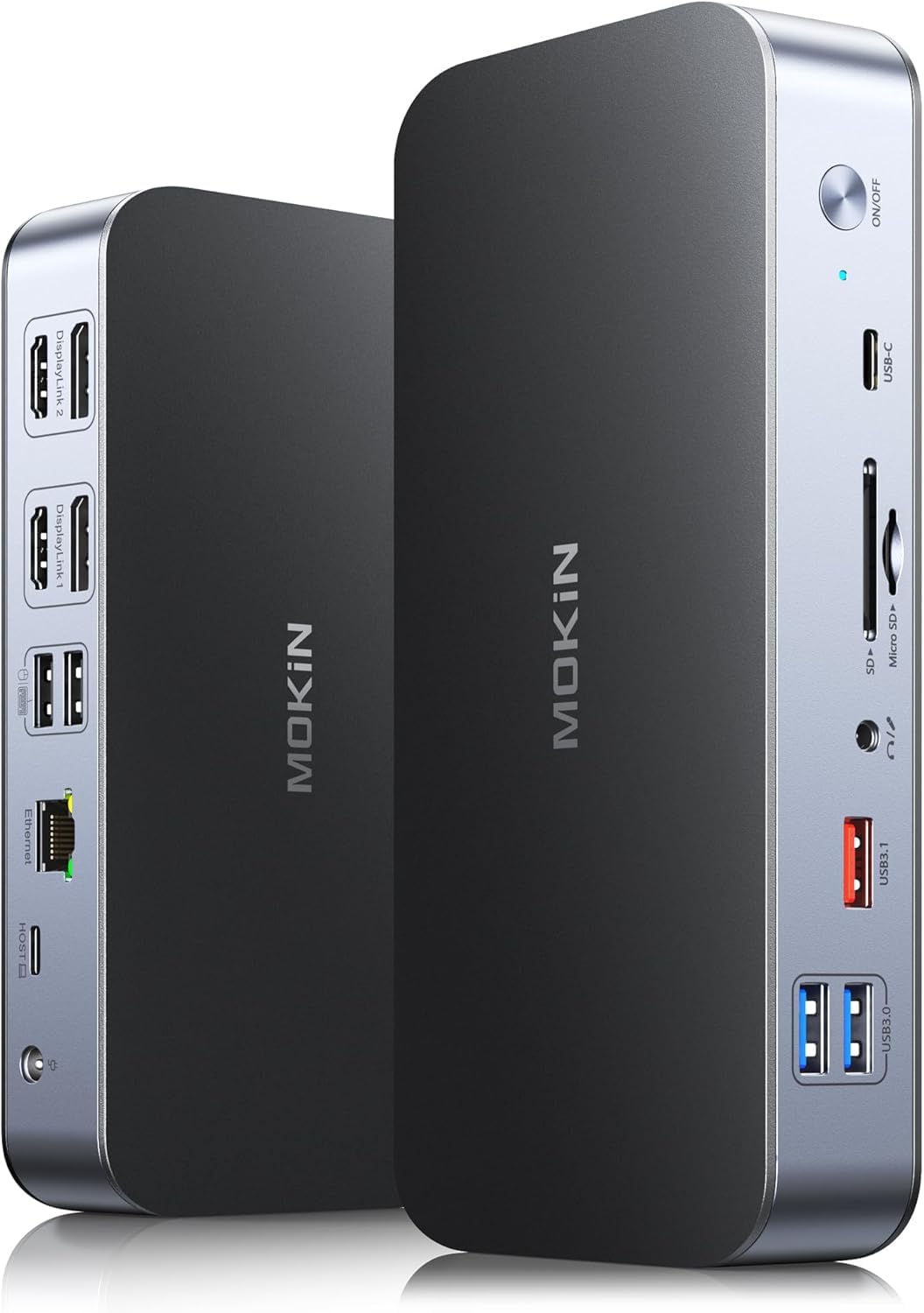
Image: Overview of the MOKiN 15-in-1 DisplayLink Docking Station, highlighting its various ports and functionalities.
Key Features:
- Dual Monitor Support: Connect two external displays via HDMI and DisplayPort, supporting resolutions up to 4K@60Hz.
- High-Speed Data Transfer: Includes USB-C 3.1 and USB-A 3.1 ports for speeds up to 10 Gbps, and SD/TF 4.0 card slots for up to 250 MB/s.
- Fast Network Connectivity: Integrated 2.5Gbps Ethernet port for reliable and high-speed wired internet access.
- 120W Power Delivery: Equipped with a 120W DC charger to power the dock and provide charging to your connected laptop.
- Extensive Port Selection: Features USB-A 3.0, USB-A 2.0, 3.5mm audio jack, and a security slot.
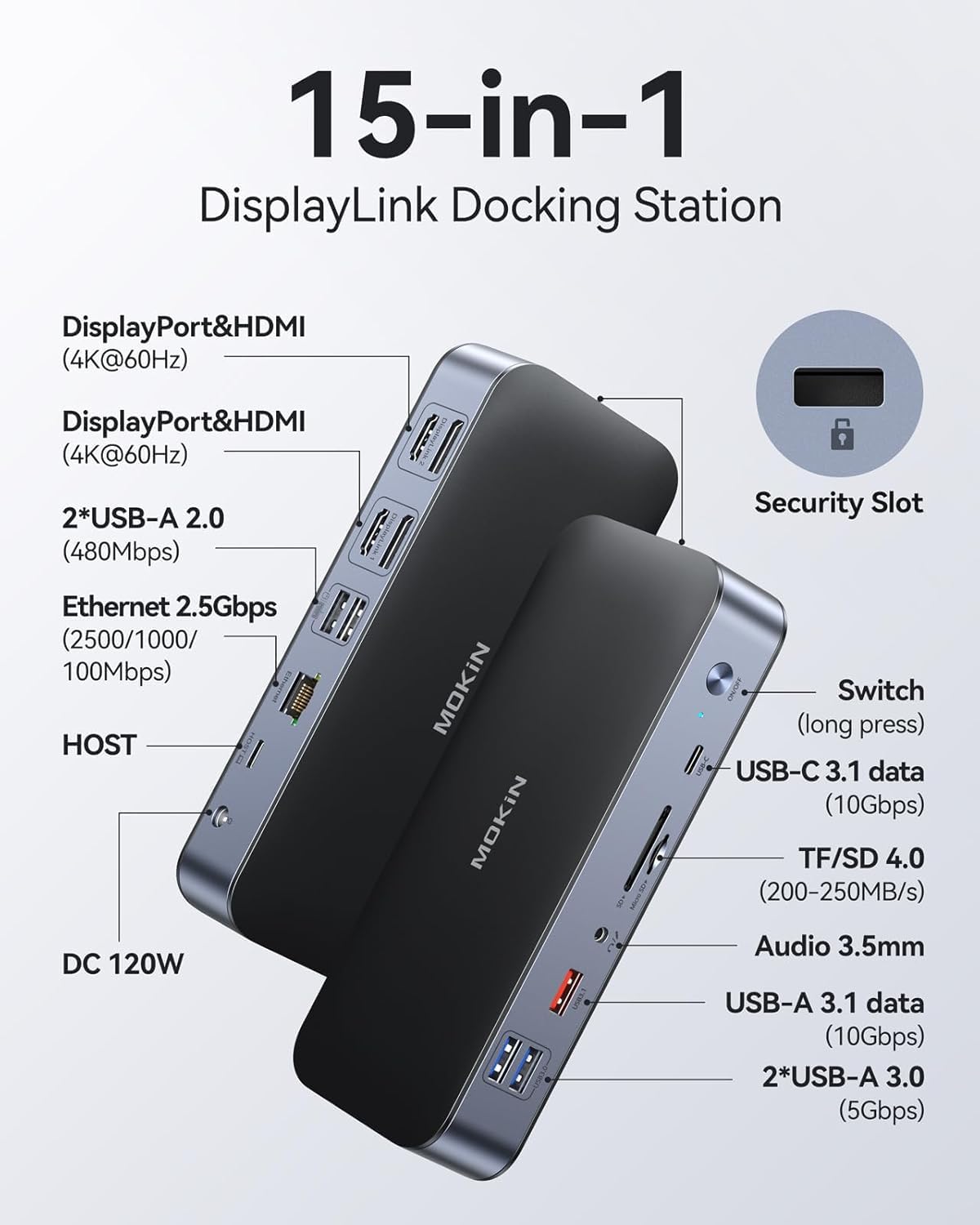
Image: Detailed view of the docking station's ports, including DisplayPort, HDMI, USB-A, Ethernet, DC power, USB-C, SD/TF, and audio jack.
Package Contents
Please verify that all items are present in your package:
- 1 x MOKiN DisplayLink Docking Station
- 1 x DC 120W Power Adapter
- 1 x 3ft USB-C to USB-A Cable (for USB-A 3.0 Laptops)
- 1 x 2ft USB-C to USB-C Cable (for Thunderbolt or USB-C 3.0 Laptops)
- 1 x User Manual (this document)
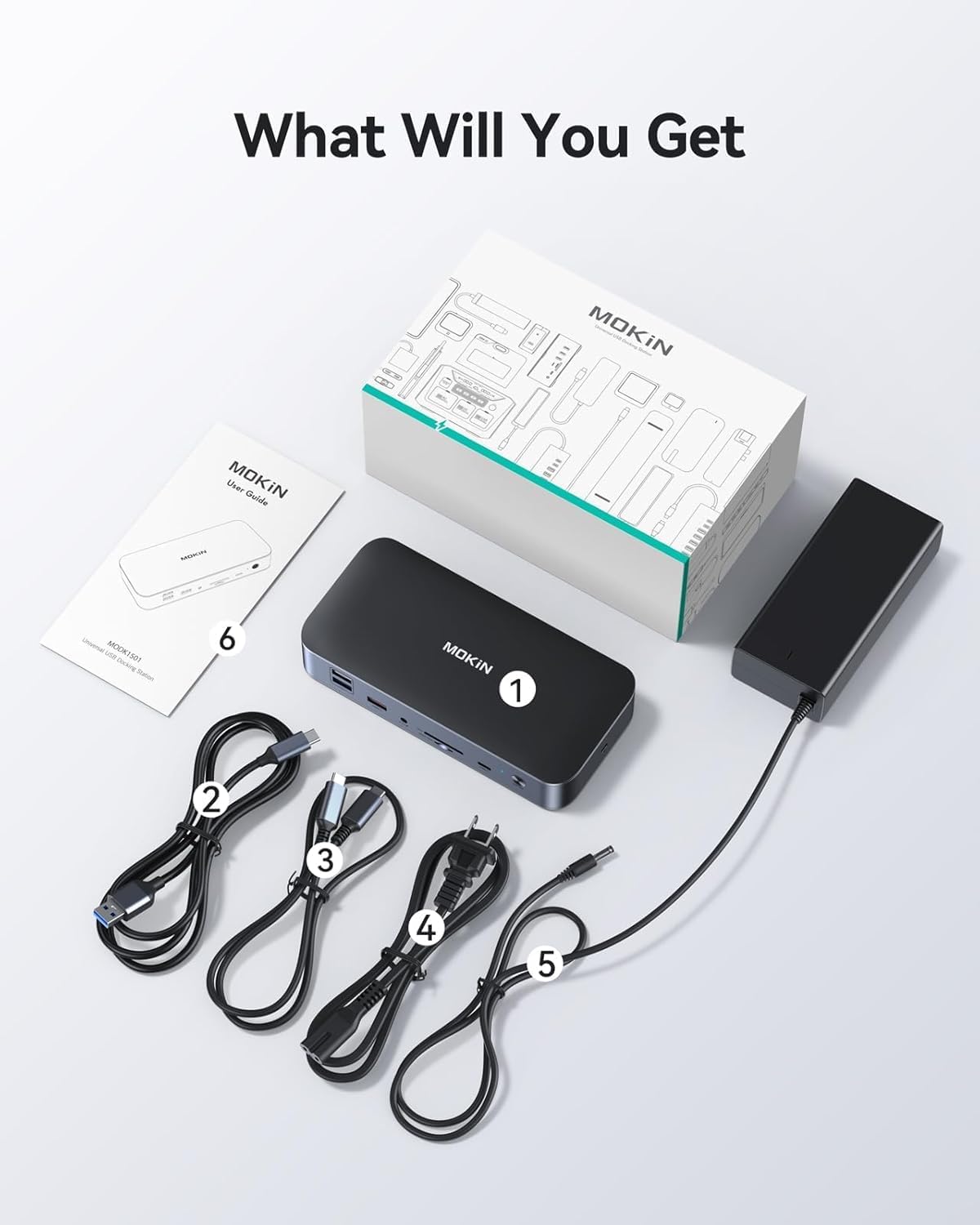
Image: The complete package contents, including the docking station, power adapter, USB cables, and user guide.
Setup Guide
Follow these steps to set up your MOKiN DisplayLink Docking Station:
Step 1: Install DisplayLink Driver
The DisplayLink driver is essential for the docking station's video output functionality, especially for dual monitor setups and compatibility with various operating systems, including macOS M1/M2 chips. This driver converts the data signal into a video signal.
- Visit the official DisplayLink website: www.displaylink.com
- Navigate to the 'Downloads' or 'Drivers' section.
- Select your operating system (Windows, macOS, ChromeOS, Android, Ubuntu).
- Download and install the latest DisplayLink driver. Follow the on-screen instructions.
- Restart your computer if prompted.
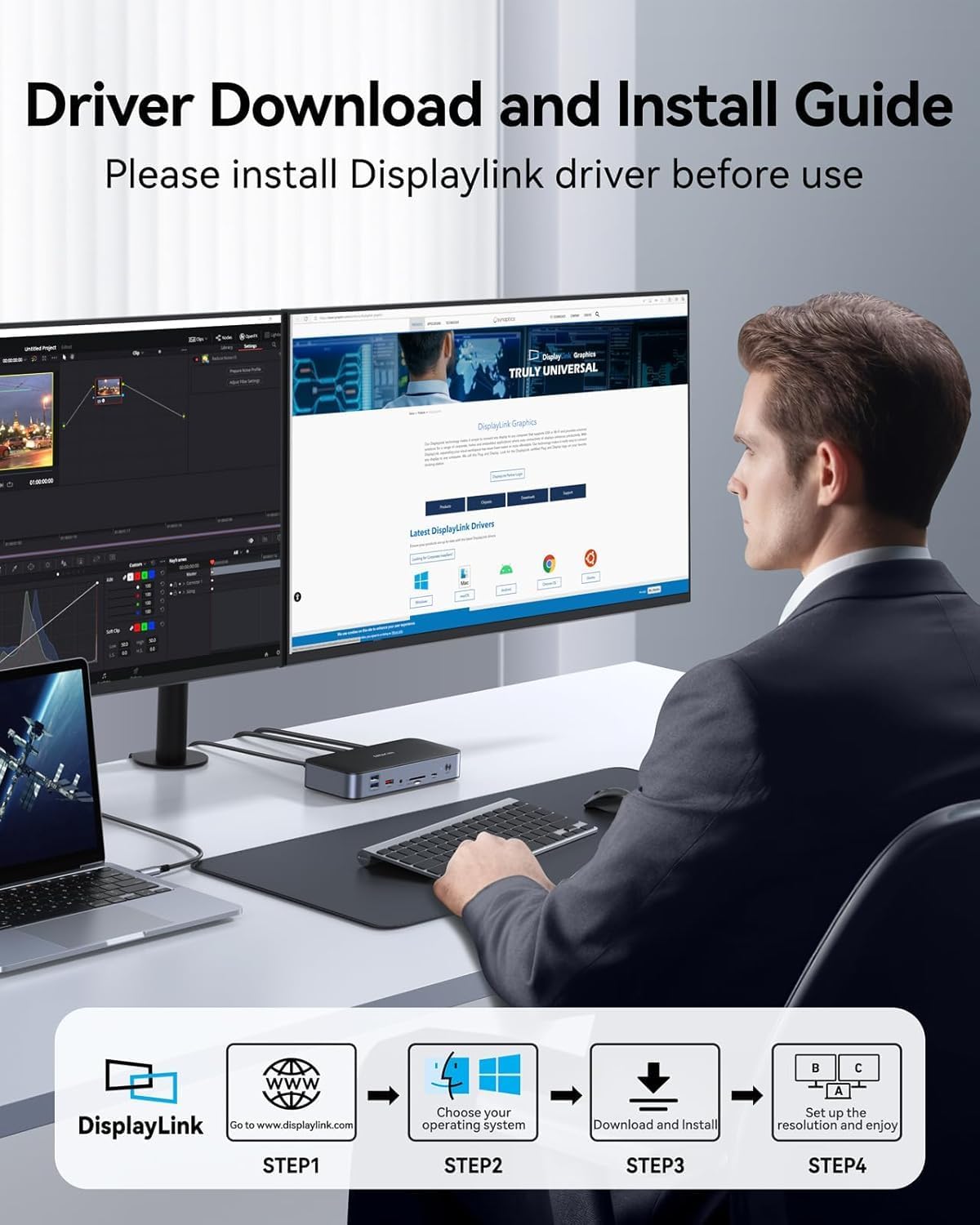
Image: Visual guide for downloading and installing the DisplayLink driver from the official website.
Step 2: Connect Power
- Connect the DC 120W power adapter to the 'DC 120W' port on the docking station.
- Plug the power adapter into a wall outlet.
Step 3: Connect to Laptop
- Use the provided USB-C to USB-C cable to connect the docking station's 'HOST' port to your laptop's USB-C or Thunderbolt port.
- If your laptop only has a USB-A 3.0 port, use the provided USB-C to USB-A cable to connect the docking station's 'HOST' port to your laptop.
Step 4: Connect Peripherals and Displays
- Connect your external monitors to the HDMI and/or DisplayPort outputs on the docking station.
- Connect your keyboard, mouse, external hard drives, and other USB devices to the available USB-A and USB-C data ports.
- Insert SD or TF cards into the corresponding slots.
- Connect an Ethernet cable from your router/modem to the 2.5Gbps Ethernet port on the docking station for wired network access.
- Connect headphones or speakers to the 3.5mm audio jack.
Operating Instructions
Display Configuration
Once connected, your operating system should detect the external monitors. You can configure display settings as follows:
- Windows: Right-click on the desktop, select 'Display settings'. Here you can extend or duplicate your desktop across multiple monitors.
- macOS: Go to 'System Settings' (or 'System Preferences'), then 'Displays'. You can arrange displays, set resolutions, and choose between extended or mirrored modes.
The docking station supports MST (Multi-Stream Transport) for different screen displays, allowing you to extend your desktop across two distinct external monitors at 4K@60Hz.
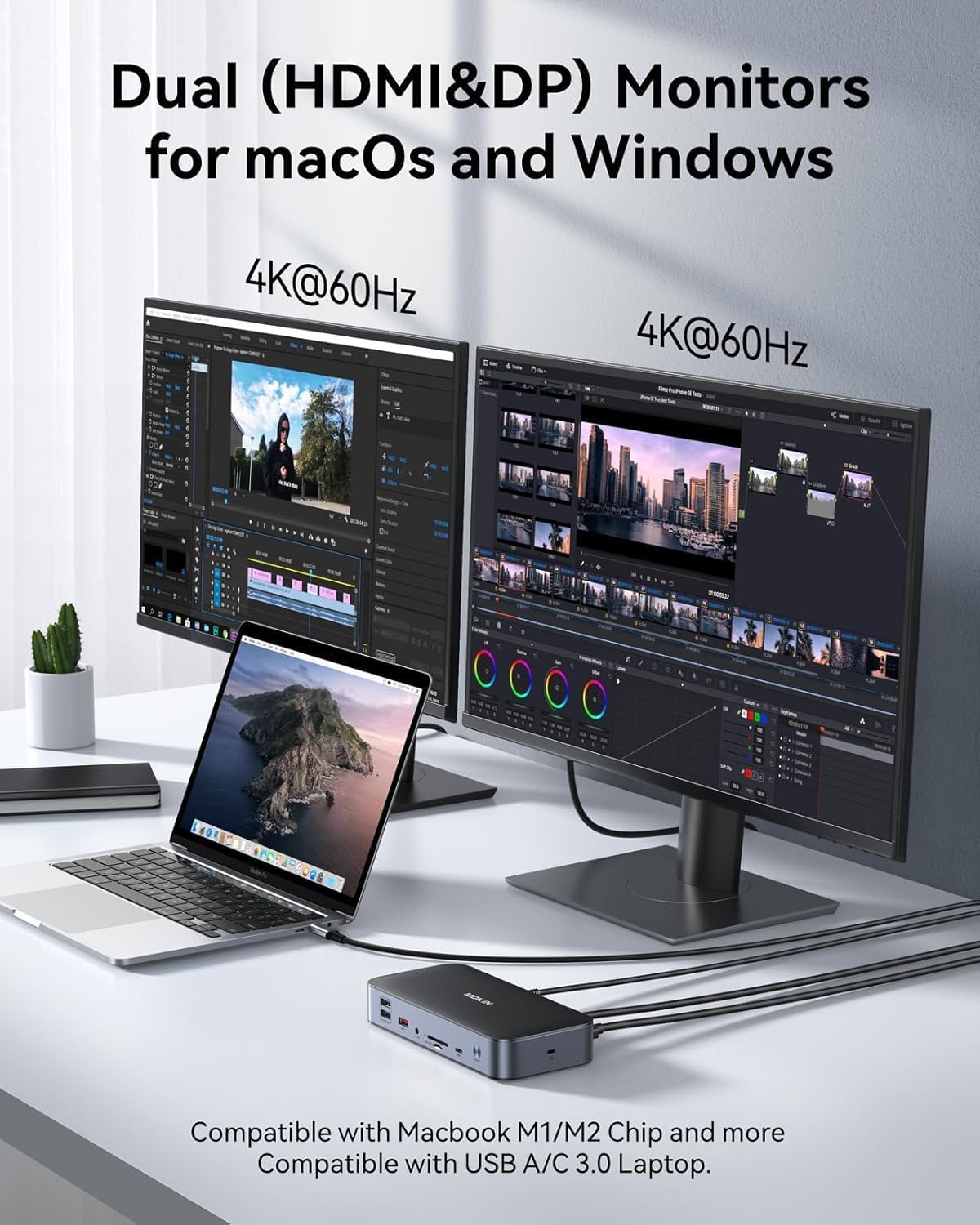
Image: A laptop connected to the MOKiN docking station, driving two external 4K@60Hz monitors in an extended desktop configuration.
Data Transfer
Utilize the various USB ports and card readers for data transfer:
- USB-C 3.1 & USB-A 3.1: For high-speed devices like external SSDs, offering up to 10 Gbps.
- USB-A 3.0: For standard USB peripherals, providing up to 5 Gbps.
- USB-A 2.0: Ideal for wireless mouse and keyboard receivers to minimize interference and ensure stable connections.
- SD/TF 4.0 Card Slots: For fast transfer of photos and videos from memory cards, up to 250 MB/s.
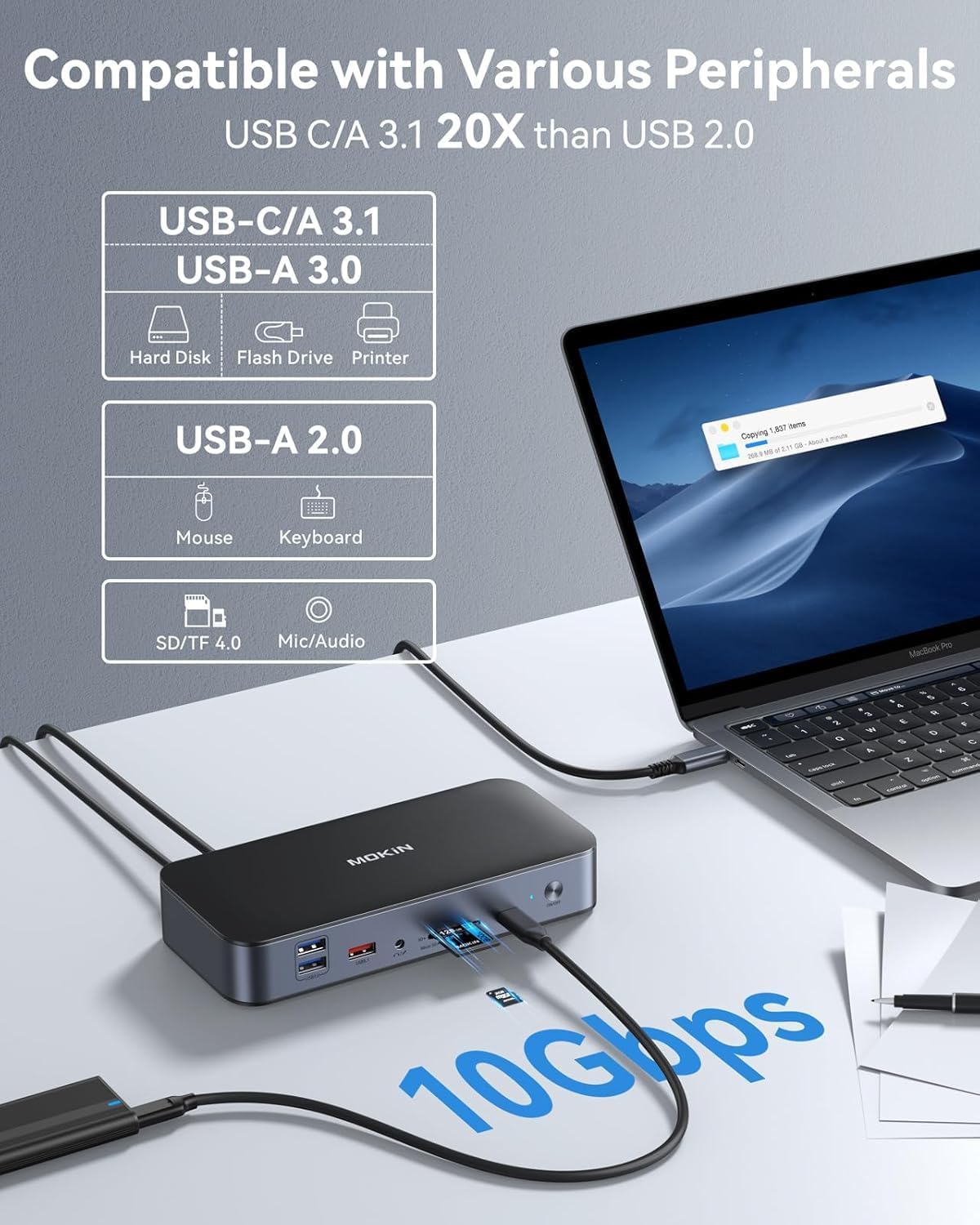
Image: Illustration of the docking station's USB ports and their respective data transfer speeds, including USB-C/A 3.1 (10Gbps), USB-A 3.0 (5Gbps), and USB-A 2.0.
Network Connection
The 2.5Gbps RJ45 Ethernet port provides a stable and fast wired network connection, superior to standard Gigabit Ethernet. Ensure your router and network infrastructure support 2.5Gbps for optimal performance.
Power Delivery
The 120W DC power adapter not only powers the docking station but also delivers power to your connected laptop through the USB-C host connection, reducing cable clutter and ensuring your laptop remains charged during use.
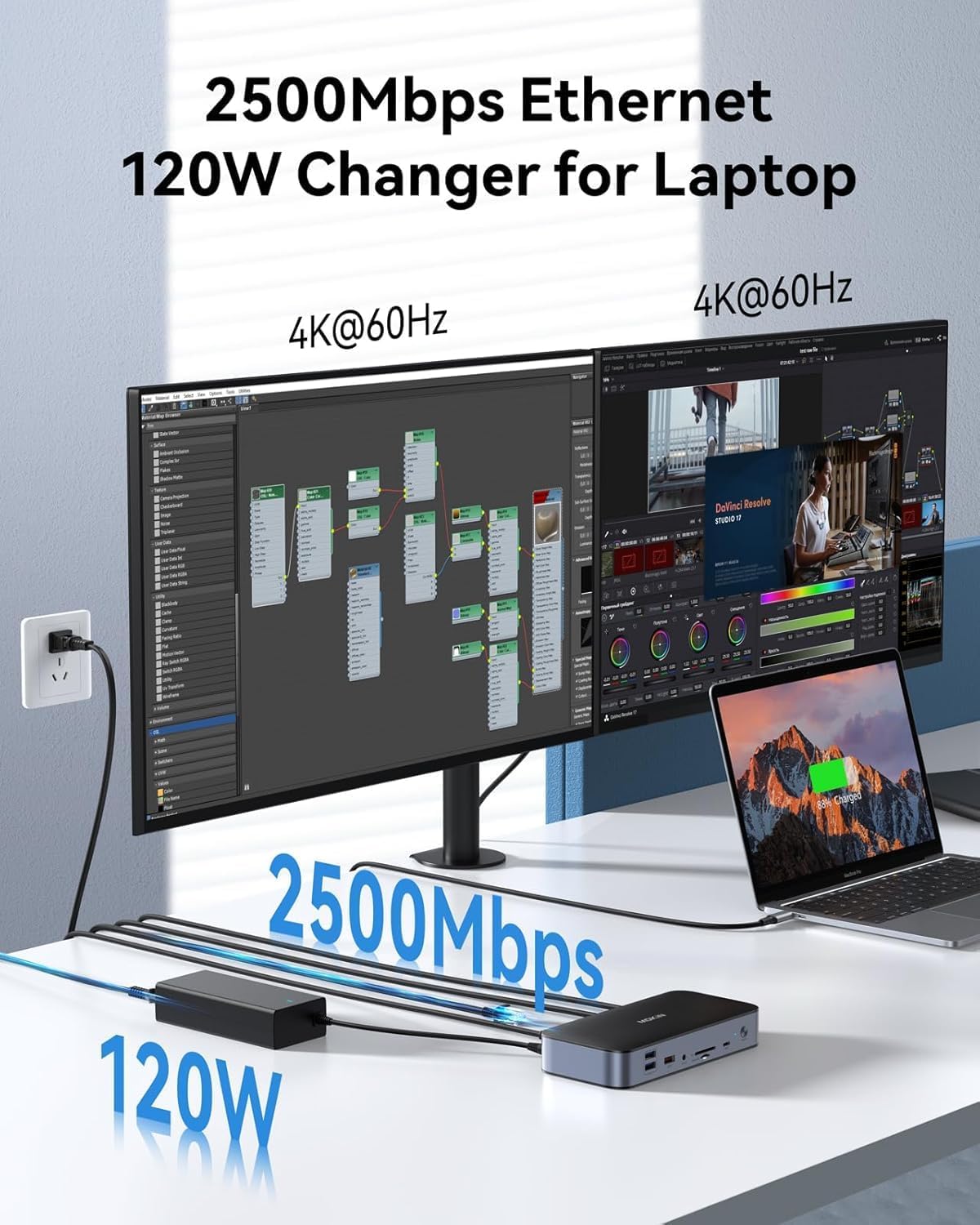
Image: The docking station connected to a laptop and two monitors, highlighting the 2500Mbps Ethernet and 120W power delivery capabilities.
Compatibility
The MOKiN DisplayLink Docking Station is compatible with a wide range of laptops and operating systems:
- Laptops: Compatible with MacBook Air/Pro (2017-2023), Lenovo, Chromebook, Surface, HP, Dell, ASUS, and other laptops with USB-A 3.0, USB-C, USB4, or Thunderbolt ports.
- Operating Systems: Supports Windows, macOS (including M1/M2 chips), and ChromeOS.
Troubleshooting
If you encounter issues, please refer to the following common solutions:
- No Display Output:
- Ensure the DisplayLink driver is correctly installed and updated.
- Verify all cables (USB-C/A to laptop, HDMI/DP to monitors) are securely connected.
- Check your laptop's display settings to ensure external monitors are detected and configured (extended/duplicated).
- Try restarting your laptop and the docking station.
- No Power Delivery to Laptop:
- Confirm the 120W DC power adapter is firmly connected to both the dock and a working power outlet.
- Ensure the USB-C cable connecting the dock to your laptop supports power delivery.
- Slow Data Transfer:
- Ensure you are using the correct USB 3.1/3.0 ports for high-speed devices.
- Check the quality of your USB cables.
- No Network Connection:
- Verify the Ethernet cable is securely connected to both the dock and your router/modem.
- Check your laptop's network settings.
- Ensure your network drivers are up to date.
- Dock Not Recognized by Laptop:
- Ensure the USB-C/A host cable is properly connected.
- Try connecting to a different USB-C/A port on your laptop.
- Update your laptop's USB controller drivers.
Specifications
| Feature | Specification |
|---|---|
| Brand | MOKiN |
| Model | B0F631JF3K |
| Color | Grey |
| Hardware Interface | DisplayPort, Ethernet, HDMI, USB 2.0 Type A, USB 3.0 Type A, USB 3.1 Type C |
| Compatible Devices | Laptops with USB-C, USB4, and Thunderbolt connections |
| Total USB Ports | 7 (2x USB-C 3.1, 2x USB-A 3.1, 2x USB-A 3.0, 2x USB-A 2.0) |
| Total HDMI Ports | 2 |
| Total DisplayPort Ports | 2 |
| Ethernet Speed | 2.5Gbps (2500/1000/100/10Mbps) |
| Card Reader | SD/TF 4.0 (up to 250MB/s) |
| Audio Port | 3.5mm Audio Jack |
| Power Delivery | 120W DC Charger |
Maintenance
To ensure the longevity and optimal performance of your docking station, follow these maintenance guidelines:
- Cleaning: Use a soft, dry, anti-static cloth to clean the exterior of the docking station. Avoid liquid cleaners or abrasive materials.
- Storage: Store the docking station in a cool, dry place away from direct sunlight and extreme temperatures.
- Handling: Avoid dropping or subjecting the device to strong impacts. Do not attempt to disassemble the unit.
- Ventilation: Ensure the docking station has adequate ventilation to prevent overheating. Do not block any vents.
Safety Information
Please observe the following safety precautions:
- Do not expose the device to water, moisture, or high humidity.
- Keep the device away from heat sources such as radiators, heat registers, stoves, or other apparatus (including amplifiers) that produce heat.
- Use only the provided power adapter. Using unauthorized power adapters may damage the device and void the warranty.
- Do not operate the device if it has been damaged in any way.
- Keep out of reach of children.
Warranty and Support
MOKiN products are designed for reliability and performance. For warranty information or technical support, please refer to the warranty card included with your product or visit the official MOKiN website. You may also contact MOKiN customer service directly for assistance with product issues or inquiries.