
DOOGEE A9PRO+-V
DOOGEE Tab A9 Pro+ (2025) User Manual
Model: A9PRO+-V GRAY
1. Introduction
This manual provides detailed instructions for the proper use and maintenance of your DOOGEE Tab A9 Pro+ (2025) 11-inch Tablet. Please read this manual thoroughly before operating the device to ensure optimal performance and longevity. The DOOGEE Tab A9 Pro+ is designed for versatile use, from productivity tasks to entertainment, featuring the latest Android 15 OS and a powerful octa-core processor.
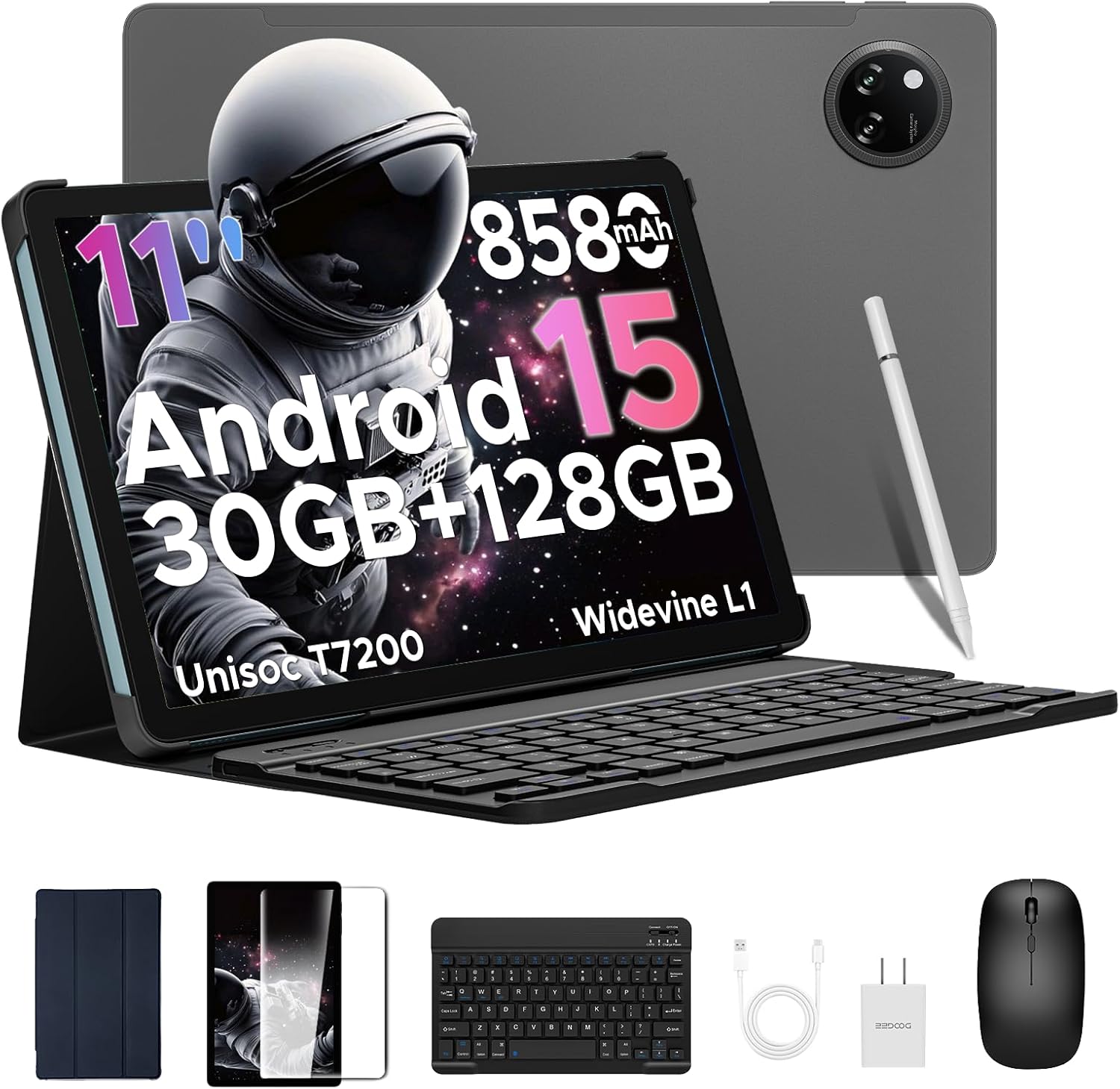
Image: The DOOGEE Tab A9 Pro+ tablet shown with its included accessories: a Bluetooth keyboard, mouse, stylus, and protective case.
2. Setup
2.1 Package Contents
Verify that all items are present in the package:
- DOOGEE Tab A9 Pro+ Tablet
- Bluetooth Keyboard
- Bluetooth Mouse
- Stylus Pen
- Screen Protector (pre-applied or separate)
- Protective Case
- USB Type-C Cable
- Power Adapter
- User Manual (this document)

Image: A visual representation of the DOOGEE Tab A9 Pro+ package contents, including the tablet, keyboard, mouse, stylus, charger, and cables.
2.2 Initial Charging
Before first use, fully charge the tablet using the provided USB Type-C cable and power adapter. The charging indicator will show progress. A full charge ensures optimal battery calibration.
2.3 Powering On/Off
- Power On: Press and hold the Power button (located on the side) until the DOOGEE logo appears.
- Power Off: Press and hold the Power button, then select 'Power off' from the options on the screen.
- Restart: Press and hold the Power button, then select 'Restart' from the options.
2.4 Connecting Accessories
The DOOGEE Tab A9 Pro+ comes with a Bluetooth keyboard, mouse, and stylus for enhanced productivity.
- Bluetooth Keyboard/Mouse:
- Turn on the keyboard/mouse.
- On the tablet, go to Settings > Connected devices > Bluetooth.
- Enable Bluetooth and search for available devices.
- Select the keyboard/mouse from the list and follow on-screen pairing instructions.
- Stylus Pen: The stylus typically connects automatically or requires no pairing for basic functions. Refer to specific stylus instructions if advanced features require pairing.

Image: A diagram illustrating the various accessories that come with the tablet, including a tempered film, leather protective cover, Bluetooth mouse, and Bluetooth keyboard.
2.5 Initial Android 15 Setup
Upon first power-on, follow the on-screen prompts to complete the initial setup:
- Select your language and region.
- Connect to a Wi-Fi network.
- Sign in with your Google account or create a new one.
- Review and accept terms and conditions.
- Set up screen lock (PIN, pattern, password, or Face ID).

Image: The Android 15 system logo displayed on the tablet screen, highlighting the device's operating system.
3. Operating Your Tablet
3.1 Display Features
The DOOGEE Tab A9 Pro+ features an 11-inch Full HD 90Hz display with a resolution of 1280x800 pixels, providing a smooth and vivid visual experience. It supports Widevine L1 for high-definition streaming content.

Image: The tablet's 11-inch IPS HD Ultra-Clear Display, showcasing its 1280x800 resolution and 90Hz refresh rate for an enchanting visual experience.
3.2 Performance and Storage
Powered by the Unisoc T7200 Octa-Core processor, the tablet offers robust performance for multitasking and gaming. It comes with 30GB of RAM (6GB physical + 24GB virtual) and 128GB of internal storage, expandable up to 2TB via microSD/TF card (sold separately).

Image: A detailed view of the Unisoc T7200 Octa-Core Processor, emphasizing its role in boosting speed and efficiency.

Image: A visual representation of the tablet's memory and storage capabilities, highlighting 30GB RAM and 128GB ROM for massive storage and less lag.
3.3 Camera Usage
The tablet is equipped with a 13MP main camera and a 5MP front camera, suitable for capturing photos, video calls, and online meetings.
- Taking Photos: Open the Camera app, frame your shot, and tap the shutter button.
- Video Recording: Switch to video mode in the Camera app and tap to start/stop recording.
- Selfies & Video Calls: Use the 5MP front camera for clear self-portraits and engaging video chats.

Image: The 13MP Main Camera, designed to capture every detail with clarity, shown with example photos.

Image: The Ultra-Clear 5MP Front Camera, ideal for perfect selfies and video calls, depicted with a group video call in progress.
3.4 Audio Features
Experience immersive sound with high-fidelity dual speakers. A standard 3.5mm audio jack is also available for wired headphones.

Image: The Premium 1217 BOX Dual Speakers, providing a crystal-clear sound experience, illustrated with sound waves emanating from the tablet.

Image: The standard 3.5mm Audio Jack, ensuring stable and distortion-free audio transmission, shown with a user listening to music.
3.5 Connectivity
The tablet supports 2.4G/5G dual-band WiFi for stable internet connection and Bluetooth 5.0 for wireless accessories. Built-in GPS, Glonass, Galileo, and Beidou ensure precise navigation.

Image: Faster WiFi 5 capabilities, providing seamless connectivity across 2.4G/5G bands, depicted with a speed-line background.

Image: The Precise Navigation System, featuring GPS, Glonass, Galileo, and Beidou, shown with a user navigating in a car.
3.6 Security Features
The tablet supports Face Unlock for effortless and secure access.

Image: Facial Recognition Unlock in action, providing effortless access to the tablet.
3.7 Productivity and Display Modes
Enhance your productivity with built-in PC-level WPS Office and efficient split-screen multitasking. The tablet also offers Eye-Caring Mode, Dark Mode, and Anti-Flicker Mode for comfortable viewing.

Image: Built-in PC-level WPS Office, enabling seamless productivity on the go, shown with various office applications.

Image: Efficient Split-Screen Multitasking, transforming complexity into simplicity, demonstrated with two applications open side-by-side.

Image: Eye-Caring Mode and Dark Mode features, designed to protect eyes and soften light for night use, respectively.

Image: Anti-Flicker Mode, providing enhanced visual comfort by reducing screen flickering.
4. Maintenance
4.1 Battery Care
The tablet is equipped with an 8580mAh high-capacity battery, supporting 10W fast charging and 5W reverse charging.
- Avoid extreme temperatures (hot or cold) as they can degrade battery life.
- Do not let the battery drain completely regularly.
- Use only the provided charger or certified compatible chargers.
- For long-term storage, charge the tablet to about 50-60% and power it off.

Image: The 8580mAh High-Capacity Battery, illustrating its long battery life and lasting enjoyment, along with charging specifications.
4.2 Cleaning the Device
- Use a soft, lint-free cloth to clean the screen and body.
- For stubborn smudges, slightly dampen the cloth with water or a screen cleaner.
- Avoid using harsh chemicals, abrasive materials, or aerosol sprays.
4.3 Software Updates
Regularly check for and install software updates to ensure your tablet has the latest features, security patches, and performance improvements. Go to Settings > System > System update.
4.4 Storage Management
The built-in Memory Manager helps you keep your tablet running smoothly by allowing you to delete junk files, duplicate items, and large downloads to free up space.
- Regularly clear cache and unnecessary files.
- Uninstall unused applications.
- Utilize cloud storage for large files to free up local space.
5. Troubleshooting
| Problem | Possible Solution |
|---|---|
| Tablet does not turn on. | Ensure the battery is charged. Connect the charger and wait a few minutes before attempting to power on again. |
| Screen is unresponsive. | Perform a forced restart by holding the Power button for approximately 10-15 seconds. |
| Wi-Fi connection issues. | Restart the tablet and your Wi-Fi router. Forget the network in settings and reconnect. |
| Apps are crashing or running slowly. | Close background apps. Clear app cache (Settings > Apps > [App Name] > Storage > Clear cache). Ensure sufficient storage space. |
| Accessories (keyboard/mouse) not connecting. | Ensure accessories are charged and in pairing mode. Re-pair them via Bluetooth settings. |
6. Specifications
| Feature | Detail |
|---|---|
| Model | TABA9PRO+ |
| Operating System | Android 15 |
| Processor | Unisoc T7200 Octa-Core (1.6 GHz) |
| Display Size | 11 Inches |
| Max Screen Resolution | 1280*800 Pixels (90Hz) |
| RAM | 30GB (6GB Basic + 24GB Extended) |
| Internal Storage | 128 GB Flash Memory |
| Expandable Storage | Up to 2TB (microSD/TF card) |
| Battery Capacity | 8580mAh |
| Front Camera | 5MP |
| Rear Camera | 13MP |
| Connectivity | 2.4G/5G WiFi, Bluetooth 5.0, GPS |
| Dimensions (LxWxH) | 10.1 x 6.64 x 0.31 inches |
| Item Weight | 1.41 pounds (664g) |
7. Official Product Video
Watch the official product video for a visual overview of the DOOGEE Tab A9 Pro+ (2025) tablet's features and capabilities.
Video: DOOGEE Tab A9 Pro+ (2025) 11 inch Tablet with Keyboard --The Latest Android 15 OS. This video provides a comprehensive look at the tablet's design, features, and user experience.
8. Warranty and Support
DOOGEE offers comprehensive support for your Tab A9 Pro+ (2025) tablet:
- Warranty: The product comes with a 2-year limited warranty.
- Return Policy: Enjoy a 30-day money-back guarantee and free returns.
- Customer Service: Online support is available 24/7. If you have any questions, please reach out to the seller for assistance. Responses are typically provided within 24 hours.
Related documentsA9PRO+-V


Ask a question about this manual
Ask about setup, troubleshooting, compatibility, parts, safety, or missing instructions. Manuals+ will review the question and use this page’s manual context to help answer it.