
1. Introduction
This manual provides detailed instructions for the setup, operation, and maintenance of your ECONTROLLY Voice Replacement Remote Control. This remote is specifically designed for use with Mecool Android Smart TV Box models KM2 and KM2 Plus. Please read this manual thoroughly before using the remote control to ensure proper functionality and to avoid any issues.
2. Product Overview
The ECONTROLLY Voice Replacement Remote Control offers a convenient way to control your Mecool Android Smart TV Box, featuring voice control capabilities for enhanced user experience. It is a direct replacement for the original remote control for KM2 and KM2 Plus models.
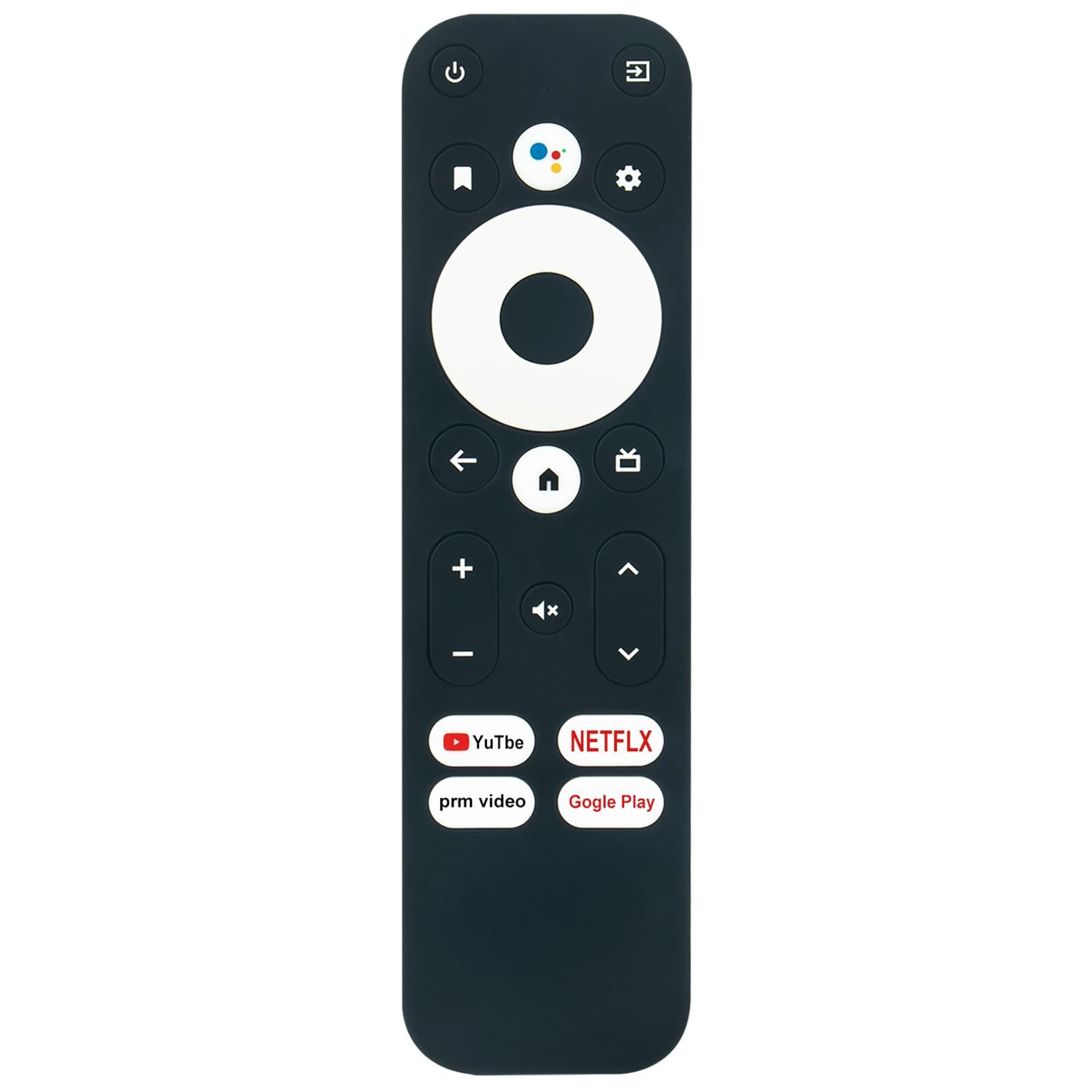
Image 2.1: Front view of the ECONTROLLY Voice Replacement Remote Control. This image displays the remote control's layout, including the power button, navigation pad, volume controls, and dedicated app buttons for YouTube, Netflix, Prime Video, and Google Play, along with the voice search button.
Key Features:
- Voice control functionality for easy navigation and search.
- Dedicated buttons for popular streaming services.
- Ergonomic design for comfortable handling.
- Compatible with Mecool Android Smart TV Box models KM2 and KM2 Plus.
3. Setup
3.1. Battery Installation
The remote control requires AAA ALKALINE batteries for operation. Batteries are not included with the remote control.
- Locate the battery compartment cover on the back of the remote control.
- Slide the cover downwards or press the latch (if present) to open the compartment.
- Insert two (2) AAA ALKALINE batteries, ensuring the positive (+) and negative (-) terminals match the diagrams inside the compartment.
- Close the battery compartment cover securely.
Important: Do not use rechargeable batteries. Only AAA ALKALINE batteries are recommended for optimal performance and to prevent potential damage to the remote control.
3.2. Pairing the Remote Control
This remote control requires pairing with your Mecool Android Smart TV Box before first use. The pairing process establishes a wireless connection between the remote and your device.
- Ensure your Mecool Android Smart TV Box is powered on and connected to your TV.
- With the remote control powered by fresh AAA ALKALINE batteries, bring it close to your TV Box.
- Follow the specific pairing instructions provided with your Mecool Android Smart TV Box. Typically, this involves navigating to the Bluetooth settings or remote control settings menu on your TV Box using an existing remote or the physical buttons on the box itself.
- Once in the pairing mode on your TV Box, press and hold the OK button (center of the navigation pad) and the Back button simultaneously on the new remote control for a few seconds.
- The remote control's indicator light (if present) may flash, and your TV Box should detect the new remote.
- Select the detected remote control on your TV screen to complete the pairing process.
- Once paired, test the remote control's functions to ensure it is working correctly.
If you encounter difficulties, refer to your Mecool Android Smart TV Box's user manual for specific pairing instructions, as procedures may vary slightly between models.
4. Operating the Remote Control
4.1. Basic Functions
- Power Button (⏻): Turns the TV Box on or off.
- Navigation Pad (Up, Down, Left, Right, OK): Used to navigate menus and select items on the screen. The OK button confirms selections.
- Back Button (↩): Returns to the previous screen or menu.
- Home Button (🏠): Returns to the main home screen of the TV Box.
- Volume Up/Down (+/-): Adjusts the volume level.
- Mute Button (🔇): Mutes or unmutes the audio.
- Dedicated App Buttons (YouTube, Netflix, Prime Video, Google Play): Provide quick access to these popular streaming applications.
4.2. Voice Control
The remote control features a voice search function, allowing you to search for content or issue commands using your voice.
- Press the Voice Search Button (microphone icon) on the remote control.
- Hold the remote control close to your mouth and speak clearly into the microphone.
- Release the button when you have finished speaking.
- The TV Box will process your voice command or search query.
Ensure your TV Box is connected to the internet for optimal voice control performance.
5. Maintenance
5.1. Cleaning
To maintain the remote control's appearance and functionality:
- Wipe the surface with a soft, dry cloth.
- For stubborn dirt, lightly dampen the cloth with water or a mild, non-abrasive cleaner.
- Avoid using harsh chemicals, solvents, or abrasive cleaning pads, as these can damage the remote's finish or internal components.
5.2. Battery Care
- Replace batteries when the remote control's performance degrades or if it stops responding.
- Always replace both batteries at the same time with new AAA ALKALINE batteries.
- Do not mix old and new batteries, or different types of batteries.
- If the remote control will not be used for an extended period, remove the batteries to prevent leakage and potential damage.
- Dispose of used batteries according to local regulations.
6. Troubleshooting
If you experience issues with your remote control, refer to the following common problems and solutions:
| Problem | Possible Cause | Solution |
|---|---|---|
| Remote control is not responding. |
|
|
| Voice control is not working. |
|
|
| Buttons are sticky or unresponsive. |
|
|
If the problem persists after trying these solutions, please contact customer support for further assistance.
7. Specifications
Below are the technical specifications for the ECONTROLLY Voice Replacement Remote Control:
- Model Compatibility: Mecool Android Smart TV Box KM2, KM2 Plus
- Power Source: 2 x AAA ALKALINE batteries (not included)
- Special Feature: Voice Search
- Color: Black
- Product Dimensions: 3.94 x 1.57 x 0.59 inches (10 x 4 x 1.5 cm)
- Item Weight: 1.76 ounces (50 grams)
- Max Number of Supported Devices: 1
- Compatible Devices: Television (via TV Box)

Image 7.1: Dimensions of the ECONTROLLY Voice Replacement Remote Control. This image illustrates the length (5.1 inches) and width (1.57 inches) of the remote control.
8. Warranty and Support
For warranty information or technical support, please refer to the documentation provided with your purchase or contact the seller directly. Keep your purchase receipt as proof of purchase.
For further assistance, you may also visit the ECONTROLLY brand's official support channels or the Mecool Android Smart TV Box manufacturer's website for device-specific support.